

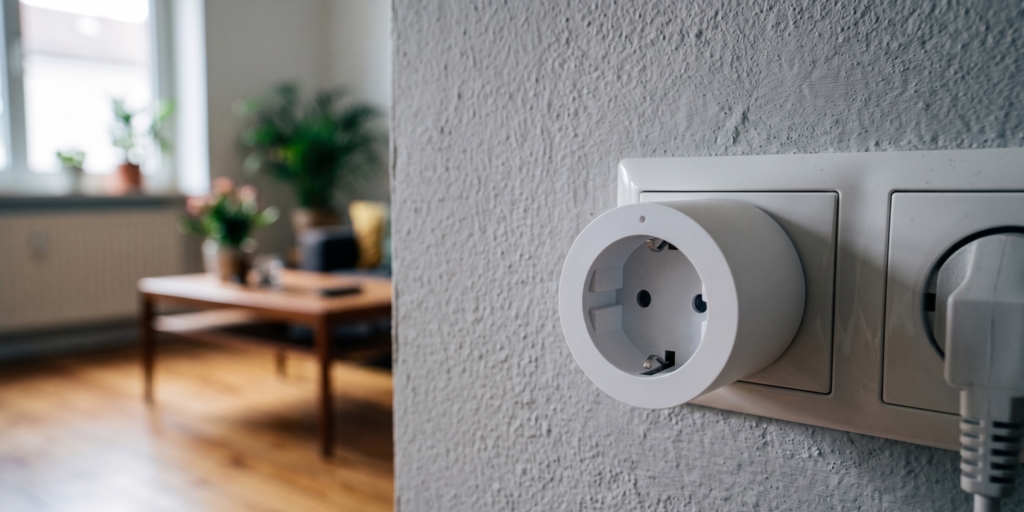
Aqara Smart Plug EU (SP-EUC01): Local Setup in Home Assistant
This post contains affiliate links. If you buy through them, I may earn a small commission at no extra cost to you.
You can use the Aqara SP-EUC01 with Home Assistant without buying an Aqara hub. Zigbee2MQTT supports this EU plug directly: a compatible Zigbee coordinator handles the radio connection, and MQTT carries its switch and meter readings into Home Assistant.
A retailer’s “Aqara hub required” wording describes the Aqara Home setup. The route below uses your own coordinator instead. It covers pairing, energy monitoring, a laundry notification, load limits, and the documented v42 firmware problem involving certain IKEA switches.
What the SP-EUC01 does — and why it works without the Aqara hub
The SP-EUC01 is the European Schuko plug, rated at 10A and a maximum of 2300W. Aqara lists Zigbee 3.0 for this model; the official specifications also give its operating limits. Check the model on the plug, since Aqara sells other regional plugs with different connectors and ratings.
Its main readings and controls in Zigbee2MQTT are:
- state: switch the outlet on or off.
- power: instantaneous consumption in watts.
- energy: accumulated consumption in kilowatt-hours.
- voltage and current: supply voltage and load current.
- device_temperature: internal device temperature, polled every 30 minutes.
There are additional settings beyond those meter readings. The SP-EUC01 device page lists power-outage memory, overload protection, the physical button lock, night LED control, load detection, and automatic shutoff. The number of Home Assistant entities can vary with discovery settings and disabled diagnostic entities.
With a local MQTT broker, outlet control runs from Home Assistant through Zigbee2MQTT to the plug. Aqara’s app and servers are outside that control path. The plug also acts as a Zigbee router while it has mains power, including when its controlled outlet is off. It may help nearby battery devices such as the temperature/humidity sensor T1, although a sensor’s choice of parent router and compatibility still matter.
Prerequisites
- Home Assistant with its MQTT integration connected to your broker.
- A working Zigbee2MQTT installation and a coordinator from its supported adapter list. A device being labelled Zigbee 3.0 does not make every coordinator or firmware combination interchangeable.
- The SP-EUC01 and a load within its electrical rating.
This guide starts after Zigbee2MQTT is running. The door/window sensor T1 guide covers another Aqara pairing workflow. For a USB coordinator, an extension cable can help move its radio away from the host, USB 3 equipment, and other sources of 2.4GHz interference. It is a useful troubleshooting step, rather than a guarantee against every dropout.
Pairing the SP-EUC01 to Zigbee2MQTT
- Plug the SP-EUC01 into a suitable mains socket.
- In Zigbee2MQTT, enable Permit join.
- Hold the plug’s button for about five seconds until the blue indicator blinks. This starts network pairing.
- Wait for Zigbee2MQTT to finish interviewing the device and identify it as SP-EUC01.
- Give it a friendly name, such as
washing_machine, and close the join window.
The plug is mains-powered, so keeping a sleeping sensor awake is not part of this procedure. If it does not join, check that joining is still enabled, bring it closer to the coordinator, and repeat the button hold.
If the plug appears in Zigbee2MQTT but not Home Assistant, check the MQTT connection and discovery setting. Current Zigbee2MQTT configuration uses the following structure; merge it into your existing configuration rather than adding a second homeassistant key:
homeassistant:
  enabled: true
Zigbee2MQTT’s Home Assistant configuration reference explains this discovery setting.
Entities in Home Assistant
Open the plug under Settings → Devices & services → MQTT. Friendly names influence the initial entity IDs, but renamed entities may differ from the examples here.
| Reading or control | Type | Use |
|---|---|---|
| Outlet state | Switch | Local on/off control |
power |
Sensor, W | Detect appliance activity |
energy |
Sensor, kWh | Track consumption over time |
voltage |
Sensor, V | Supply reading |
current |
Sensor, A | Load reading |
device_temperature |
Sensor, °C | Plug temperature; not a room thermometer |
Allow readings to arrive from the device. Power and energy are reported values, not measurements you can force by writing a new number to the sensor.
Setting up the Energy Dashboard
Use the accumulated energy sensor in kWh for consumption history. The power sensor in W describes what the appliance is drawing now; current Home Assistant versions can also accept power sensors for power graphs, so they are useful alongside the energy total.
- Open Settings → Dashboards → Energy and its configuration.
- Under individual device consumption, add the plug’s energy entity, for example
sensor.washing_machine_energy. - Add its power entity where your Home Assistant version offers that option.
- Save, then allow statistics to accumulate before expecting a useful graph.
If the energy entity is missing from the selector, check its unit, device class, and state class in Developer Tools. Home Assistant’s Energy FAQ explains the required statistics metadata; the individual-device guide covers energy and power inputs.
Calibration: Zigbee2MQTT offers percentage offsets for power, energy, voltage, and current. Apply them in the device options only after comparison with a suitable reference. They affect the next device report. Precision options reduce displayed decimal places; they do not improve the underlying measurement accuracy.
Resetting consumption totals: the supported SP-EUC01 exposes do not include an energy-reset command. Do not assume a Tuya reset_energy payload or a developer-console factory-reset command is a supported, pairing-safe reset for this Aqara plug. A hardware reset is unnecessary for monthly or daily totals: create a Utility Meter helper, select the cumulative energy sensor as its source, and choose the required reset cycle. This keeps the plug’s running counter intact while Home Assistant tracks each period separately.
A practical local automation: laundry done notification
First check the washing machine’s rated load against the plug’s limit. Record a few complete cycles in Home Assistant: a pause during washing may resemble the idle draw at the end. The thresholds below are starting values, not a universal washing-machine profile.
Create a Toggle helper named input_boolean.washing_machine_running. This first automation marks a cycle as started after sustained power use. Paste each example into a separate automation’s YAML editor, replacing the power entity with yours.
alias: Washing machine cycle started
triggers:
  - trigger: numeric_state
    entity_id: sensor.washing_machine_power
    above: 100
    for: "00:05:00"
conditions: []
actions:
  - action: input_boolean.turn_on
    target:
      entity_id: input_boolean.washing_machine_running
mode: single
The second automation waits for low power and an active cycle flag. It creates a notification inside Home Assistant and clears the flag so an idle machine does not keep announcing completion.
alias: Laundry done notification
triggers:
  - trigger: numeric_state
    entity_id: sensor.washing_machine_power
    below: 5
    for: "00:02:00"
conditions:
  - condition: state
    entity_id: input_boolean.washing_machine_running
    state: "on"
actions:
  - action: persistent_notification.create
    data:
      message: "The washing machine's power has returned to idle. Check the laundry."
      title: "Washing machine"
  - action: input_boolean.turn_off
    target:
      entity_id: input_boolean.washing_machine_running
mode: single
For a phone alert, add your actual Companion App notification action from Home Assistant’s action selector. Mobile push delivery may depend on external services even though the power measurement and automation run locally. The for timers also restart when Home Assistant restarts or automations reload; inspect the automation trace if a cycle spans that interruption.
The water leak sensor guide covers another useful appliance alert. Any automatic power cutoff needs to suit the appliance; a leak notification alone does not establish that cutting its power is safe.
The firmware v42 toggle bug — and how to avoid it
Zigbee2MQTT documents reports of SP-EUC01 plugs switching unexpectedly when control-switch traffic passes through them, including IKEA E1812 and E1743. Its device note associates this with v42 firmware. That is a specific reported compatibility problem, not a diagnosis for every unexplained switch event.
If you see the symptom, record the plug’s firmware information and the time of each change. Check Home Assistant traces, Zigbee2MQTT logs, bindings, and groups as well as the devices on the mesh.
- Read the documented workaround before considering a downgrade. Issue #13903 contains the history and v32 workaround involving a modified firmware header. It is not a routine one-click firmware rollback.
- Review a proposed OTA update before starting or scheduling it. Checking for an update and installing it are separate operations in Zigbee2MQTT. Record the working version before changing firmware.
- Investigate routing and bindings. Removing an affected control device temporarily can help isolate the issue, but moving it does not guarantee which router Zigbee will choose.
Discussion #26644 contains separate reports about a build dated 07-19-2024 and auto-off behavior. Check the current discussion and your plug’s version rather than treating that date as proof of a universal fix. Also inspect auto_off: when enabled, this setting is intended to turn the outlet off after consumption stays below 2W for 20 minutes.
Overload protection
The supported overload_protection setting accepts 100–2300W. The plug turns its output off when measured load exceeds the selected threshold. Set it in the device’s Exposes panel and check the reported value; do not assume every unit has the same configured default.
This setting does not increase the plug’s 10A/2300W rating. Check an appliance’s maximum load, including heating stages, before using it with a washer or dishwasher. A 2400W kettle exceeds the stated maximum. An application’s average consumption is not a substitute for the appliance’s rating or the plug manufacturer’s limits.
Quick spec summary
| Specification | SP-EUC01 |
|---|---|
| Wireless protocol | Zigbee 3.0 |
| Electrical rating | 250V AC, 50/60Hz, 10A, maximum 2300W |
| Regional connector | EU Schuko |
| Meter readings | Power, energy, voltage, current |
| Zigbee router | Yes, while mains-powered |
| Aqara hub with this setup | Not required; a supported Zigbee2MQTT coordinator is required |
| OTA support | Listed by Zigbee2MQTT; availability and behavior depend on firmware |
| Calibration | Percentage offsets for power, energy, voltage, current |
Common questions
Does it work without an Aqara hub?
Yes, through a supported Zigbee2MQTT coordinator. If you prefer the Aqara ecosystem, the Hub M2 guide covers that separate route.
Which entity belongs in the Energy Dashboard?
Use the kWh energy entity for consumption totals. You can also add the W power entity for power monitoring where your Home Assistant version supports it.
Why did it switch on by itself?
Check automations, groups, bindings, power-outage behavior, and firmware. The v42/IKEA issue is documented, but a log and version check are needed before applying its workaround.
Can it extend the Zigbee mesh?
It is a router while supplied with mains power. That gives nearby devices another possible parent; it does not guarantee that a particular sensor will use it or remain connected.
How do I reset the energy counter?
There is no supported energy-reset expose in the current converter. Use a Utility Meter helper for resettable daily or monthly totals instead of sending an undocumented factory-reset command.
Author: N. Lee