

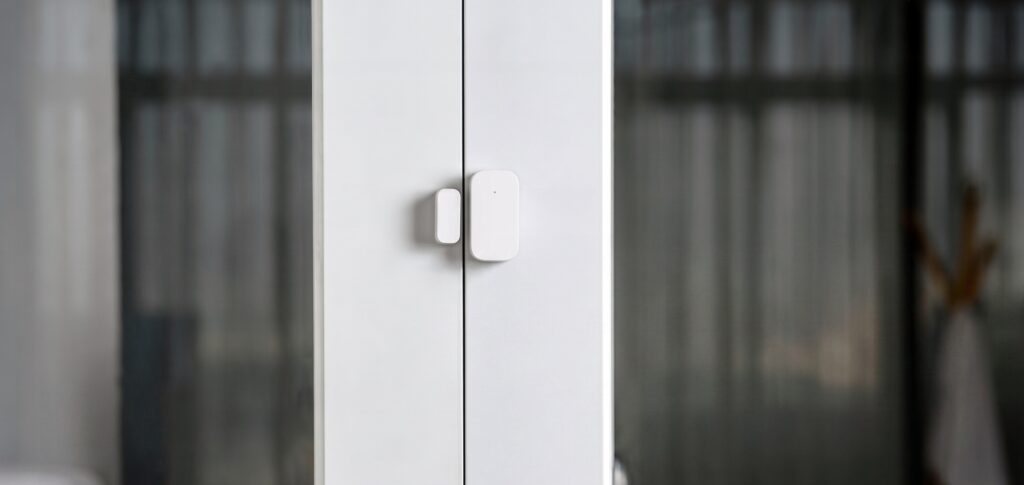
Aqara Door Sensor T1 + Home Assistant: Local Setup Guide
This post contains affiliate links. If you buy through them, I earn a small commission at no extra cost to you.
The Amazon listing says “Requires Aqara Hub (not 3rd-Party).” That phrasing is accurate for one particular path (the Aqara Home app path) and misleading for the one most Home Assistant users actually want.
You do not need an Aqara hub. You do not need an Aqara account. The Aqara Door and Window Sensor T1 is a standard Zigbee 3.0 device, and it pairs directly to any Zigbee coordinator already running in your Home Assistant setup. What follows is how to do that correctly, plus two model-identification issues that trip up a lot of people before they even get to the pairing step.
Does the Aqara door sensor T1 work without Aqara’s cloud?
Yes. Once you have a working Zigbee coordinator connected to Home Assistant — either via Zigbee2MQTT or ZHA — you pair the T1 directly to that coordinator. No Aqara hub, no Aqara account, no cloud round-trip on any sensor event.
The “Requires Aqara Hub” warning on the box applies specifically to the Aqara Home app. If you want to use the sensor through the Aqara app on your phone, you do need an Aqara hub, and that hub does involve Aqara’s servers. That is a separate path from what we are doing here.
Paired via Zigbee2MQTT, the sensor’s open/closed state updates in Home Assistant with latency typically under 300ms. Everything stays on your local network.
T1 vs the older model — which one do you have?
This is worth checking before anything else, because the Aqara contact sensor line has two actively sold models with different model numbers, and some older guides cover only one of them.
- MCCGQ11LM — the older model, still available. Uses an earlier Zigbee specification. Does not support OTA firmware updates. Exposes an internal
device_temperaturereading (the chip’s own temperature, not the room) along with contact, battery, voltage, power-outage count, and trigger count. - MCCGQ12LM — the T1. Uses Zigbee 3.0. Supports OTA firmware updates. Exposes contact state, battery percentage, and link quality. No internal temperature reading is surfaced.
How to tell them apart: the model number is printed on the back label of the device. Look for MCCGQ11LM or MCCGQ12LM. If you bought anything marketed as the “T1” in the last year, it is almost certainly the MCCGQ12LM. Check anyway, because both models show up on the same Amazon search results and the listings are not always clearly labeled.
A common misconception (repeated in some older guides) is that the MCCGQ11LM includes an ambient temperature, humidity, or pressure sensor. It does not. The device_temperature value is the chip’s internal temperature and is not useful as a room reading. If you want ambient temperature, you need a dedicated Aqara temperature/humidity sensor.
The Zigbee 3.0 spec on the T1 matters for mesh participation. Zigbee 3.0 devices are generally better mesh citizens, and the OTA update path means Aqara can push firmware fixes without requiring a re-pair. For pairing to HA, both models work — but the steps below are written for the MCCGQ12LM (T1).
What you need before pairing
- A Zigbee coordinator already installed and running in Home Assistant. Common options: [affiliate link: Sonoff Zigbee 3.0 USB Dongle Plus], [affiliate link: SLZB-06 (Ethernet coordinator)], [affiliate link: ConBee II]. All three work with Zigbee2MQTT and ZHA.
- Either Zigbee2MQTT (a separate add-on) or ZHA (built into Home Assistant) installed and functional. Meaning: you have previously paired at least one other Zigbee device, or at minimum have the integration running without errors.
- The Aqara T1 sensor, with its CR1632 battery installed.
- No Aqara account or hub is required at any point in this process.
If you do not have a coordinator yet and you are running an Aqara Hub M2 or M3, there is a different local-control path through the official Aqara integration in Home Assistant, which uses the hub as a local gateway over your LAN. That path is covered separately and is worth knowing about if you have other Aqara hub-connected devices. For this sensor specifically, direct Zigbee pairing is the simpler route if you already have a Zigbee coordinator.
Pairing the T1 via Zigbee2MQTT
Zigbee2MQTT is the more flexible of the two options. It exposes a richer MQTT entity structure and has detailed device documentation for the MCCGQ12LM. Here is the full pairing sequence.
Step 1: Enable join mode
In the Zigbee2MQTT frontend, click “Permit join (All)” or the join button in the top navigation. You have 3 minutes before the join window closes.
Alternatively, from the Zigbee2MQTT frontend under Settings > Permit join, you can open the join window for a specific device if you know its IEEE address. For initial pairing, “All” is fine.
Step 2: Trigger pairing mode on the sensor
Press and hold the small reset button on the side of the sensor until the LED blinks blue, typically 5 seconds. Release. The LED will blink a few more times while it searches for the coordinator.
Step 3: Keep the device awake
This is the part that catches people off-guard. The T1 is a sleepy Zigbee end device, and it goes back to sleep quickly to preserve battery. If pairing takes more than a few seconds (which it can on a busy mesh), the device may sleep before completing the handshake.
If you see the LED stop blinking and nothing appears in Zigbee2MQTT, press the reset button once every second or two. This keeps the device awake without re-triggering the full pairing sequence. Keep doing this until the device appears in the Zigbee2MQTT device list.
Step 4: Confirm entities in Home Assistant
Once paired, Zigbee2MQTT creates the following entities:
binary_sensor.<device_name>_contact— the main open/closed statesensor.<device_name>_battery— battery percentagesensor.<device_name>_voltage— raw voltage readingsensor.<device_name>_linkquality— Zigbee link quality (LQI)
The contact entity is the one you will use in automations. Battery percentage behavior is covered in the quirks section below. Read that before assuming a pairing problem.
Pairing via ZHA
ZHA is the native Zigbee integration built into Home Assistant. It has a simpler UI than Zigbee2MQTT and requires no additional add-on, which makes it a good fit for users who want to keep their setup minimal. The MCCGQ12LM is confirmed supported in ZHA.
Step 1: Open ZHA in Home Assistant
Go to Settings > Devices & Services > Zigbee Home Automation. Click “Add Device.”
Step 2: Trigger pairing mode
Same as with Zigbee2MQTT: press and hold the reset button until the LED blinks blue, then release. Apply the same “press once per second to keep awake” technique if the device does not appear promptly.
Step 3: Name and confirm
ZHA will auto-detect the MCCGQ12LM and prompt you to name it. After naming, the device will appear under Settings > Devices & Services > Zigbee Home Automation with its associated entities.
The entities exposed via ZHA are similar to Zigbee2MQTT: a contact binary sensor (open/closed) and battery percentage. ZHA’s entity naming conventions differ slightly from Zigbee2MQTT’s, but the functional behavior is the same.
One note on ZHA vs. Zigbee2MQTT for Aqara sensors: both work reliably for the T1. Zigbee2MQTT offers more device attributes and a more active community documentation effort (the device page at zigbee2mqtt.io covers quirks in detail). ZHA is more tightly integrated into the HA UI. If you are setting up your first Zigbee sensor and want simplicity, ZHA is fine. If you are building a larger setup and want more device-level control, Zigbee2MQTT scales better. Another Aqara Zigbee sensor using the same Zigbee2MQTT path — the TVOC air quality monitor — is covered separately if you want to see how the setup generalizes.
Known quirks on the T1
Battery percentage delay
This is the most common “is my pairing broken?” false alarm. After a fresh pair, the battery percentage entity may show “unavailable” or “unknown” for up to 24 hours. This is a firmware/reporting-interval issue with the MCCGQ12LM, not a pairing failure. The contact sensor itself works immediately and accurately. Give the battery reading a full day before treating it as a problem.
Some users also report static battery readings: the percentage doesn’t change over weeks or shows implausibly high or low values. This is a known firmware reporting issue documented in the Zigbee2MQTT issue tracker. For practical purposes, the contact entity is reliable; the battery readout should be treated as approximate rather than precise.
Mesh dropouts in sparse networks
The MCCGQ12LM is a Zigbee end device. It does not route traffic for other devices. In a sparse Zigbee mesh (few or no router devices between the sensor and coordinator), it can drop off the network every few days. This is not a defect specific to the T1. It is a general property of sleepy end devices on under-populated meshes.
The fix is router devices. Any mains-powered Zigbee device (a smart plug, a bulb left always on) will act as a Zigbee router and strengthen the mesh around it. If your sensors are dropping off regularly, add a router device closer to them. [affiliate link: Aqara smart plug with router capability]
N/A contact reading after pairing
Occasionally the contact entity shows a state of “unknown” even after a successful pair. Try pressing the sensor’s button once to trigger a state update. If that doesn’t resolve it, a re-pair usually does. Open the sensor housing, remove and reinsert the battery, and re-trigger pairing from the beginning.
A simple door-open automation
Once the T1 is paired and the binary_sensor entity is active, building a door-open notification is a few lines of YAML in a Home Assistant automation.
alias: Front door opened
trigger:
  - platform: state
    entity_id: binary_sensor.front_door_contact
    to: "on"
action:
  - service: notify.mobile_app_your_phone
    data:
      message: Front door opened
      title: Door alert
A state value of "on" means the sensor magnet is separated from the sensor body — the door is open. "off" means closed. The naming is Home Assistant convention for binary sensors and applies in both Zigbee2MQTT and ZHA.
For more sophisticated automations (time-based conditions, multiple sensors, integration with alarms), the Home Assistant automation documentation is the right starting point. The YAML above is enough to confirm the sensor is working.
What the T1 does not do locally
Two things worth knowing before you buy, if you are comparing options.
No useful temperature reading. Some older guides claim the previous-generation MCCGQ11LM gives you ambient temperature alongside the contact sensor. It doesn’t. The MCCGQ11LM exposes an internal device_temperature value (the chip’s own temperature, useful only for diagnosing device-level overheating) — it is not a room thermometer. The T1 (MCCGQ12LM) does not surface this value at all. Either way, if you want ambient temperature at the same place as your door state, you need a separate temperature sensor.
No Aqara Home app automations without a hub. The direct Zigbee path described in this guide gives you reliable local control through Home Assistant, but it bypasses the Aqara Home ecosystem entirely. If you want to run the sensor through the Aqara Home app — or use Aqara’s native scene and automation features — you do need an Aqara hub. That hub-based path involves Aqara’s cloud for automation sync and remote access, even if individual sensor events are processed locally on the hub. For a fully local setup where no traffic leaves your network in normal operation, the direct Zigbee path is the right choice.
If you are exploring other Aqara sensors that work the same way, the FP1e and FP2 presence sensors follow a similar local-first pairing pattern and are worth looking at for coverage in spaces where door sensors fall short.
The T1 is a well-priced, reliable contact sensor once it is on your Zigbee mesh. The battery reporting quirk is annoying but does not affect the contact function, and the mesh dropout issue is solvable with router devices. For local Home Assistant use, no cloud dependency is required.
[affiliate link: Aqara Door and Window Sensor T1 (MCCGQ12LM)]