

Affiliate disclosure: This post contains affiliate links. If you buy through them, I earn a small commission at no extra cost to you. I only link to hardware directly relevant to the guide.
This guide covers the M2. M3 owners have a simpler route via Matter — that guide is coming.
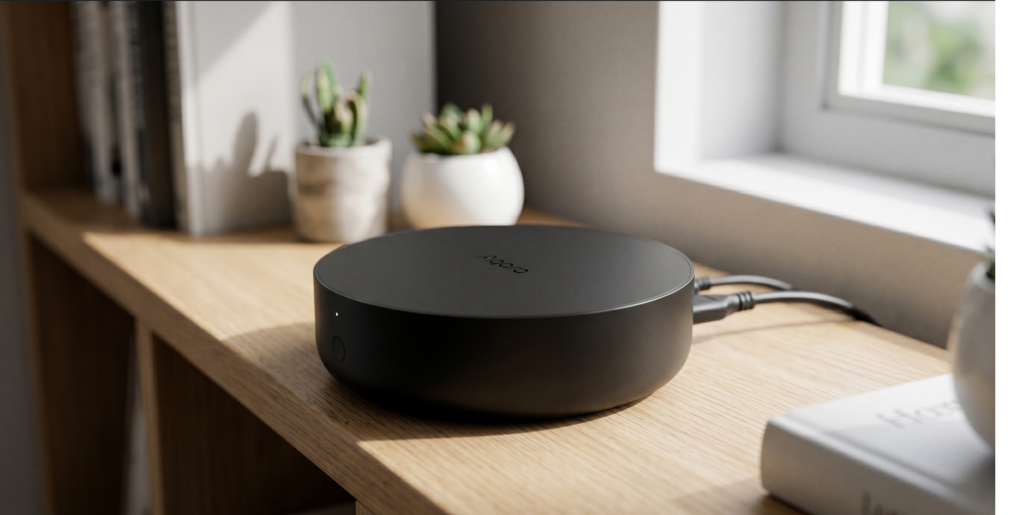
If you own an Aqara Hub M2 and have started wondering what it sends back to Aqara’s servers — and whether it has to — this guide is for you. The short answer: you can run the M2 with Home Assistant entirely over your local network. No cloud hop. No Aqara account required after setup. And you don’t need any Apple hardware to do it.
The method is Home Assistant’s built-in HomeKit Controller integration. The M2 exposes your connected Zigbee devices over the HomeKit Accessory Protocol (HAP) on your local network, and Home Assistant speaks HAP natively. Control happens hub-to-HA directly, without leaving your house.
What “local control” actually means here
Before the steps, a precise definition helps — what local means in this context, and what it doesn’t.
When the M2 is paired with Home Assistant via HomeKit Controller:
- State updates from your sensors (door open/closed, temperature, motion) travel from the device to the hub over Zigbee, then from the hub to Home Assistant over your local network via HAP. No internet involved.
- Automations you set up in Home Assistant run on your Home Assistant instance. If your internet goes down, they keep running.
- You can control devices from the Home Assistant UI or app from inside your network without any cloud.
What does break if you cut internet access to the hub:
- Remote access via the Aqara Home app stops.
- Cloud-based automations you configured in the Aqara app stop. (These run on Aqara’s servers, not on the hub.)
- Firmware updates no longer reach the hub over the air.
The big practical implication: any automations you built in the Aqara app need to be rebuilt in Home Assistant before you cut the cord. The hub doesn’t magically carry them over.
One more clarification that trips people up: you do not need an iPhone, iPad, or any Apple device to use this method. “HomeKit Controller” is Home Assistant’s name for its HAP integration — it reads the same pairing protocol Apple devices use, but it runs entirely within Home Assistant. You don’t need an Apple Home hub or an Apple ID.
What you need before you start
- An Aqara Hub M2 (firmware updated — more on this below)
- Home Assistant running on your network (any install method: HAOS, container, supervised)
- The HomeKit pairing code from the label on your M2 (an 8-digit numeric code, usually printed on the bottom)
- The M2’s IP address on your network (check your router’s DHCP client list, or the Aqara app under hub settings)
You do not need an Aqara account after this setup, but you may need the Aqara app briefly to update firmware first. More on that in the cloud-blocking section.
Step 1: Remove the M2 from Apple Home (if already paired)
If you’ve previously added the M2 to Apple Home, you need to remove it before Home Assistant can claim it. The HomeKit pairing slot is exclusive — only one controller at a time.
In the Apple Home app: navigate to the hub accessory, open settings, scroll down, and select “Remove Accessory.” This releases the pairing.
If you’ve never added the M2 to Apple Home, skip this step entirely. The hub ships with its HomeKit pairing unclaimed.
One reassurance here: removing from Apple Home does not factory-reset the hub or remove your Zigbee devices. Your sensors stay paired to the hub’s Zigbee network.
Step 2: Discover the hub in Home Assistant
Home Assistant should detect the M2 automatically via mDNS once it’s on the same network segment. Check Settings > Devices & Services — if the hub is visible and unpaired, you’ll see a “Discovered” entry for it under HomeKit Controller.
If it doesn’t appear automatically:
- Go to Settings > Devices & Services > Add Integration
- Search for “HomeKit Controller”
- Enter the M2’s IP address manually
Home Assistant will prompt you for the 8-digit HomeKit pairing code from the hub’s label. Enter it exactly as printed — no spaces, no dashes.
If the pairing code prompt says the device is already paired, the hub still has an active HomeKit pairing somewhere. Go back to Step 1.
Step 3: Confirm your devices appear
After pairing, Home Assistant creates a device entry for the hub and individual entities for every Zigbee device currently connected to it. Door/window sensors, temperature sensors, motion sensors, and smart plugs should all appear.
Give it 30 to 60 seconds for the full entity list to populate. Some devices take a moment to report their initial state.
At this point, state updates are flowing entirely over your local network. Open a door/window sensor and watch the state change in Home Assistant — you should see it update immediately without any perceptible delay.
Step 4: Rebuild your automations in Home Assistant
Any automation you had in the Aqara Home app needs to be recreated in Home Assistant’s automation editor. This is the one step that takes real time if you had a lot of app-side automations.
The practical reason: cloud automations run on Aqara’s infrastructure. When you eventually cut outbound internet access from the hub, or if Aqara’s servers are unreachable, those automations simply don’t fire. Home Assistant automations run locally and keep working regardless.
The Home Assistant automation editor is visual and relatively forgiving. If you’re new to it, start with the simpler ones (motion triggers a light, door sensor sends a notification) before tackling complex multi-condition rules.
Wireless button events: a known limitation
Heads up: If you use Aqara wireless mini switches or other button accessories connected to the M2, be aware that button-press events may not fire reliably in Home Assistant via the HomeKit Controller path. The button will appear as a device with a battery entity, but the press event itself is a known inconsistency with the HomeKit Accessory Protocol.
If buttons are central to your setup, the AqaraGateway integration or Zigbee2MQTT offers better event handling for this use case. See the “Want more control?” section at the end.
Step 5 (Optional): Block the hub’s outbound internet access
This step is for readers who want to go further — full network isolation, no outbound traffic from the hub at all. If you’re comfortable with your setup as-is and your router doesn’t have easy firewall rules, you can stop at Step 4 and still be running entirely local.
Before you do this: update the hub’s firmware. Once you block outbound internet, OTA firmware updates stop reaching the hub. Do this while you still can:
- Open the Aqara Home app
- Navigate to hub settings
- Check for and install any available firmware update
- Confirm the hub is on the latest version
After firmware is current, you can block the hub’s outbound access at the router or firewall level. The general approach:
- Assign the M2 a static IP or a DHCP reservation in your router. Example:
192.168.1.50(use whatever subnet your network runs on). - Create a firewall rule that blocks all outbound traffic from that IP to any destination on ports 80, 443, and 8883 (MQTT). Some routers let you block by IP entirely — that’s simpler if available.
- Test: open Home Assistant. Sensor state updates should continue to flow. Check that your local HomeKit control still works if you have an Apple hub on the network.
What still works after blocking:
- Home Assistant integration — fully functional
- Local HomeKit (Apple Home via a local hub like HomePod or Apple TV) — fully functional
- Zigbee communication between hub and devices — unaffected
What stops:
- Aqara app remote access — blocked
- Firmware updates — blocked (this is why you updated first)
- Any cloud automation remnants — gone
FAQ
Does the Aqara Hub M2 work without internet?
Yes, for local control purposes. Home Assistant and local HomeKit control both work without internet. What stops working: Aqara app remote access, cloud automations, and OTA firmware updates.
Do I need an Aqara account to use this setup?
You may need the Aqara app briefly for initial firmware updates. After that, the integration runs through HomeKit Controller without any Aqara account authentication.
What Aqara devices are supported via HomeKit Controller?
Most sensors connected to the M2 appear as entities: door/window, temperature, humidity, motion, smart plugs, leak sensors. Device support varies; the entity list populates after pairing, so you’ll see what you have. Buttons have the limitation noted above.
Can I still use the Aqara app alongside Home Assistant?
Yes, if you haven’t blocked the hub’s internet access. The HomeKit pairing is exclusive (HA or Apple Home, not both), but the Aqara app communicates with the hub through a different channel. After blocking outbound internet, the Aqara app loses remote access but can still reach the hub on your local network.
Want more control? The AqaraGateway option
The AqaraGateway integration (community-maintained, installed via HACS) connects to the M2 over a local LAN API rather than HomeKit, and exposes additional entity types: the hub’s alarm panel, IR blaster, and more reliable button event handling.
The trade-off: it requires enabling developer mode in the Aqara app, and it’s a community integration that isn’t maintained by Aqara or the Home Assistant team. For most readers, HomeKit Controller is the right starting point — solid, official, and straightforward. Once you’re comfortable with the setup, AqaraGateway is worth exploring if you hit its limitations.
What this setup actually achieves
After following this guide, your M2 is running entirely over your local network for day-to-day control. Automations run on your hardware. Sensor data doesn’t leave your house. The hub is still a functioning Zigbee coordinator — it just reports to Home Assistant instead of Aqara’s cloud.
The setup isn’t perfect: firmware updates become a manual exercise, and the Aqara app’s convenience features go away if you block internet. But for readers who bought this hardware specifically because they want control over their own data, that’s the trade-off that makes sense.