

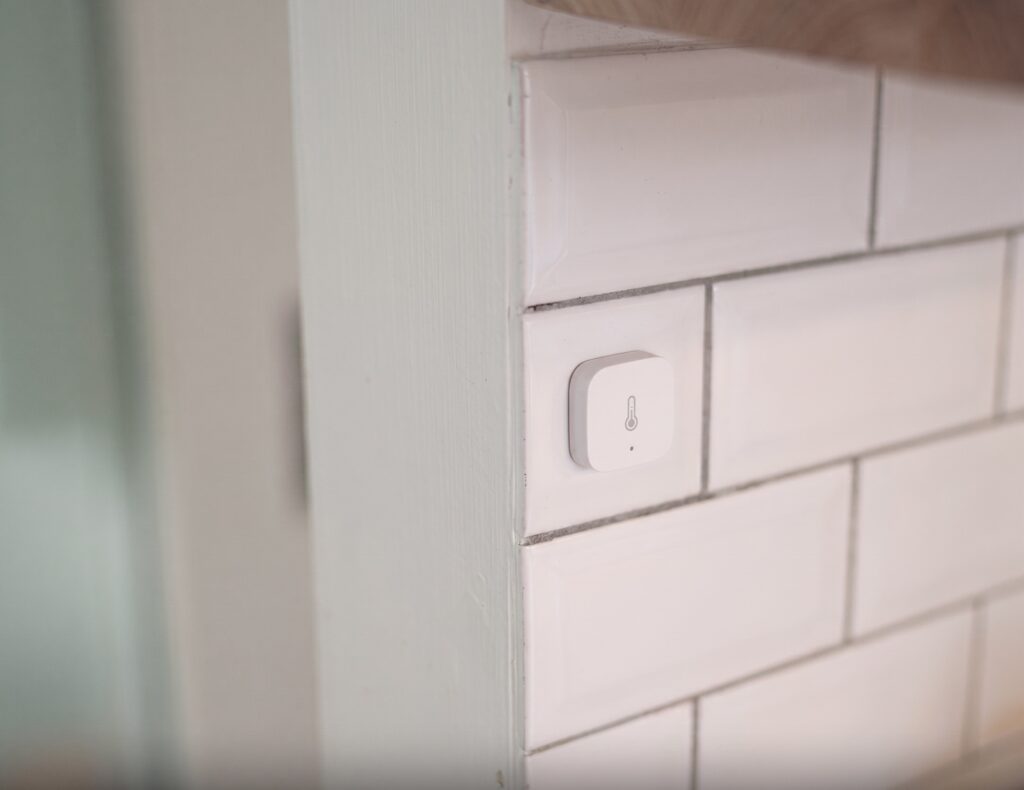
Aqara Temperature Sensor T1 in Home Assistant (No Hub)
The Aqara Temperature and Humidity Sensor T1 (WSDCGQ12LM, also sold as TH-S02D) works with Zigbee2MQTT and Home Assistant without an Aqara hub. The older WSDCGQ11LM is supported too. Both provide temperature, humidity, and atmospheric pressure readings through your own Zigbee coordinator.
The setup below starts with a working Zigbee2MQTT installation. It covers identifying the model, pairing, calibration, pressure readings, and what to check when a sensor joins but does not report. ZHA is another Home Assistant Zigbee route; its setup and configuration differ from the Zigbee2MQTT steps here.
Does the Aqara temperature sensor really need a hub?
It needs a Zigbee coordinator, which can be your Zigbee2MQTT adapter rather than an Aqara hub. The current device pages document T1 support and original-model support. Aqara’s “hub required” wording describes its own app and ecosystem.
With a local MQTT broker, the readings travel from the sensor to your coordinator, Zigbee2MQTT, and Home Assistant. An Aqara account is not part of this route. Choose one Zigbee network for the sensor; it cannot remain paired to an Aqara hub and your own coordinator at the same time.
Which model do you have?
Check the label or packaging instead of judging by age or shape. The T1 is also called 温湿度传感器 T1 in Chinese documentation. Its regional TH-S02D name is listed as an alias on the Zigbee2MQTT WSDCGQ12LM page.
| Feature | WSDCGQ11LM, original | WSDCGQ12LM / TH-S02D, T1 |
|---|---|---|
| Zigbee2MQTT support | Yes | Yes |
| Temperature | Yes | Yes |
| Humidity | Yes | Yes |
| Atmospheric pressure | Yes | Yes |
| Battery percentage | Listed in current Zigbee2MQTT | Listed in current Zigbee2MQTT |
| Battery voltage | Listed | Listed |
| Extra diagnostics | Check its device page | Device temperature and power-outage count |
| ZHA route | Use Home Assistant’s ZHA integration and the support available for your exact device/firmware; entity exposure may differ from Zigbee2MQTT | |
T1 does not omit pressure, and battery percentage is not exclusive to T1. Aqara’s TH-S02D specifications list ±0.3°C temperature accuracy and ±3% relative-humidity accuracy. They do not claim a ±2% humidity improvement over the older model.
What you need before you start
- A running Zigbee2MQTT installation and a supported coordinator with suitable firmware.
- An MQTT broker and Home Assistant’s MQTT integration connected to it.
- The sensor and a working CR2032 coin cell.
For a USB coordinator, an extension cable can help keep its radio away from the host, USB 3 equipment, and other 2.4GHz interference. It is a useful placement measure, not a mandatory fix that eliminates every connection problem.
If you use ZHA instead, add the sensor through that integration. Do not give ZHA and Zigbee2MQTT simultaneous control of the same radio adapter.
Pairing the sensor
- Enable Permit join in Zigbee2MQTT and place the sensor close to the coordinator initially.
- Press the sensor’s reset button for about five seconds until the blue indicator blinks, then release it. Use the button shown in the T1 manual; there is no need to poke a tool into the casing.
- Watch the log for the interview to complete. If communication stalls, try a short button press to wake the sensor.
- Check that Zigbee2MQTT identifies the correct model, assign a friendly name, and close joining.
- Find the device under Home Assistant’s MQTT integration and allow its first readings to arrive.
If Zigbee2MQTT has readings but Home Assistant has no entities, check MQTT discovery. Current Zigbee2MQTT configuration uses homeassistant: with enabled: true beneath it; the configuration reference shows the structure. It is not safe to assume discovery is enabled on every installation.
Entities you’ll see in Home Assistant
Temperature is reported in °C, humidity in %RH, and pressure in hPa. A stable room may produce fewer changes than a test beside a heater or open window. Neither model lets you write a replacement measurement with /set.
Current Zigbee2MQTT supports /get requests for the T1’s temperature, humidity, pressure, battery, and voltage. The original WSDCGQ11LM’s current device page does not list those read commands. For a T1 named room_t1, short-press its button to wake it, then send:
Topic:   zigbee2mqtt/room_t1/get
Payload: {"temperature": ""}
Replace room_t1 with your friendly name and watch the device’s state topic and Zigbee2MQTT log for the returned reading or a timeout. A supported read request still needs the sleeping sensor to respond; it does not guarantee a new physical measurement on a fixed polling schedule.
Battery is estimated percentage and voltage is battery voltage in millivolts. Both models list both readings in current Zigbee2MQTT. A first percentage report can take up to 24 hours. A displayed high percentage does not rule out a weak cell when diagnosing missed reports.
T1 also lists device_temperature and power_outage_count diagnostics. Device temperature is distinct from the ambient-temperature entity. Diagnostic entities may be disabled in Home Assistant by default, so the count of visible entities varies.
The pressure reading is measured at the sensor’s elevation. It is not automatically corrected to sea level; that matters when comparing it with a weather station’s published value.
Calibration
Zigbee2MQTT offers temperature_calibration, humidity_calibration, and pressure_calibration as device options. These are absolute offsets, not percentage adjustments: -0.5 subtracts 0.5°C from temperature, for example.
- Leave the sensor and a suitable reference together long enough to settle in the same conditions.
- Open the sensor’s Zigbee2MQTT device options/settings.
- Enter the offset for the reading that consistently differs from your reference.
- Wait for the next report and compare again. Saving the option does not make the sleeping sensor send an immediate measurement.
The options belong to Zigbee2MQTT’s configuration. They are not supported device /set commands, and they are separate from the live values under Exposes. Keep a record of them before removing a device or rebuilding the installation. Precision options only reduce decimal places; they do not make a sensor more accurate.
Using the pressure entity
For trends at one location, use the raw pressure: a rise or fall is still visible without an altitude correction. When comparing with weather-service data, first check whether that service reports station pressure, sea-level pressure, or an altimeter setting. The National Weather Service pressure definitions explain those differences.
A standard-atmosphere reduction can give a rough comparison value. Rearranging the NWS station-pressure approximation gives:
reduced_pressure = measured_pressure / ((288 - 0.0065 × elevation_m) / 288)^5.2561
This is an estimated altitude reduction, closer to an altimeter-style standard-atmosphere calculation than a full meteorological sea-level reduction. Real temperature conditions matter. Do not assume it matches official sea-level pressure within the sensor’s stated accuracy, especially at greater elevations.
To keep the raw entity and show an estimate alongside it, merge this sensor into the existing template section of Home Assistant’s configuration.yaml. Replace the source entity and the example elevation of 120m with your sensor and its elevation above sea level.
template:
  - sensor:
      - name: "Pressure altitude-reduced estimate"
        unique_id: pressure_altitude_reduced_estimate
        unit_of_measurement: "hPa"
        state_class: measurement
        availability: "{{ is_number(states('sensor.room_pressure')) }}"
        state: >
          {% set measured = states('sensor.room_pressure') | float(0) %}
          {% set elevation_m = 120 %}
          {{ (measured / ((288 - 0.0065 * elevation_m) / 288) ** 5.2561) | round(1) }}
Home Assistant’s template documentation covers availability and template-sensor setup. Check your configuration before reloading or restarting.
Troubleshooting
The T1 pairs fine but shows null values for all readings
Check the interview, your Zigbee2MQTT version, and the coordinator firmware. The T1 device page specifically lists minimum adapter firmware for older radios: CC2530/CC2531 20211115, CC1352/CC2652 20211114, CC2538 20211222, and ConBee II 0x26720700. These are documented compatibility minimums, not a recommendation to install an old image today. Use the current firmware for your exact adapter and follow its update instructions.
Updating Zigbee2MQTT alone does not update the radio adapter. The device page says a sensor already paired before an adapter-firmware upgrade needs re-pairing afterward. Back up the network before changing adapter firmware, then wake and re-pair the sensor as directed. If readings exist in Zigbee2MQTT but not HA, check MQTT discovery instead.
The sensor drops off the network every few days
Try a fresh battery even if percentage looks healthy. Compare behavior near the coordinator with behavior at the final location, and inspect whether reports disappear through a particular router. Zigbee2MQTT documents compatibility problems with some router families for these sensors; adding any random mains-powered Zigbee device is not a guaranteed cure.
Also separate a USB coordinator from nearby interference. After changing battery, radio placement, or parent route, monitor several reporting cycles instead of treating one successful update as a complete test.
Battery draining faster than expected
Check whether temperature or humidity is changing frequently, whether the location is within the sensor’s specified conditions, and whether the cell is fresh. Do not assume arbitrary reporting-interval changes are supported by this sensor. Leave unsupported Reporting-panel values alone and investigate the actual traffic before attempting to force faster updates.
Automation ideas
Humidity-triggered ventilation: use separate on and off thresholds, such as 75% and 65%RH, plus a minimum run time to limit cycling. Place this indoor sensor away from spray and condensation and use a fan control suited to the installation. The numbers are starting points to adjust after observing your room.
Temperature alert: notify when a room is unusually hot or cold for a sustained period. Check the real reading and placement before trusting the threshold; a sensor next to a window or heat source may not represent the room.
Pressure trend: use Home Assistant’s Derivative helper to estimate pressure change per hour. Choose the pressure sensor as the source, hours as the time unit, and a smoothing window suited to its reporting frequency. History Stats measures time or counts in a state; it does not calculate this rate of change.
A falling-pressure notification can prompt you to check a forecast, but a fixed drop of 3 or 4hPa over three hours is not a dependable thunderstorm predictor. Treat the trend as context alongside a weather forecast, rather than a warning system.
The hub question, answered
Both models can supply local temperature, humidity, pressure, and battery data through Zigbee2MQTT. Identify the sensor, confirm current software and suitable adapter firmware, then test reporting at its intended location before building automations around it.
The Aqara Hub M2 guide covers the Aqara ecosystem route. For a local leak alert alongside environmental readings, the water leak sensor guide uses the same MQTT discovery setup.
Author: N. Lee