

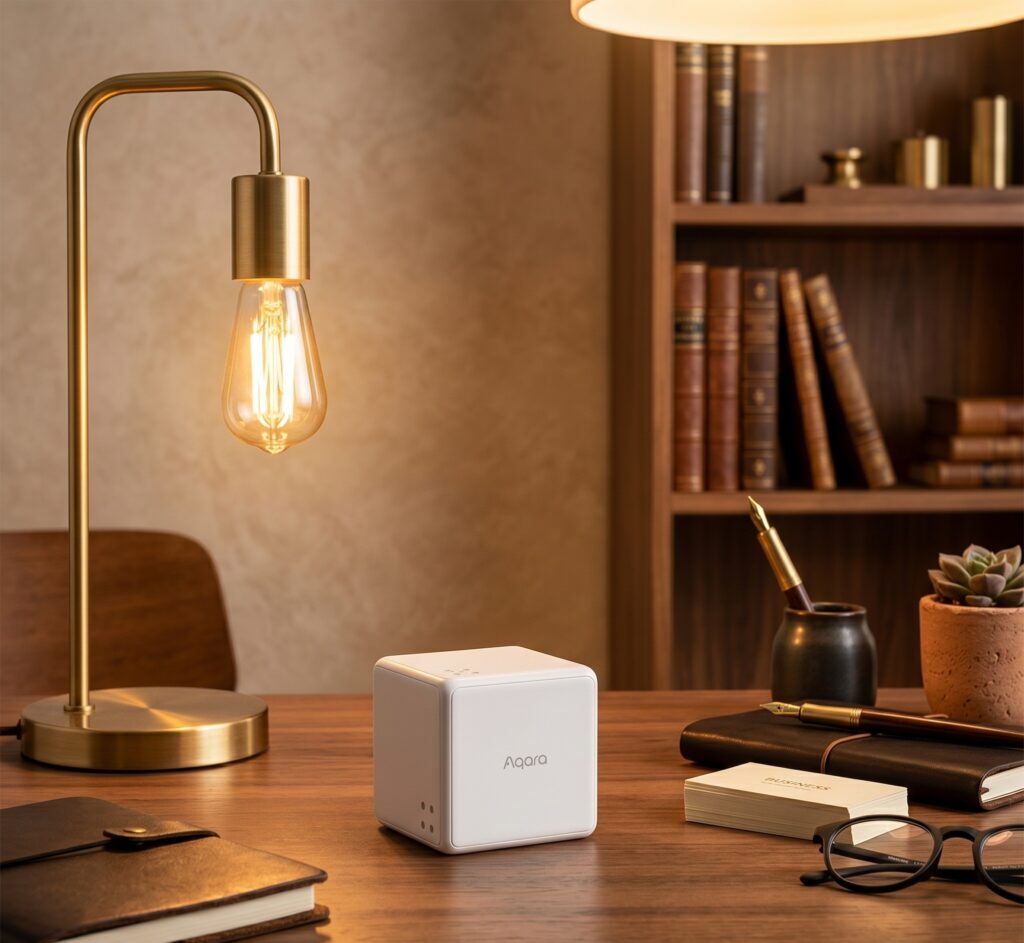
Aqara Cube T1 Pro (CTP-R01): Full Setup in Home Assistant via Zigbee2MQTT
The Cube T1 Pro turns rotation, flips and other gestures into Home Assistant commands. Pairing is fairly simple; choosing the operation mode and matching the actual MQTT action names takes more care. This guide uses the CTP-R01 with Zigbee2MQTT.
Disclosure: This article contains affiliate links. We earn a small commission if you buy through them, at no cost to you. We never accept sponsored content; affiliate commissions don’t influence which products we recommend. Editorial policy.
Check the model
The CTP-R01 is the Cube T1 Pro, distinct from the older MFKZQ01LM cube. They have separate device definitions and gesture behaviour. The T1 Pro uses a replaceable CR2450 cell, and its two operation modes offer different sets of actions.
Using it without an Aqara hub
The cube can pair directly to a supported Zigbee2MQTT coordinator. Home Assistant receives its events through your MQTT broker. You do not need Aqara Home for that path; the M2 hub path is a separate choice rather than a requirement.
The cube itself uses Zigbee, not Wi-Fi. Whether an automation sends anything outside your home depends on Home Assistant, the broker and the action you choose.
What you need
- CTP-R01 with a working CR2450 battery.
- A supported coordinator and a running Zigbee2MQTT service.
- An MQTT broker and Home Assistant’s MQTT integration, with discovery enabled.
- The supplied tool for opening the back plate.
Pair the cube
Check the interview status before closing the back plate. A device that has joined but has not completed its interview may be missing configuration or discovery information.
1. Enable joining
Open Permit join in Zigbee2MQTT, globally or through the intended nearby router if your setup supports it. Keep the interface visible so you can see the interview finish.
2. Open the back plate
Use the supplied tool to release the back plate gently. Find the LINK button and check the battery contact. Keep the coin cell and loose parts away from children.
3. Start pairing
Hold LINK for about five seconds until the blue light flashes three times, then release. Wait for Zigbee2MQTT to identify the CTP-R01. The device page gives the model-specific procedure.
4. Keep it awake if the interview stalls
If the interview does not finish, use short LINK presses to keep the cube awake, as the device notes advise. Do not keep repeating the long reset hold. Check battery and coverage if a new interview still fails.
A missing battery reading immediately after pairing is not, by itself, evidence that the cell is empty; the first report can take time.
5. Check MQTT discovery and gestures
Find the device under Home Assistant’s MQTT integration. Check the battery diagnostics, then perform a rotation and a shake while watching the MQTT payload. The important fields include action, side, action_from_side and action_angle; they are not all necessarily standalone enabled entities.
Choose scene mode or action mode
Choose the mode for the gestures you intend to use. A rotation automation can work in either mode, while tap and flip90 require action mode. Verify the messages after switching instead of relying only on a setting shown in the interface.
Scene mode
For a bedside controller, you might assign side 1 to a movie scene, side 2 to reading lights and side 3 to room lights off. Choose the upward-facing side, then inspect the payload for side and either side_up or flip_to_side. Start with two sides so the controller is easy to remember; unused sides can remain unassigned.
Scene mode is useful for selecting a scene by the upward-facing numbered side. Its reported actions include side_up and flip_to_side, with the side number in the separate side field. It also supports rotation, shake, throw, hold and inactivity.
For side-specific automation, match the action and side together. flip_to_side_5 is not the documented action string.
Action mode
Action mode adds gestures such as slide, tap, flip90 and flip180. Rotation and shake remain available. Pick distinct gestures that people can repeat comfortably; more possible inputs do not necessarily make a clearer household control.
Switch modes
Use the Exposes control or publish one of these messages to the cube’s set topic:
Topic:   zigbee2mqtt/<device_friendly_name>/set
Payload: {"operation_mode": "action_mode"}
Topic:   zigbee2mqtt/<device_friendly_name>/set
Payload: {"operation_mode": "scene_mode"}
Replace the friendly-name placeholder. A software change may wait until the cube’s configuration window opens, which the documentation says happens once an hour; the window is not described as lasting a full hour.
After requesting the change, a short LINK press can make the cube respond. Five rapid LINK presses are the separate hardware mode-toggle method. Confirm the resulting gesture messages so you do not accidentally toggle back while troubleshooting.
Build automations from incoming events
Use discovered MQTT device triggers where available, or match the action field in the device’s JSON messages. This handles repeated identical gestures without depending on the optional legacy action sensor.
Match the exact action
Here is a complete scene-mode example that runs a movie scene when the reported upward side is 1. It accepts either of the documented side actions and checks the side in the same message:
alias: "Cube side 1 - movie scene"
triggers:
  - trigger: mqtt
    topic: zigbee2mqtt/aqara_cube_t1_pro
    value_template: "{{ value_json.action | default('') }}"
    payload: side_up
  - trigger: mqtt
    topic: zigbee2mqtt/aqara_cube_t1_pro
    value_template: "{{ value_json.action | default('') }}"
    payload: flip_to_side
conditions:
  - condition: template
    value_template: "{{ trigger.payload_json.side | default(0) | int == 1 }}"
actions:
  - action: scene.turn_on
    target:
      entity_id: scene.movie_mode
mode: single
Replace the topic and scene entity, then confirm that the scene exists and that the cube reports the expected side. A separate automation can use side 2 or 3; avoid attaching two overlapping actions to the same gesture unless that is intentional.
Perform the gesture and inspect the payload before building the trigger. For example, a right rotation uses rotate_right. In scene mode, a side-specific action needs a condition on side, not an invented suffix on the action name.
Use the device’s friendly name to form the topic, and account for any custom Zigbee2MQTT base topic.
Example: rotate right to brighten a light
alias: "Cube rotate right - raise brightness"
triggers:
  - trigger: mqtt
    topic: zigbee2mqtt/aqara_cube_t1_pro
    value_template: "{{ value_json.action | default('') }}"
    payload: rotate_right
actions:
  - action: light.turn_on
    target:
      entity_id: light.living_room
    data:
      brightness_step_pct: 10
mode: queued
max: 10
Paste this as one automation in the YAML editor, replacing the topic and light entity. It adds a fixed ten-percent step per right-rotation message. The action_angle payload field can support a different design if you want the amount of rotation to control the step.
Using a community blueprint
The SirGoodenough blueprint repository is another starting point. Choose the file for the T1 Pro and your integration, read its input requirements, and inspect the current YAML before importing. A community blueprint is separate from the device integration, so check its own update notes.
If you already use ZHA
Check the current CTP-R01 handler and test the gestures you need. Old issue reports about limited events are not a reliable statement of today’s support. Use ZHA device triggers or events when following a ZHA setup; the MQTT examples here apply to Zigbee2MQTT.
Before moving a working cube between networks, compare the required gesture coverage and allow time to rebuild the automations.
Troubleshooting
Only some gestures appear: confirm the mode, check the current device definition and watch the raw messages. Tap and flip90 are not scene-mode actions.
A software mode change appears to do nothing: request it once, then use a short LINK press to let the cube respond. Verify gestures afterwards; operation mode is not a normal continuously readable measurement.
Battery is unavailable: allow the first report time to arrive, then check the cell and contacts if reports remain absent.
An action runs twice: inspect the automation trace and look for overlapping device, MQTT and legacy-state triggers before assuming the cube sent a duplicate.
Frequently asked questions
Can I use it without Aqara Home? Yes, through a supported Zigbee2MQTT network.
Which side is selected? Read the reported side field and test the physical faces. Scene mode uses the upward-facing side rather than a face-down assumption.
Why does a repeated gesture not trigger my state automation? A last-action sensor can stay at the same string. Prefer a discovered device trigger or the incoming MQTT message.
Which property contains rotation degrees? The documented field is action_angle. Use the value from the gesture’s own payload when linking it to an action.