

How to Get a Tuya Local Key in 2026 (Subscription Fix)
A Tuya Wi-Fi device’s local key can be retrieved through the Tuya IoT Platform. The setup can fail at the device-query stage if the project’s IoT Core trial has expired, returning error 28841002. This guide covers the account and project setup, where to find the key, and the reported ways to regain access after that error.
Which Tuya devices need a local key?
Everything below applies only to Tuya Wi-Fi devices, the ones paired through the Smart Life or Tuya app that talk to Tuya’s cloud directly. If your device is a Tuya-branded Zigbee device paired to Zigbee2MQTT or ZHA instead, it never touches Tuya’s cloud once it joins your Zigbee network, and it doesn’t need a local key at all. Tuya Zigbee Devices Don’t Need a Local Key (Wi-Fi Ones Do) covers why that split exists and how to tell which category a given device falls into.
If you’re not sure, check whether the device paired through a Zigbee coordinator or gateway (no local key needed) or directly onto your Wi-Fi network through the Smart Life app (keep reading).
Setting up a Tuya IoT Platform project
The consumer app does not expose a device’s local key in its menus. For the cloud-based method, create a separate developer account at iot.tuya.com and use its Cloud Development tools. The LocalTuya Cloud API setup reference describes the project and account-linking process.
- Create an account at iot.tuya.com if you don’t already have one, kept separate from your Smart Life login.
- Go to Cloud > Development > Create Cloud Project. Choose Smart Home as the development method, and match the data center region to the country your Tuya or Smart Life account is registered in. Getting the region wrong here is a common source of dead-end troubleshooting later, since a mismatched region can’t see your linked devices at all.
- The Configuration Wizard that follows asks which APIs the project needs. Add Industry Basic Service, Smart Home Basic Service, and Device Status Notification. These three are what expose device and local-key data to the API Explorer in the next step.
Creating the project is free at this stage, but the IoT Core service used to query device data has a trial or subscription period. Check its status before moving on.
Linking your devices and finding the local_key field
Once the project exists, it needs to know which physical devices to expose.
- Open the project’s Devices tab and select Link Tuya App Account.
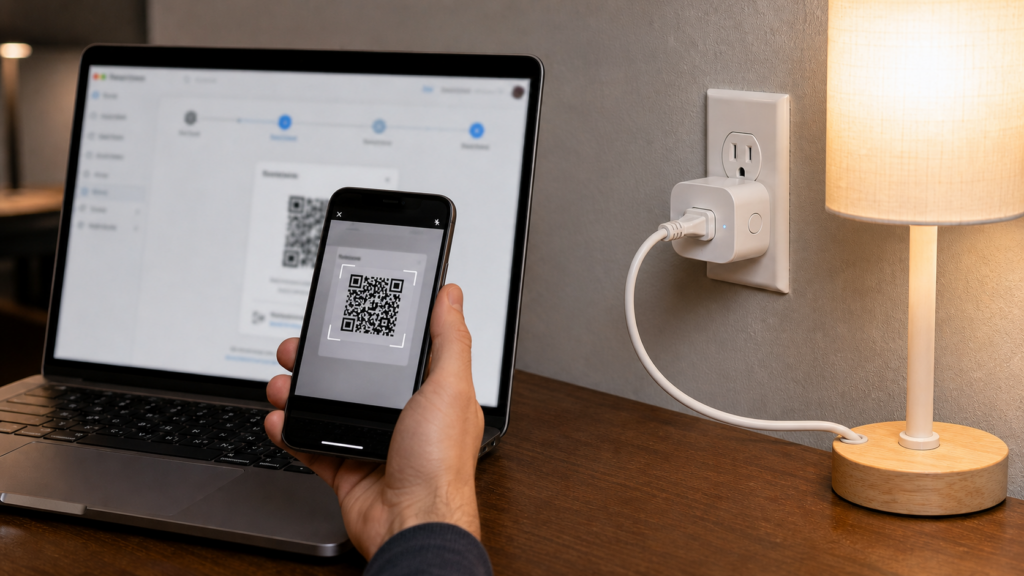
- In the developer portal, choose Link App Account > Add App Account to display a QR code. Open the scanner from the Me section of Smart Life or Tuya Smart, scan the portal’s code, and confirm the link in the app.
- Once linked, the project’s Overview and Devices tabs expose the Client ID, Client Secret, and User ID values LocalTuya or tuya-local will ask for.
- To get the actual local_key, use the API Explorer’s Query device details call, entering each device’s ID. The response includes a local_key field per device. That’s the value your LocalTuya or tuya-local configuration needs.
Linking the app account imports every device on that account, not just the one you want to configure.
Subscription expired: error 28841002
If viewing linked devices or querying their details returns error 28841002 — “No permissions. Your subscription to cloud development plan has expired” — check the project’s IoT Core Service subscription. The trial or subscription may have lapsed. LocalTuya users report this in issues #1678 and #2045.
Check the subscription status before repeating the account-linking or API Explorer steps. An expired IoT Core trial can block access even when the project and app account are otherwise configured correctly.
Requesting a trial extension or relinking the account
The LocalTuya setup documentation directs users with error 28841002 to request an IoT Core trial extension. Users in the linked issue threads also report success after unlinking and relinking the app account, although that workaround does not help everyone.
- Look for an Extend Trial Period option inside the project’s Cloud > Cloud Services section and request an extension there. Approval is commonly reported to take one to two business days, though that timeline isn’t guaranteed or officially stated by Tuya anywhere.
- Unlink and relink the app account: Devices > Link Tuya App Account > Unlink, then repeat the link flow from the previous section. Several users report this clears the access error even without going through a formal trial extension, though it doesn’t resolve it for everyone who tries.
A cloud trial is an awkward dependency when you only want a key for local control. If the query fails, check the service subscription before spending time rebuilding the project.
The issue reports do not establish one reliable expiry timeline for every project. Check your own subscription dates rather than assuming a newly created project has a particular trial window.
An alternative: extracting the key from a rooted phone
There’s a second extraction path that skips the Tuya IoT Platform, and the subscription wall along with it. It runs the Smart Life app on a rooted Android device, commonly through an emulator like BlueStacks, and reads the local_key directly out of the app’s local configuration file with a dedicated extraction tool.
This guide does not cover rooting or the extraction procedure. Root access has security and stability implications of its own. If you investigate this alternative, check the extraction tool’s instructions and compatibility before changing a phone or emulator.
Verify that the tool supports your Smart Life app version before relying on it. App updates can break unofficial extraction methods.
Is there a way around the cloud account entirely?
The developer-platform method requires a cloud account and project. The rooted-phone method can avoid the developer portal, but it still uses the Smart Life app and requires root access. Neither is an account-free setup for a typical Tuya Wi-Fi device.
Frequently asked questions
How do I find my Tuya device’s local key?
Create a separate developer account at iot.tuya.com, set up a Cloud Development project, link your Smart Life or Tuya app account to it, then use the API Explorer’s Query device details call to read the local_key field for each linked device.
Why does Tuya say my cloud development subscription has expired?
The Cloud Development project’s IoT Core Service resource runs on a trial or subscription period. When it lapses, attempts to view linked devices or query details return error 28841002, the no-permissions subscription-expired error described above.
Do I need a Tuya developer account for LocalTuya?
Yes, for Wi-Fi Tuya devices. LocalTuya and tuya-local both need a local_key, and the only Tuya-documented way to retrieve one runs through the IoT Platform developer account, kept separate from your regular app login.
Can I get a Tuya local key without rooting my phone?
Yes. That’s what the cloud-account method above is for. Rooting only comes into play if you use the alternative extraction path that bypasses the Tuya IoT Platform entirely.
Does every Tuya device need a local key?
No. Only Wi-Fi Tuya devices paired through the Smart Life or Tuya app need one. Tuya Zigbee devices paired to Zigbee2MQTT or ZHA don’t, since they never connect to Tuya’s cloud in the first place, as covered above.
After retrieving the keys, store them and your project credentials securely. If you need to query devices again later, check the IoT Core subscription first. For the broader cloud implications, see Does Tuya Send Your Data to China? What Actually Happens and Does Tuya/Smart Life Automation Work Without Internet?.