

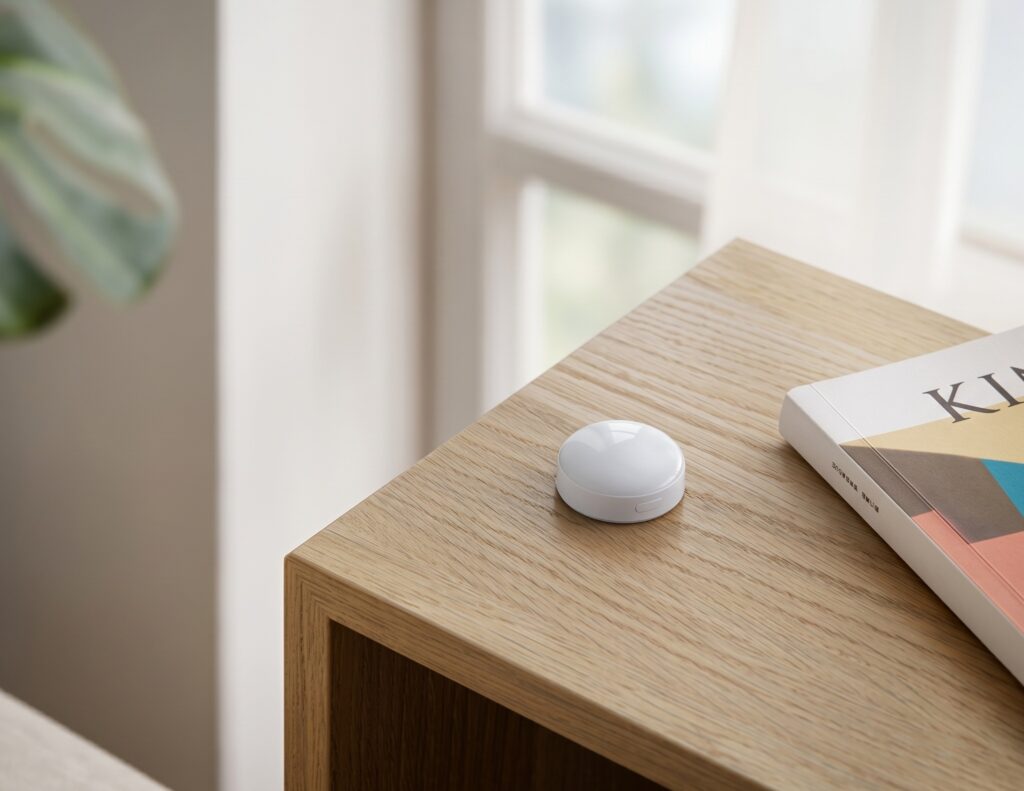
Aqara Light Sensor T1 (GZCGQ11LM) in Home Assistant via Zigbee2MQTT: No Hub Needed
The Aqara GZCGQ11LM gives Home Assistant a dedicated ambient-light reading without an Aqara hub. Zigbee2MQTT supports the sensor directly, using your Zigbee coordinator and MQTT broker. It is useful when you want lights or blinds to respond to daylight independently of a motion sensor.
The Chinese manual calls it 光照传感器 T1. Check that model number when shopping: “T1” appears across several Aqara product families. This guide covers pairing, detection-period settings, calibration, two automation examples, and the first reports to check after joining.
What you need before you start
- A working Zigbee2MQTT installation, a supported coordinator, and an MQTT broker connected to Home Assistant.
- The GZCGQ11LM, with its CR2450 coin cell installed.
- Home Assistant discovery enabled in Zigbee2MQTT. Current configuration uses
homeassistant:withenabled: truebeneath it; see the discovery configuration.
A USB extension cable can help separate a USB coordinator from the computer and USB 3 equipment that may interfere with its 2.4GHz radio. If pairing fails, also check battery contact, distance, and coordinator support before blaming the sensor.
Pairing the GZCGQ11LM to Zigbee2MQTT
The sensor sleeps between transmissions to save battery. Pair it close to the coordinator initially, then test it again at its intended location.
- Open Zigbee2MQTT and enable Permit join.
- Hold the sensor’s reset button for about five seconds to start joining. This is the reset/network button shown in Aqara’s manual.
- Watch the Zigbee2MQTT log for the device interview. If communication stalls, a short button press can wake the device; repeat pairing if the interview fails.
- Confirm it is identified as
GZCGQ11LM, assign a friendly name such asliving_room_light_sensor, and close joining. - Find its device under Home Assistant’s MQTT integration. If it is missing, check discovery and the MQTT connection.
Add multiple units one at a time so the log clearly identifies each new device. There is no general requirement to restart Zigbee2MQTT between GZCGQ11LM sensors. If a particular unit fails, inspect its interview and battery rather than treating the second sensor as inherently unsupported.
What Home Assistant sees after pairing
The current Zigbee2MQTT device page lists illuminance, battery, battery voltage, detection period, and an identify command. Actual entity IDs depend on discovery and any renaming you have done.
- illuminance: the lux reading used by lighting and shade automations.
- battery: estimated remaining percentage. Its first report can take up to 24 hours.
- voltage: battery voltage in millivolts.
- detection_period: a read/write setting for the interval associated with reports after light changes.
- identify: asks the device to identify itself; a sleeping sensor may need a button press first.
After joining, change the light reaching the sensor—cover and uncover its face, for example—and watch the Zigbee2MQTT state. Illuminance can also be requested with {"illuminance":""} on its /get topic, although a sleeping device may need waking. If Zigbee2MQTT has a lux reading but Home Assistant shows unavailable, check the MQTT/discovery path. A missing first reading does not, by itself, prove that pairing failed.
Aqara’s earlier manual lists a 0–83,000lux range, while its newer manual lists 0–80,000lux. Both give ±2% under the specified incandescent calibration light and ±5% for other visible light sources. Treat those as manufacturer conditions, rather than a guarantee for every placement or light spectrum.
Configuring the detection period
detection_period accepts 1–59 seconds. Zigbee2MQTT describes it as the interval for reporting after light changes; it is not a promise of a fresh MQTT message every second when the light is steady. Read the value reported by your device instead of assuming a firmware-independent default.
Start around 15 seconds, then compare actual response and battery use. A very short interval may add traffic without helping a slow change such as sunset.
You can change the value through the device’s Exposes panel or publish an MQTT message. In Home Assistant, the MQTT publish action or MQTT integration tools can send this example:
Topic:   zigbee2mqtt/living_room_light_sensor/set
Payload: {"detection_period": 15}
Replace living_room_light_sensor with your Zigbee2MQTT friendly name. Press the sensor’s button to wake it just before sending, then check the returned value or read it with {"detection_period":""} on the same device’s /get topic.
A direct MQTT command uses the same Zigbee2MQTT converter and Zigbee write as the frontend. It does not bypass a ZCL timeout. If both methods fail, inspect the log, wake the sensor, and check battery and signal before retrying.
Illuminance calibration
illuminance_calibration is a percentage offset in Zigbee2MQTT’s device options. A value of 10 adds 10% to the reported reading; it takes effect on the next device report. Use a reference under similar lighting before applying an offset—moving the sensor or putting it behind glass can change what it sees.
The illuminance_raw option exposes the raw illuminance value. Check the resulting MQTT fields and Home Assistant discovery when enabling it; the option’s existence does not guarantee a second, parallel HA sensor in every configuration.
For switching lights at dusk, repeatable readings in the final position are often more useful than matching a handheld meter exactly. Place the sensor first, collect readings with the room lights on and off, and then choose the thresholds.
Practical automations
These examples are separate automations for Home Assistant’s YAML editor. Replace the entity IDs with yours. Numeric-state triggers fire when a reading crosses a threshold; saving an automation while the sensor is already below or above it does not create that crossing.
Automation 1: Turn on lights when it gets dark
This turns the living-room light on after a minute below 50lux, between 14:00 and 23:00. Adjust the time window and lux threshold to your room.
alias: Turn on living room lights at dusk
triggers:
  - trigger: numeric_state
    entity_id: sensor.living_room_light_sensor_illuminance
    below: 50
    for: "00:01:00"
conditions:
  - condition: time
    after: "14:00:00"
    before: "23:00:00"
actions:
  - action: light.turn_on
    target:
      entity_id: light.living_room
mode: single
This example only turns the light on. If you add an off automation, avoid simply turning it off above the same 50lux threshold: the lamp may raise the reading and cause repeated switching. Use a higher off threshold and a sustained delay, or an automation flag combined with conditions that distinguish daylight from the lamp’s own light. A delay filters brief changes; it does not by itself solve feedback from a lamp shining on the sensor.
Automation 2: Close roller shades in direct sun
This closes a shade after two minutes above 10,000lux. A bright reading is the condition being measured; it does not independently establish that the room is overheating or that direct sun caused it.
alias: Close shades in bright daylight
triggers:
  - trigger: numeric_state
    entity_id: sensor.living_room_light_sensor_illuminance
    above: 10000
    for: "00:02:00"
conditions:
  - condition: state
    entity_id: cover.roller_shade
    state: "open"
actions:
  - action: cover.close_cover
    target:
      entity_id: cover.roller_shade
mode: single
Check readings at the window on cloudy and sunny days before adopting 10,000lux. If closing the shade blocks the sensor, leave reopening to a separate condition such as time or temperature; otherwise the shade can repeatedly close and reopen. Home Assistant’s trigger documentation also notes that for timers do not survive a restart or automation reload.
Battery life and placement
The sensor uses a CR2450. Battery life depends on reporting, light changes, temperature, and the cell itself; do not plan replacement around a fixed one- or two-year promise. Watch battery reports and confirm the device continues sending useful readings.
- Mounting: Aqara’s manual permits placing it on a surface, attaching it magnetically to metal, or using its adhesive. Keep the sensing face unobstructed.
- Ambient-light control: choose a position that reflects the room’s daylight and is not dominated by the lamp you control.
- Sunlight-based shade control: choose a window position that detects the brightness you care about. Observe whether readings approach the sensor’s upper limit instead of assuming direct sunlight always saturates it.
- Environment: use it indoors within the manual’s temperature and humidity limits. A high lux range does not make it an outdoor sensor.
- Radio check: after mounting, change the light and confirm the report reaches Home Assistant. A successful interview beside the coordinator does not test the final location.
Common questions
Does it work without the Aqara hub?
Yes, with Zigbee2MQTT and a supported coordinator. You still need a Zigbee radio network; the sensor does not connect directly to Wi-Fi or your phone.
Does it measure temperature?
No. GZCGQ11LM is the light sensor. WSDCGQ11LM and WSDCGQ12LM are temperature/humidity models, with a separate setup.
Are OTA firmware updates available?
Zigbee2MQTT lists OTA support. Checking for an available update does not install it automatically: you start or schedule an update separately. Review the offered version and wake the sensor if it cannot respond; see the OTA guide.
Why is illuminance unavailable after pairing?
Check whether Zigbee2MQTT has received a first lux report. Change the light or wake the device and request a reading. If the value exists there, investigate discovery and MQTT in Home Assistant.
Do I need this if my motion sensor reports lux?
A separate light sensor is useful when the motion sensor’s placement or reporting behavior does not suit daylight control. Check how your exact motion model reports illuminance rather than assuming every Aqara motion sensor behaves the same way.
Author: N. Lee