

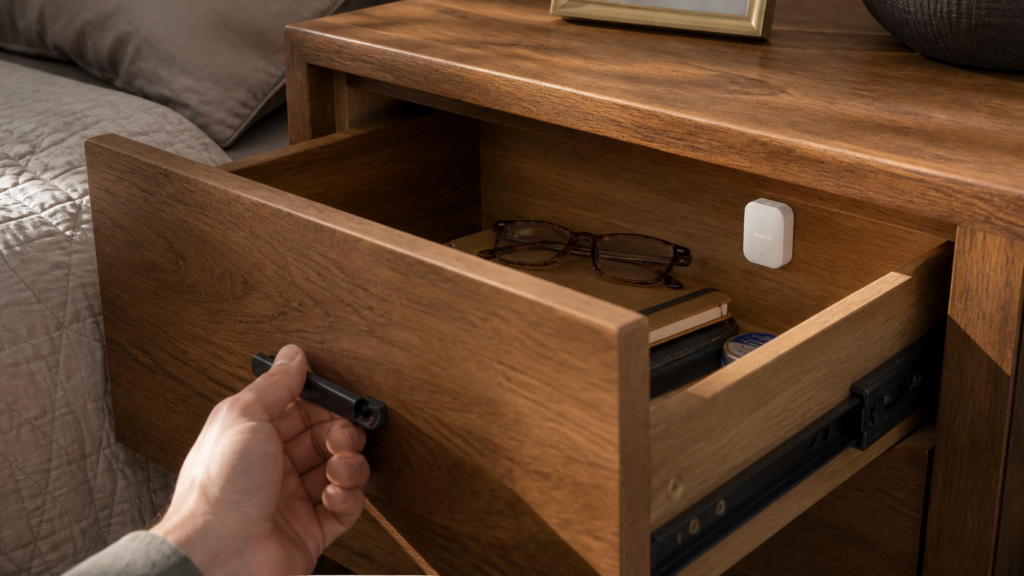
Aqara P100 Multi-State Sensor: Zigbee2MQTT Home Assistant Setup
The Aqara P100 (多态传感器, “multi-state sensor”) launched internationally in April 2026 and immediately caused confusion among Home Assistant users. The device ships with Thread and Matter-over-Thread support prominently advertised, but if you connect it through an Aqara hub or use Thread, you get a basic door sensor. The full capability set (vibration detection, tap events, orientation, fall detection) is Zigbee-only, and getting it working requires an external converter that official Zigbee2MQTT support hasn’t merged yet.
I’ve traced this through the GitHub issues and the Aqara developer forum, and there’s a clear path to full local control. This guide covers exactly that path.
What the P100 is and why the setup is non-obvious
The P100 (SKU DWZTCGQ11LM, Zigbee model ID lumi.vibration.agl002) does two things depending on which mode you configure it for. In object mode (多功能模式, “multi-function mode”) it functions as a multi-event sensor: it detects movement, vibration, taps, falls, and can report orientation. In door/window mode (门磁模式, “door sensor mode”) it works as a contact sensor, inferring open/closed state from its internal motion detection rather than a physical magnetic switch.
These two modes are mutually exclusive. You pick one, and that shapes everything about which entities appear in Home Assistant.
The complication is where you integrate it. The Aqara hub path (M2, M3, M100) and the Thread/Matter-over-Thread path both expose only a single contact entity, effectively treating the P100 as a basic door sensor regardless of which mode you’ve configured. To get the full object-mode entity set, you need to pair it directly to a Zigbee coordinator running Zigbee2MQTT.
Chinese power users in the Aqara community figured this out early. The device is made by 绿米联创 (Lumi United Technology, Aqara’s parent), and Aqara’s own gateway requires internet connectivity and account binding during setup. The V2EX community has documented this extensively, and the recommendation is consistently to bypass the Aqara hub entirely and use a Zigbee USB coordinator with Z2M to stay fully local. If you’re weighing the hub path against direct Zigbee, the Aqara Hub M2 with HomeKit Controller guide covers what the hub route actually gives you.
Prerequisites
Before you start:
- Zigbee2MQTT running (version 2.0 or later recommended; a dev build may be needed for the null-value fix described in the troubleshooting section)
- A Zigbee USB coordinator — SONOFF ZBDongle-P or a TubesZB EFR32 MGM24 are the commonly used options
- Home Assistant with the Zigbee2MQTT integration installed and MQTT events enabled
- The P100 sensor and a CR2450 battery (rated for up to two years in Zigbee mode)
Official Z2M support for the P100 is pending as of early June 2026 (GitHub issue #31503 is still open). Until it merges, you need the external converter from the absent42/Aqara-P100-Sensor repository on GitHub. The steps below install it through the Z2M Dev Console — no file system access required.
Install the external converter in Zigbee2MQTT
This is the step most guides skip. Without the external converter, Z2M will detect the P100 but report nothing useful.
- Open Zigbee2MQTT in your browser and go to Settings > Dev Console > External Converters.
- Click Create new converter.
- Name it
p100.mjs. - Open the
absent42/Aqara-P100-Sensorrepository on GitHub and copy the converter code from the main file. - Paste it into the editor and save.
- Before you restart, go to Settings > Home Assistant integration and make sure Enable MQTT events is turned on. This is easy to overlook and causes object-mode events to go missing even after the converter loads correctly.
- Restart Zigbee2MQTT.
After restart, you should see the converter listed as active in the Dev Console. If it shows an error, check for syntax issues — pasting from GitHub’s UI sometimes adds invisible characters on some browsers.
Pair the P100
The P100 ships in Matter/Thread mode. Switch it to Zigbee mode first, through the Aqara Home app over Bluetooth, then continue:
- In Z2M, open Devices > Permit join.
- On the P100 sensor, hold the button for 5 seconds until the LED flashes.
- Z2M should discover the device and identify it as
lumi.vibration.agl002.
If the device joins but shows as “unsupported” or displays no entities, the converter didn’t load cleanly. Restart Z2M once more and check the Dev Console log for converter errors.
Choose your mode: object vs door/window
This decision is worth making before you pair, because switching modes after pairing can require re-pairing.
Object mode is the reason most people buy the P100. It exposes the following entities via the external converter:
action— event type:triple_tap,movement,vibration,orientation,fall,staticorientation— current face:face_up,face_down,vertical,tilt- Sensitivity level (adjustable 1–10)
- Report interval (adjustable 5–300 seconds)
- Individual detection toggles for movement, vibration, fall, triple_tap, and orientation
Door/window mode exposes a single contact entity (true = closed, false = open). There’s no physical magnet reed switch — the P100 infers contact state from its motion internals, which is why position calibration matters (covered below).
To set the mode, use the Aqara Home app before pairing with Z2M. You can also toggle the mode through the Z2M converter settings after pairing, but starting in the right mode saves a re-pair step.
A note on the hub path versus Z2M path: if you’ve previously paired this sensor through an Aqara M3 hub and saw only a door sensor in HA, that’s expected behavior — the hub suppresses the object-mode entities. The Aqara hub Matter-bridge route never exposes the full action set; the Z2M external converter path is what unlocks it.
Object mode — what you can do with it
Once paired in object mode, the action and orientation entities work without any additional configuration.
A few practical examples of what I’d wire automations to:
Washing machine vibration alert. Attach the P100 to the top or side of the machine. Set sensitivity to around 6 and create an automation that fires when action is vibration. When the wash cycle finishes, vibration drops. You can alert on that falling edge — washing machine done, come collect it.
Mailbox lid orientation. Place the P100 inside a mailbox lid. When the lid opens, orientation changes from face_up to tilt or vertical. That change triggers a notification. No cloud, no hub, just the sensor and your Zigbee coordinator.
Fall detection for objects on a shelf. Set sensitivity high and trigger on fall. Useful if you want to know if something’s been knocked over.
The static action fires when the sensor has been motionless for the report interval. You can use this to verify the sensor is still alive — if you haven’t seen a static event in twice the report interval, it’s worth checking battery.
For sensitivity tuning: lower numbers (1–3) are good for heavy vibration like appliances. Higher numbers (7–10) pick up lighter movement and are better for things like a mailbox or a cabinet. Start at 5 and adjust based on how noisy your use case is.
Door/window mode — calibration and usage
If you’re using the P100 as a contact sensor, calibration is non-optional. This step isn’t documented in Aqara’s official guide, but the HA community discovered it’s required for the contact entity to read correctly.
After placing the sensor in its intended position (attached to the door or window frame), press the button three times in quick succession. This triple-button press triggers a calibration cycle that sets the baseline orientation, telling the P100 what “closed” looks like in its current position.
Without calibration, the contact entity will report the wrong state or stay stuck. With calibration done, it behaves like any other contact sensor in Home Assistant — useful for automations like garage door monitoring, window-left-open alerts, or security zone triggers. For a more conventional reed-switch contact sensor on the same frame, the Aqara Door & Window Sensor E1 guide covers a simpler alternative.
One thing to know about this sensor versus a traditional magnetic contact sensor: because it uses internal motion detection rather than a magnetic switch, placement matters more. It needs to sit in a position where the orientation change between open and closed is meaningful. Thin vertical gaps (like a sliding window) may not give the sensor enough movement to register reliably. A hinged door or a larger swing will work better.
Troubleshooting
Null or unavailable values after a Z2M update. This is a known issue and there are two steps to fix it. First, run the calibration cycle (triple button press). Second, if null values persist, switch to a development build of Zigbee2MQTT rather than the stable release. The community reports that the dev build resolves the null-value regression. Once the official P100 support merges in #31503, this should stabilize on stable builds too.
Device only shows a door sensor. Check whether you paired it through a hub or via Z2M direct. If through a hub (M2, M3, M100) or Thread, you’ll only get the contact entity — that’s how the hub path works. Re-pair directly to your Zigbee coordinator to get the full entity set.
Device joins but no entities appear. The external converter didn’t load. Check the Dev Console in Z2M for errors, confirm the converter file is named p100.mjs, and verify MQTT events are enabled in the HA integration settings. Restart Z2M after making any corrections.
P100 not joining at all. Factory-reset the sensor (hold the button for 10 seconds until the LED flashes several times rapidly), then retry with Z2M in permit-join mode.
Object mode events not firing. Confirm that individual detection toggles (movement, vibration, etc.) are enabled in Z2M. They should be on by default via the converter, but if you’ve changed any settings, toggle them back.
Is the P100 the right sensor for your use case?
The P100 is genuinely versatile, but it’s a more complex setup than a single-purpose sensor. Here’s a quick comparison to help decide:
| Sensor | Best for | Z2M support | Key limitation |
|---|---|---|---|
| Aqara P100 (this guide) | Multi-function: vibration + orientation + tap + contact | External converter required | Mode choice is permanent until re-pair |
| Aqara Vibration Sensor (DJT11LM) | Pure vibration/tilt detection | Native (official) | No contact mode |
| Aqara FP2 | Presence detection, multi-zone | Wi-Fi only, HomeKit Controller path | No Zigbee; no offline mode |
| Aqara Door/Window Sensor P2 | Simple contact only | Native (official) | No object-mode events |
| Aqara FP1E | Budget presence sensing | Native (official) | Single zone only |
If you want vibration detection without the mode-selection complexity, the DJT11LM has native Z2M support and is a cleaner setup. The Aqara Vibration Sensor DJT11LM guide walks through that one. If you’re after presence detection instead, the Aqara FP1E setup guide is the budget single-zone option. If you genuinely need the combination of object mode and occasional contact sensing from one device, the P100 is worth the external-converter overhead — just be aware that you’re committing to one mode at a time.
The Chinese communtiy consensus is clear: use the Zigbee direct path with the external converter if you want the full feature set, and don’t bother with the Aqara hub for this device. Once official Z2M support lands in issue #31503, the setup will be identical to any other Aqara sensor — but for now, the external converter is stable enough to rely on.