

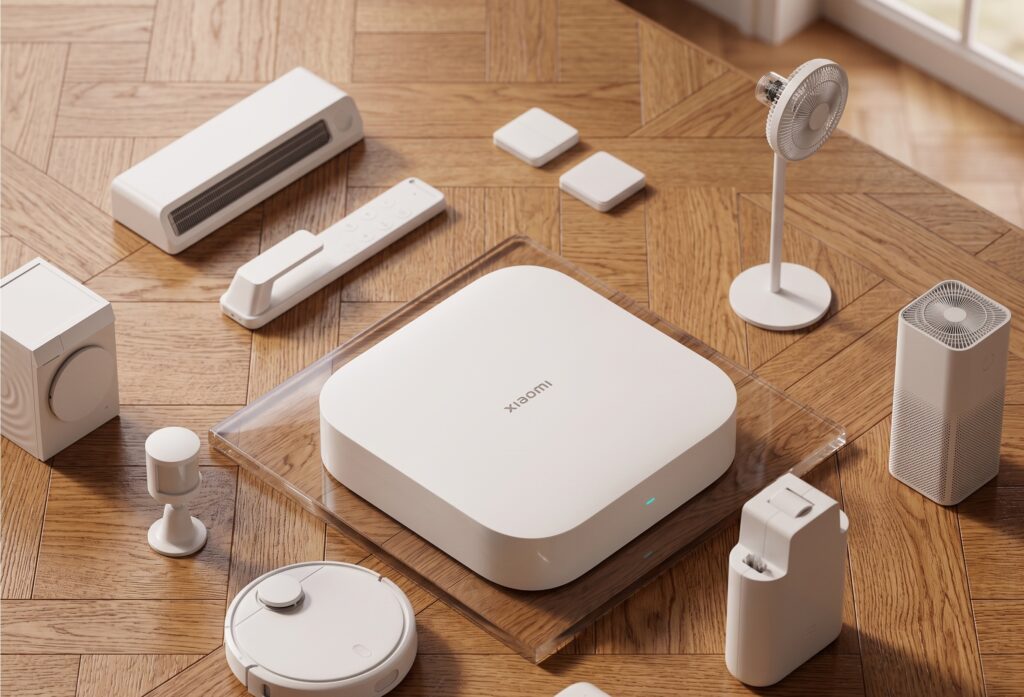
Many Xiaomi and Aqara Zigbee sensors work with Home Assistant through Zigbee2MQTT. Pair them with your own coordinator and HA can receive their readings without a vendor hub or account. Check the supported-device entry for the exact model first.
The local path is device → Zigbee coordinator → Z2M → MQTT → HA. Your automations can use that path without calling Xiaomi’s cloud. Remote notifications and other external services still have their own dependencies.
Some older Xiaomi and Aqara sensors have router-compatibility problems. A successful interview near the coordinator does not guarantee reliable reports at the sensor’s final location.
The setup below covers the coordinator, radio channel, MQTT connection, pairing, and checks for devices that stop reporting.
Disclosure: Some links in this article may be affiliate links. We may earn a small commission at no extra cost to you.
Why use a direct Zigbee coordinator?
Aqara hubs can already provide local automation and local HomeKit or Matter control. A direct coordinator gives Z2M responsibility for the Zigbee network instead, with its own device support, logs, and configuration options.
With direct pairing, you do not need an Aqara or Xiaomi hub API for those devices. If you prefer the hub route, compare the M2 and M3 or follow the E1 Hub guide.
What You Need
Before starting, have the following in place:
- Home Assistant — Home Assistant OS for the app/add-on installation described here. With Home Assistant Container, run Z2M and an MQTT broker separately.
- A Zigbee USB coordinator (or Ethernet-based coordinator) — hardware details in the next section.
- Mosquitto broker add-on — available from the official HA add-on store.
- Zigbee2MQTT add-on — installed from a custom add-on repository (URL in the install section below).
- Zigbee devices to pair — Xiaomi or Aqara Zigbee-based sensors, switches, or plugs. Note: Wi-Fi devices (like the Aqara FP2 presence sensor) and Matter-over-Thread devices (like the Aqara P2 series sensors) use different integration paths and are not paired via Zigbee2MQTT. See the FP2 local setup guide for that Wi-Fi sensor.
Coordinator Selection for Xiaomi Devices
Choose a coordinator supported by your current Z2M version, and check its exact model, connection type, adapter setting, and installed firmware. Chip names alone are not enough to establish compatibility.
Common supported adapter families include Texas Instruments CC2652-based models and Silicon Labs EFR32-based models. Use the Z2M adapter list to check the exact product before buying. An existing supported coordinator that works reliably may not need replacing.
These concrete examples are listed by Z2M. Match the complete model name rather than the shared “Dongle Plus” branding:
| Coordinator | Radio / adapter | Configuration check |
|---|---|---|
| SONOFF ZBDongle-P | CC2652P / zstack |
Use the zStack model instructions and coordinator firmware |
| SONOFF ZBDongle-E | EFR32MG21 / ember |
Software flow control; do not enable rtscts |
| Home Assistant Connect ZBT-2 | EFR32MG24 / ember |
baudrate: 460800, rtscts: true |
| SONOFF Dongle Plus MG24 (Dongle-PMG24) | EFR32MG24 / ember |
Software flow control; do not copy ZBT-2’s hardware-flow-control setting |
Confirm these details in the zStack and Ember adapter documentation for your installed firmware. An MG24 radio is still one Zigbee coordinator in this setup; multiprotocol firmware is not supported by Z2M.
USB or Ethernet?
USB coordinators plug directly into the HA host. Simple, cheap, no network dependency. The downside: they must be physically near the server, which may not be the best radio position in your home.
An Ethernet coordinator lets you position the radio away from the HA host. Check how Z2M reaches it, and account for the network connection when diagnosing outages.
Move a USB coordinator away from interference. An extension cable helps separate it from the host, USB 3 equipment, and nearby Wi-Fi hardware. Test the position before pairing a large network.
Zigbee Channel Selection
Zigbee operates in the 2.4GHz band, the same band as Wi-Fi. The Wi-Fi 2.4GHz channels overlap with Zigbee channels, and interference causes dropped packets, missed device joins, and general instability.
Zigbee channels 11–26 share the 2.4 GHz band with Wi-Fi. Channels 15, 20, and 25 are common starting points, but they do not guarantee an interference-free channel in every Wi-Fi layout.
- Zigbee channel 15 — often useful between Wi-Fi 1 and 6; check nearby networks
- Zigbee channel 20 — often useful between Wi-Fi 6 and 11; check nearby networks
- Zigbee channel 25 — sits above Wi-Fi 11 and is usually clear (verify your environment)
- Zigbee channel 26 — similar to 25, but some devices have reduced transmit power on 26; avoid unless you have a specific reason
Before picking a channel, check which Wi-Fi channels are in use in your environment. On Linux, sudo iwlist wlan0 scan | grep Frequency or a Wi-Fi analyzer app on your phone will show you. Match your Zigbee channel choice to what’s least contested.
Choose the channel before pairing where possible. Z2M supports changing an existing network’s channel, but some devices may need waking or re-pairing. Read its channel-change instructions before changing a working network.
Installing and Configuring Zigbee2MQTT in Home Assistant
Step 1: Install Mosquitto
In Home Assistant, open Settings → Add-ons → Add-on Store (called Apps in newer versions), install Mosquitto broker, and enable Start on boot. Create a dedicated local HA user under Settings → People → Users, such as mqtt_user, with a strong password. Enable Advanced Mode in your profile if the Users tab is hidden. Creating a Person alone is not an MQTT login. Use that user’s credentials in Z2M.
Step 2: Add the Zigbee2MQTT Add-on Repository
Zigbee2MQTT is not in the official HA add-on store. Add its repository manually:
- Go to Settings → Add-ons → Add-on Store.
- Click the three-dot menu (top right) → Repositories.
- Add the official Z2M repository URL:
https://github.com/zigbee2mqtt/hassio-zigbee2mqtt - Click Add, then Close, and refresh the page. Zigbee2MQTT should appear. Install it.
Two versions are listed: Zigbee2MQTT (stable, recommended for most users) and Zigbee2MQTT Edge (development branch — more features, less stable). Use stable.
Step 3: Identify Your Coordinator’s Serial Path
Plug in your coordinator. In HA, go to Settings → System → Hardware and find the serial device. You want the by-id path (e.g., /dev/serial/by-id/usb-ITead_Sonoff_Zigbee_3.0_USB_Dongle_Plus_...), not the bare /dev/ttyUSB0 path. The by-id path is stable across reboots; ttyUSB paths can shift if you plug in other USB devices.
Step 4: Configure Zigbee2MQTT
Configure Z2M through its onboarding flow or configuration. This example is for a zstack adapter such as a supported TI-based coordinator; use the adapter value documented for your hardware, such as ember for an appropriate Silicon Labs model. Replace the serial path and MQTT credentials.
serial:
  port: /dev/serial/by-id/YOUR_COORDINATOR_ID_HERE
  adapter: zstack
mqtt:
  server: mqtt://core-mosquitto
  user: mqtt_user
  password: your_mqtt_password
homeassistant:
  enabled: true
frontend:
  enabled: true
advanced:
  channel: 20
Start the add-on. Check the Log tab for successful coordinator detection. You should see a line indicating the coordinator firmware version and the Zigbee channel confirmed.
The Xiaomi/Aqara Zigbee Router Compatibility Issue
Zigbee routers relay traffic, while battery end devices usually communicate through a parent node. Many mains-powered devices route, but some do not; check the model’s role.
Some Xiaomi and Aqara end devices have documented compatibility problems with particular routers. A device may join successfully and later stop reporting. Check model-specific notes before treating the brand of a repeater as proof of compatibility.
Older sensors can be reluctant to change parent. If reports stop after moving one, test it near a known-working parent and follow its device-specific re-pairing instructions if needed.
There is no universal safe or unsafe router list that covers every Xiaomi sensor, repeater revision, and firmware. Check the notes for both models and confirm that reports remain reliable over time.
A useful documented example is the older MCCGQ11LM door/window sensor. Its Z2M notes warn of trouble through routers from Centralite, GE, Iris, Ledvance/OSRAM/Sylvania, Legrand, SmartThings, and Securifi. Treat this as a warning for that legacy sensor and the relevant router models, not a verdict on every current product from those brands. Older Xiaomi sensors can also remain isolated when their parent disappears until they are re-paired.
Try a specific parent: in Z2M, use the dropdown beside Permit join to select the coordinator or a known-working router. Keep the sensor near it, follow that sensor’s pairing procedure, close joining, and check real reports at its final location. This can help test a compatibility problem, but Z2M warns that it does not guarantee the device chooses or permanently retains the selected parent.
Practical guidance:
Use the Z2M map as a clue, together with logs and actual reports. Map lines do not prove that a particular repeater caused a dropout. Compare behaviour near the coordinator and at the installed location.
If a particular router consistently reproduces the failure, try a compatible replacement or a different route. Also check interference and battery before changing several things at once.
Pairing Xiaomi and Aqara Zigbee Devices
Supported Zigbee sensors can usually join Z2M directly without prior Aqara or Mi Home provisioning. Use the pairing button and timing documented for the exact device.
- In the Zigbee2MQTT web UI, click Permit join (All) to open the network to new devices. You have approximately 3 minutes.
- Locate the pairing button on your device:
- Most Aqara sensors: a small button on the side or bottom; some have a pinhole reset button.
- Xiaomi motion sensors: typically a button on the bottom or inside the battery compartment.
- Door/window sensors: the button is usually on the larger piece (the part with the battery).
- Follow the model’s reset-button sequence. Five seconds is common for Aqara sensors, but the button, timing, and LED signal vary.
- Watch the Z2M log (Log tab in the add-on). You’ll see messages like
New device joined, followed byInterviewing, thenInterview successfuland the device name. - Once joined, click Disable joining to close the network.
If an interview repeatedly fails, try the device near the intended parent and read the model’s pairing notes. Distance, interference, a sleepy device, unsupported hardware, and incomplete resets can all matter. For models whose documentation calls for short button presses during interview, use that procedure; do not assume every Xiaomi device needs the same timing.
After pairing, the device will appear in Home Assistant automatically via the Zigbee2MQTT MQTT discovery mechanism — no additional HA configuration needed.
Verifying Local-Only Operation
First check that the devices and automations work through the intended local path. Then test that path with internet access denied.
Optional DNS filtering:
DNS filters can restrict vendor domains used by IP-connected hosts or apps. The Zigbee sensors themselves have no IP connection. If using the domains below, use the wildcard or regular-expression format supported by your resolver:
*.mi.com*.aqara.com*.miot-spec.org*.miui.com*.xiaomi.com
Trigger devices and check the reports in Z2M and HA. A working automation with a DNS filter does not prove that every host is unable to contact an external IP.
Functional offline test:
Temporarily deny WAN access to the relevant hosts while keeping the LAN and MQTT connection available. Trigger a sensor and inspect the HA automation trace. Test any phone notification separately, because its delivery may still need internet access.
Firmware checks or downloads may need external access from the Z2M host. They are separate from ordinary Zigbee commands; use logs and firewall rules if you need to audit those connections.
Common Issues and Fixes
Device stops reporting: check battery, model-specific router notes, radio coverage, and coordinator interference. Compare a nearby test with the installed location before changing channels.
Low link quality: use LQI trends alongside missed reports. A single number is not a universal reliability threshold; repeaters, devices, and adapters can report it differently.
“Interview failed” during pairing: Z2M has not completed reading the device’s capabilities. Check its model page and logs, battery, radio interference, and the selected parent. Retry nearby using its documented button sequence. There is no universal “hold until three blinks” reset for every device in this guide. Confirm reports continue after moving it to the final location.
Duplicate devices after re-pairing:
If you reset and re-pair a device, Z2M sometimes creates a second entity in HA rather than updating the existing one. In the Z2M web UI, find the old device entry and delete it. In HA, remove the orphaned entity from your devices list. Rename the new entry to match your original entity name to avoid breaking existing automations.
Z2M shows the device but HA does not: confirm HA and Z2M use the same broker and that Z2M’s Home Assistant integration is enabled. Current configuration uses homeassistant: { enabled: true }. Check discovery and broker logs.
What You Can’t Do This Way
- Aqara scenes and automations — any scenes you built in the Aqara or Mi Home app are gone. You rebuild them in Home Assistant. This is usually an upgrade, but it requires time.
- Aqara app remote access — you won’t be able to use the Aqara or Mi Home app to check device status remotely. HA has its own remote access (Nabu Casa, or self-hosted), but the vendor apps are out of the picture.
- IR blasters — Xiaomi and Aqara IR blasters typically don’t expose useful Zigbee endpoints to Z2M in a way that translates to IR code sending. Handle these through dedicated local IR solutions.
- Aqara camera integration — Aqara cameras don’t pair to Zigbee2MQTT. Local RTSP access varies by model and is not guaranteed.
- Hub-dependent device features — available actions and configuration vary by model and integration. Check the Z2M supported devices list for your specific model before committing.
- Aqara FP2 presence sensor — the FP2 is a Wi-Fi device, not a standard Zigbee end device. It has its own local integration path. See the FP2 local setup guide.
- Aqara P2 series sensors (Door/Window P2, Motion and Light P2) — these use Matter over Thread, not Zigbee. They integrate with Home Assistant via Matter, not Zigbee2MQTT.
Check the installed network
After pairing, trigger each sensor at its final location and check the HA entity and automation trace. Monitor reports over several days, particularly for older Xiaomi sensors that are sensitive to their parent router.
Keep the coordinator configuration and network backup. Record changes to the channel, routers, and device names so a later dropout is easier to diagnose.
With a stable mesh, the local Zigbee and MQTT links can carry your everyday HA automations without a Xiaomi account. Test the external services separately instead of assuming the whole system is offline-capable.