

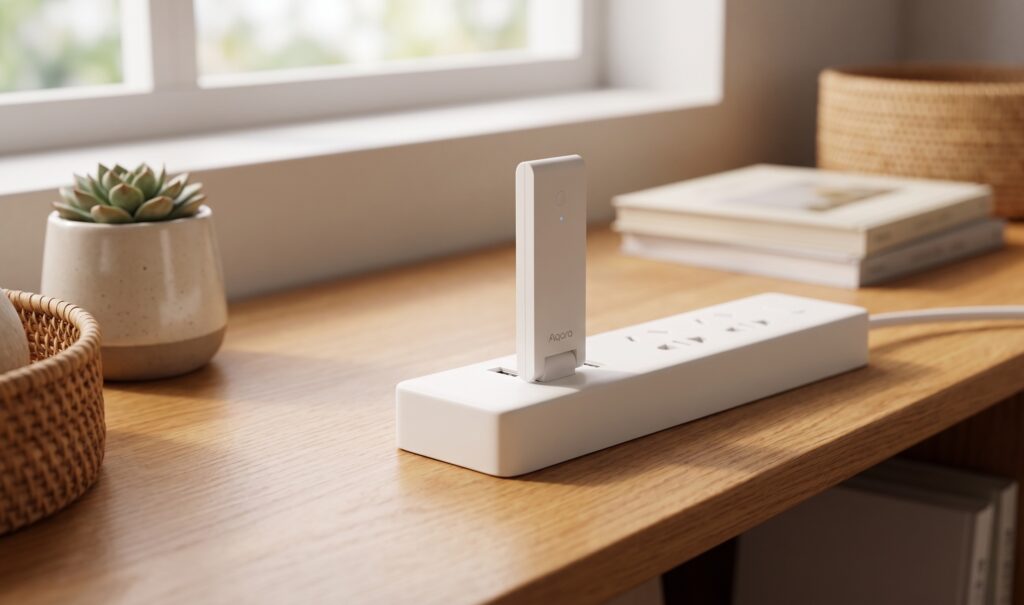
The Aqara Hub E1 bridges supported Aqara Zigbee devices to Home Assistant over HomeKit. The hub manages the Zigbee network; HA receives the accessories exposed by its firmware. That gives local control without turning the E1 into a ZHA or Z2M coordinator.
If the E1 is already in Apple Home, remove that HomeKit binding without resetting the hub before pairing it with HA. The instructions below cover that handoff and an optional WAN block after checking local operation.
Scope: local control through HA’s HomeKit Device integration, formerly called HomeKit Controller. Check the exposed entities on your own devices; the bridge does not guarantee access to every Aqara feature.
Disclosure: Some links in this article may be affiliate links. We may earn a small commission at no extra cost to you.
What the Aqara E1 Is (and Isn’t)
The E1 is a USB-powered hub with a 2.4 GHz Wi-Fi connection and an Aqara Zigbee radio. Use a suitable USB power supply and position it where it has both Wi-Fi and Zigbee coverage.
What it’s not:
- It’s not a bare Zigbee coordinator. The E1 runs Aqara’s firmware, not Zigbee2MQTT or ZHA. You don’t get direct access to raw Zigbee traffic.
- It has no Thread border router. Aqara documents Matter bridging on compatible firmware; this guide uses its HomeKit bridge.
- It only works with Aqara devices. Non-Aqara Zigbee sensors will not join this network.
- It exposes devices to Home Assistant via the HomeKit Controller integration, not through Zigbee2MQTT or ZHA.
Use the E1 if you want an Aqara-managed Zigbee network and its exposed accessories cover your HA needs. For a mixed-brand direct Zigbee network, check a supported coordinator with ZHA or Z2M instead.
Aqara lists the hub’s current bridge features in its developer documentation. Firmware and regional device support still matter.
What You Need Before You Start
Before touching the E1, confirm you have:
- A phone for Wi-Fi provisioning. Aqara Home is available on iOS and Android. If you have used Apple Home, the removal instructions below use that app; prior Apple Home pairing is not a general requirement of HA’s HomeKit Device integration.
- Access to the current HomeKit controller, if already paired. You need to remove its binding before HA can take over. HA itself does not require an Apple account or home hub.
- A running Home Assistant instance on your local network. Any recent version supporting the HomeKit Controller integration (which is core, no HACS required).
- The HomeKit pairing code for your E1. This is printed on the device or its packaging as an 8-digit code. Find it before you start. It may also appear as a QR code on the underside of the hub. Keep this visible — you’ll need it in Step 5.
- A USB port that delivers reliable 5V/500mA. The E1 draws up to 500mA (0.5A, 2.5W max). Most USB wall adapters and powered USB hubs handle this without issue. Older PC front-panel USB 2.0 ports can be marginal — use a dedicated USB wall adapter if you’re uncertain.
Step 1: Provision the E1 on Wi-Fi
Plug the E1 into USB. The LED will pulse yellow — it’s in pairing mode.
Open Aqara Home, add Hub E1, and follow the Wi-Fi setup shown for your unit and app version. The hub uses 2.4 GHz Wi-Fi.
- Connect to your 2.4 GHz Wi-Fi network (E1 does not support 5 GHz).
- Scan the device’s QR code or enter the pairing code manually.
- Wait for the app to connect the E1 to your network and Aqara’s cloud.
If the hub is available to HA after Wi-Fi setup, you can pair it directly using HomeKit Device. If you also add it to Apple Home during setup, remove that binding in Step 4 before pairing with HA. Apple Home pairing does not need to be repeated merely to “activate” HA support.
Confirm the hub is on your Wi-Fi network and check its current status in the app. Do not infer its HomeKit ownership from the LED alone.
Step 2: Update Firmware While You Have Cloud Access
Do this now, before you cut cloud access. Firmware updates for the E1 require a cloud connection to Aqara’s servers. Once you firewall it off (Step 6), you will not be able to update firmware without temporarily lifting the firewall rule.
In the Aqara Home app:
1. Tap the E1 hub in your device list.
2. Go to Settings (gear icon) → About → Firmware Update.
3. If an update is available, install it and wait for the hub to reboot.
Read release notes before updating, particularly if they change bridge support. Record the installed version for troubleshooting.
Allow the update and restart to finish, then check the hub’s status before continuing. Use the manual’s LED reference for your unit.
Step 3: Pair All Zigbee Devices to the E1
Add the Zigbee devices you want to use and confirm that they report correctly through the E1. This is a useful setup order, not a requirement that prevents adding children later.
For each device:
- In Aqara Home, tap + → Add Device.
- Select the device type, then follow the pairing flow (usually holding the reset button until the LED flashes).
- Confirm the device appears as active in Aqara Home.
You can add children later through the hub’s supported pairing procedure. HA’s HomeKit integration does not itself manage the E1’s Zigbee permit-join process. If using the app with a WAN block, allow the connection it needs temporarily and test discovery of the new accessories afterwards.
Step 4: Remove the E1 from Apple Home Without Resetting It
Only follow this step if the E1 is already paired to Apple Home or another HomeKit controller.
Remove the HomeKit binding rather than factory-resetting the E1. A factory reset can clear network configuration and require a new setup.
What you must do: Remove the E1 from Apple Home through the Home app UI only. This disassociates it from your Apple Home and puts the E1 back into a state where its HomeKit service is available for a new controller — in this case, Home Assistant.
On your iPhone, open the Home app:
- Long-press (or tap and hold) the E1 hub tile.
- Scroll down and tap Remove Accessory.
- Confirm removal.
Removal frees the HomeKit pairing for HA while retaining the hub’s network setup. Check that Wi-Fi and Zigbee children remain available before continuing.
Step 5: Pair with Home Assistant
Within a few minutes of removing the E1 from Apple Home, Home Assistant should detect it on your local network via mDNS. You’ll see a notification in HA:
New devices discovered — HomeKit Device: Aqara Hub E1
Open Settings → Devices & Services and configure the discovered HomeKit Device entry. Use the hub’s HomeKit code.
Click Configure on the E1 entry. HA will prompt for the HomeKit pairing code — the 8-digit code from the device or packaging. Enter it.
After pairing, check the imported accessories under HomeKit Device. Confirm the measurements and controls needed for your automations rather than assuming all app features were imported.
If the E1 is not discovered after 5 minutes:
- Confirm the E1 is powered and on the same network segment as your HA instance. mDNS discovery does not cross VLANs without a mDNS reflector/repeater.
- Try restarting the HomeKit Controller integration: go to the integration, click the three-dot menu → Reload.
- If still nothing: unplug and replug the E1, wait 60 seconds, then check again.
- Add HomeKit Device from the integration list if needed. Check its discovery guidance; do not assume the setup offers a manual IP field.
If pairing fails with “incorrect code”: Double-check the 8-digit code. Codes on packaging can be worn or hard to read — photograph it in good light. If you’ve confirmed the code is correct and pairing still fails, the hub may need to be removed from Apple Home again and the HomeKit service re-reset; try a second removal/re-pair cycle.
Verify the imported accessories: inspect the entities on the HA device page and trigger a sensor or switch. Missing attributes may reflect bridge support rather than a pairing failure.
Step 6: Firewall the E1 from the Internet (Recommended)
HomeKit gives HA a local control link. It does not establish that the hub has stopped communicating with Aqara. Use router logs or a per-device WAN rule if you want to check or restrict that separately.
After confirming the entities work, deny the E1 access to the internet while retaining its LAN connection to HA. Test the controls and automations again, including after a restart.
What breaks if you block internet:
- Firmware updates (cannot pull new firmware without cloud access)
- The Aqara Home app remote access (irrelevant if you’re using HA)
- Any automations you had in the Aqara cloud
What keeps working:
- Local HA control of the accessories the hub exposes
- Automations in HA
- The sensor reports and controls you have verified
How to implement the block:
On your router, create a firewall rule that blocks all outbound traffic from the E1’s IP address (or MAC address, which is more stable) to the internet. Apply it to your WAN interface.
DNS filtering can complement the WAN rule. A domain list is incomplete protection if a device uses another hostname or a direct IP; configure the syntax your resolver supports. Possible domains to investigate include:
*.aqara.com*.lumiunited.com*.mi.comapi.io.mi.com(add this explicitly — not always caught by the wildcard depending on your firewall)
The full IP block is simpler and more reliable. Use a static DHCP lease for the E1’s MAC address so its IP doesn’t change after a router reboot.
After applying the block, verify HA still receives updates from the E1 by triggering a motion sensor or toggling a switch. If entities update in HA, the local connection is intact.
Troubleshooting
E1 LED reference:
| Check | Where to look |
|---|---|
| Wi-Fi connection and address | Router client list and hub status |
| HomeKit ownership | Apple Home or the current controller |
| HA discovery | Devices & Services and integration logs |
| Zigbee child reports | Hub device list and HA entity changes |
E1 not discovered by HA:
- Confirm same network segment. mDNS does not traverse VLANs unless you have a reflector (Avahi or equivalent).
- Check that the HomeKit Controller integration is loaded in HA.
- Try toggling the E1’s power (unplug, wait 10 seconds, replug).
- If using a VLAN: configure your router to reflect mDNS between the IoT VLAN and your HA host’s VLAN, or move the E1 to the same VLAN as HA.
Missing children: confirm they are paired to the E1 and supported by its HomeKit bridge. You can add children later through the documented hub procedure. Check whether HA imports the resulting accessories; not every Aqara attribute is exposed.
HomeKit pairing code not accepted:
- Verify the code — don’t type it from memory.
- Ensure no other HomeKit controller is currently paired to the E1. If you removed it from Apple Home but the process was incomplete, try the removal step again.
Entities unavailable in HA:
- Check the E1’s IP hasn’t changed (set a static DHCP lease).
- Reload the HomeKit Controller integration.
- Check HA’s logs under Settings → System → Logs for HomeKit Controller errors.
When to Skip the E1 Entirely
The E1 suits an Aqara-managed Zigbee network when its bridge provides the HA entities you need.
Skip the E1 if:
- You have non-Aqara Zigbee devices. The E1 won’t pair them. A supported coordinator with Z2M can handle a wider range of brands; check each model’s support.
- You want more control over the Zigbee layer. Zigbee2MQTT exposes mesh topology, link quality, OTA updates per-device, and raw device control. The E1 abstracts all of this away.
- You need attributes the bridge does not expose. Compare direct ZHA or Z2M support before buying a hub for a particular sensor feature.
- You need a Thread border router or Matter controller. Matter bridging on E1 firmware is a different role. The M2 has no Thread border router either; see the M2 vs M3 comparison.
The FP2 is a separate Wi-Fi sensor and does not need an E1 Zigbee hub. Its local HA setup guide covers direct HomeKit pairing.
Conclusion
Provision Wi-Fi, confirm the Zigbee children, release any existing HomeKit binding, and pair the hub with HA. Then test its exposed accessories before applying a WAN block.
- Provision Wi-Fi; Apple Home pairing is optional
- Update firmware before cutting cloud
- Pair the supported Zigbee children you want to use
- If already paired, remove the Apple Home binding without resetting
- Let HA discover and pair via HomeKit Controller
- Optionally firewall the hub from Aqara’s cloud
Keep the pairing code and a record of the firmware and HA entities. Local control can keep working with WAN access denied; verify that on your setup rather than assuming it from a successful app setup.