

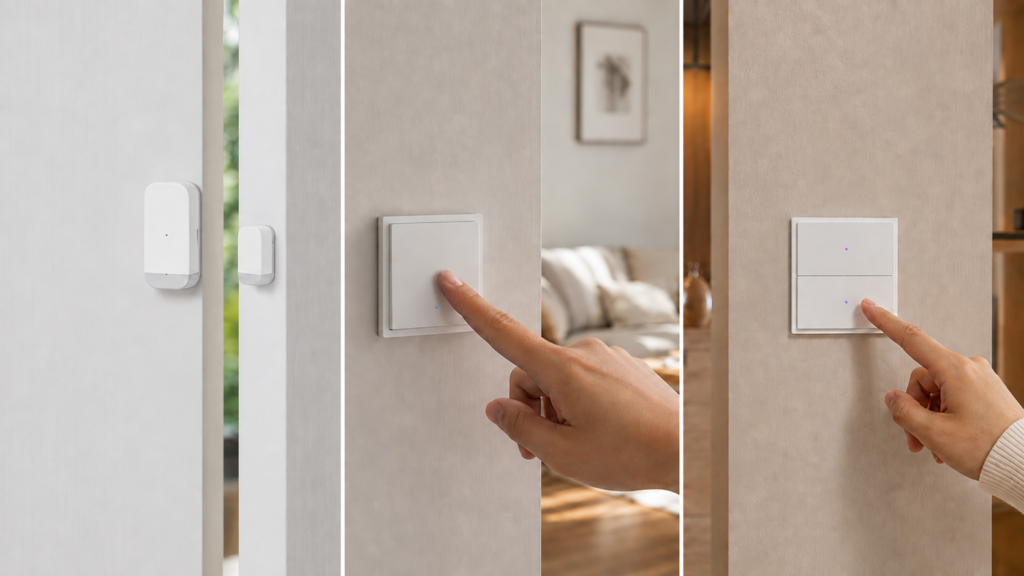
“Pairing mode” gets treated as a single universal step across Aqara and Xiaomi’s product line, and it isn’t one. A door sensor, an H1 wall switch, and a dual-radio H2 switch each announce themselves to a new Zigbee network differently, and mixing them up is one of the most common reasons a device sits there with a blinking LED and never shows up in Zigbee2MQTT or ZHA.
This is a reference for the whole catalog rather than one SKU — for the moment you’re staring at a small plastic sensor with no manual in sight, or working out why a switch that looks like it’s pairing correctly never appears in your coordinator’s device list.
This applies to devices joining Zigbee2MQTT or ZHA directly, not devices staying on an Aqara Hub or the Aqara Home/Mi Home app. The pairing gesture is the same either way, but the “won’t pair” failure modes below are specific to third-party coordinators.
Why pairing mode isn’t one procedure
Aqara’s Zigbee lineup spans several hardware generations and form factors, and the physical trigger for pairing was never standardised across them. Battery sensors converge on one gesture. Wall switches don’t even agree with each other — the documented sequence differs between SKUs inside the H1 line alone. And the H2 family adds a question before any of that: which radio is the switch currently running?
Battery sensors: the reset-and-blink pattern
Door and window sensors, motion sensors, and wireless buttons share a common sequence. Find the small pinhole or exposed button, usually under a removable cover, and hold it for roughly 5 seconds until the LED blinks or triple-flashes, then release. That single action both factory-resets the device and re-arms pairing mode, so a device that’s already bound to another network gets cleared in the same motion. The visual cue — single blink or triple flash — varies slightly by generation, but the gesture doesn’t.
If a unit is completely unresponsive, the fix is usually a battery pull: remove the cell for about 10 seconds, reinsert it, and try the button sequence again. Check what you’re pulling before you order spares, because the cell is not consistent across the range. The door and window sensors run CR1632, CR2450 or CR123A depending on generation, every motion sensor generation uses a CR2450, and the wireless mini switches are the CR2032 family. The P1 and P2 door sensors take a CR123A, which is a cylindrical cell rather than a coin cell at all. Our battery type guide has the full map.
Wall switches: no single sequence
Wall switches are where the “one procedure” assumption breaks down hardest, because two documented sequences exist inside the H1 line alone. Retailer support documentation for the H1 light switch describes a double-press followed by a press-and-hold of 5 seconds, within 3 seconds of the double-press, until the LED blinks slowly. Our own WS-EUK01 setup guide documents a straight press-and-hold of about 10 seconds, until the LED blinks blue rapidly and then stops. Both are real routes for hardware sold under the same H1 name, so identify which H1 model you actually have before you start counting presses.
The H2 exception: check the radio before you read the LED
The H2 is dual-radio, and that changes what a blinking LED means. The H2 EU ships in Thread mode out of the box and will not join a Zigbee network in that state — no amount of correct button work will make it appear in Zigbee2MQTT until the radio is switched. The colour is the tell: blue blinking is Thread pairing, purple blinking is Zigbee pairing, and solid blue means pairing succeeded. Someone who reads “blue blink means pairing mode” and waits is watching a device advertise itself on a protocol their coordinator doesn’t speak.
Switching an H2 to Zigbee means pressing any relay button ten times in quick succession to drop it into network-setup mode, then selecting Zigbee in the Aqara Home app — a one-time, cloud-connected step. After that it pairs like any other Zigbee device: double-press, hold 5 seconds, wait for purple. Our H2 EU Zigbee2MQTT guide covers the mode switch step by step, and the Zigbee-or-Thread comparison covers which radio to choose in the first place.
Ten consecutive presses is a factory reset. On an H1 that’s a destructive detour: it wipes bindings, and you re-add the device and rebuild any automation tied to its old friendly name. On an H2 it’s the required first step of a protocol change. Know which one you’re doing before you start pressing, rather than discovering it by mashing the button.
One button carrying pairing, factory reset, and — on the H2 — protocol selection, separated only by press count, is a rough design for a device sunk into a wall. And one LED colour serving two radios is exactly why “the LED looked right” is such an unreliable signal on this family.
Quick reference by device type
| Device | Gesture | Look for | Reset vs. pair |
|---|---|---|---|
| Door/window, motion, button sensors | Hold pinhole or button ~5s | LED blinks or triple-flashes | One gesture resets and re-arms pairing together |
| H1 wall switch or dimmer | Double-press then hold 5s; some SKUs hold ~10s | Slow blue blink | 10 presses is a separate factory reset |
| H2 wall switch (dual-radio) | Double-press then hold 5s | Purple blink = Zigbee; blue blink = Thread | Must be in Zigbee mode first: 10 presses, then Aqara Home app |
| Unresponsive sensor | Pull the cell ~10s, reinsert, retry the hold | LED responds on retry | Cell varies: CR1632, CR2450, CR123A or CR2032 by model |
| Anything paired elsewhere before | Full reset required first | — | The pairing LED alone doesn’t clear old network membership |
The #1 cause of “won’t pair”: still bound to another network
If the LED behaves exactly as documented and the device still doesn’t show up during your coordinator’s permit_join window, the most common explanation isn’t a broken device. A sensor or switch that was ever paired to an Aqara Hub through the Aqara Home or Mi Home app, or to a different Zigbee coordinator, keeps trying to reconnect to that old network in the background, even while its LED runs what looks like a normal pairing sequence.
Triggering the pairing-mode LED isn’t the same as clearing that old membership. The device needs an actual reset first, not just a re-trigger of the indicator, before a new coordinator’s permit_join will pick it up. For Aqara and Xiaomi gear that reset is always the manufacturer’s physical sequence above. It’s worth stating plainly that Touchlink — Zigbee2MQTT’s over-the-air reset for devices stuck on someone else’s network — does not help here. Aqara and Xiaomi sensors, switches, and relay modules don’t implement the Touchlink/ZLL cluster, as our Touchlink guide covers in detail; that tool is for Hue and Trådfri-class bulbs. Physical reset first, pair second, particularly for secondhand hardware or anything you’re migrating off a stock Aqara/Mi Home setup.
When the LED looks right but the device never appears
Even after a genuine reset, some Aqara devices don’t appear during a permit_join window on the first attempt. The evidence for this as a distinct failure mode is thinner than the symptom’s popularity suggests, and it’s worth being straight about that. Zigbee2MQTT issue #18881, “Several Aqara Devices can not join or left the network,” was opened in September 2023 against Z2M 1.33 and closed as not planned with no maintainer diagnosis — and its reporter was migrating from ZHA back to Zigbee2MQTT, which is the old-network case above. An unresolved Home Assistant community thread on the same symptom has no marked solution. Read both as evidence that the reports exist, not as a documented model-wide defect.
The measures below are worth working through in order before concluding a device is defective:
- Keep the device awake through the interview. Zigbee2MQTT’s device pages for the Aqara contact sensors, including the MCCGQ11LM page, say to keep making short presses on the reset button — roughly once a second — so the LED stays flashing until the interview finishes. A sleepy device dropping out mid-interview is far more common than a broken one.
- Keep the device within arm’s length of the coordinator for the initial join, then relocate it once it’s on the network.
- Confirm the coordinator firmware is Zigbee-only, not a multiprotocol build that’s also handling Thread.
- Check for 2.4GHz Wi-Fi and Zigbee channel overlap, since a busy channel can suppress a join without any obvious error.
You can also reopen the join window from the Zigbee2MQTT frontend, or over MQTT, without touching the coordinator:
topic: zigbee2mqtt/bridge/request/permit_join
payload: {"time": 60}
That reopens joining for 60 seconds, giving you another attempt at the button sequence without restarting anything. On Zigbee2MQTT 2.x the payload takes time in seconds and caps at 254; the older {"value": true} form and the pre-2.0 “join forever” behaviour are both gone, so a snippet copied from an older forum post will simply fail. Zigbee2MQTT’s pairing documentation is the current reference. If the device is seen but the interview itself fails, that’s a different problem, and our “Failed to Interview” troubleshooting guide picks up there.
FAQ
How do I put my Aqara door sensor into pairing mode?
Open the cover, find the pinhole button, and hold it for about 5 seconds until the LED blinks or triple-flashes. If nothing happens, pull the battery for 10 seconds, reinsert it, and try again.
Why won’t my Aqara H2 switch pair with Zigbee2MQTT?
Most likely it’s still in Thread mode, which is how the H2 EU ships. Blue blinking is Thread pairing; Zigbee pairing blinks purple. Press any relay button ten times to enter network-setup mode, select Zigbee in the Aqara Home app, then pair as normal.
Why won’t my Aqara switch show up in Zigbee2MQTT even though the LED is blinking?
A blinking LED confirms the device is advertising, not that it’s free of its old network — or, on an H2, that it’s advertising on the right radio. If the switch was ever bound to an Aqara Hub or another coordinator, it needs an explicit reset first.
Do I need to factory reset an Aqara device before adding it to a new Zigbee network?
If it was previously paired anywhere else, yes. A device that’s never been paired doesn’t need a reset, but for secondhand hardware or anything migrating off a hub app, reset first and pair second.
What’s different about pairing an Aqara wall switch vs. a battery sensor?
Sensors use a single hold-until-blink gesture that resets and pairs together. Switches use a double-press-then-hold sequence, and a separate ten-press action performs a full reset, so the two aren’t interchangeable.
Why does Zigbee2MQTT say “no devices found” during pairing mode?
This can be an old-network binding, a busy 2.4GHz channel, or the device falling asleep before the interview completes. Keep short-pressing the button to hold it awake, and keep it close to the coordinator for the first join.
What this covers, and what to verify yourself
This reference synthesises Aqara’s own manuals, Zigbee2MQTT’s device documentation, community troubleshooting threads, and the pairing sections of this site’s individual device guides. No hardware was paired on a test bench for this article. The battery-sensor gesture and the H1 sequences come from vendor and retailer support documentation; the H2 LED colours and mode-switch procedure come from Zigbee2MQTT’s device pages and this site’s own H2 EU guide, where the blue-versus-purple distinction is documented directly.
The join-failure behaviour in the last section is the weakest-evidenced material here, and it’s presented that way deliberately: one closed-not-planned GitHub issue and an unresolved forum thread, neither carrying a maintainer diagnosis. If your device still won’t join after a proper reset and several permit_join attempts with the button kept awake, that’s a real reported failure mode rather than something you’re necessarily doing wrong — but check your Zigbee channel and coordinator firmware before writing the hardware off. Age isn’t the explanation either: discontinued Aqara and Xiaomi devices keep working on a local coordinator.