

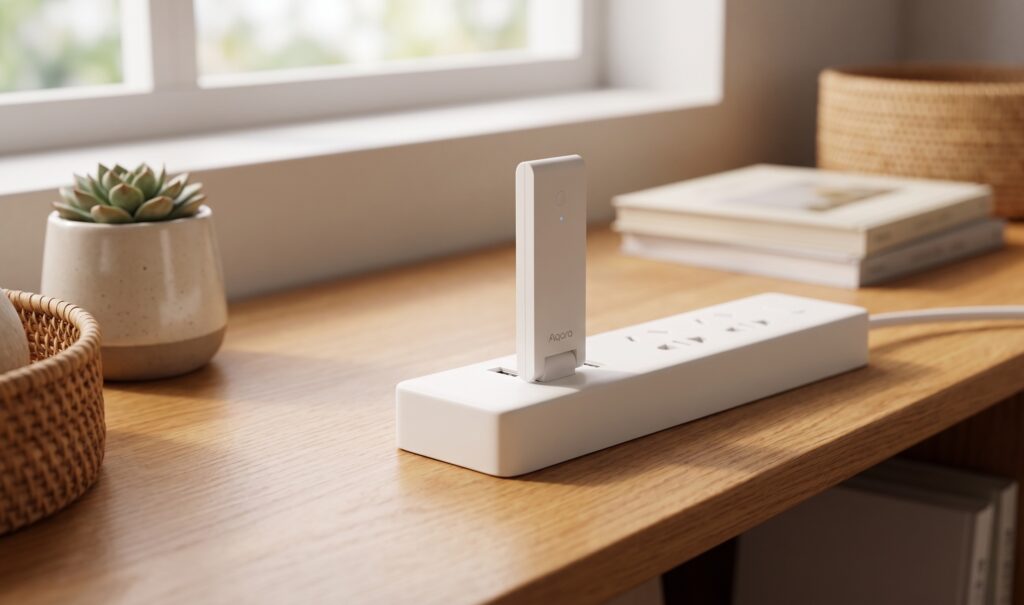
The Aqara E1 hub costs less than a nice dinner and gets every Aqara Zigbee device you own into Home Assistant with full local control. No cloud polling. No subscription. The catch: the setup path is counterintuitive enough that most guides either skip over the hard parts or get them wrong.
This guide documents the exact sequence, including the step that trips up nearly everyone — removing the E1 from Apple Home without resetting it. Do that wrong and you’re starting over. We also cover the optional but recommended step of firewalling the E1 off from Aqara’s cloud after setup, so your local network stays local.
What this guide covers: Getting the Aqara E1 hub fully operational in Home Assistant using the HomeKit Controller integration, with all Zigbee devices visible and controllable locally. No cloud dependency once setup is complete.
Disclosure: Some links in this article may be affiliate links. We may earn a small commission at no extra cost to you.
What the Aqara E1 Is (and Isn’t)
The Aqara Hub E1 is a USB-powered Zigbee hub. That’s it. You plug it into any USB-A port — a wall adapter, your server’s USB port, a smart plug — and it creates a Zigbee network for Aqara devices to join.
What it’s not:
- It’s not a bare Zigbee coordinator. The E1 runs Aqara’s firmware, not Zigbee2MQTT or ZHA. You don’t get direct access to raw Zigbee traffic.
- It does not support Thread or Matter.
- It only works with Aqara devices. Non-Aqara Zigbee sensors will not join this network.
- It exposes devices to Home Assistant via the HomeKit Controller integration, not through Zigbee2MQTT or ZHA.
When the E1 makes sense: You’re already in the Aqara ecosystem — you have M2s or E1s or Aqara sensors you want local. The E1 is cheaper than the M2/M3, and if you don’t need Thread or multi-protocol, it does the job. If you want to mix in non-Aqara Zigbee devices, skip the E1 and get a bare USB Zigbee coordinator (Sonoff Zigbee 3.0 USB Plus or similar) running Zigbee2MQTT. We cover that path separately.
The E1 makes the most sense when you want Aqara devices in HA and you already have an iPhone in the house for the initial provisioning step.
What You Need Before You Start
Before touching the E1, confirm you have:
- An iPhone or iPad. This is a hard requirement for this setup path. The Aqara Home app is available on Android and works fine for initial provisioning, but the critical Apple Home pairing step — which activates the HomeKit accessory mode HA depends on — requires the iOS Home app. No iPhone, no Apple Home pairing, no HA handoff.
- An Apple Home account (or iCloud account with Home enabled). You’ll be pairing the E1 to Apple Home briefly, then removing it. This is not optional — the HomeKit handoff to HA requires the E1 to have gone through the HomeKit pairing flow first.
- A running Home Assistant instance on your local network. Any recent version supporting the HomeKit Controller integration (which is core, no HACS required).
- The HomeKit pairing code for your E1. This is printed on the device or its packaging as an 8-digit code. Find it before you start. It may also appear as a QR code on the underside of the hub. Keep this visible — you’ll need it in Step 5.
- A USB port that delivers reliable 5V/500mA. The E1 draws up to 500mA (0.5A, 2.5W max). Most USB wall adapters and powered USB hubs handle this without issue. Older PC front-panel USB 2.0 ports can be marginal — use a dedicated USB wall adapter if you’re uncertain.
Step 1: Provision the E1 via Aqara Home + Apple Home
Plug the E1 into USB. The LED will pulse yellow — it’s in pairing mode.
Open the Aqara Home app on your iPhone. Tap + → Add Device → select Hub → select E1. Follow the on-screen flow. The app will ask you to:
- Connect to your 2.4 GHz Wi-Fi network (E1 does not support 5 GHz).
- Scan the device’s QR code or enter the pairing code manually.
- Wait for the app to connect the E1 to your network and Aqara’s cloud.
Once provisioned, the Aqara Home app will offer to pair the hub with Apple Home. Accept this. Even if you don’t want Apple Home long-term, you need to complete this pairing. The E1’s HomeKit accessory mode activates during this step, and that’s what Home Assistant’s HomeKit Controller integration will later use to discover and pair with the device.
[screenshot: Aqara Home app showing “Add to Apple Home” prompt]
After Apple Home pairing completes, the E1 should appear in your Home app as a hub. The LED should show solid blue. If it doesn’t, wait 30 seconds — it can take a moment to settle.
Step 2: Update Firmware While You Have Cloud Access
Do this now, before you cut cloud access. Firmware updates for the E1 require a cloud connection to Aqara’s servers. Once you firewall it off (Step 6), you will not be able to update firmware without temporarily lifting the firewall rule.
In the Aqara Home app:
1. Tap the E1 hub in your device list.
2. Go to Settings (gear icon) → About → Firmware Update.
3. If an update is available, install it and wait for the hub to reboot.
Keep firmware current — community reports associate older firmware with unreliable HomeKit Controller handoffs to HA. When in doubt, update before proceeding.
The hub will reboot during the firmware update. The LED will flash during the process. Wait until it returns to solid blue before proceeding.
Step 3: Pair All Zigbee Devices to the E1
Before you disconnect the E1 from Apple Home and hand it off to HA, pair all your Aqara Zigbee devices through the Aqara Home app. Devices added now will carry over into Home Assistant.
For each device:
- In Aqara Home, tap + → Add Device.
- Select the device type, then follow the pairing flow (usually holding the reset button until the LED flashes).
- Confirm the device appears as active in Aqara Home.
[screenshot: Aqara Home app showing a list of paired sensors under the E1 hub]
There is no benefit to adding devices after HA takes over. The E1’s Zigbee pairing is managed through the Aqara app, not through HA. If you add devices later, you’ll do it through Aqara Home with cloud access, or you’ll need to temporarily reconnect to cloud to use the app for pairing. Factor this into your setup — get everything paired now.
Step 4: Remove the E1 from Apple Home Without Resetting It
This is the step that breaks most setups. Read it fully before you act.
What you must NOT do: Do not press the physical reset button on the E1. Do not factory reset it through the Aqara Home app. Either action wipes the HomeKit pairing data and you’ll need to start the provisioning sequence over.
What you must do: Remove the E1 from Apple Home through the Home app UI only. This disassociates it from your Apple Home and puts the E1 back into a state where its HomeKit service is available for a new controller — in this case, Home Assistant.
On your iPhone, open the Home app:
- Long-press (or tap and hold) the E1 hub tile.
- Scroll down and tap Remove Accessory.
- Confirm removal.
[screenshot: Apple Home app showing “Remove Accessory” option for the E1]
After removal, the E1’s LED should change. It will typically flash or pulse rather than showing solid blue — this is normal. The hub has been removed from Apple Home but is NOT reset. Its Zigbee network, paired devices, and firmware are all intact.
If the LED is flashing yellow (reset state): Something went wrong and the hub was reset. You’ll need to go back to Step 1. This can happen if the removal was done incorrectly or if there was a connectivity issue during the process. It’s frustrating, but recoverable.
If the LED shows solid blue or slow-breathing blue: The hub is available for pairing. Continue to Step 5.
Step 5: Home Assistant Discovers the E1 (HomeKit Controller)
Within a few minutes of removing the E1 from Apple Home, Home Assistant should detect it on your local network via mDNS. You’ll see a notification in HA:
New devices discovered — HomeKit Device: Aqara Hub E1
Navigate to Settings → Devices & Services. Look for the HomeKit Controller integration showing the E1 as discovered.
[screenshot: HA Settings → Devices & Services showing Aqara E1 in the “Discovered” section]
Click Configure on the E1 entry. HA will prompt for the HomeKit pairing code — the 8-digit code from the device or packaging. Enter it.
[screenshot: HA HomeKit pairing code entry dialog]
If pairing succeeds, HA will import all devices currently paired to the E1. Navigate to Settings → Devices & Services → HomeKit Controller and confirm the E1 and its devices are listed.
If the E1 is not discovered after 5 minutes:
- Confirm the E1 is powered and on the same network segment as your HA instance. mDNS discovery does not cross VLANs without a mDNS reflector/repeater.
- Try restarting the HomeKit Controller integration: go to the integration, click the three-dot menu → Reload.
- If still nothing: unplug and replug the E1, wait 60 seconds, then check again.
- As a last resort, you can add it manually via Settings → Devices & Services → Add Integration → HomeKit Controller and enter the E1’s IP address directly.
If pairing fails with “incorrect code”: Double-check the 8-digit code. Codes on packaging can be worn or hard to read — photograph it in good light. If you’ve confirmed the code is correct and pairing still fails, the hub may need to be removed from Apple Home again and the HomeKit service re-reset; try a second removal/re-pair cycle.
Verify devices appear: After pairing, each Zigbee sensor or switch previously paired in the Aqara app should appear as a device in HA under the HomeKit Controller integration. Motion sensors will show as binary_sensor, temperature/humidity sensors as sensor entities, and so on.
Step 6: Firewall the E1 from the Internet (Recommended)
The E1 will, by default, maintain a connection to Aqara’s cloud infrastructure. This means periodic telemetry, potential future firmware pushes, and an ongoing data relationship with Aqara. For a local-control setup, this is unnecessary and undesirable.
Once HA has full control of the E1 via HomeKit Controller, you can block outbound internet access for the hub entirely. Local control and HA integration continue working — the HomeKit protocol is entirely local.
What breaks if you block internet:
- Firmware updates (cannot pull new firmware without cloud access)
- The Aqara Home app remote access (irrelevant if you’re using HA)
- Any automations you had in the Aqara cloud
What keeps working:
- Full Home Assistant local control of all paired devices
- Automations in HA
- Real-time sensor updates, device control, everything you care about
How to implement the block:
On your router, create a firewall rule that blocks all outbound traffic from the E1’s IP address (or MAC address, which is more stable) to the internet. Apply it to your WAN interface.
If you want to be more surgical and allow general internet while blocking only Aqara’s cloud, block outbound DNS and HTTPS to:
*.aqara.com*.lumiunited.com*.mi.comapi.io.mi.com(add this explicitly — not always caught by the wildcard depending on your firewall)
The full IP block is simpler and more reliable. Use a static DHCP lease for the E1’s MAC address so its IP doesn’t change after a router reboot.
After applying the block, verify HA still receives updates from the E1 by triggering a motion sensor or toggling a switch. If entities update in HA, the local connection is intact.
Troubleshooting
E1 LED reference:
| LED State | Meaning |
|---|---|
| Pulsing yellow | Waiting for provisioning / pairing mode |
| Solid blue | Connected to Aqara cloud and network |
| Slow-breathing blue | Provisioned but not paired to a HomeKit controller |
| Flashing red | Error state — check power, try power cycle |
| Flashing yellow | Reset state — hub has been factory reset |
E1 not discovered by HA:
– Confirm same network segment. mDNS does not traverse VLANs unless you have a reflector (Avahi or equivalent).
– Check that the HomeKit Controller integration is loaded in HA.
– Try toggling the E1’s power (unplug, wait 10 seconds, replug).
– If using a VLAN: configure your router to reflect mDNS between the IoT VLAN and your HA host’s VLAN, or move the E1 to the same VLAN as HA.
Devices missing after pairing:
– All devices must be paired in the Aqara Home app before the E1 is handed off to HA. There is no way to pair Zigbee devices through HA’s interface — that’s handled exclusively through Aqara’s app.
– If you need to add new devices after setup, temporarily allow cloud access, use the Aqara Home app to pair, then re-apply your firewall rule.
HomeKit pairing code not accepted:
– Verify the code — don’t type it from memory.
– Ensure no other HomeKit controller is currently paired to the E1. If you removed it from Apple Home but the process was incomplete, try the removal step again.
Entities unavailable in HA:
– Check the E1’s IP hasn’t changed (set a static DHCP lease).
– Reload the HomeKit Controller integration.
– Check HA’s logs under Settings → System → Logs for HomeKit Controller errors.
When to Skip the E1 Entirely
The E1 is the right choice if you have Aqara devices and want a dead-simple path to HA with minimal configuration overhead.
Skip the E1 if:
- You have non-Aqara Zigbee devices. The E1 won’t pair them. A bare Zigbee coordinator with Zigbee2MQTT handles every Zigbee device, not just Aqara.
- You want more control over the Zigbee layer. Zigbee2MQTT exposes mesh topology, link quality, OTA updates per-device, and raw device control. The E1 abstracts all of this away.
- You don’t have an iPhone. The setup described here requires iOS for the Apple Home pairing step. The Aqara Home app works on Android, but Apple Home — which is mandatory to activate the E1’s HomeKit mode — is iOS-only. No iPhone, no HA handoff via this method.
- You’re running Thread or Matter devices. The E1 does not support either protocol. Look at the Aqara M2 or M3 if you need a hub that handles Thread alongside Zigbee. See our M2 vs M3 comparison for that decision.
If you’re deep in the Aqara ecosystem and want Aqara-native devices like the FP2 presence sensor working locally in HA, the E1 is a solid foundation once it’s set up correctly — see our Aqara FP2 local setup guide for the next step.
Conclusion
The Aqara E1 is a capable, affordable entry point into local Zigbee control via Home Assistant — if you know the setup sequence. The critical path is:
- Provision via Aqara Home + Apple Home (iOS required)
- Update firmware before cutting cloud
- Pair all Zigbee devices in the Aqara app
- Remove from Apple Home without resetting — the step where most people fail
- Let HA discover and pair via HomeKit Controller
- Optionally firewall the hub from Aqara’s cloud
Done in order, this takes 20–30 minutes. Done out of order, you’ll spend an afternoon factory-resetting a hub and wondering what went wrong.
Once it’s running, the E1 stays out of your way. Devices update locally, HA automations work without internet, and Aqara’s cloud never sees your device state again. For a sub-$20 hub, that’s a reasonable outcome.