

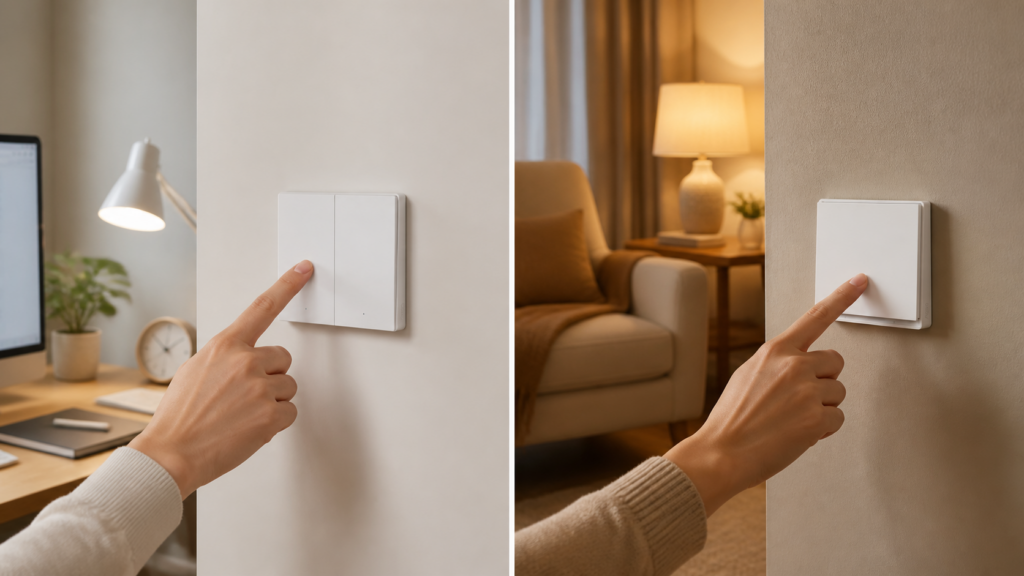
Aqara Wireless Mini Switch H1 (WXKG15LM / WXKG16LM): Zigbee2MQTT + Home Assistant
The Aqara Wireless Mini Switch H1 is a battery-powered Zigbee button that pairs directly to a Zigbee2MQTT coordinator — no Aqara hub, no cloud account, no Aqara Home app required at any point. The “H1” name covers two models: the WXKG15LM has two rockers and produces up to 12 distinct action types, while the WXKG16LM has one rocker and produces three. If you’ve been hunting for a wall-mountable button that works entirely locally with Home Assistant, this is a solid option once you understand the click mode behavior and the one binding limitation that catches people out.
WXKG15LM vs WXKG16LM: Which One Do You Have?
The easiest way to tell them apart is rocker count. The WXKG15LM has two physical rockers side by side; the WXKG16LM has one. Both use a CR2032 battery and share the same round-puck or flat-switch form factor designed for wall mounting or surface placement.
| Feature | WXKG15LM | WXKG16LM |
|---|---|---|
| Rockers | 2 (left + right) | 1 |
| Actions in multi mode | 12 | 3 |
| Binding endpoints | 1 (see caveat below) | 1 |
| OTA firmware updates | No | No |
| ZHA support | Not confirmed | Not confirmed |
The rest of this guide applies to both models. Where behavior differs I’ll call it out explicitly.
A quick naming clarification before moving on: the WXKG15LM/WXKG16LM are the H1 mini switch line, distinct from the Wireless Remote Switch H1 WRS-R02, which is a rocker-style wall remote with a different form factor and pairing sequence. Same “H1” branding, different devices.
Pairing with Zigbee2MQTT
You’ll need Zigbee2MQTT at version 1.30.0 or later (any 2.x release works too), plus a CC2652-based coordinator or equivalent. No Aqara hub involved.
Open permit join in Z2M, then trigger pairing mode on the switch:
- WXKG15LM: hold both rockers simultaneously for 10 seconds until the LED flashes.
- WXKG16LM: hold the single rocker for 10 seconds until the LED flashes.
Once the LED starts flashing, Z2M should pick up the device within a few seconds and identify it as WXKG15LM or WXKG16LM by model. Check the Devices list in the Z2M frontend to confirm the correct model was detected before closing permit join.
If the device isn’t pairing, the usual culprits are: coordinator not in permit join mode, button held too long (it restarts the pairing timer) or not long enough, and distance from the coordinator.
These devices are end nodes, not routers. They won’t extend your Zigbee mesh.
What You Get in Home Assistant
After pairing, Z2M creates the following entities in Home Assistant:
WXKG15LM:
| Entity | Notes |
|---|---|
action |
The triggered event string (resets to empty immediately after firing) |
battery |
Percentage, 24-hour reporting lag by design |
voltage |
Millivolts, updates more responsively than percentage |
click_mode |
"fast" or "multi" — settable |
WXKG16LM: Same entity set. Action values differ (single/double/hold only).
The action entity is your automation trigger. It fires a string value on each press and immediately resets to an empty string. That reset behavior is important: you can’t trigger on the entity’s current state value because by the time HA evaluates it, it’s already cleared. Use a state change trigger on the action entity, not a state-value trigger. Z2M also exposes device triggers in the HA automation UI — those appear in the device picker as “button pressed” events and are the cleaner path if you prefer the UI over YAML.
The battery percentage entity shows 100% for up to 24 hours after a battery change or power cycle. That’s not a bug — it’s how the device reports. Check the voltage entity in millivolts if you want a more current reading. I treat anything under 2800mV as a prompt to swap the battery.
Click Mode: Fast vs Multi
This is the setting that trips people up most often. The click_mode entity controls how the switch detects and reports button presses.
Fast mode fires a single (or 1_single / 2_single) event immediately on button release. There’s no waiting to detect a second press, so there’s no latency. The trade-off is that double, triple, and hold actions are not available in fast mode.
Multi mode waits briefly after the first press to see if a second is coming before it decides whether to report single, double, or triple. That wait adds roughly 300-500ms of latency to single-press events. Hold is detected by duration, so it doesn’t add latency.
Choosing between them comes down to how many actions you need per button:
- One action per rocker (e.g., toggle a light): use fast mode. You get near-instant response and don’t pay the multi-mode latency tax.
- Multiple actions per rocker (e.g., single = dim, double = full brightness, hold = off): you need multi mode.
You can switch between modes three ways:
- Physical toggle: rapidly click either rocker 5 times. The LED will confirm the change. Useful when the device is already mounted and you don’t want to pull it off the wall.
- Z2M UI: go to the device in the Z2M frontend, find the
click_modesetting, and change it there. - MQTT publish: send
{"click_mode": "multi"}or{"click_mode": "fast"}to the device’ssettopic.
WXKG15LM Action Strings (Multi Mode)
| Rocker | Single | Double | Triple | Hold |
|---|---|---|---|---|
| Left | 1_single |
1_double |
1_triple |
1_hold |
| Right | 2_single |
2_double |
2_triple |
2_hold |
| Both | 3_single |
3_double |
3_triple |
3_hold |
In fast mode, only 1_single, 2_single, and 3_single fire.
WXKG16LM action strings are single, double, and hold (multi mode); single only in fast mode.
Automation Examples
Example 1 — WXKG15LM, fast mode, one action per rocker:
automation:
  - alias: "Mini switch left - toggle living room light"
    trigger:
      - platform: state
        entity_id: sensor.mini_switch_action
        to: "1_single"
    action:
      - service: light.toggle
        target:
          entity_id: light.living_room

  - alias: "Mini switch right - toggle bedroom light"
    trigger:
      - platform: state
        entity_id: sensor.mini_switch_action
        to: "2_single"
    action:
      - service: light.toggle
        target:
          entity_id: light.bedroom
Example 2 — WXKG15LM, multi mode, stacked left rocker:
automation:
  - alias: "Mini switch left single - dim to 50%"
    trigger:
      - platform: state
        entity_id: sensor.mini_switch_action
        to: "1_single"
    action:
      - service: light.turn_on
        target:
          entity_id: light.living_room
        data:
          brightness_pct: 50

  - alias: "Mini switch left double - full brightness"
    trigger:
      - platform: state
        entity_id: sensor.mini_switch_action
        to: "1_double"
    action:
      - service: light.turn_on
        target:
          entity_id: light.living_room
        data:
          brightness_pct: 100

  - alias: "Mini switch left hold - lights off"
    trigger:
      - platform: state
        entity_id: sensor.mini_switch_action
        to: "1_hold"
    action:
      - service: light.turn_off
        target:
          entity_id: light.living_room

  - alias: "Mini switch both single - all lights off"
    trigger:
      - platform: state
        entity_id: sensor.mini_switch_action
        to: "3_single"
    action:
      - service: light.turn_off
        target:
          entity_id: all
Example 3 — WXKG16LM, multi mode:
automation:
  - alias: "Single button single - toggle light"
    trigger:
      - platform: state
        entity_id: sensor.single_switch_action
        to: "single"
    action:
      - service: light.toggle
        target:
          entity_id: light.desk_lamp

  - alias: "Single button double - toggle fan"
    trigger:
      - platform: state
        entity_id: sensor.single_switch_action
        to: "double"
    action:
      - service: switch.toggle
        target:
          entity_id: switch.desk_fan

  - alias: "Single button hold - all lights off"
    trigger:
      - platform: state
        entity_id: sensor.single_switch_action
        to: "hold"
    action:
      - service: light.turn_off
        target:
          entity_id: all
You can also use device triggers instead of state triggers. In the HA automation editor, select the device, choose “button pressed” as the trigger type, and pick the specific action from the dropdown. The YAML for a device trigger looks different but works equally well — state triggers are more portable if you’re moving configs between Z2M instances.
Binding Mode: When It Helps (and When It Doesn’t)
Zigbee direct binding lets the switch control a light or group directly at the Zigbee level, bypassing Z2M and Home Assistant entirely. This means the button still works even if your coordinator or HA instance is offline.
To set it up: in the Z2M frontend, go to the device page, open the Bind tab, select the target cluster (usually genOnOff or genLevelCtrl), and choose the target device.
Here’s the limitation with the WXKG15LM: despite having two physical rockers, it only exposes a single binding endpoint. Both rockers share that endpoint in binding mode, meaning both rockers will control the same target. If you bind the switch to a light, pressing left and pressing right both control that light — you can’t bind left to one device and right to another independently.
For the WXKG15LM, this makes binding most useful only when you want both rockers to control the same target (e.g., a whole zone of lights). For independent per-rocker control, stick with event mode (Z2M automations triggered by the action entity). That’s what I use on mine.
The WXKG16LM doesn’t have this problem — one rocker, one endpoint, binding works as expected.
Troubleshooting
Actions stopped firing after a Z2M update: This has been reported following Z2M 2.x version changes, tracked in GitHub issue #25650. The fix is to update Z2M to the latest 2.x release and re-pair the device. It sounds disruptive but the re-pair takes about 30 seconds and restores all entities.
Only single actions fire even in multi mode: The click_mode entity may have reverted to “fast.” Check it in the Z2M UI. You can also toggle it physically with 5 rapid clicks on either rocker; the LED response will confirm which mode you landed on.
Battery shows 100% and never changes: This is expected behavior. The battery percentage entity has a 24-hour reporting lag by design. If you want a faster read of battery health, check the voltage entity in millivolts instead.
Device won’t pair: Make sure Z2M permit join is active, then hold the button for the full 10 seconds. The LED should flash during the pairing window. If nothing happens, move the switch closer to the coordinator and try again.
Triple press not detected reliably: Triple detection requires three consistent fast presses. If you’re on low battery (under 20%), detection can become unreliable. Swap the CR2032 first before debugging the automation.
ZHA Users
Neither the WXKG15LM nor WXKG16LM has a confirmed ZHA quirk in zha-device-handlers as of mid-2025. If you’re on ZHA, these devices may pair but button events are unlikely to work correctly. Zigbee2MQTT is the verified path for both models.
Cloud Dependency
Zero. Both models pair directly to a Z2M coordinator. No Aqara app, no hub, no Mi Home account needed at any step. Once paired, the switch works entirely locally. There’s no outbound traffic to verify — these are battery-powered end devices with no IP stack.
For related local-first button options, I’ve covered the original Wireless Mini Switch WXKG11LM and the T1 variant (WXKG14LM) if you’re deciding between generations.
If you need a wireless switch that doesn’t require a hub and gives you clean local button events for Home Assistant automations, the H1 mini switch delivers on that reliably. Just go in knowing that the WXKG15LM’s two-rocker independent binding limitation is real — use event mode for independent per-rocker control, and you won’t hit it.