

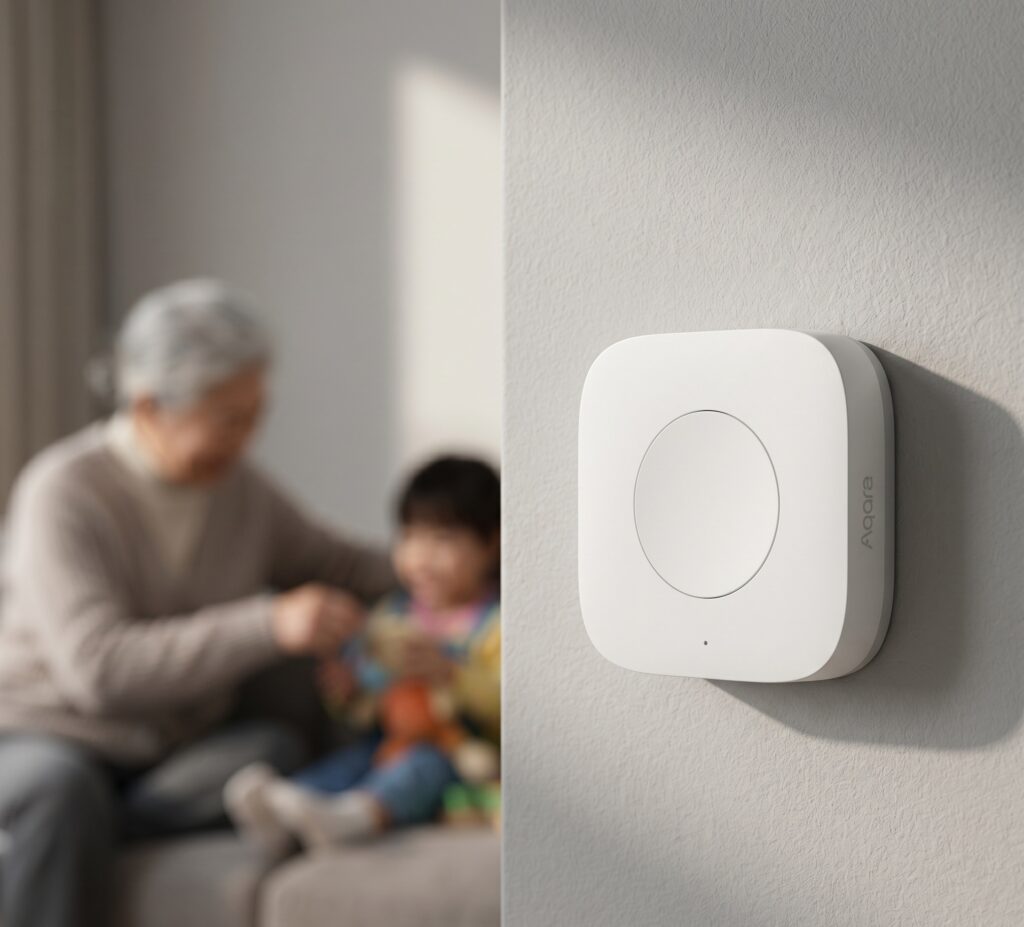
Aqara Wireless Mini Switch (WXKG11LM): Pair with Zigbee2MQTT and Build Home Assistant Automations Without the Aqara Hub
A small wireless button is often easier to use than an app. The Aqara WXKG11LM runs on a CR2032 battery and can sit on a desk or attach to a surface with its adhesive pad. Pair it to Zigbee2MQTT and Home Assistant can use its presses to control lights, run scenes, or send a notification.
This route needs a Zigbee coordinator, but no Aqara hub or Aqara account. Aqara’s own hubs can also run local automations; the reason to use Zigbee2MQTT is to manage the button alongside your other Home Assistant devices. The steps below cover pairing, checking which actions your particular revision sends, and building automations around those actions.
Prerequisites
- Home Assistant with the MQTT integration connected to a local broker.
- Zigbee2MQTT running as an add-on or a separate service, with Home Assistant discovery enabled.
- A coordinator supported by Zigbee2MQTT, such as a SONOFF ZBDongle-P or ZBDongle-E. They use different radio chips and need the matching adapter configuration.
- A WXKG11LM with a working CR2032 battery.
If the Zigbee network is not ready yet, follow the Xiaomi/Aqara Zigbee + Zigbee2MQTT overview first.
Model Clarification — Which Aqara Button Do You Have?
Read the model number on the back before choosing an automation. Similar-looking Aqara buttons do not all send the same actions.
WXKG11LM — Aqara Wireless Mini Switch (this guide)
The WXKG11LM is the square Wireless Mini Switch covered here. Zigbee2MQTT lists six possible actions, but triple, quadruple, hold, and release depend on the hardware revision. Start with single and double presses, then test the others in the device log. A missing hold action does not necessarily mean pairing failed.
WXKG12LM — Wireless Mini Switch with gyroscope
Zigbee2MQTT describes the WXKG12LM as a mini switch with a gyroscope. Its documented actions are single, double, hold, release, and shake. Do not copy triple-press or many triggers from a different button. Compare the WXKG11LM and WXKG12LM device pages if the label is unclear.
Pairing the WXKG11LM with Zigbee2MQTT
Enable Permit Join in Z2M
Open the Zigbee2MQTT frontend from the Home Assistant sidebar or your installation’s configured address. Select Permit join. Its dropdown can restrict joining to the coordinator or a specific router; it is not a device-group selector. Close the join window once the button has joined.
Trigger Pairing Mode on the Switch
- With joining enabled, hold the switch’s reset button for about five seconds.
- Release when the blue LED starts blinking.
- Watch Zigbee2MQTT for the new device and a completed interview.
If the first attempt stalls, the WXKG11LM device page suggests a longer hold, following the LED pattern, then short presses about once per second to keep the device awake. Allow the interview to finish before moving it to its final location.
Confirm Pairing in Z2M
Check that Zigbee2MQTT recognises the model, then give it a friendly name such as aqara_mini_switch. In Home Assistant, find it under Settings → Devices & services → MQTT. Press the button in each way you plan to use: MQTT device triggers are discovered after those actions have occurred.
Troubleshooting: Pairing Failures
- No join message: check the battery contacts and any insulating tab, confirm joining is still enabled, and retry near the coordinator. Try a fresh cell if the LED flashes but joining repeatedly fails.
- Interview stalls: keep the button awake with short presses and inspect the Zigbee2MQTT log before restarting anything.
- Works near the coordinator but disconnects in place: check signal quality and the parent router. Zigbee2MQTT documents compatibility problems with some older Aqara devices through certain routers; test another joining path rather than assuming a battery percentage rules out a weak cell.
- Actions in Z2M but none in HA: check MQTT discovery, the broker connection, and whether each action has been generated since pairing.
Understanding Action Types in Zigbee2MQTT
WXKG11LM Action Values
| Action | Gesture and availability |
|---|---|
single |
One short press |
double |
Two quick presses |
hold |
Long press; revision-dependent |
release |
Release after a hold; revision-dependent |
triple |
Three quick presses; revision-dependent |
quadruple |
Four quick presses; revision-dependent |
Test a gesture several times before relying on it. Release is especially important for continuous dimming: the automation needs both a start and a stop event. If your switch never sends hold/release, assign fixed brightness scenes to single and double press instead.
How Z2M Exposes Actions: Current vs Legacy Behavior
A press publishes an action value in the button’s MQTT message, for example {"action":"single"}. Home Assistant can turn it into an MQTT device trigger. This is the recommended Zigbee2MQTT integration method.
Older examples may use a click value or a sensor.…_action entity. The first is a device-specific legacy event; the second requires the deprecated homeassistant.legacy_action_sensor option. A new automation does not need that sensor. To disable the old click event, merge this into Zigbee2MQTT’s device entry, using the button’s real IEEE address:
devices:
  '0x00158d0000000000':
    friendly_name: aqara_mini_switch
    legacy: false
To inspect the raw message in Home Assistant, open the MQTT integration’s Configure page and use Listen to a topic with zigbee2mqtt/aqara_mini_switch. Use your actual friendly name and base topic. The Zigbee2MQTT device log is another useful place to check which actions arrive.
Building Automations in Home Assistant
The complete automation examples below belong in one automation’s Edit in YAML view. Replace every example entity with one from your installation. In automations.yaml, each automation instead needs to be a separate list item, starting with - alias: and indented accordingly.
Method 1 — Using the HA UI (Device Triggers)
- Create an automation and add a Device trigger.
- Choose the mini switch and an action it has already reported.
- Add an action such as toggling the bedroom light.
- Save, then test a real press.
The visual editor fills in the real device_id. Here is the shape of a single-press automation; replace the placeholder if entering it manually:
alias: Mini switch - bedroom light
triggers:
  - trigger: device
    domain: mqtt
    device_id: REPLACE_WITH_DEVICE_ID_FROM_HA
    type: action
    subtype: single
conditions: []
actions:
  - action: light.toggle
    target:
      entity_id: light.bedroom_ceiling
mode: single
Method 2 — YAML Automation with Multiple Triggers (All Press Types)
For several actions, a direct MQTT trigger avoids repeating the device ID. This example maps single press to a light, double press to a scene, and hold to a notification. Remove the hold branch if your revision does not report it. Replace notify.mobile_app_your_phone with the actual Companion app notification action from Developer Tools → Actions.
alias: Mini switch - bedroom actions
triggers:
  - trigger: mqtt
    topic: zigbee2mqtt/aqara_mini_switch
conditions:
  - condition: template
    value_template: "{{ trigger.payload_json.action | default('') in ['single', 'double', 'hold'] }}"
actions:
  - choose:
      - conditions: "{{ trigger.payload_json.action == 'single' }}"
        sequence:
          - action: light.toggle
            target:
              entity_id: light.bedroom_ceiling
      - conditions: "{{ trigger.payload_json.action == 'double' }}"
        sequence:
          - action: scene.turn_on
            target:
              entity_id: scene.movie_mode
      - conditions: "{{ trigger.payload_json.action == 'hold' }}"
        sequence:
          - action: notify.mobile_app_your_phone
            data:
              title: Button alert
              message: The bedside mini switch was held.
mode: single
mode: single ignores a new trigger while a previous run is still executing. It does not suppress duplicate button messages or make an automation queue by default. For these short actions it is a reasonable starting point; a longer script may need a different mode.
Practical Automation Examples
Single press: a bedside light toggle gives the button an obvious everyday job. Double press: use a scene for movie lighting or bedtime, and configure that scene separately in HA. Hold: a household alert can help someone ask for assistance, but test notification delivery and provide another way to call for help.
Hold and release dimming: after confirming both events, use a separate automation like this. A release restarts it and cancels the running dim loop; a maximum of 40 steps limits a missed release to roughly 12 seconds. The example only dims down and needs a light that supports brightness.
alias: Mini switch - hold to dim
triggers:
  - trigger: mqtt
    topic: zigbee2mqtt/aqara_mini_switch
    value_template: "{{ value_json.action | default('') }}"
    payload: hold
    id: hold
  - trigger: mqtt
    topic: zigbee2mqtt/aqara_mini_switch
    value_template: "{{ value_json.action | default('') }}"
    payload: release
    id: release
conditions: []
actions:
  - choose:
      - conditions: "{{ trigger.id == 'hold' }}"
        sequence:
          - repeat:
              count: 40
              sequence:
                - action: light.turn_on
                  target:
                    entity_id: light.bedroom_ceiling
                  data:
                    brightness_step: -10
                - delay:
                    milliseconds: 300
mode: restart
Choose either hold-to-dim or hold-to-notify for the same button unless you deliberately want both actions. This dimming version does not need an input_boolean; it replaces the disconnected hold/release fragments that cannot cancel each other in a single-running automation.
Using a Blueprint (Optional — Fastest Path)
The Home Assistant Blueprint Exchange has button automation templates. Search for your model and check that a blueprint supports MQTT device triggers or your current Z2M event method, along with the gestures your switch actually emits.
A blueprint can save repetitive setup. It still needs a paired button and valid target entities, and its available conditions depend on its author’s design. Read those requirements before importing one.
Privacy and Local-Only Operation
The button’s local control path is button → Zigbee coordinator → Zigbee2MQTT → MQTT broker → Home Assistant → chosen action. Pairing this way does not create an Aqara account or route presses through an Aqara hub.
The final action still matters: a local light command can stay local, while a phone push notification or a cloud-connected target may use an external service. Firmware downloads and host updates are also separate from the button’s Zigbee traffic. Aqara documents local automation support on its own Wireless Mini Switch page, so using its hub does not mean every press must make a cloud round trip.
Battery Life and Monitoring
Aqara advertises up to two years from a CR2032; usage, radio conditions, and cell quality affect the result. Zigbee2MQTT’s battery estimate can arrive late and should not be treated as an exact remaining-life measurement. Keep a spare cell if the button has a job you depend on.
This alert fires when the reported battery crosses below 20%. It intentionally has no last_changed condition: that timestamp changes on the very report that triggers the alert, so requiring it to be 24 hours old would block the first warning.
alias: Mini switch - low battery
triggers:
  - trigger: numeric_state
    entity_id: sensor.aqara_mini_switch_battery
    below: 20
conditions: []
actions:
  - action: notify.mobile_app_your_phone
    data:
      title: Low battery
      message: Aqara mini switch battery is below 20%.
mode: single
Numeric-state triggers react to entering the threshold, not to every update below it. If you also want a reminder for batteries already low after a restart, add a scheduled check rather than relying on this crossing alert alone.
Choosing your button actions
Pair the switch, check its real action messages, and assign the gestures you can reproduce reliably. A simple single/double mapping is preferable to a complicated hold workflow on a revision that never sends release.
For more gestures, see the Aqara Cube T1 Pro. For a fixed wall control, the Aqara H1 guide explains model-specific decoupled modes and wiring requirements.
By N. Lee