

Aqara Rotary Knob H1: Zigbee2MQTT + Home Assistant
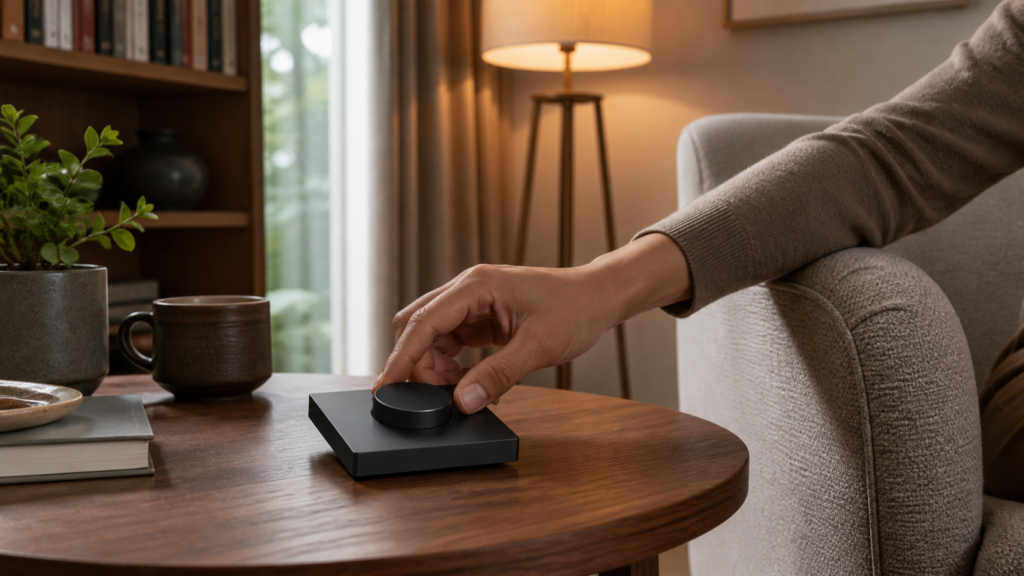
The Aqara Smart Rotary Knob H1 (ZNXNKG02LM) is one of the more tactile controllers in the Aqara lineup. It’s a wireless, battery-powered Zigbee device shaped like a knob — you rotate it to adjust brightness, hold the button while rotating to shift color temperature, and click it to trigger scenes. No wall wiring, no neutral wire, no installation crew required.
What makes it worth covering specifically for Zigbee2MQTT users is that the English documentation gap is real. The Z2M device page documents what the knob exposes. The HA Community blueprint exchange has blueprints that use it. But there’s no single guide that walks through pairing, explains what operation mode you need, shows you what the rotation data actually looks like, and explains why your automation might produce null values if you’re on an older Z2M version. That’s what this article is.
The knob pairs directly to a Zigbee coordinator running Z2M. No Aqara hub required, no Aqara Home app, no cloud.
What you need
- Aqara ZNXNKG02LM (model ID:
lumi.remote.rkba01). It comes in white, gray, and gold finishes. The 86mm form factor fits a standard wall-plate holder using the included adhesive bracket — making it repositionable rather than fixed. - A Zigbee coordinator and a current Zigbee2MQTT release. The Z2M version matters — some releases have shipped a bug where rotation values arrive interleaved with
null, which breaks brightness automations. More on that in the troubleshooting section. - Home Assistant with the MQTT integration configured.
- Two CR2032 batteries (included in the box).
Pairing the knob to Zigbee2MQTT
Open the Z2M frontend and enable pairing mode. Then, on the knob, press and hold the button until the blue LED starts blinking, and release.
If the pairing doesn’t complete in the first attempt, you’ll need to keep the device awake. Press the button once every ~1 second until Z2M confirms the device has joined. Sleepy battery devices like this one park themselves quickly if they don’t hear a coordinator response, and every press re-wakes them during the pairing window.
Once paired, the device appears as Aqara ZNXNKG02LM in the Z2M frontend. Battery state may not populate for up to 24 hours after pairing — that’s normal and not a sign of a failed join.
What the knob exposes in Zigbee2MQTT
After pairing, the Z2M device page for the knob shows the following action types:
| Action | Trigger |
|---|---|
single |
One press of the button |
double |
Two presses in quick succession |
hold |
Button held |
release |
Button released after hold |
start_rotating |
Rotation begins |
rotation |
Active rotation event (fires continuously while rotating) |
stop_rotating |
Rotation ends |
The rotation action carries four additional data fields:
action_rotation_angle— degrees rotated, positive for clockwise, negative for counter-clockwiseaction_rotation_angle_speed— how fast you’re turning, in degreesaction_rotation_percent— rotation normalized to a percentage of a full turnaction_rotation_percent_speed— turn speed expressed as percentaction_rotation_time— duration of the rotation in millisecondsaction_rotation_button_state— whether the button is pressed or released during rotation
Note the field names exactly: the speed field is action_rotation_angle_speed, not action_rotation_speed. A common cause of an automation reading null is referencing a field name that doesn’t exist on the payload.
That last field is what makes this knob interesting for dual-surface control. If action_rotation_button_state is pressed, you’re doing a “rotate while holding” gesture — which you can map to a different function than bare rotation.
Operation mode: event vs. command
The knob supports two operation modes, configurable in Z2M under the device’s settings tab.
Event mode sends all rotation and click data as individual MQTT action events that Home Assistant can act on. This is what you want for HA automations — each rotation produces an MQTT message with the angle, speed, and button state.
Command mode is designed for direct Zigbee binding — pairing the knob to a Zigbee bulb or group at the protocol level without routing through HA. When in command mode, the knob sends Zigbee commands directly to bound devices. The rotation actions don’t appear as MQTT messages in the same way, which means HA automations stop working as expected.
If you’re finding that rotation events aren’t appearing in the Z2M device log after pairing, check the operation mode. It defaults to event on most firmware versions, but it’s worth confirming. Set it to event and save.
Setting sensitivity
Z2M exposes a sensitivity setting with three options: low, medium, and high. This controls how the knob quantizes rotation steps — essentially how many MQTT events you get per full rotation.
Higher sensitivity = more events per rotation = finer-grained control but potentially more automation triggers per sweep. Medium is a reasonable starting point. If you find brightness changes too coarse or too jittery, adjust from there.
Building a brightness automation
The rotation data you’ll use most often is action_rotation_angle. A positive value means clockwise (brighter), negative means counter-clockwise (dimmer).
Here’s an automation that increases or decreases brightness on a target light based on rotation angle:
alias: Knob H1 — brightness control
description: Rotate knob to adjust light brightness
trigger:
  - platform: device
    domain: mqtt
    device_id: YOUR_DEVICE_ID
    type: action
    subtype: rotation
condition: []
action:
  - service: light.turn_on
    target:
      entity_id: light.your_target_light
    data:
      brightness_step_pct: >
        {{ trigger.event.data.action_rotation_angle | float / 3 }}
mode: restart
The divisor (/ 3) controls how aggressively the knob moves brightness. Adjust to taste. A full 360-degree rotation would translate to roughly 120% brightness steps with a divisor of 3, which is more than enough range for a single sweep.
If you want to use action_rotation_percent instead, the math changes — it’s normalized to a 0–100 range per rotation, so you’d multiply by your desired scaling factor rather than divide the angle.
Blueprint options
For most users, installing a community blueprint is faster than building automations from scratch. The most widely used one is the brightness + color temperature blueprint from the HA Community blueprint exchange. It maps:
- Rotate right: increase brightness
- Rotate left: decrease brightness
- Rotate right while holding button: increase color temperature (cooler)
- Rotate left while holding button: decrease color temperature (warmer)
- Single click: configurable
- Double click: configurable
- Hold: configurable
The blueprint requires HA Core >= 2024.08 and operation mode set to event.
If you’re on HA 2026.3 or later: the blueprint broke because HA renamed the kelvin parameter to color_temp_kelvin in the light.turn_on service. Blueprint v4.0.0 addresses this and also adds a minimum brightness floor. Check the blueprint version before you spend time debugging unexpected color temperature behavior — the thread update note is easy to miss if you installed the blueprint months ago.
A separate blueprint exists specifically for CCT light control (for lights that expose color temperature but not RGB). There’s also a media player volume variant where rotation controls playback volume.
Click actions as scene triggers
The single, double, and hold actions work as reliable scene or automation triggers. These are no different from any other Z2M button device — you set up a device trigger or MQTT trigger in HA and call whatever service you want.
One pattern I find useful in a home cinema context: hold = activate “movie mode” scene (dims lights to 15%, activates projector input, pulls blinds). Single press = toggle lights between off and a preset level. Double press = set lights to 100% for when the movie ends.
The beauty of handling this in HA rather than via Zigbee binding is that you can change what the click does without touching the knob — just update the automation.
Dual-surface control: bare rotation vs. rotate-while-held
The action_rotation_button_state field splits the knob’s rotation into two independent control surfaces. When the field is released, bare rotation is happening. When it’s pressed, the user is holding the button while rotating.
This is how the brightness + color temperature blueprint works under the hood. You can build the same logic manually:
alias: Knob H1 — dual surface
trigger:
  - platform: mqtt
    topic: zigbee2mqtt/your_knob_device_name
condition: []
action:
  - choose:
      - conditions:
          - condition: template
            value_template: >
              {{ trigger.payload_json.action == 'rotation' and
                 trigger.payload_json.action_rotation_button_state == 'released' }}
        sequence:
          - service: light.turn_on
            target:
              entity_id: light.bedroom_ceiling
            data:
              brightness_step_pct: >
                {{ trigger.payload_json.action_rotation_angle | float / 3 }}
      - conditions:
          - condition: template
            value_template: >
              {{ trigger.payload_json.action == 'rotation' and
                 trigger.payload_json.action_rotation_button_state == 'pressed' }}
        sequence:
          - service: light.turn_on
            target:
              entity_id: light.bedroom_ceiling
            data:
              color_temp_kelvin: >
                {% set current = state_attr('light.bedroom_ceiling', 'color_temp_kelvin') | int(3000) %}
                {% set step = (trigger.payload_json.action_rotation_angle | float / 3) | int %}
                {{ [2000, [6500, current + step] | min] | max }}
mode: restart
This example puts brightness on bare rotation and color temperature on rotate-while-held, which matches the Chinese community’s preferred mapping for bedroom use: fine brightness control without picking up your phone, and color temperature accessible when you want to shift the mood.
For a worked example of mapping rotation to a richer light target, see our Aqara LED Strip T1 Zigbee2MQTT guide, where the same brightness-and-color-temperature split applies to a segment-addressable strip.
Null rotation values: what to do
If your automation logs show rotation events where action_rotation_angle is null — or if brightness jumps erratically rather than stepping smoothly — you’re hitting a known Z2M issue with this device (tracked upstream as issue #19995).
The symptom: some Z2M versions emit the rotation action before the angle data is populated, so the action arrives with null for the data fields, sometimes as duplicated null messages between real ones. HA automations that try to do math on a null value either throw template errors or default to zero, causing brightness to snap to the minimum.
First step is to run a current Z2M release and check the release notes for this device. Be aware the null behavior has resurfaced across some releases rather than being fixed once and for all, so confirm against your installed version rather than assuming a single “fixed in” build.
If null values persist after updating, re-pair the device (remove and re-pair) — sometimes the device state gets cached incorrectly and a fresh join clears it. If you still see nulls, add a template guard to your automation that skips events where action_rotation_angle is not a number, rather than letting the math run on a null.
Does it work without the Aqara hub?
Yes, completely. Once paired to a Z2M coordinator, the knob communicates entirely over Zigbee to the coordinator. There’s no Aqara hub involved, no Aqara Home app required, and no outbound traffic to Aqara’s or Xiaomi’s servers.
This is worth stating explicitly because the knob is also available for use inside the Aqara Home ecosystem, where it works via an Aqara hub (M2, M3, E1). The Z2M path is independent of that ecosystem. If you’ve previously set the knob up via Aqara Home and are migrating it to Z2M, you’ll need to factory reset it before it will re-pair to a different coordinator.
If you’re setting up a coordinator for the first time, our pillar guide on running Aqara Zigbee devices in Home Assistant without the Aqara hub walks through the coordinator and Z2M setup the knob depends on.
ZHA support
ZHA has a device handler for the ZNXNKG02LM. I’d keep the focus on Z2M for this article because Z2M exposes the full rotation data set — angle, speed, percent, time, button state — while the ZHA path has historically been less complete on rotation attributes. If you’re committed to ZHA for other reasons, the device handler exists and basic click actions work, but check current support status before assuming rotation-based automations will behave the same way.
If you’d rather keep an Aqara hub in the loop instead of a USB coordinator, our Aqara Hub E1 local integration guide covers the hub-based path for Home Assistant.
Comparing the knob to other Aqara wireless controllers
Chinese Aqara communities treat the H1 Knob, the Magic Cube T1 Pro, and the S1 Scene Panel (妙控开关S1E, Miào Kòng Kāiguān S1E) as the three go-to wireless controllers for lighting scenes. The knob’s rotation mechanic makes it the best choice when continuous fine-grained brightness adjustment is the priority — particularly in bedrooms and home cinema rooms where you want to operate it in the dark without looking at a screen. The Magic Cube is better for discrete scene switching. The S1 Panel is better when you want a display-driven controller with labeled scenes.
If you need a wall-mounted controller that actually switches mains, that’s a different product category entirely.
For the display-driven option in this trio, see our Aqara Scene Panel S1 Zigbee2MQTT and Home Assistant guide.
Frequently asked questions
Does the Aqara Rotary Knob H1 work without the Aqara Hub?
Yes. It pairs directly to any Zigbee coordinator running Z2M or ZHA. No hub required.
What is the difference between event mode and command mode?
Event mode sends rotation and click data as MQTT messages that HA automations can act on. Command mode enables direct Zigbee binding to bulbs or groups without routing through HA. For Home Assistant automations, event mode is what you want.
How do I use the knob to dim lights in Home Assistant?
Use the action_rotation_angle field from the rotation MQTT event. Positive values are clockwise (increase brightness), negative are counter-clockwise (decrease). The brightness + color temperature community blueprint handles this out of the box — just make sure you’re on v4.0.0+ if you’re running HA 2026.3 or later.
Why does my knob send null values for rotation?
This is a known Z2M issue with the ZNXNKG02LM (upstream issue #19995): some releases emit rotation actions with null data fields. Run a current Z2M release and check whether the behavior is present on your version, since it has resurfaced across builds. If null values persist after updating, factory reset and re-pair, and add a template guard that skips non-numeric action_rotation_angle values.
Can I control media player volume with the Aqara Knob H1?
Yes — a community blueprint exists for this. It maps rotation to volume up/down. The same dual-surface approach (bare rotation vs. rotate-while-held) can split volume control and track skipping across the same physical knob.