

Aqara Scene Panel Switch S1 (ZNCJMB14LM): Zigbee2MQTT + Home Assistant Setup
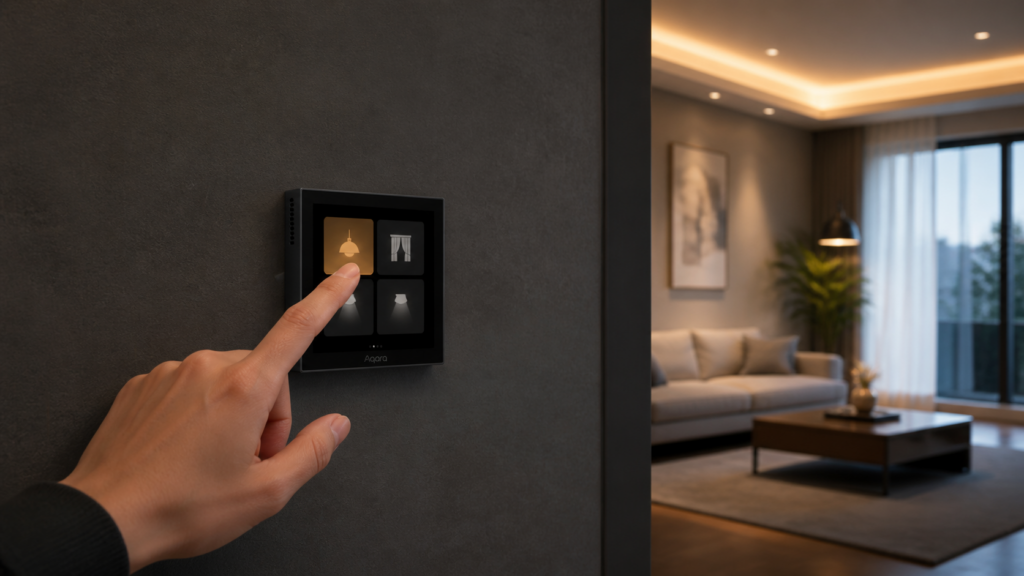
The Aqara 智能场景面板开关 S1 (Smart Scene Panel Switch S1) is one of the more interesting pieces of hardware Aqara makes: a 3.95-inch color IPS touchscreen in a standard 86mm wall plate, with three independent relay endpoints behind it. It sits flush in the wall like a normal switch, but you can configure what each button actually does at the software level.
Most English content on this device is thin. The Zigbee2MQTT device listing covers the entity list. There are a few unanswered HA forum threads. That’s about it. Chinese homelab communities have been running this panel for years in 全宅智能 (whole-home smart) setups, and there’s a lot of practical knowledge there that hasn’t made it into English.
This guide covers pairing the ZNCJMB14LM directly to Zigbee2MQTT — no Aqara hub required — and configuring it properly from Home Assistant.
What the Aqara S1 Panel Actually Is
Before pairing anything, it’s worth clarifying which device we’re talking about. Aqara has a confusing lineup of panels with similar names.
The ZNCJMB14LM is the Zigbee model. Its Zigbee device ID is lumi.switch.n4anc4. It has three physical relay endpoints controlling three separate circuits, and it requires a neutral wire. If your wall box doesn’t have neutral, this device won’t work. There’s no bypass module option for a panel this size.
The S1E (model CJPKGO1LM) is a different product entirely: WiFi, not Zigbee, and it integrates via a completely different path. If you’ve been reading SmartHomeScene’s S1 coverage, that’s the S1E. The two look similar but they’re not interchangeable from an integration standpoint.
There’s also the newer Panel Hub S1 Plus (LXQBKG22LM), which includes a Zigbee coordinator built in. Different category. Not covered here.
The device’s physical format is the Chinese 86mm standard, the same size as the Aqara H1 and Z1 Pro wall switches. It’s increasingly available via import internationally.
What You Need Before Pairing
You need a working Zigbee coordinator connected to Home Assistant with either Zigbee2MQTT or ZHA installed. The ZNCJMB14LM works with both, but there’s a meaningful difference in capability between them.
With Zigbee2MQTT, you get the full entity set: three switch entities, display configuration controls, icon and label customization, action events for each button press, and device temperature monitoring. With ZHA, support is more limited. You’ll get basic switch control but lose most of the display configuration attributes. If you’re specifically buying this panel for its customizability, use Zigbee2MQTT.
No specific minimum Zigbee2MQTT version is needed beyond the current stable release.
You also need a neutral wire in the wall box. This is non-negotiable for the S1 panel.
Pairing the ZNCJMB14LM to Zigbee2MQTT
Enable Permit Join in the Zigbee2MQTT frontend or via the HA integration card. This opens the coordinator to new devices for 254 seconds by default.
To put the S1 panel into pairing mode, press and hold the reset button until the LED blinks rapidly. The reset button is typically recessed on the device. Check the physical installation notes for its location.
One thing worth knowing: this device has a battery-management behavior that causes it to go to sleep aggressively during pairing. If the pairing attempt stalls, keep pressing the reset button periodically to keep the device awake. This is documented in the Zigbee2MQTT device page and confirmed in HA community threads. It’s not a fault, just how the device manages power during the pairing window.
Once paired, the device should appear in the Zigbee2MQTT device list with the model ID lumi.switch.n4anc4. Confirm this before moving to the configuration steps.
Entities in Home Assistant
After pairing, Zigbee2MQTT creates a substantial number of entities. Here’s what to expect.
Switch entities — the three relays:
switch.s1_left(or similar, depending on your naming) — controls the left circuitswitch.s1_center— controls the center circuitswitch.s1_right— controls the right circuit
Each accepts standard ON/OFF/TOGGLE commands. Power outage memory is built in, so the device restores its last state after a power cut.
Sensor entities:
sensor.s1_device_temperature— internal device temperature in °C. Useful for a quick sanity check that the device is operating within a normal range, especially in a tight wall box.
Display configuration entities (number/select types):
These are the entities that make this panel worth using. Via these entities you control the display from HA without touching the Aqara app or hub:
lcd_brightness— 1 to 100%lcd_auto_brightness_enabled— auto-dim based on ambient lightstandby_enabled/standby_time/standby_lcd_brightness— dim-to-standby behaviortheme— classic or concise visual themelanguage— Chinese or Englishscreen_saver_style/screen_saver_enabledhomepage— scene, feel, thermostat, or switch (sets the default startup screen)font_sizebeep_volume
Switch visibility and label entities:
available_switches— controls which of the three switch buttons are shown on the display (none, 1, 2, 3, or combinations)switch_1_text_icon,switch_2_text_icon,switch_3_text_icon— custom labels and icons for each button; 11 built-in icon options are available
Action events:
When state_action is enabled, each physical button press publishes a separate action event to the Zigbee2MQTT MQTT topic. These events are what you use to trigger HA automations from button presses.
Decoupled Mode: The S1 as a Pure Scene Controller
This is probably the most useful configuration for the S1 in a Home Assistant setup.
By default, the three relay endpoints behave like normal switches: pressing a button toggles the corresponding circuit. That works fine if you want the panel to directly control lights wired to those circuits. But many users buying this panel want it to trigger scenes and automations, not to toggle a light directly. That’s where decoupled mode comes in.
In decoupled mode, pressing a button publishes an action event to Zigbee2MQTT but does NOT toggle the relay. The physical circuit remains unchanged. The button press becomes a pure trigger for whatever automation you configure in HA.
To set decoupled mode per endpoint, send an MQTT set message to the device topic with the operation_mode attribute for each endpoint. In Zigbee2MQTT’s exposes UI, you’ll see this as a select entity per switch.
Once decoupled mode is enabled, your automation trigger looks at the action event rather than the switch entity state. Here’s a pattern for triggering three scene modes from the three buttons:
alias: S1 Panel - Scene Triggers
description: "Trigger whole-home scenes from S1 panel button presses"
trigger:
  - platform: device
    domain: mqtt
    device_id: YOUR_DEVICE_ID
    type: action
    subtype: "1_single"
    id: leave_home
  - platform: device
    domain: mqtt
    device_id: YOUR_DEVICE_ID
    type: action
    subtype: "2_single"
    id: cinema_mode
  - platform: device
    domain: mqtt
    device_id: YOUR_DEVICE_ID
    type: action
    subtype: "3_single"
    id: bedtime
action:
  - choose:
      - conditions:
          - condition: trigger
            id: leave_home
        sequence:
          - action: scene.turn_on
            target:
              entity_id: scene.leave_home
      - conditions:
          - condition: trigger
            id: cinema_mode
        sequence:
          - action: scene.turn_on
            target:
              entity_id: scene.cinema_mode
      - conditions:
          - condition: trigger
            id: bedtime
        sequence:
          - action: scene.turn_on
            target:
              entity_id: scene.bedtime
Adjust the action subtype strings to match what your device actually publishes. Check the Zigbee2MQTT events log after a button press to confirm the exact event names.
This is exactly the pattern that Chinese users describe building with this device. The three buttons get mapped to 离家模式 (leave-home mode), 影院模式 (cinema mode), and 就寝模式 (bedtime mode), so one tap covers lights, curtains, air conditioning, and speakers. The S1’s value is that this wall-mounted touchscreen becomes the physical interface for your entire HA automation setup, visible to everyone who walks in the door.
Customizing the Display from Home Assistant
The display configuration entities make this panel genuinely different from a standard wall switch. A few things I set up on mine:
Language: Set language to English if you want the display UI in English rather than Chinese. Sspai (少数派) community members specifically call out this setting as important for households where not all members read Chinese. The setting persists across power cycles.
Homepage: Set homepage to scene or switch depending on how you’re using the panel. The scene homepage shows your configured scene buttons. The switch homepage shows the three relay controls. For a decoupled panel used purely as a scene trigger, scene is the right choice.
Brightness and auto-dim: lcd_auto_brightness_enabled is useful in rooms where ambient light varies a lot. When enabled, the display dims automatically. Combined with standby_enabled and a short standby_time, the panel goes dark when nobody’s nearby and brightens on touch.
Switch labels and icons: Each of the three buttons can have a custom text label and one of 11 built-in icon options set via switch_1_text_icon, switch_2_text_icon, switch_3_text_icon. If your buttons are triggering scenes rather than switching lights, labeling them “Leave”, “Cinema”, and “Sleep” (or equivalent in your preferred language) makes the panel self-explanatory to anyone using it.
These are all MQTT-settable via HA’s entity services. No Aqara app required once the device is paired to Zigbee2MQTT.
Firmware Updates via Zigbee2MQTT
OTA firmware updates are supported via Zigbee2MQTT. Check for updates after the initial pairing setup is stable. No hub is required for OTA. Zigbee2MQTT handles it directly through the coordinator.
Don’t update firmware mid-configuration. Pair, confirm entities, do your initial setup, then run OTA.
What You Lose Without the Aqara Hub
There are two display homepage modes that don’t work properly without an Aqara hub: feel and thermostat.
The feel (ambience) and thermostat homepage modes are designed to pull live sensor data from paired Aqara sensors and display it on screen. Without an Aqara hub as the coordinator, there’s no mechanism to feed that data to the panel’s display. The hub handles that integration, not Zigbee2MQTT. Without a hub, these modes show static UI only.
This isn’t documented clearly in English anywhere I’ve found. Chinese community discussions on Zhihu mention it as a practical limitation when using the S1 without the Aqara ecosystem. It’s worth knowing before you configure the panel: set homepage to scene or switch, not feel or thermostat.
HomeKit: When paired via Zigbee2MQTT without an Aqara hub, HomeKit is not available simultaneously for this device. The HomeKit path requires an Aqara hub as the bridge. You pick one integration path: Zigbee2MQTT (full HA control, no HomeKit for this device) or Aqara hub (HomeKit available, but you’re more dependent on Aqara’s app and ecosystem). The trade-offs between the two are covered in our guide to Aqara HomeKit mode and local automations.
If you want both Zigbee2MQTT device control and HomeKit, the architecture gets more complex. You’d need an Aqara hub paired to HA alongside your Zigbee2MQTT setup, which is a valid but more involved configuration. See our Aqara Hub M2 with Home Assistant via HomeKit Controller walkthrough for that path.
Privacy: What This Setup Actually Looks Like
With the Aqara hub absent, there’s no Aqara cloud path for this device. The ZNCJMB14LM communicates via Zigbee to your coordinator, Zigbee2MQTT brokers the MQTT messages locally, and HA processes them on your network.
No outbound traffic to Aqara’s servers, no telemetry path. State changes, button presses, and display configuration updates all stay on 192.168.10.0/24 (or whatever your IoT network is). The only thing Aqara’s infrastructure sees is nothing, because you’re not using it.
This is the reason Chinese HA users consistently opt for Zigbee2MQTT over native Aqara hub integration for this panel. Not performance, not features, but the ability to verify that your wall switch isn’t talking to servers you don’t control. A tcpdump check after pairing should confirm zero DNS lookups to Aqara domains from the device’s traffic path.
Frequently Asked Questions
Does the Aqara S1 (ZNCJMB14LM) work without the Aqara hub in Home Assistant?
Yes. The ZNCJMB14LM is a Zigbee device and pairs directly to any Zigbee coordinator. No Aqara hub required. Zigbee2MQTT gives you full entity access and display control.
Can I change the icons and text labels on the S1 panel from HA?
Yes, via the switch_1_text_icon, switch_2_text_icon, and switch_3_text_icon entities in Zigbee2MQTT. You pick from 11 built-in icon options and set custom text labels.
How do I set up decoupled mode so the S1 works as a pure scene controller?
Set the operation_mode attribute for each relay endpoint to decoupled via the Zigbee2MQTT UI or MQTT. Then create HA automations triggered by action events rather than switch entity state changes.
Can I switch the S1 display to English?
Yes. The language select entity in Zigbee2MQTT allows toggling between Chinese and English. The setting persists across power cycles.
Does the S1 (ZNCJMB14LM) support HomeKit when paired via Zigbee2MQTT?
No. HomeKit requires an Aqara hub as the bridge. When paired directly to Zigbee2MQTT, only Home Assistant integration is available for this device.
The S1 panel is genuinely one of the nicer bits of hardware in the Aqara lineup for HA setups. A color touchscreen wall panel that you can relabel, repurpose, and script from Home Assistant, without a cloud account, without an Aqara hub, without doing anything that would surprise a privacy-conscious reader, is a practical setup that doesn’t require compromise. The display customization options, which English documentation mostly ignores, are what make it more than a three-relay switch with an expensive face.
For readers weighing the hub-based path instead, our Aqara Hub E1 local integration guide and Aqara Hub M2 via HomeKit Controller cover the hub options for HomeKit bridging. For related wall switch coverage, see our Aqara Z1 Pro wall switch in Zigbee2MQTT and Home Assistant setup.