

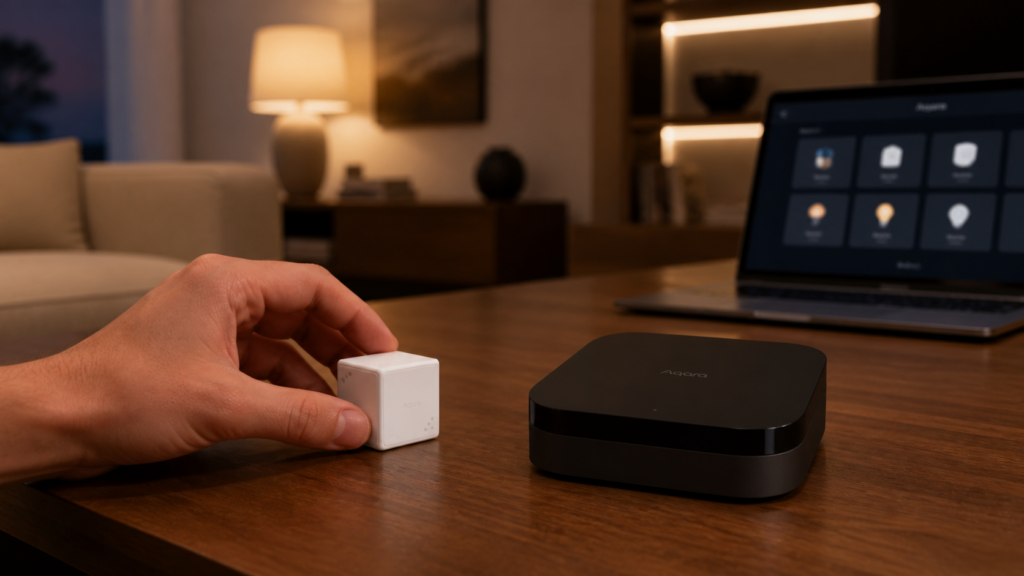
Aqara Matter Advanced Bridging: Scene & Signal Sync with Home Assistant
Aqara’s standard Matter bridge exposes supported devices using Matter’s normal device types. Advanced Bridging — 高阶桥接 in Chinese — adds a way to call Aqara scenes and receive selected Aqara conditions in Home Assistant, including functions that do not appear as ordinary bridged entities.
A scene becomes a virtual plug that you can activate. A signal becomes a virtual occupancy sensor that you can use as a trigger. The useful question is which actions and conditions your particular devices offer, and whether the complete automation still works when the internet is unavailable.
Scenes and signals
Scene Synchronization (场景同步) exports an Aqara Home action sequence, such as an IR command or a lighting preset, as a virtual plug. Signal Synchronization (信号同步) exports a selected condition as a virtual occupancy sensor. These Chinese terms help distinguish an action you call from an event you react to.
This does not export every native feature or its full data. A binary signal can indicate that a chosen condition occurred, but it does not automatically carry a continuous value such as a rotation angle. Aqara’s Advanced Bridging announcement explains the virtual-device approach.
Supported hubs and software
Aqara announced availability for the M3, G5 Pro, M100, G410, M2, M1S/M1S Gen 2, E1, and G3. The feature was introduced through hub firmware 4.3.4 with Aqara Home 5.1.4 or newer. Those are rollout references, not an instruction to install the same old firmware on every hub.
Use the updates offered for your model and region. Check that the app offers scene or signal synchronization for the selected hub. The M3 Matter guide and M100 guide cover the initial bridge setup.
Where it helps in Home Assistant
Advanced Bridging is useful when an Aqara action or condition is missing from the standard Matter entities. You can leave that part of the logic in Aqara Home and use the virtual device from Home Assistant, instead of rebuilding the entire scene.
That also leaves a dependency on the Aqara hub and whatever the scene calls. Keep the ordinary entities where they already meet your needs. A virtual signal adds another place to troubleshoot, so use it for a specific missing function.
Synchronize a scene
Begin with one scene that performs an obvious, reversible action. Check it in Aqara Home before adding it to Home Assistant.
Prerequisites
- A supported Aqara hub with the feature available in its app settings.
- A scene associated with devices available to that hub.
- A working Home Assistant Matter integration and Matter Server.
- Local network reachability between Home Assistant and the hub.
For a first test, use the same LAN. If you later separate networks, the IoT VLAN guide explains why discovery alone is not enough for Matter.
Select the scene in Aqara Home
- Create and run the scene in Aqara Home. Give it a name that describes the result.
- Open Profile → Connect to Ecosystems → Matter, the path in Aqara’s official Advanced Bridging walkthrough. Find the scene-and-signal synchronization controls; some app versions also offer a Home Assistant ecosystem entry.
- Add a scene synchronization, select the scene, and choose its execution hub if prompted. Complete the app’s publish/start confirmation.
- Pair or share that hub with Home Assistant using its Matter code, or let an existing Matter bridge update.
If the scene is missing from the selector, check its devices and hub association before removing and pairing the whole bridge again.
Check the virtual plug in Home Assistant
Inspect the Matter device and find the newly exposed switch or plug. Activate it and watch whether the intended scene actually runs. Record its entity ID for your automation.
A virtual scene switch is an invocation mechanism. Its on/off state should not be treated as proof that every device in the scene reached the desired state. Check the scene’s reset behaviour and try activating it a second time.
Call the scene from an automation
Add a switch action to the automation that should call the scene. This is an action snippet, not a complete automation. Replace the placeholder with the entity discovered on your bridge:
service: switch.turn_on
target:
  entity_id: switch.aqara_scene_evening_lights
If repeated calls do not execute, inspect whether the virtual switch remains on and how the hub expects it to be reset. Resolve that behaviour in a small test before attaching the scene to several triggers.
Synchronize a signal
A signal lets Home Assistant react to a condition selected in Aqara Home. Choose one with a clear physical test so you can observe both its activation and reset.
Choose an available condition
The available conditions depend on the device, hub, and firmware. Aqara gives examples such as camera detection, FP2 fall detection, and power-based conditions. Use the options actually offered in your app rather than assuming any camera event, fingerprint event, or gesture can be bridged.
For a button or gesture, check whether the signal is a short pulse or a lasting state. That determines whether an “off → on” automation will run again on the next press.
Create and synchronize the signal
- Use Profile → Connect to Ecosystems → Matter and open signal synchronization. In Chinese, look for 信号同步; English labels vary with the app version.
- Choose the device and the exact condition you want to forward.
- Give the signal a distinct name and synchronize it to the Matter bridge.
- Perform the action, watch the corresponding Home Assistant entity, and confirm that it resets before trying again.
Observe the occupancy entity
The signal is exposed as a virtual occupancy sensor, even if the source condition has nothing to do with a person occupying a room. Rename it clearly in Home Assistant so that its meaning is not confused with physical presence.
Check both state and timing in Developer Tools. An entity that stays on will not produce a fresh state change every time the source event occurs.
Example: a Cube gesture changes volume
If your app offers the Cube gesture you want, synchronize it as a signal and use the discovered entity as a trigger. This example assumes a clockwise signal that resets between gestures. Replace both entity IDs:
alias: Cube Clockwise - Volume Up
trigger:
  - platform: state
    entity_id: binary_sensor.aqara_cube_rotate_cw
    to: "on"
action:
  - service: media_player.volume_up
    target:
      entity_id: media_player.living_room
Repeat the gesture several times and check the automation traces. This creates a volume step per observed activation; it does not forward the Cube’s continuous rotation angle or guarantee a step for every physical movement.
Limitations to check
Keep a short list of the scenes and signals you depend on, their source devices, and their Home Assistant entities. That makes an app change or a stale virtual device easier to trace.
Stale virtual devices
After deleting or renaming a scene or signal, compare Aqara Home’s synchronization list with the Matter device in Home Assistant. Remove only the obsolete entity or affected bridge if the supported integration workflow requires it.
Do not start by reinstalling Matter Server or erasing its storage. That can remove unrelated paired devices. Save a Home Assistant backup before any broader reset, and use the current integration’s repair guidance.
Camera streams use a separate path
A camera detection signal is not a video stream. Advanced Bridging does not make the virtual occupancy sensor carry camera footage. Keep the camera integration needed for viewing, and troubleshoot it separately if a stream becomes unavailable.
A report of a G3 stream failing after a configuration change is not enough to establish a universal incompatibility. Check the camera’s actual integration, reachability, and firmware before removing a working setup.
Keep the hub reachable
The hub must be powered and reachable by the Matter controller for this bridge to work. Internet access is a separate question. Some Aqara functions execute locally, while a scene that calls a cloud service still needs that service.
The Aqara local-automation guide covers the distinction. Test the exact scenes and signals you use during a controlled WAN outage instead of inferring their behaviour from an app’s online indicator.
Device and feature scope
Only the scenes and signal conditions offered by your installation can be synchronized. Unsupported devices do not gain a native Matter mapping just because Advanced Bridging exists. It also does not turn an older Matter bridge into a controller for arbitrary third-party Matter devices.
Advanced Bridging or HomeKit Device?
Use the route that supplies the entities and actions you need. HomeKit Device may already expose enough of the hub’s supported child devices; Matter Advanced Bridging can fill a particular feature gap through virtual devices. The M2/M3 comparison describes the hardware differences.
Using both routes can be intentional, but it may produce duplicate entities. Decide which route owns each automation and name the alternatives clearly. A HomeKit accessory already paired to another controller generally needs to be unpaired before Home Assistant can pair it through HomeKit Device.
Check the complete local path
Matter commands between Home Assistant and the hub use the local network. That establishes the transport, not the execution location of every action inside an Aqara scene.
After setup, temporarily block the hub’s WAN access while keeping its LAN connection working. Test the source event, virtual entity, scene result, and repeated activations. Record what continues to work and restore access if a needed function fails. The VLAN guide includes checks for both IPv4 and IPv6. Firmware downloads, account functions, and remote access have separate requirements.