

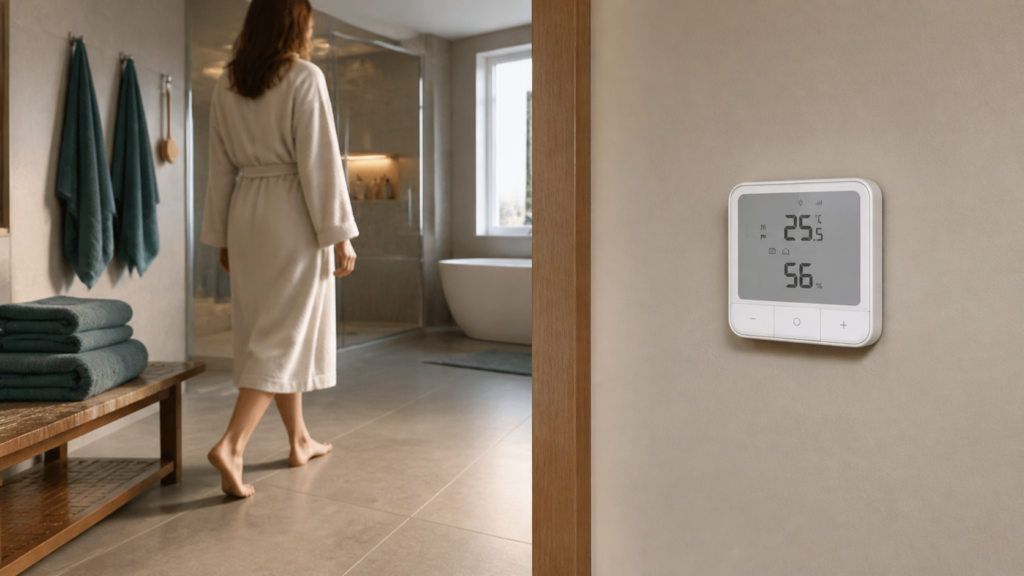
Aqara W500 Floor Heating Thermostat: Zigbee2MQTT & Home Assistant Guide
If you’ve been following the Chinese smart home community’s gradual shift toward local control, the motivation is usually some version of the same story. On V2EX (a popular Chinese tech forum), a long-running thread — titled something like “经过米家崩溃,想和大家讨论一下智能家居本地化的可能性” (“After a 米家 (Mi Home) cloud outage, let’s discuss the feasibility of smart home localization”) — has been referenced continuously since 2022. The point is obvious once your floor heating stops responding because a server is down on a cold morning.
The Aqara W500 (model UT-A01E) is the current-generation EU floor heating thermostat. It supports both Thread/Matter and Zigbee protocols, which sounds great until you realize it ships in Thread mode by default — and Thread mode is not Zigbee2MQTT-compatible. Getting it working locally with Home Assistant requires one non-obvious step before you ever put your Zigbee coordinator into pairing mode.
This guide covers that step, the full pairing procedure, every entity the W500 exposes in Z2M, and the preset temperature automation pattern that fills the gap in the Z2M GUI.
What the Aqara W500 is (and what it isn’t)
The W500 is a 16A / 3600W floor heating controller in a standard EU 86mm wall box form factor. It handles both electric underfloor heating (via relay) and can work with hydronic systems depending on configuration. It has an NTC sensor input for external floor temperature measurement, plus an onboard ambient temperature and humidity sensor.
A few things to be clear about before getting started:
- This is not the W400. The W400 is an older, China-market thermostat. The W500 is the current EU model with dual-protocol Thread + Zigbee support. The firmware, Z2M model IDs, and pairing procedures are completely different.
- This is not the E1 thermostat (SRTS-A01). The E1 is a radiator TRV — it clamps onto a radiator valve and controls hydronic heating at the radiator level. The W500 controls the floor heating element or actuator directly. Our Aqara Radiator Thermostat E1 (SRTS-A01) guide covers that device separately.
- Zigbee mode gives you more than Thread mode. In Thread/Matter, you get basic thermostat functions. Switching to Zigbee unlocks presets, NTC sensor configuration, hysteresis control, window detection, and power metering — none of which are exposed via Matter.
Z2M stable support for the W500 (UT-A01E, Zigbee model ID lumi.airrtc.aeu001) landed in October 2025. As of June 2026, OTA firmware update support was added on June 25 — which is relevant if you’ve been hitting the NTC sensor inconsistency issue (more on that later).
Before you pair: switch the W500 from Thread to Zigbee mode
This is the step that trips people up. The W500 ships in Thread/Matter firmware. If you put your Zigbee coordinator into permit-join mode and try to pair the W500 in factory state, nothing will happen — the device is broadcasting Thread advertisements, not Zigbee ones.
You need the Aqara Home app (iOS or Android) to switch firmware. No Aqara hub is required for this — the mode switch happens over Bluetooth directly from your phone to the thermostat.
Here’s the procedure:
- Open the Aqara Home app. If you don’t have an account, you’ll need one for this step, but the W500 itself will not be cloud-dependent once it’s in Zigbee mode.
- In the app, tap the “+” to add a new device. The W500 should appear via Bluetooth scan. Add it.
- Once added, go to the device settings page for the W500. Look for a firmware or protocol option — it will show the current mode as Thread/Matter.
- Select Zigbee firmware and confirm. The app will push the firmware switch over Bluetooth. The process takes about 60 seconds.
- After the switch completes, the W500 will reboot. At this point it’s broadcasting Zigbee and is ready to pair.
What happens if you skip this: the device will not respond to Zigbee coordinator permit-join. It’s not broken and it’s not a distance issue — it’s just on a different radio protocol. I’ve seen this cause 30+ minutes of debug time when people assume “it’s Zigbee-capable, so it must be pairing as Zigbee.”
After the mode switch, you can also remove the W500 from the Aqara Home app if you prefer not to have it in a cloud-connected app. The device retains its Zigbee firmware after removal.
Pairing the W500 to Zigbee2MQTT
With the W500 in Zigbee mode, pairing is standard.
Put your coordinator into permit-join mode. Either through the Z2M frontend (Permit join → All) or via MQTT:
Topic: zigbee2mqtt/bridge/request/permit_join
Payload: {"value": true, "time": 120}
Factory-reset the W500. On the thermostat itself, press the small reset button briefly about ten times in succession until the display shows the pairing indicator. (The exact button location varies by hardware revision — check your unit’s manual if the reset button isn’t obvious. Some users hold the button instead, but the short-press-ten-times method is what reliably triggers re-pairing on the W500.)
The device should appear in Z2M within 30 seconds. The expected fingerprint:
- Model ID:
lumi.airrtc.aeu001 - Z2M device name:
UT-A01E - Manufacturer: Aqara
If Z2M shows “Unsupported device” or the device fingerprint doesn’t resolve to UT-A01E, the W500 is still in Thread mode. Go back to the Aqara Home app and redo the firmware switch. This is the most common pairing failure.
Entities the W500 exposes in Zigbee2MQTT
The W500 exposes a full set of entities — this is where Zigbee mode earns its keep over Matter.
Climate control
- Climate entity — setpoint (5–40°C), current temperature, system mode (off / heat), and running state (idle / heat). This is the primary control entity that HA’s climate card will render.
- Local temperature — the onboard ambient sensor reading.
- Humidity — onboard ambient humidity sensor.
Power monitoring
- Instantaneous power (W) — floor heating load in watts.
- Energy consumption (kWh) — cumulative energy meter. Useful if you want to track heating costs per month.
ZHA users reported the power reading being off by a factor of 10 — 30W displayed when the actual load was 300W. Z2M power metering reads accurately. If you were previously on ZHA and saw strange power numbers, that’s why. Note also that on some Z2M and firmware combinations the instantaneous power (activePower) value doesn’t auto-populate in the Exposes tab even though the device reports it (tracked in GitHub issue #30384). If your power entity stays empty, the cumulative energy meter (kWh) is usually the more reliable figure to build cost tracking on.
Configuration entities
- Local temperature calibration — offset in ±2.5°C range. Useful if the onboard sensor reads high due to installation position.
- Heating limits — configurable min and max temperature bounds.
- Hysteresis — temperature differential that triggers the relay. Default is typically 0.5°C; tunable for how tightly the floor temperature is controlled.
- NTC sensor selection — choose between internal sensor, external NTC probe, or a combined NTC mode. Relevant if you have an external floor temperature probe installed.
- NTC type configuration — select the resistance curve for your specific NTC probe if using an external sensor.
- Window detection — drops the setpoint when a rapid temperature fall is detected (consistent with a window opening). Configurable sensitivity.
- Child lock — locks the physical controls on the thermostat face.
- Power outage memory — whether the thermostat returns to its previous state after a power cut.
- Temperature hold with duration — hold a specific temperature for a set period, after which the thermostat returns to its schedule or preset.
Preset modes
The W500 exposes six presets: home, away, sleep, vacation, evening, and manual. These appear in the HA climate card’s preset dropdown.
Here’s the limitation: Z2M exposes the preset selection but does not expose per-preset target temperatures. Selecting “away” does not automatically set the temperature to a specific value — it just sets the preset mode on the device. To get temperature-per-preset behavior (which is what most people want), you need HA automations.
Preset temperature automations in Home Assistant
This is the gap that took me the longest to figure out from the community threads. The Z2M frontend shows the presets but gives no indication that temperatures aren’t bound to them. You select “away,” nothing happens to the setpoint, and you assume it’s not working.
The fix is an HA automation that listens for preset changes and sets the corresponding temperature:
alias: "W500 - apply temperature for active preset"
description: "Sets target temp when thermostat preset changes"
trigger:
  - platform: state
    entity_id: climate.aqara_w500_thermostat
    attribute: preset_mode
action:
  - choose:
      - conditions:
          - condition: state
            entity_id: climate.aqara_w500_thermostat
            attribute: preset_mode
            state: home
        sequence:
          - service: climate.set_temperature
            target:
              entity_id: climate.aqara_w500_thermostat
            data:
              temperature: 22
      - conditions:
          - condition: state
            entity_id: climate.aqara_w500_thermostat
            attribute: preset_mode
            state: away
        sequence:
          - service: climate.set_temperature
            target:
              entity_id: climate.aqara_w500_thermostat
            data:
              temperature: 16
      - conditions:
          - condition: state
            entity_id: climate.aqara_w500_thermostat
            attribute: preset_mode
            state: sleep
        sequence:
          - service: climate.set_temperature
            target:
              entity_id: climate.aqara_w500_thermostat
            data:
              temperature: 18
      - conditions:
          - condition: state
            entity_id: climate.aqara_w500_thermostat
            attribute: preset_mode
            state: vacation
        sequence:
          - service: climate.set_temperature
            target:
              entity_id: climate.aqara_w500_thermostat
            data:
              temperature: 12
      - conditions:
          - condition: state
            entity_id: climate.aqara_w500_thermostat
            attribute: preset_mode
            state: evening
        sequence:
          - service: climate.set_temperature
            target:
              entity_id: climate.aqara_w500_thermostat
            data:
              temperature: 21
mode: single
Adjust the temperature values to match your actual preferences. You can extend this to also trigger on time-of-day if you want a schedule — set a preset via automation at 22:00, and this automation handles the temperature.
One thing to keep in mind: the manual preset essentially means “the user set a temperature directly.” I leave manual out of the choose block intentionally — if someone adjusts the thermostat physically or via the climate card’s temperature slider, triggering a temperature override at that point would be confusing.
OTA firmware updates via Zigbee2MQTT
OTA support for the W500 was added to zigbee-herdsman-converters on June 25, 2026. If you’ve been running the W500 since it first got Z2M stable support in October 2025, there’s likely a firmware update available.
To check and apply updates through the Z2M frontend:
- Open the Z2M frontend, go to the OTA tab.
- Find the W500 (UT-A01E) in the device list.
- Click Check for new updates. If a newer firmware is available, the update button becomes active.
- Click Update and wait. OTA updates on Zigbee thermostats typically take 5–15 minutes and the device will reboot mid-process. The thermostat will continue operating during OTA but may briefly disconnect from Z2M.
The NTC sensor inconsistency reports (GitHub issue #30180) specifically noted that some units read floor temperature incorrectly. The June 2026 OTA addition suggests this is being addressed at the firmware level — it’s worth updating before spending time debugging calibration offsets.
Making OTA available for thermostats is the right call by the Z2M team. A thermostat controlling floor heating has more consequence if it misbehaves than a motion sensor does, and having a reliable firmware update path without going back through the Aqara cloud matters.
ZHA vs Zigbee2MQTT for the W500
If you’re already on ZHA and wondering whether to switch: switch.
ZHA support was added in October 2025 alongside Z2M, but community experience since then has not been great. Users reported Home Assistant freezing during interaction with the W500 in ZHA — specifically on thermostat attribute writes. The root cause hasn’t been conclusively identified, but the pattern is consistent enough that the HA community thread on this device reads as “use Z2M, not ZHA” consensus by early 2026.
The power metering discrepancy (10x off in ZHA) is a separate, confirmed issue. If you’re tracking energy usage for heating cost purposes, the ZHA power readings are not reliable.
If you’re new to running Zigbee devices without an Aqara hub, our guide to running Aqara Zigbee devices in Home Assistant without a hub covers the coordinator setup and Z2M installation. The W500 works the same way as any other Aqara Zigbee device once it’s in Zigbee mode.
Troubleshooting
“Unsupported device” after pairing
The W500 is still in Thread mode. Return to the Aqara Home app, find the device, and switch to Zigbee firmware. After the switch completes, factory-reset the W500 and pair again.
Device pairs but shows as unknown model
Same root cause as above, or you’re on an older Z2M version. The W500 (UT-A01E) was added in Z2M stable in October 2025 — if you’re on anything older than that, update Z2M first.
NTC sensor reads incorrectly
First, verify your NTC sensor type is set correctly in the Z2M device configuration — the default may not match your specific probe’s resistance curve. If it’s set correctly and still reads wrong, apply the OTA update (added June 25, 2026). If the issue persists after firmware update, use the calibration offset entity to correct the reading.
Preset changes but temperature doesn’t change
Expected — Z2M doesn’t bind temperatures to presets natively. Add the HA automation from the section above.
HA freezes when interacting with the W500
You’re on ZHA. Switch to Z2M.
Whether the June 2026 OTA fully resolves the NTC sensor inconsistency reports is something the community will know more definitively in a few months — worth checking the Z2M GitHub issue #30180 for updates before assuming the calibration offset is your permanent solution.