

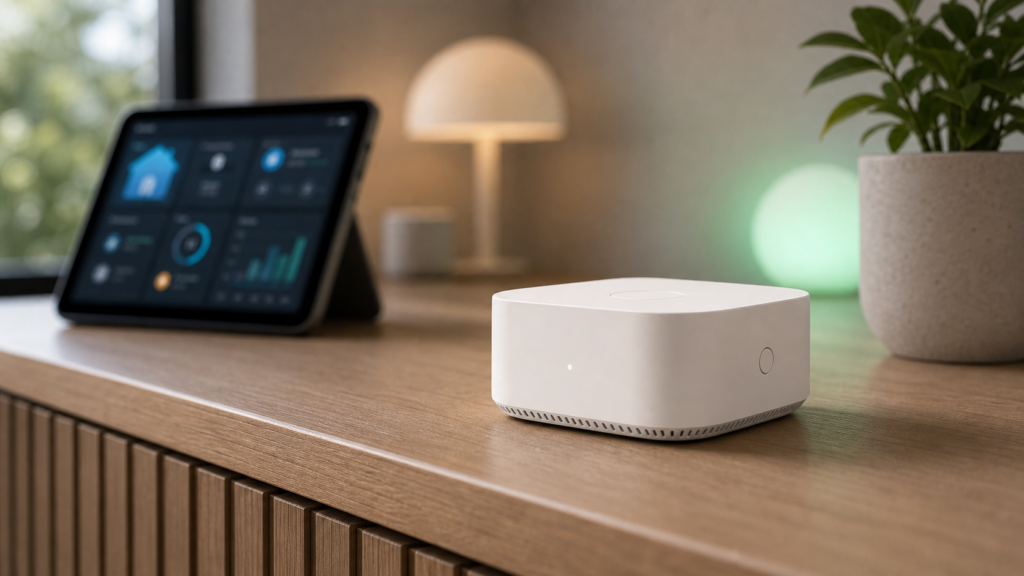
There is a recurring question in the Home Assistant community. Someone sets up the Aqara Hub M100 (方舟智慧中枢 M100, Fangzhou Smart Hub M100), pairs their Aqara Zigbee devices to it, opens Home Assistant, and nothing shows up. The integration they know from older Aqara hubs is not there. The devices are not appearing.
The reason is architectural. The M100 connects to Home Assistant through a completely different path than the M2 or M3, and Aqara’s marketing does not make that obvious. This guide covers what that path is, how I set it up, and what it means for local-only operation.
Affiliate disclosure. This post contains affiliate links. If you buy through them, I earn a small commission at no extra cost to you. I only link to devices I have actually worked with.
What Makes the M100 Different From M2 and M3
Matter-Only Path to Home Assistant
The M2 reaches Home Assistant via the HomeKit Controller integration. HA treats the M2 as a HomeKit hub and pulls devices through that channel. The M3 supports both HomeKit Controller and Matter bridging. The M100 drops HomeKit Controller entirely and exposes Aqara Zigbee devices to Home Assistant exclusively through Matter bridging.
That is not a minor variation. It changes how entities appear, what attributes are available, and which HA features apply.
When your Zigbee motion sensor is pulled in via HomeKit Controller on an M2, it appears as a binary_sensor with HomeKit-mapped attributes. When that same sensor is bridged through Matter on an M100, it appears as a Matter OccupancySensing cluster entity. The underlying data is similar, but the entity model is different, and some fine-grained attributes that HomeKit Controller surfaces are not available through Matter.
If you are migrating from M2 and expecting the same entity structure, you will not get it.
Aqara Zigbee Only — The Third-Party Device Restriction
The M2 and M3 take a broader approach to Zigbee. Both have a wider device list than the M100 and can pair some third-party Zigbee devices, though in practice Aqara hub firmware is restrictive and not every IKEA, Sonoff, or generic Zigbee device joins cleanly. The M100 closes that door entirely. It only accepts Aqara-branded Zigbee devices, full stop, and the Amazon listing and Aqara support docs are explicit about it.
This is the other major source of confusion in Chinese community forums (V2EX t/1138351, 为什么M100的Zigbee设备在HA里看不到, “why can’t I see M100 Zigbee devices in HA?”). Some of those threads are actually users who tried to pair third-party Zigbee devices and wondered why they were missing. The answer is that they never joined in the first place.
If your setup mixes Aqara and non-Aqara Zigbee devices, the M100 is not a complete solution. You would need a separate coordinator, a Sonoff Zigbee dongle or similar, running Zigbee2MQTT or ZHA alongside the M100’s Matter bridge.
Capacity. 20 Zigbee Plus 20 Thread
The M100 supports up to 20 Aqara Zigbee devices and up to 20 Thread devices, for a maximum of 40 child devices combined. That is small compared to the M3, which directly supports 64 child devices and can extend to 127 with Zigbee router or Thread mesh extender nodes. For an apartment with a focused Aqara deployment of locks, sensors, and a few switches, 20 Zigbee slots is workable. For anything larger, plan accordingly.
The M100 also acts as a Thread Border Router, so Thread-native devices (Matter over Thread) can connect through it. Those count toward the 20-Thread limit separately from Zigbee.
Setting Up the M100 in Home Assistant
Step 1. Initial Setup in Aqara Home App
Before Home Assistant is involved, the M100 needs to be fully configured in the Aqara Home app (version 5.1.3 or later). I connected the hub to my Wi-Fi network through the app, added Zigbee devices, and confirmed they were working locally. Aqara supports offline HomeKit local control (Aqara 家的网关都支持离线状态下 HomeKit 本地控制, “Aqara gateways support offline HomeKit local control”), so device pairing and basic operation work on the local network without cloud.
Do not skip this stage. HA discovers what the M100 has already provisioned. It does not configure the hub itself.
Step 2. Expose the M100 as a Matter Bridge
This is the step that many guides skip, and it is the one that explains why devices do not appear in HA.
In the Aqara Home app, navigate to the M100’s hub settings and look for the Matter pairing or Matter bridge option. You are generating a Matter pairing code that allows another Matter controller, in this case Home Assistant, to commission the M100 as a bridge. Trigger that option and note the QR code or numeric pairing code.
The M100 must remain connected and on the same network segment as the HA host during this process. If you are doing this for the first time and the pairing does not stick, check that mDNS traffic can flow between the M100 and HA. There is more on VLAN considerations below.
Step 3. Discover the Matter Bridge in Home Assistant
In Home Assistant, go to Settings, then Devices and Services, then Add Integration, and search for Matter. If you have not used the Matter integration before, you will need to confirm it is installed. Walk through the commissioning flow using the pairing code from Step 2.
Once commissioned, HA will show the M100 as a Matter bridge device. Underneath it, each Zigbee device that the M100 is managing will appear as a separate Matter entity. A contact sensor becomes a BooleanState cluster entity, a motion sensor becomes OccupancySensing, a switch becomes OnOff, and so on.
This discovery can take a minute or two. If it times out, verify that the M100 and HA host are reachable on the same mDNS-accessible network.
Step 4. Verify Entities and Check Local Control
After commissioning, each Aqara Zigbee device should have a corresponding entity in HA. I opened one and watched state changes update in real time, toggling a switch from the Aqara app and confirming HA reflected it without cloud routing.
The practical test for local control is straightforward. Disconnect the M100 from the internet entirely by blocking its outbound access at the firewall, then verify that device state in HA still updates and commands still work. If they do, you have genuine local control. If they do not, something is still routing through Aqara’s cloud. Usually the HA Matter integration itself is configured to route through the Matter cloud hub, which you want to avoid.
Local Control and Privacy
What Runs Locally on the M100
Once the Matter bridge is commissioned and Zigbee devices are paired, device control and automation execution run on the M100 itself. The hub processes Zigbee traffic, updates device state, and responds to Home Assistant commands over the local network with no cloud hop.
Automations you write in HA that use M100-bridged devices operate entirely locally. HA evaluates triggers and sends commands over Matter to the M100, which then issues Zigbee commands. The latency is LAN-bound. On my setup, typical round-trip times from HA action to Zigbee device response sit in the 200 to 400 ms range on an uncongested network.
What Still Needs Cloud
Remote access notifications, the push alerts sent to your phone when you are away from home, still require Aqara’s cloud. The M100 cannot push to your phone directly.
The initial commissioning flow, and specifically the Aqara Home app’s process of generating a Matter pairing code, may also require a cloud call. This is a one-time event during setup, not ongoing.
OTA firmware updates for the hub and for Aqara Zigbee devices go through Aqara’s cloud. Blocking all outbound access permanently means you will not receive firmware updates.
Network Considerations for Local-Only Operation
If your M100 and HA host are on the same subnet, Matter discovery and control work automatically. If they are on separate VLANs, a common configuration for IoT device isolation, mDNS traffic needs to cross the VLAN boundary.
The standard approach is to run an mDNS reflector on your router or a host that bridges the VLANs. On OpenWrt, avahi-daemon with the right interface configuration handles this. On pfSense or OPNsense, the Avahi package does the same job. Matter discovery uses mDNS, so if mDNS cannot reach the M100 from the subnet where HA runs, commissioning will fail or devices will drop off unpredictably.
For a typical setup where IoT devices live on 192.168.20.0/24 and HA is on 192.168.10.0/24, you would configure Avahi to reflect between both interfaces. Do not forget that IGMP snooping settings on managed switches can silently block multicast traffic, including mDNS.
If you want to block the M100’s cloud access while preserving local control, block its outbound traffic except for your NTP server and your local HA instance. Start permissive by logging without blocking, capture what it calls, then tighten. The cloud calls are primarily to Aqara’s servers for time sync, notifications, and OTA, and none of those are needed for local device control.
Advanced Matter Bridging. Exposing Aqara Scenes to Home Assistant
This is the M100’s most interesting feature for Home Assistant users, and the one most underexplored in English-language coverage.
Aqara’s Advanced Matter Bridging (高阶Matter桥接, high-order Matter bridging) lets you expose Aqara scenes and device-exclusive signals as virtual Matter entities that HA can act on, even when those signals have no direct Matter equivalent.
The concrete example is the Aqara FP2 presence sensor’s fall detection feature, which Matter’s OccupancySensing cluster cannot represent natively. With Advanced Matter Bridging, the M100 can expose the fall detection signal as a virtual Matter occupancy sensor. Home Assistant sees it as a normal binary sensor, can trigger automations from it, and does this entirely locally.
The same mechanism works for Aqara scenes. You can expose an Aqara scene as a virtual Matter plug, and HA can “turn it on” to trigger that scene. Cross-ecosystem automations that would otherwise require either cloud routing or a custom integration can be built this way.
To use this, configure it in the Aqara Home app under the M100’s Matter bridge settings. You will see options to create virtual Matter devices mapped to scenes or signals. Each virtual device appears in HA as a separate entity after the bridge re-syncs.
This is a legitimate technical differentiator for the M100. If your automation logic lives in HA but you want to trigger Aqara-exclusive device states, this bridge is the cleanest local-only path to doing that.
When to Choose M100 vs M2 vs M3
These three hubs have genuinely different use cases, and the choice matters if you are building an HA-integrated setup.
M100 (方舟智慧中枢 M100) is the right choice if your Zigbee devices are all Aqara-branded, you want native Matter and Thread Border Router capability without extra configuration, your deployment is under 20 Zigbee devices, and you prefer the Matter bridge path to Home Assistant over the older HomeKit Controller path. The Wi-Fi 6 with WPA3 support is a minor bonus for networks where that matters. It is positioned as an entry-level device by the V2EX homelab community, and the “entry-level” label fits. It is not weak, but it has a lower ceiling than the M3.
M2 is the choice if you want HomeKit Controller’s richer entity attributes in HA, or if you have a few non-Aqara Zigbee devices you are willing to test against Aqara’s tolerated-device list. The M2 is older and lacks native Matter and Thread, but the HomeKit Controller path to HA is well documented and battle-tested. See my Aqara Hub M2 and Home Assistant local setup guide for the full configuration walkthrough.
M3 is for larger Aqara networks, with 64 directly connected devices and up to 127 when extended through Zigbee router or Thread mesh extender nodes. It also fits setups that need IR control for air conditioning, or situations where you want both the HomeKit Controller and Matter bridging paths available. It is the current go-to recommendation for power users in the V2EX homelab community. The price premium over the M100 is justified if you are building a large deployment. A dedicated M3 + Home Assistant guide is on the publication roadmap.
One other angle worth considering is the HomePod mini route. If you only need Thread Border Router functionality and your devices are Thread-native (Matter over Thread), a HomePod mini acts as a Thread Border Router without requiring an Aqara hub at all. That is only relevant if your Zigbee device count is zero, but it is a real alternative for some setups.
Frequently Asked Questions
How do I add Aqara Hub M100 to Home Assistant?
Through the Matter integration. Set up the M100 in the Aqara Home app first, then use the app to generate a Matter pairing code. In HA, go to Settings, then Devices and Services, then Matter, and commission the M100 as a Matter bridge using that code. Aqara Zigbee devices will appear as Matter entities in HA after commissioning.
Can the Aqara M100 control third-party Zigbee devices?
No. The M100 only supports Aqara-branded Zigbee devices. If you want to add non-Aqara Zigbee devices (IKEA, Sonoff, and similar) to the same HA instance, you would need a separate Zigbee coordinator running Zigbee2MQTT or ZHA alongside the M100’s Matter bridge.
Does the Aqara M100 work without internet in Home Assistant?
Device control and local automations work without internet. The Matter bridge operates on the local network, and Home Assistant commands reach devices without cloud routing. What still needs cloud is push notifications to your phone, OTA firmware updates, and possibly the initial Matter commissioning flow. For a deeper look at the internet dependency question across all Aqara hubs, see does Aqara work without internet.
What is the difference between Aqara M100 and M2 for Home Assistant?
Two main differences. First, the integration path. M2 uses the HomeKit Controller integration in HA, while M100 uses the Matter integration. Second, Zigbee compatibility. M2 has broader (though still restrictive) third-party Zigbee support, while M100 only works with Aqara Zigbee devices. If you have a mixed Zigbee setup or prefer the HomeKit Controller entity model, M2 is the better fit.
Why can’t I see my Aqara Zigbee devices in Home Assistant after setting up M100?
Most likely one of two reasons. Either you have not exposed the M100 as a Matter bridge in the Aqara Home app (required before HA can discover it), or the devices you are trying to see are non-Aqara Zigbee devices, which the M100 will not pair. If you are on a segmented network, also verify that mDNS traffic can reach the M100 from the subnet where HA runs. Without that, the Matter bridge will not commission successfully.
The M100 is a focused product with a clear scope. It does Aqara Zigbee well, it bridges everything to Home Assistant via Matter cleanly, and Advanced Matter Bridging gives it som genuine value for automations built around Aqara-exclusive device features. The limitations of Aqara-only Zigbee, the 20-device cap, and the Matter-only HA path are real, and they matter for how you plan your network. Going in with accurate expectations makes the M100 a solid choice for small Aqara deployments. Going in expecting it to behave like an M2 leads directly to the confusion that fills those community forum threads.