

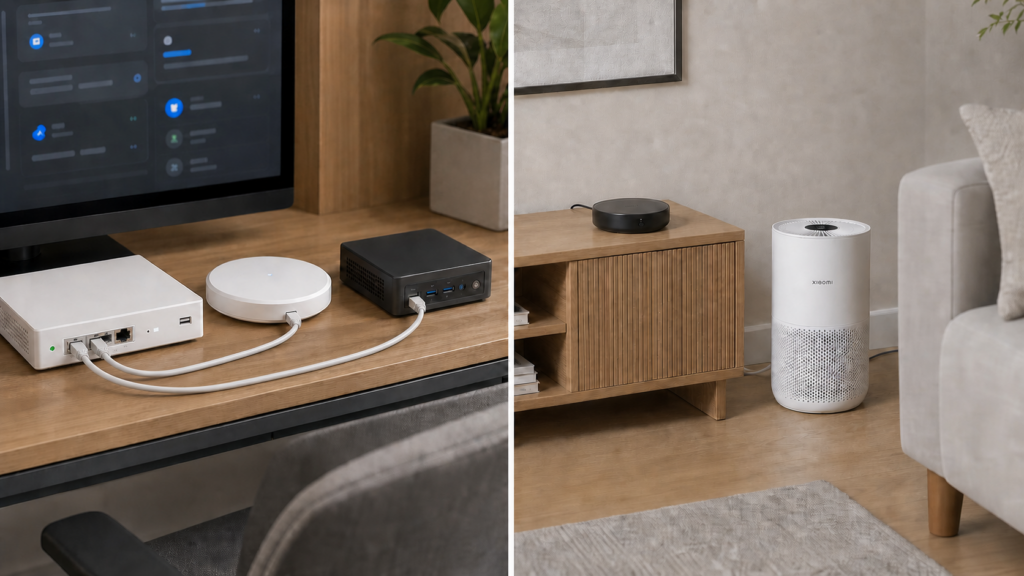
Aqara and Xiaomi Devices on an IoT VLAN with Home Assistant
An IoT VLAN can restrict what a hub or Wi-Fi device can reach, but local integrations still need discovery and a permitted connection to Home Assistant. The common failures differ: an Aqara HomeKit bridge may be undiscoverable across subnets, while some Xiaomi miIO (米家 Miio) devices ignore requests whose source address is outside their own subnet.
Start by confirming that each device works on the same LAN as Home Assistant. Then separate it and change one part of the network policy at a time. Matter is the important exception to a simple IPv4 recipe: it requires working local IPv6, and Home Assistant recommends keeping its devices and border routers on the controller’s LAN.
Identify the connection that fails
A VLAN does not block a Zigbee radio message directly. It changes the IP path between Home Assistant and a hub, broker, or Wi-Fi device. Diagnose that path rather than treating all Aqara and Xiaomi products as one network protocol.
mDNS discovery across subnets
mDNS uses link-local multicast on UDP 5353: 224.0.0.251 for IPv4 and ff02::fb for IPv6, as specified in RFC 6762. A normal router does not forward it between VLANs. A supported reflector or gateway can make selected service advertisements visible across those networks.
Discovery is only the first step. HomeKit then connects to the hub’s advertised service, and Matter needs usable local IPv6 addresses and routing. Seeing the device name is not proof that its control connection is permitted.
Some miIO devices reject a routed source address
The python-miio troubleshooting guide lists particular devices that do not respond when a request comes from another subnet. This is a model/firmware behaviour, not a rule that every Xiaomi device requires NAT.
For an affected device, source NAT on the router’s IoT-facing path can make the request appear to come from an address on that device’s subnet. It does not fix a wrong token, unsupported command, or cloud-only integration. See the Xiaomi local-control guide for those separate requirements.
Zigbee reports through a local gateway
The Zigbee devices stay on their radio network. The hub’s HomeKit/Matter connection, a local gateway integration, or the Zigbee2MQTT broker carries their data to Home Assistant. Keep that IP connection permitted.
Only the features supported by the selected hub mapping or integration will arrive. Working routing does not add missing child-device capabilities. The M2 local setup guide covers one hub route.
Plan the network policy
Give Home Assistant, the hub, and relevant Wi-Fi devices stable addresses or reservations. Record which integration each uses, the required destination/service, and any verified device-initiated connection. Keep a known-good configuration and router backup before changing access rules.
Permit required local services and deny unwanted paths
Allow the required Home Assistant-to-device connections and established return traffic. Add a narrowly scoped device-to-Home Assistant rule only for a documented callback or a connection confirmed in the logs. There is no need to give the whole IoT subnet unrestricted access to the server.
Apply WAN isolation to IPv4 and IPv6. If devices need DNS or time service, provide the intended local service and permit that path explicitly. Local IPv6 also needs its required control traffic; blocking ICMPv6 indiscriminately can break the network itself.
Use one supported discovery gateway
Use your router platform’s maintained mDNS relay/reflector feature and select only the networks that need to exchange discovery. If you use Avahi, allow-interfaces selects interfaces but does not enable reflection: enable-reflector=yes belongs in its [reflector] section.
The Avahi configuration manual warns against multiple reflectors between the same networks. Reflection also reveals service information across that boundary, so restrict its scope rather than turning it on for every VLAN.
Use miIO source NAT only where needed
For the example addresses below, Home Assistant sends a request from 192.168.1.50 to 192.168.20.10. The router rewrites its source to 192.168.20.1, so the affected miIO device sees a source in its own subnet. The device replies to that router address; connection tracking translates the reply back to Home Assistant. This source translation is separate from the firewall rule that permits the request.
For an affected IPv4 miIO device, match the Home Assistant source address, that device’s destination address, and the required UDP service. Translate the source to the router’s IoT-side address. Keep normal firewall checks in place; NAT is not an access-control policy.
Do not apply that workaround to Matter or blindly masquerade all traffic into the IoT network. Record why the particular device needs it so the rule can be retested after a firmware or integration change.
On a router using nftables, this read-only command shows the rules generated by its supported configuration. Table and chain names vary by platform:
nft list ruleset
Step-by-step setup
The addresses below are examples: Home Assistant 192.168.1.50, an IoT device 192.168.20.10, and the router on that subnet 192.168.20.1. Adapt them to your network. Configure changes through the supported interface for your router version.
1. Create your IoT VLAN and assign devices
- Create the VLAN and its DHCP scope, then connect one test device.
- Reserve its address and note the Home Assistant host address.
- Check that the device can reach any deliberately permitted local infrastructure.
- Confirm the integration worked before separation, then record what fails afterwards.
For Matter, use a same-LAN baseline with Home Assistant and the relevant border router first. The Home Assistant Matter documentation recommends that topology; cross-VLAN operation is not guaranteed by the rules in this article.
2. Enable mDNS reflection
For a directly managed Avahi installation, this minimal excerpt selects two example bridge interfaces and enables reflection. Replace the names with the interfaces actually carrying the two networks, and merge these keys into the existing sections of avahi-daemon.conf:
[server]
allow-interfaces=br-lan,br-iot

[reflector]
enable-reflector=yes
Restart Avahi through that system’s service manager, then run the service lookup below. Router-managed services may regenerate this file, so configure their supported interface instead of editing a generated file. The excerpt forwards discovery; it does not configure inter-VLAN routing or firewall permission.
Enable the router’s supported mDNS gateway between the required networks. Select the needed services where the implementation allows filtering. If configuring Avahi directly, review both its allowed interfaces and reflector setting, and avoid creating a second reflector alongside the router’s existing service.
For an IPv4 HomeKit bridge on a Linux host with Avahi tools installed, this read-only check lists the advertised service and port:
avahi-browse -rt _hap._tcp
A missing service suggests a discovery problem. A listed service whose address or port cannot be reached suggests routing or firewall policy. For Matter, use its commissioning and server diagnostics as well; a HomeKit service lookup is not a Matter connectivity test.
3. Add a scoped miIO source-NAT rule if needed
Confirm the model is affected by cross-subnet source filtering before adding NAT. In the router’s supported NAT interface, match 192.168.1.50 → 192.168.20.10 on UDP 54321 and translate the source to the IoT-side address 192.168.20.1. Verify that the rule applies on the IoT-facing egress, not only on the WAN interface.
Do not paste an old ip nat POSTROUTING command into an arbitrary router. Table and chain names vary, and current OpenWrt firewall4 uses its own managed ruleset. Use the earlier read-only inspection command if the router supports nftables.
Compare rule counters and request/reply captures while issuing one command. If translation is correct but there is still no reply, return to the device token, supported integration, and firmware-specific behaviour.
4. Scope firewall rules to the actual integrations
HomeKit uses the port advertised by its service rather than a universal “allow TCP 80” recipe. miIO normally uses UDP 54321. Matter uses local IPv6 and its operational service, normally UDP 5540; local discovery/control traffic also needs appropriate handling. Check the service and logs for the installation you have.
This is a policy outline, not executable firewall syntax. Apply equivalent scoped rules for both IP families, using stable addresses or maintained device groups:
ALLOW established and related return traffic
ALLOW Home Assistant -> selected HomeKit hub: advertised TCP service
ALLOW Home Assistant -> selected miIO device: UDP 54321
ALLOW required Matter sessions on the working local IPv6 path
ALLOW verified device callbacks -> required Home Assistant service only
ALLOW IoT devices -> designated local DNS/time services, if needed
ALLOW required local IPv6 control traffic
DENY new IoT connections -> other LAN services unless explicitly permitted
DENY IoT -> WAN for both IPv4 and IPv6
Use the router’s documented stateful policy and rule ordering. A broad reverse rule from every IoT device to the Home Assistant host is not required just to allow replies. Discovery reflection does not justify opening every service between the two networks.
5. Test discovery, commands, and feedback
- Find the expected service and verify the advertised address is reachable.
- Issue a Home Assistant command to the device and confirm its physical result.
- Check that state feedback returns, including a change made at the device itself.
- Restart the relevant integration or device in a controlled test and check reconnection.
- Apply the WAN deny policy, then repeat the local tests.
If a command works but state feedback does not, inspect that return path separately. Do not respond by opening the entire subnet in both directions.
Functions that may still need internet access
Account setup, credential retrieval, firmware downloads, remote vendor-app control, and phone-notification delivery can have different network needs from local device commands. Check the exact model and integration before deciding which exceptions to permit.
Temporarily allowing an update should be a deliberate, recorded change. An internal DNS answer does not replace a vendor update server. The Aqara internet-dependency guide explains why “works locally” does not describe every app feature.
Verify the WAN policy
Check the router’s deny-rule counters and logs for the actual device group, covering IPv4 and IPv6. Then verify that local controls still work. DNS tests are useful for one part of the policy, but a failed lookup does not prove that all internet connections are blocked.
For example, from a test client subject to the same IoT rules, this checks a query addressed to an external resolver:
nslookup ot.io.mi.com 8.8.8.8
A successful answer may have come through a router DNS redirect. Compare it with the router policy and logs rather than treating the result alone as proof of a WAN escape.
On a router with tcpdump, a capture on the IoT interface shows attempted traffic; it may include packets subsequently dropped. This example uses placeholder interface/address values to replace, including the device’s actual IPv6 address:
tcpdump -i YOUR_IOT_INTERFACE -nn 'host 192.168.20.10 or host fd00:20::10'
tcpdump -i YOUR_WAN_INTERFACE -nn '(ip or ip6)'
Correlate the timed device test with firewall counters and the WAN capture. Source NAT changes addresses on the WAN side, so the private IoT source filter cannot be assumed to identify those packets there. A quiet capture of one short test is evidence about that test, not a guarantee about every future function.
Keep the working rules explainable
Record the device, integration, discovery requirement, permitted service, and reason for any NAT rule. With that record, you can retest one path after an update instead of adding increasingly broad exceptions.
If Matter only works on the same LAN, keep the supported topology while investigating. There is no benefit in a nominally isolated network whose broad allowances are no longer understood.
FAQ
Does an mDNS reflector fix Matter across VLANs? It can help discovery, but Matter also needs usable local IPv6 addressing and routing. Home Assistant recommends the simpler same-LAN topology.
Does every Xiaomi device need source NAT? No. Use it only for a device with the specific cross-subnet source-address problem, after checking the integration and credentials.
Can I block WAN and keep local commands? Often, if the exact integration is local and its required LAN path is allowed. Test setup, routine control, feedback, and remote features separately.
Does Zigbee need an IP firewall exception? The radio device does not. The IP-connected hub, broker, or coordinator service communicating with Home Assistant may need one.