

Aqara Magic Cube T1 Pro (CTP-R01): Zigbee2MQTT + Home Assistant Setup
The Aqara Magic Cube T1 Pro (model CTP-R01) is one of those devices that takes five minutes to pair and then another two hours to actually figure out. Not because it’s unreliable. It’s solid. The dual-mode system is just non-obvious if you’re going in cold.
The short version: there are two operation modes, they expose different action sets, and switching between them is gated by a configuration window that only opens once per hour. If you’ve been staring at automations that refuse to fire, that window is almost certainly why. This guide covers pairing, the mode system, the hourly window workaround, what entities show up in Home Assistant, and working automation examples, all without an Aqara hub. Just Zigbee2MQTT, Mosquitto, and HA.
If you’re new to running Aqara Zigbee gear without the vendor hub, our guide to Aqara Zigbee devices in Home Assistant without a hub covers the coordinator and Z2M groundwork this article assumes.
What is the Aqara Magic Cube T1 Pro?
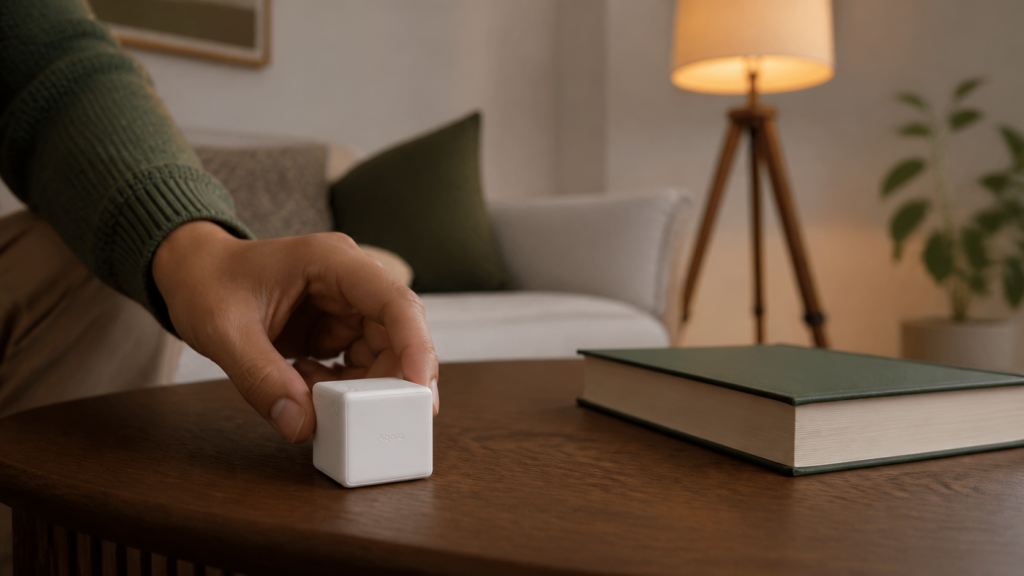
The CTP-R01 is a gesture-based Zigbee controller: a small cube you physically interact with by rotating it, flipping it to a different face, sliding it, shaking it, throwing it, or tapping it. Those gestures trigger events that you can map to automations in Home Assistant. Think of it as a tactile remote with no buttons.
It runs on a single CR2450 coin cell and operates as a Zigbee end device, not a router. That distinction matters for mesh placement: the cube needs a Zigbee router reasonably close by. It won’t extend your mesh.
The original Magic Cube required an Aqara hub to function. The T1 Pro is the generation that dropped that requirement. It pairs directly with any Zigbee coordinator running Zigbee2MQTT.
What you need before pairing
- A running Zigbee2MQTT instance (paired with Mosquitto)
- A Zigbee coordinator (CC2652-series or similar) within range
- No Aqara hub required
If you’re still deciding between Z2M and ZHA for your Aqara devices, our ZHA vs Zigbee2MQTT comparison covers the tradeoffs. The CTP-R01 is supported in both, but Z2M exposes the full entity set including action_angle, the value that enables proportional control.
Pairing the cube to Zigbee2MQTT
Open the cube by pulling the two halves apart. There’s no latch, it’s a friction fit. Inside you’ll find the CR2450 battery slot and the LINK button.
To pair:
- Enable pairing mode in Z2M (via the frontend: Zigbee2MQTT → Settings → Permit join: All).
- Press and hold the LINK button for approximately 5 seconds until the blue LED blinks three times.
- Release. Z2M will begin the device interview.
- Keep the cube awake during the interview by pressing the LINK button once every few seconds if the LED stops blinking. The cube is a sleepy end device. It will drop into sleep mid-interview if you leave it alone, and Z2M will time out.
Once the interview completes, the device appears as CTP-R01 in the Z2M frontend. Confirm the entities load in Home Assistant under the device’s entity list before moving on.
What I didn’t expect: the first pairing attempt stalled at 60% through the interview. Nothing on Z2M’s side showed an error, the progress bar just stopped. A single tap on the LINK button kicked the interview back into motion immediately. If you see the interview hang, that’s the fix.
If the LED won’t respond at all, check the CR2450 orientation (positive side up) and verify the battery isn’t dead. These ship with a pull tab that’s easy to miss if the battery slot was pre-loaded at the factory.
Scene mode vs action mode — which one should you use?
This is where the CTP-R01 gets interesting, and also where most people get tripped up. The two modes are not “faces vs gestures.” Both modes report gestures. What changes is the action set and how the cube reports its resting face.
Action mode fires events for the gesture itself: rotate_left, rotate_right, slide, flip90, flip180, shake, throw, tap, and a few others. It also exposes action_angle, the rotation angle in degrees for rotate events. This mode is best where the motion should map to a continuous value: volume, brightness, or media seek position.
Scene mode is designed around discrete scene triggers tied to which face ends up on top. The face the cube settles on is reported in the side entity (1–6), and scene mode adds two actions you won’t see in action mode: hold (you pick the cube up and hold it) and side_up (the cube comes to rest on a surface). So a typical scene-mode pattern is “settle on face 1 → movie mode, face 2 → reading light,” keyed off the side value.
Neither is universally better. The mode you choose depends on what you’re building. I run mine in action mode for media control and keep a second cube in scene mode for lighting presets. Once you understand the split, it makes sense to own two.
The hourly configuration window
Here’s the part the Z2M device page mentions but doesn’t emphasize enough: mode changes only take effect during a configuration window that opens once per hour.
This means you can publish {"operation_mode": "action_mode"} to zigbee2mqtt/FRIENDLY_NAME/set and see the setting acknowledged in the Z2M frontend, but the cube will keep firing scene mode events until the next window opens. Depending on when you made the change, that could be up to 59 minutes.
The workaround: two options force an immediate configuration window.
- Perform a throw gesture: toss the cube upward with a flick, no backward arc. The cube interprets this as a specific gesture, but more importantly, it triggers a configuration window check.
- Open the cube lid and press the LINK button once. This also triggers the window.
Either approach works. I use the LINK button tap because it’s less likely to send the cube across the room.
Once the window triggers, the mode change takes effect within a few seconds. Confirm by checking the operation_mode entity in the Z2M frontend, or by performing a gesture and checking what action gets reported.
What entities appear in Home Assistant?
After pairing, the CTP-R01 exposes these entities via Z2M (the exact set varies slightly by Z2M version, so check the device’s Exposes tab):
- battery — battery percentage (0–100%)
- device_temperature — internal temperature in °C; mostly diagnostic
- power_outage_count — increments each time the battery is reseated or dies; mostly diagnostic
- operation_mode — current mode:
scene_modeoraction_mode; toggle via the frontend or MQTT - side — the face currently on top (1–6); used for scene-mode automations
- action — the gesture event string (e.g.,
slide,flip90,flip180,rotate_left,rotate_right,shake,throw,tap,hold,side_up,flip_to_side) - action_angle — the rotation angle in degrees for rotate events; only meaningful in action mode; positive for right, negative for left
- action_from_side / action_side / action_to_side — the faces involved in a flip or slide; useful for fine-grained flip automations
For automations, action and action_angle are the entities you’ll use most. side is the one you’ll lean on in scene-mode automations where you want to trigger off the final face position.
Building automations in Home Assistant
Example 1: flip to a specific face triggers a scene (scene mode)
alias: Cube face 3 — reading light scene
description: ""
trigger:
  - platform: state
    entity_id: sensor.aqara_magic_cube_t1_pro_action
    to: "flip_to_side"
condition:
  - condition: state
    entity_id: sensor.aqara_magic_cube_t1_pro_side
    state: "3"
action:
  - action: scene.turn_on
    target:
      entity_id: scene.reading_light
mode: single
The condition on side is what makes this face-specific. Without it, any flip to any face would trigger the scene. Adjust the state: "3" to whichever face you want.
Example 2: rotate controls brightness proportionally (action mode)
alias: Cube rotation — living room brightness
description: ""
trigger:
  - platform: state
    entity_id: sensor.aqara_magic_cube_t1_pro_action
    to:
      - "rotate_left"
      - "rotate_right"
action:
  - action: light.turn_on
    target:
      entity_id: light.living_room_ceiling
    data:
      brightness_pct: >
        {% set angle = states('sensor.aqara_magic_cube_t1_pro_action_angle') | float(0) %}
        {% set current = state_attr('light.living_room_ceiling', 'brightness') | float(128) %}
        {% set pct = (current / 2.55) + (angle / 3) %}
        {{ [[pct, 1] | max, 100] | min | round(0) | int }}
mode: restart
The action_angle value is degrees of rotation: a slow quarter-turn might produce 30 degrees, a fast half-rotation might produce 90. Dividing by 3 maps that to a reasonable per-gesture increment. Adjust the divisor to taste: lower is more sensitive, higher is coarser. The final line clamps the result to the valid 1–100 range so an over-rotation can’t push the light past its limits.
The community blueprint as an alternative
If hand-rolling YAML for 58+ possible cube commands sounds unappealing, the SirGoodenough blueprint on the HA Community forum handles the full CTP-R01 action set. It works by consuming MQTT events directly, so it’s compatible regardless of whether Z2M legacy triggers are enabled. The blueprint thread runs to hundreds of replies, which signals both popularity and the number of edge cases people have hit. Worth a read even if you plan to write your own automations.
For a simpler single-button companion controller, our Aqara Wireless Mini Switch guide covers a smaller device that pairs well with cube-driven scenes.
Troubleshooting
Mode change not taking effect: almost always the configuration window. Use the throw gesture or LINK button tap as described above. If it’s still not switching after two attempts, check whether the mode change is being acknowledged in Z2M’s frontend at all. A missing acknowledgment points to a mesh reachability issue, not a window issue.
Pairing stalls mid-interview: keep the LINK button active with single taps while Z2M is interviewing. If it times out completely, disable pairing mode, wait 30 seconds, re-enable, and try again. On the second attempt, keep tapping more frequently.
Automations fire on the wrong mode events: after switching modes, confirm the operation_mode entity in Z2M reflects the new value AND perform the LINK button tap to open the config window. Mode changes that haven’t applied yet still show the correct value in the Z2M frontend, because the frontend reflects the last command sent, not the current on-device state.
Mesh range issues: the CTP-R01 is an end device. If it’s in a location with no Zigbee router nearby (a Zigbee bulb, a plug, or a router-capable sensor), it may pair but drop events intermittently. Move it within range of a router or add one nearby.
Wrapping up
The CTP-R01 is genuinely more capable than it looks, but you won’t get the most from it until the mode system clicks. Once you understand that scene mode keys off the resting face (via side) while action mode keys off the gesture, and that the hourly window governs every mode switch, the rest falls into place. Whether Aqara adds OTA firmware delivery for end devices like this in a future Z2M release is worth watching; the interview-wake behavior in particular could be smoother.