

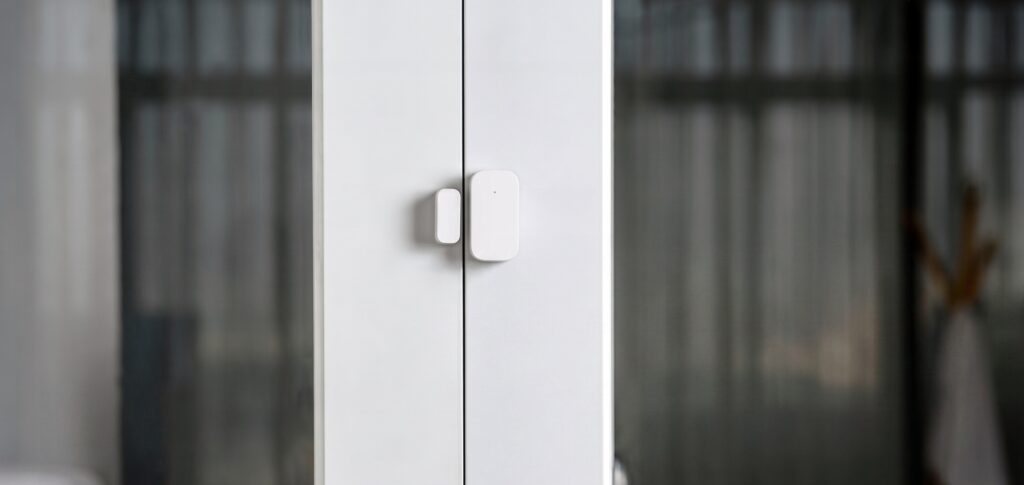
Aqara Door & Window Sensor E1 (MCCGQ14LM): Zigbee2MQTT Setup
The Aqara Door & Window Sensor E1 — model number MCCGQ14LM — is the current shipping version of Aqara’s basic contact sensor. It pairs directly with Zigbee2MQTT and Home Assistant without any Aqara hub involved. The pairing process is straightforward, but there are a few adapter compatibility gotchas and behavioral quirks worth knowing before you start. This guide covers all of them.
E1 vs T1: which model do you have?
Before anything else, confirm which model you’re working with. Two Aqara door sensors look nearly identical:
- MCCGQ14LM — the E1, current production model as of 2024–2025. Zigbee ID:
lumi.magnet.acn001. - MCCGQ11LM — the older T1. Still works fine but increasingly hard to source as stock clears.
The model number is printed on the back of the device. If you’re buying new, you’re almost certainly getting the MCCGQ14LM. If you’re reading the Z2M documentation and something looks off — device page, known issues, supported entities — double-check you’re on the right model page. The two have separate entries and separate issue threads.
Both models work without the Aqara hub via Zigbee2MQTT. The Aqara Door & Window Sensor T1 guide covers the older MCCGQ11LM specifically. This guide is for the E1.
Prerequisites
A compatible Zigbee coordinator. This is the most important requirement, and the MCCGQ14LM has a specific constraint here.
Do not use EZSP-based adapters (ConBee III, HUSBZB-1 in EZSP mode, and similar Silicon Labs EZSP stack devices). The MCCGQ14LM pairs with these adapters but immediately drops off the network afterward. This is a known issue in Zigbee2MQTT and there is no workaround short of changing adapters.
The recommended adapters are CC2652-family coordinators (CC2652R, CC2652P, CC2652RB) or EFR32MG21-based adapters running in coordinator mode, not EZSP mode. If you’re already running a CC2652-based setup, you’re fine.
Adapter firmware version matters. The MCCGQ14LM requires minimum firmware versions on your coordinator to expose its full entity set. If your firmware is older than these, pairing will appear to succeed but only link quality will show up in Z2M:
| Adapter chip | Minimum firmware |
|---|---|
| CC2530 / CC2531 | 20211115 |
| CC1352 / CC2652 | 20211114 |
| CC2538 | 20211222 |
| ConBee II | 0x26720700 |
Check your adapter’s firmware version in the Zigbee2MQTT coordinator settings page. If you’re below these versions, update the firmware before pairing the sensor.
Zigbee2MQTT and MQTT broker already running. This guide assumes you have a working Z2M setup connected to Home Assistant. If you’re still building out the hub-free Zigbee path — picking a coordinator, installing the Z2M add-on, wiring it to HA over MQTT — handle that first; the sensor pairing steps below assume Z2M is up and talking to HA.
Pairing the MCCGQ14LM in Zigbee2MQTT
With prerequisites met, pairing is quick.
- In Z2M, enable permit join (either globally or on a specific device acting as router).
- Position the sensor close to your Zigbee coordinator during pairing — within a meter or two. This makes the initial join more reliable.
- On the sensor, find the small reset pinhole on the side of the device. Press and hold the reset button until the LED blinks three times, then release. The sensor is now in pairing mode.
- Wait for Z2M to detect the device. A successful join shows the device’s friendly name in the Z2M device list within 30–60 seconds.
What a successful pair looks like. After a clean pair on firmware meeting the minimums above, Z2M shows four entities: contact, battery, battery_low, and voltage. If you only see link quality or a partial entity list, the firmware version is the most likely cause — check the table above and update.
What the sensor exposes in Home Assistant
Once paired, the MCCGQ14LM creates these entities in HA via the Z2M MQTT integration:
contact — Binary sensor, true (closed) / false (open). This is the primary entity you’ll use in automations. It reports immediately on state change.
battery — Percentage, 0–100. The MCCGQ14LM reports battery level on a delayed schedule — updates can lag up to 24 hours by design. This is normal behavior for a sleepy Zigbee end device. The sensor only wakes to report state changes, not on a tight polling schedule.
Because of this lag, battery percentage values can look inconsistent across multiple units. One sensor might show 100% for days longer than another even under similar usage. This is a reporting timing difference, not a hardware fault.
battery_low — Binary sensor that fires when the battery is critically low. More reliable than watching the percentage for automation triggers, since the low flag is sent on state change rather than waiting for the next scheduled report.
voltage — Battery voltage in millivolts. Useful if you want a more granular view of battery health than percentage gives you.
What the E1 does not expose. There is no ambient temperature or humidity entity. The Z2M device page lists device_temperature, but this is the internal chip temperature, not the room temperature. If you’re looking for an Aqara sensor that measures ambient temperature alongside contact state, that’s a different device. This is a common point of confusion for people migrating from the T1 era, where some variants had temperature exposure.
Known issues and workarounds
EZSP adapter incompatibility. Covered in prerequisites, but worth repeating: EZSP stack adapters (ConBee III, HUSBZB-1 in EZSP mode) cause the MCCGQ14LM to drop off the network immediately after joining. The sensor pairs, appears in Z2M, and then goes unavailable within seconds. If this is happening to you, the adapter stack is the cause. Switching to a CC2652-based coordinator resolves it.
Sensor leaves network immediately after joining. Some MCCGQ14LM units on older firmware exhibit this behavior even on compatible adapters. The fix is to update the adapter firmware to the version minimums above and then re-pair the sensor. The sensor itself does not need a firmware update — the issue is on the coordinator side.
Firmware version showing “-1”. Some units display -1 as the firmware version in Z2M’s device info. This is a display bug, not a hardware fault. It has no effect on functionality. The sensor works normally regardless of what value shows here.
OTA firmware updates are not supported. There is no in-place firmware update path for the MCCGQ14LM through Zigbee2MQTT. OTA updates are explicitly disabled for this device in Z2M. Do not expect to update the sensor’s firmware through HA or Z2M — it won’t work, and the device does not appear in the OTA update queue.
Mesh behavior
The MCCGQ14LM is a Zigbee end device, not a router. It does not extend the Zigbee mesh or repeat signals for other devices. If you’re placing sensors in areas with weak mesh coverage, you’ll need a router device (mains-powered Zigbee device) closer to the sensor location — the sensor itself will not help fill mesh gaps.
The end device behavior also explains the battery reporting delay. Sleepy end devices only wake for state changes and scheduled heartbeats, so frequent polling-based data like battery percentage arrives on a slower schedule than you’d see from a mains-powered router device.
Automations
A few practical examples using the entities the E1 exposes.
Alert when a door is left open
This automation triggers if the door stays open for more than five minutes:
alias: "Front door left open alert"
trigger:
  - platform: state
    entity_id: binary_sensor.front_door_contact
    to: "on"
    for:
      minutes: 5
action:
  - service: notify.mobile_app
    data:
      message: "Front door has been open for 5 minutes."
Note on state mapping: Z2M publishes contact: true when the magnet is together (door closed) and contact: false when separated (door open). The Home Assistant MQTT discovery integration uses the opening (or door / window) device class, which inverts that into the standard HA convention: binary_sensor state on means open, off means closed. So a trigger on to: "on" fires when the door opens. If your automation behaves the opposite of what you expect, this open/closed-to-on/off mapping is the usual reason.
Notify when battery is low
alias: "Door sensor battery low"
trigger:
  - platform: state
    entity_id: binary_sensor.front_door_battery_low
    to: "on"
action:
  - service: notify.mobile_app
    data:
      message: "Front door sensor battery is low — replace soon."
Given the 24-hour reporting delay on percentage, using battery_low for your notification trigger is more reliable than watching the percentage cross a threshold.
Availability-aware door detection
If you want automations to handle the sensor going unavailable (lost connection, dead battery), wrap the trigger with an availability check:
alias: "Door open — availability-aware"
trigger:
  - platform: state
    entity_id: binary_sensor.front_door_contact
    to: "on"
condition:
  - condition: state
    entity_id: binary_sensor.front_door_contact
    attribute: available
    state: true
This prevents false triggers if the sensor loses connectivity and the state goes to unknown.
Setup path alternatives
This guide covers the hub-free Zigbee2MQTT path. If you’d rather run the sensor through an Aqara hub on your local network, the M2 and M3 hubs both support the MCCGQ14LM. The Aqara Hub M2 guide covers that setup. The hub-based path is simpler to configure but adds the hub as a single point of failure and keeps the hub’s own cloud connectivity in play.
The MCCGQ14LM is a straightforward sensor when paired with a compatible coordinator and up-to-date adapter firmware. The CC2652 family is the safe choice. Avoid EZSP adapters, update firmware before pairing, and the rest of the setup is unremarkable — which is exactly what you want from a contact sensor.