

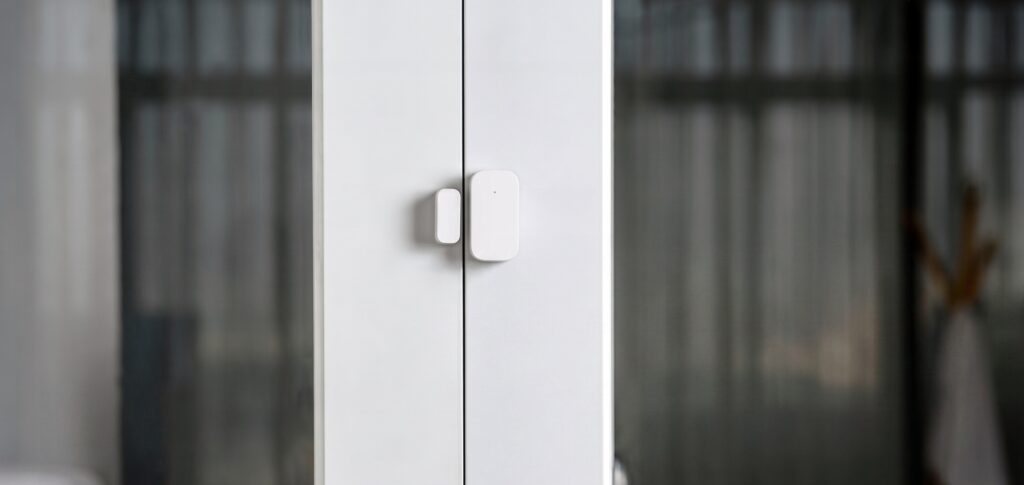
Aqara contact sensors can tell Home Assistant when a door, window, drawer, or cupboard opens. With Zigbee2MQTT they pair to your own coordinator, so you can build local lighting and household alerts without an Aqara hub, Mi Home app, or Aqara account.
This guide covers the older MCCGQ11LM and the MCCGQ14LM E1, known as 门窗传感器 E1 in its Chinese manual. It covers joining, checking open/closed states, installation, four automation examples, and diagnosing sensors that stop reporting. If HA and Zigbee2MQTT are not ready, start with the Xiaomi/Aqara Zigbee setup guide.
What You Need Before You Start
- Home Assistant and Zigbee2MQTT, with both connected to the same working MQTT broker and Home Assistant discovery enabled. Z2M can run as an add-on or a separate service.
- A supported Zigbee coordinator, configured for its radio and firmware. Examples include SONOFF ZBDongle-P/E or a compatible Home Assistant Connect adapter; check the current Z2M adapter instructions for your exact model.
- A working CR1632 battery in either contact-sensor model. Remove an insulating tab if fitted. You do not need to discard a working supplied cell, but keep a fresh one available when diagnosing repeated pairing failures.
The MCCGQ11LM is the older generation; the MCCGQ14LM E1 uses Zigbee 3.0. Model names such as T1 and E1 are not interchangeable. Check the back label rather than relying on a seller’s listing. Older Aqara end devices can be selective about routers, but a protocol-generation label does not guarantee a trouble-free radio path.
Pairing the Aqara Door Sensor to Zigbee2MQTT
Enable Permit Join
Open Zigbee2MQTT’s frontend and enable Permit join. Watch the countdown, and close the window after pairing. The dropdown lets you select the coordinator or a particular router as the joining path; it is not a device-group selector.
Trigger Pairing on the Sensor
- Locate the reset button on the main sensor unit. Keep the housing closed for pairing; opening it is only needed to inspect or replace the battery.
- Hold the button for about five seconds and release when the blue indicator blinks.
- Watch the Z2M log for the join and completed interview.
- Confirm the recognised model before naming it and moving it into position.
The E1 manual labels a five-second hold as reset/join. The older model uses the same initial long-press sequence. After a completed interview, check the HA entities and physically separate and reunite the magnet.
If Auto-Join Doesn’t Complete
For the MCCGQ11LM, if the device appears but the interview stalls, keep short-pressing its button about once per second after starting the pairing sequence. Stop when the interview completes. This is a device-specific wake-up workaround documented by Zigbee2MQTT; it is not a diagnosis that every stalled interview is caused by Zigbee 1.2.
Pairing Troubleshooting
- Device joins, then disconnects: check its signal, battery, and parent router. The older model’s Z2M notes list incompatibilities with some Centralite, GE/Iris, OSRAM/Ledvance and other routers. That does not mean every newer product from those brands fails. Retry through a known-good router or near the coordinator, then test at the final location.
- LED blinks but no device appears: confirm joining is still open and check the battery contacts. A coin cell may light an LED yet fail under radio load; try a fresh CR1632 if resets repeatedly fail.
- Interview never completes: inspect the Z2M log and update unsupported/old software before repeated resets. The E1 device page lists adapter firmware minimums; on old adapters, an update and re-pair may be needed. A timeout by itself does not prove firmware is the cause.
- No change when the door opens: test the magnet beside the sensor by hand. Check its alignment, gap, and mounting before treating the radio as faulty.
Before attaching the adhesive pads, align the marking lines on the sensor and magnet and test several real open/close cycles. Aqara specifies a closed gap below 22 mm. Its E1 manual recommends the main unit on the fixed surface and the magnet on the moving part. Metal frames can affect both the magnetic trigger and radio path; test before committing the mounting position.
Entities Exposed in Home Assistant
Find the sensor under Settings → Devices & services → MQTT. Example names below describe typical entities, not guaranteed IDs:
binary_sensor.front_door_sensor_contact:onmeans open in HA;offmeans closed. In the raw Z2M payload,contact: truemeans closed andfalsemeans open.sensor.front_door_sensor_battery: estimated percentage. Both models also exposevoltagein millivolts; diagnostic entities may be disabled by default.- The E1 additionally exposes
battery_low. The older MCCGQ11LM providesdevice_temperature,power_outage_count,trigger_count, and identify support. linkquality: a radio-path indicator. Compare it with reliable message delivery at the installed position, rather than relying on a single universal pass/fail number.
The older model’s internal device temperature is not a substitute for a room-temperature sensor. Battery percentage may take time to arrive after pairing, so an empty initial value is not enough reason to reset a working sensor.
Renaming and Assigning to an Area
Rename the device and assign its area on the HA MQTT device page. If you also rename its friendly name in Z2M, review HA’s entity IDs separately: changing a display name does not necessarily rename every existing entity. Z2M’s rename workflow can request HA entity renaming, but check automation references afterward.
A clear name such as front_door_sensor helps when writing notifications. Open the device page and copy the actual contact and battery IDs before using the examples.
Building Automations
Each mapping below goes into a separate automation’s Edit in YAML view. In automations.yaml, make each a separate list entry starting with - alias:. Replace the sensor/light IDs and notify.mobile_app_your_phone with your Companion app action, then test it in Developer Tools → Actions.
Notify When a Door Opens
alias: Front door - open notification
triggers:
  - trigger: state
    entity_id: binary_sensor.front_door_sensor_contact
    from: "off"
    to: "on"
conditions: []
actions:
  - action: notify.mobile_app_your_phone
    data:
      title: Front door
      message: The front door opened.
mode: single
The explicit closed-to-open transition avoids treating recovery from an unavailable state as a new opening. It also means a door already open when HA starts does not create an opening alert; add a separate “still open” check if that is what you need.
Sliding doors and state chatter: the older model’s Z2M notes suggest device-message debounce for repeated conflicting contact states. The debounce option is in seconds, so 0.5 represents half a second, not 500. It waits for a quiet interval and combines messages; a brief opening followed by closing can disappear from the published result. Leave it off for alerts that must capture every opening, or test the chosen value against real door movement.
Turn on Lights When the Door Opens at Night
alias: Front door - night light
triggers:
  - trigger: state
    entity_id: binary_sensor.front_door_sensor_contact
    from: "off"
    to: "on"
conditions:
  - condition: time
    after: "21:00:00"
    before: "06:00:00"
actions:
  - action: light.turn_on
    target:
      entity_id: light.hallway
    data:
      brightness_pct: 40
mode: single
The time condition spans midnight. Adjust the hours and brightness to your house. This automation leaves the light on; pair it with your existing motion/vacancy policy or a separate off timer if you want automatic shutdown.
Simple DIY Alarm Zone
A Toggle helper can arm a household door-alert zone. Create input_boolean.alarm_armed through Settings → Devices & services → Helpers → Create helper → Toggle, and include the contact sensors you want to monitor.
alias: Household alert - armed doors and windows
triggers:
  - trigger: state
    entity_id:
      - binary_sensor.front_door_sensor_contact
      - binary_sensor.back_door_sensor_contact
      - binary_sensor.bedroom_window_sensor_contact
    from: "off"
    to: "on"
conditions:
  - condition: state
    entity_id: input_boolean.alarm_armed
    state: "on"
actions:
  - action: notify.mobile_app_your_phone
    data:
      title: Door or window alert
      message: "{{ trigger.to_state.attributes.friendly_name }} opened while armed."
  - action: persistent_notification.create
    data:
      title: Door or window alert
      message: "{{ trigger.to_state.attributes.friendly_name }} opened while armed."
mode: parallel
max: 10
Parallel mode allows separate openings to run concurrently. Arm or disarm the helper from the dashboard, another automation, or an NFC tag. Arming does not check for contacts already open: inspect the doors first or add an arming-time check. If a phone notification fails, inspect the automation trace; later actions in a run can be skipped after an error.
This is a household reminder pattern, not a monitored security system. Radio, HA, power, and notification delivery can fail, and Aqara’s manual excludes use as dedicated security equipment. Keep the local persistent notification useful by checking HA as well as the phone.
MCCGQ11LM vs MCCGQ14LM — Which to Buy?
| Feature | MCCGQ11LM | MCCGQ14LM E1 |
|---|---|---|
| Generation | Older Zigbee model | Zigbee 3.0 E1 |
| Battery | CR1632 | CR1632 |
| Contact and voltage | Both exposed | Both exposed |
| Low-battery flag | Use percentage/voltage | Separate battery_low property |
| Device temperature | Internal diagnostic | Not listed in its current Z2M exposes |
| Router considerations | Documented quirks with some router models | Check your actual mesh; no universal compatibility guarantee |
| Buying decision | Keep working installed units | Reasonable choice for a new install; compare current stock and price |
There is no need to replace working MCCGQ11LM sensors purely because the E1 is newer. For a new purchase, check that the seller supplies the model you want and that your chosen integration supports it. Both can coexist on a supported Zigbee network; actual range and parent-router behaviour still depend on your layout.
Keeping Sensors Connected Long-Term
Battery Monitoring
Use percentage for a simple alert and voltage as another diagnostic clue. The E1’s battery_low flag can support an additional alert if you prefer its own low-cell indication. A percentage estimate does not rule out a cell or contact problem.
alias: Contact sensors - low battery
triggers:
  - trigger: numeric_state
    entity_id:
      - sensor.front_door_sensor_battery
      - sensor.back_door_sensor_battery
    below: 15
conditions: []
actions:
  - action: notify.mobile_app_your_phone
    data:
      title: Low sensor battery
      message: "{{ trigger.to_state.attributes.friendly_name }} is at {{ trigger.to_state.state }}%."
mode: parallel
max: 10
This fixes each entity as its own YAML list item. It fires on entering the low range rather than repeating on every report below 15%. For a sensor already low after HA restarts, add a scheduled battery check if you want reminders. Replace the cell when reports become unreliable even if the percentage has not fallen as expected.
Zigbee Mesh Health
Check reports at the installed position, including several openings spread over time. If updates go missing:
- Check the battery, contacts, and physical magnet alignment.
- Review link quality and the Z2M network map for clues to the parent/router path. A sleeping end device may not appear fully in every network-map scan.
- Add or reposition a compatible powered router if the path is weak. Older Aqara devices may stick to a parent rather than automatically choosing a newly added router; re-pair through a chosen path if needed.
- Keep the coordinator away from USB interference, metal, and dense obstructions.
- Before removing a device, save its friendly name and entity references. Try a short button press and a fresh cell first; re-pair only when simpler checks do not restore reporting.
Pairing near the coordinator is a useful diagnostic, but it does not prove the installed location will work. After any move or mesh change, test the final door position again. Recreating entities can change IDs, so check existing automations after re-pairing.
After installation
Test the complete path: open the real door, confirm HA changes to open, and check that the intended light or notification follows. Then leave it in place and check for missed reports before adding more complicated alert rules.
The sensor-to-HA state path stays local through Zigbee2MQTT and your broker. Phone push delivery or a cloud-connected action may still need internet access. For offline alerts, choose a suitable local output and test with the network access you intend to allow.
- Aqara P1 Motion Sensor in Home Assistant via Zigbee2MQTT for motion alongside door state.
- Xiaomi/Aqara Zigbee Setup in Home Assistant with Zigbee2MQTT for the network basics.
- Aqara E1 Hub in Home Assistant — Local Setup for a hub-based route.
- Aqara Hub M3 as a Matter Bridge in Home Assistant for bridging supported child devices.