

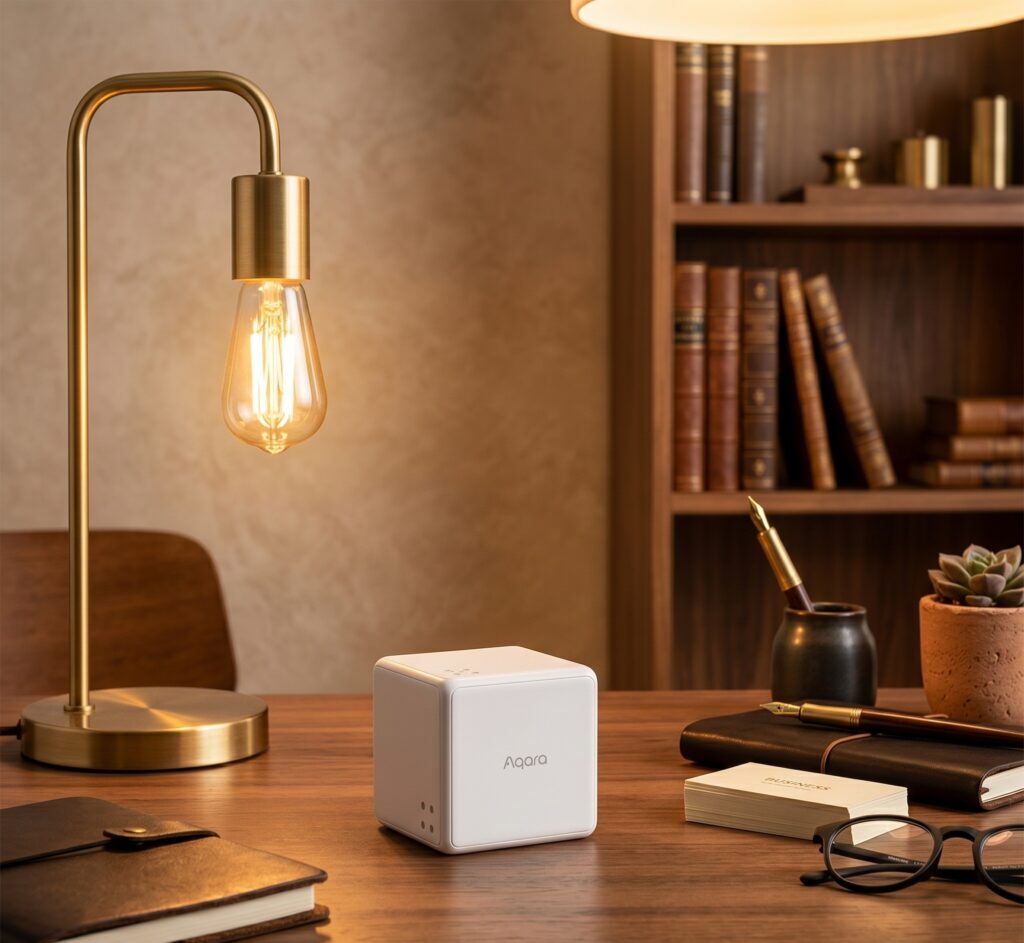
Aqara Cube T1 Pro: Home Assistant Automations via Zigbee2MQTT
The Aqara Cube T1 Pro gives you physical controls for Home Assistant: shake to toggle a light, rotate to change brightness, or turn a numbered face upwards to select a scene. The useful part is choosing a small set of gestures that people can remember.
This guide uses Zigbee2MQTT and the action names documented for CTP-R01. Action Mode and Scene Mode report different events, so choose the mode before building automations.
Below are pairing instructions, MQTT automation examples, and checks for events that reach Z2M but fail to trigger HA.
What You Need
- Home Assistant — any recent release with the MQTT integration configured
- Zigbee2MQTT — running as an HA add-on or standalone; MQTT discovery enabled in Z2M’s Home Assistant settings
- Aqara Cube T1 Pro — sold as model CTP-R01 (international) or MFCZQ12LM (Chinese market). Same hardware, two SKU names.
- CR2450 battery — ships installed; check charge before pairing
- Optional: an HA Blueprint for cube actions (covered in the blueprint section below)
Set up Zigbee2MQTT and MQTT before pairing the cube.
Pairing the Cube T1 Pro to Zigbee2MQTT
The LINK button is inside the battery compartment.
1. Enable Permit Join in Z2M.
In your Z2M dashboard, click the permit join toggle (the zigzag network icon) or enable it for a specific coordinator. Leave it open during pairing.
2. Find the LINK button. Use the supplied tool or a suitable wedge to click off the backplate. It does not unscrew. The CTP-R01 device page documents pairing and mode switching.
3. Trigger pairing mode.
Hold the LINK button for 5 seconds until the LED blinks blue. Release. The cube is now advertising.
4. Wait for the interview. Check that Z2M identifies CTP-R01 and completes the interview. If it stalls, short presses of LINK can keep the cube awake.
5. Rename the device.
In Z2M, rename it something memorable — cube_living_room, for example. This becomes part of the MQTT topic (zigbee2mqtt/cube_living_room) and HA entity names.
Close permit join after pairing. Check the operating mode instead of assuming a firmware default.
Action Mode vs Scene Mode — Choose One First
Before writing any automations, you need to decide which mode you’re running. The two modes expose completely different behavior, and your automation YAML structure differs accordingly.
Action Mode: gestures
Action Mode reports gestures such as shake, slide, tap, flips, and rotation. Use the exact strings from the device page:
shakeandthrowslideandtap, withsideflip90andflip180, with side informationrotate_leftandrotate_right, withaction_angle1_min_inactivity
Z2M publishes the action and relevant attributes in the device’s MQTT message. Listening to that message avoids dependence on a legacy HA action sensor.
Use Action Mode if you want tap, slide, or 90°/180° flip controls.
Scene Mode: numbered faces
Scene Mode reports side_up and flip_to_side with a side value. It also supports rotation, shake, throw, hold, and inactivity events. It does not replace them with scene_1 through scene_6.
Mapping each numbered face to a scene is useful when you want a few clearly labelled presets.
Choose gestures together with the people who will use the cube. More mappings are not automatically easier to remember.
How to Switch Modes
Click LINK five times to switch modes. You can also set operation_mode in Z2M. A software change may wait for the cube’s configuration window; a short LINK press can make it respond immediately.
Confirm the change by watching the MQTT payload while using a gesture specific to that mode.
Receiving Cube Actions in Home Assistant
HA offers device triggers for discovered actions. An alternative is to trigger directly from MQTT, as the examples below do.
In HA’s MQTT integration, listen to zigbee2mqtt/cube_living_room while moving the cube. Replace the friendly name and base topic if your Z2M setup uses different ones.
For automations, you have two paths:
Path 1: Device Triggers in the UI
Open Settings → Automations → Create Automation. Under “Trigger,” pick “Device.” Select your cube. You’ll see a list of device triggers — Z2M populates these from the action set. Pick an action (e.g., “shake”) and build from there. No YAML required for basic flows.
Path 2: MQTT triggers. The examples read action from the JSON payload. Z2M’s legacy action sensor is disabled by default in current versions; see its HA integration settings if maintaining an older automation.
Practical Automation Patterns
Each example is a complete automation to paste into its own automation YAML editor. Substitute your lights, player, scenes and phone notification service. The blocks are individual automations, rather than the full automations.yaml file.
Replace the example MQTT topic with your cube’s topic. Save one example at a time, check the automation trace, and confirm that the intended gesture triggers it.
Shake → Toggle Living Room Lights
alias: "Cube: Shake → Toggle Living Room"
trigger:
  - platform: mqtt
    topic: zigbee2mqtt/cube_living_room
    value_template: "{{ value_json.action | default('') }}"
    payload: shake
action:
  - service: light.toggle
    target:
      entity_id: light.living_room_ceiling
mode: single
Rotate Left/Right → Dim or Brighten Lights
This example uses a fixed 15% brightness step for each left or right rotation. It does not scale the step by the reported angle.
alias: "Cube: Rotate → Adjust Brightness"
trigger:
  - platform: mqtt
    topic: zigbee2mqtt/cube_living_room
condition:
  - condition: template
    value_template: "{{ trigger.payload_json.action | default('') in ['rotate_left', 'rotate_right'] }}"
action:
  - service: light.turn_on
    target:
      entity_id: light.living_room_ceiling
    data:
      brightness_step_pct: "{{ 15 if trigger.payload_json.action == 'rotate_right' else -15 }}"
mode: queued
Flip 90° → Skip to Next Track
alias: "Cube: Flip 90 → Next Track"
trigger:
  - platform: mqtt
    topic: zigbee2mqtt/cube_living_room
    value_template: "{{ value_json.action | default('') }}"
    payload: flip90
condition:
  - condition: state
    entity_id: media_player.living_room_speaker
    state: "playing"
action:
  - service: media_player.media_next_track
    target:
      entity_id: media_player.living_room_speaker
mode: single
Hold → Goodnight Scene (Scene Mode)
alias: "Cube: Hold → Goodnight"
trigger:
  - platform: mqtt
    topic: zigbee2mqtt/cube_living_room
    value_template: "{{ value_json.action | default('') }}"
    payload: hold
action:
  - service: scene.turn_on
    target:
      entity_id: scene.goodnight
mode: single
Use Scene Mode for this example and check that the cube reports hold before saving the automation.
Six-Face Scene Selector (Scene Mode)
In Scene Mode, use flip_to_side and read the face number from side. This example maps faces 1–6 to six HA scenes:
alias: "Cube: Scene Mode → Select Scene"
trigger:
  - platform: mqtt
    topic: zigbee2mqtt/cube_living_room
    value_template: "{{ value_json.action | default('') }}"
    payload: flip_to_side
variables:
  scenes:
    1: scene.bright_work
    2: scene.movie_mode
    3: scene.relax_evening
    4: scene.morning_routine
    5: scene.party_mode
    6: scene.goodnight
  face: "{{ trigger.payload_json.side | default(0) | int }}"
condition:
  - condition: template
    value_template: "{{ face | int in scenes }}"
action:
  - service: scene.turn_on
    target:
      entity_id: "{{ scenes[face | int] }}"
mode: queued
Using a Blueprint (Faster Setup)
If writing individual automations for each gesture sounds tedious, the HA Blueprint Exchange has community blueprints for the Cube T1 Pro with Z2M. A good blueprint pre-wires all the action triggers; you just assign what each gesture does.
To import a blueprint:
- Go to Settings → Automations & Scenes → Blueprints
- Click Import Blueprint
- Paste the blueprint URL from the HA community forums (search “Aqara Cube T1 Pro zigbee2mqtt blueprint” on community.home-assistant.io)
- Click Preview, then Import
- Create an automation from the blueprint and assign your services/scenes to each gesture slot
Check that a blueprint supports CTP-R01, your chosen mode, and your current Z2M version. For a few gestures, individual automations can be easier to understand and maintain.
Troubleshooting
Cube Actions Lag or Drop
If a gesture fails, first check whether an action reached Z2M. That distinguishes detection or radio problems from an HA trigger problem.
A missed first gesture does not by itself establish the cause. Compare the mode, battery, logs, and behaviour closer to the coordinator.
Check radio coverage at the cube’s usual location and try a compatible Zigbee router if needed. Test the gesture repeatedly while watching the MQTT messages, then inspect the HA trace.
Actions Fire in Z2M But Not Reaching HA
If you can see the action appearing in Z2M’s dashboard but HA automations aren’t triggering:
-
Check MQTT discovery. Enable the Home Assistant integration in Z2M and confirm HA is connected to the same broker. Direct MQTT triggers still need a working broker connection.
-
Check the MQTT integration in HA. Go to Settings → Devices & Services → MQTT. If the cube isn’t listed as a device there, discovery isn’t working. Use the MQTT integration’s “Listen to a topic” tool — subscribe to
zigbee2mqtt/cube_living_roomand perform a gesture. If you see the payload arrive but HA entities don’t update, the entity may have the wrong name in your automation. -
Check the entity name. After renaming the device in Z2M, the HA entity ID may not update automatically. Check Settings → Entities and search for your cube — confirm the entity ID matches what’s in your automation trigger.
Using ZHA or a separate Zigbee network
This guide uses Z2M’s documented payloads. If you use ZHA, inspect its current device triggers instead of copying the MQTT examples. Compare support for your installed versions before changing integrations.
ZHA and Z2M can run alongside each other with separate coordinators. They cannot both own one radio, and the cube joins only one Zigbee network at a time.
Battery and Long-Term Use
The CR2450 battery should last roughly 1–2 years under typical use (several triggers per day). Z2M reports the battery percentage as a sensor entity — set up an automation to alert you when it drops below 20%.
alias: "Cube: Low Battery Alert"
trigger:
  - platform: numeric_state
    entity_id: sensor.cube_living_room_battery
    below: 20
action:
  - service: notify.mobile_app_your_phone
    data:
      message: "Cube T1 Pro battery below 20%. Replace CR2450."
mode: single
OTA Firmware Updates
Aqara releases firmware updates for the CTP-R01, and Z2M can install them over-the-air without removing the device from your network.
To check and apply updates:
1. Open Z2M dashboard
2. Navigate to your cube device
3. Click the OTA tab
4. Click Check for update — Z2M will query the OTA server
5. If an update is available, click Update
Follow the OTA instructions and keep the battery fitted until the process completes. Battery devices can take longer to update; do not assume a fixed completion time.
Read the release notes before updating, then recheck the gestures used by your automations.
Setup Summary
Start with two or three useful gestures. Test them in normal use before assigning more, especially if several people share the controller.
After pairing, confirm the mode and MQTT messages, configure the chosen actions, and add a battery alert.
You can also condition a cube action on occupancy; our P1 motion sensor guide covers that input. The Z2M setup guide covers the coordinator and broker.
If you prefer an Aqara hub, compare the exposed controls with the M3 Matter bridge route before choosing.