

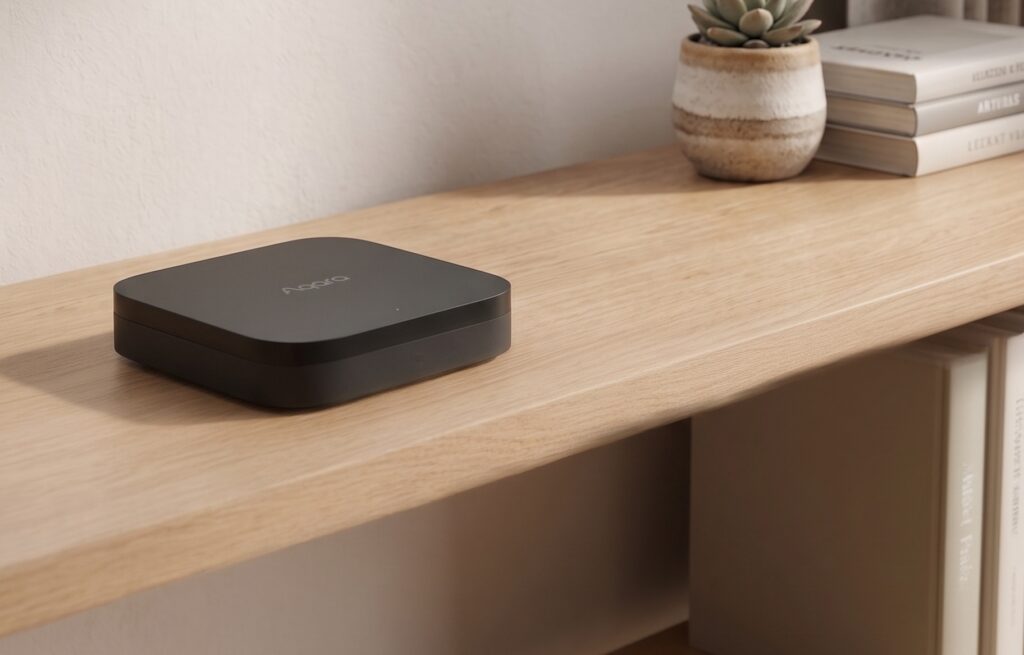
The Aqara Hub M3 can run supported automations on the hub and expose devices to Home Assistant over Matter or HomeKit. Those are separate connections: a local HA integration does not make every Aqara app feature work offline.
This guide covers both HA routes, the M3’s separate Thread border-router role, IR options, and an offline test after setup.
Disclosure: Some links in this article may be affiliate links. We may earn a small commission at no extra cost to you.
Local automation on the M3
Aqara uses “edge” for processing on the hub. Check which triggers and actions your automation uses; a routine that needs a cloud service can still fail when the internet is unavailable.
Matter and HomeKit provide local communication between HA and the hub. App remote access, firmware downloads, and cloud-backed integrations remain separate dependencies.
Check both the HA connection and the execution setting of any Aqara-side automation you plan to retain.
Two Integration Paths: Matter vs. HomeKit
Here’s the trade-off summary:
| Matter Bridge | HomeKit Controller | |
|---|---|---|
| Protocol | Matter over the LAN (Wi-Fi or Ethernet) | HomeKit over IP |
| HA integration | Matter integration | HomeKit Controller integration |
| Local after pairing? | Yes | Yes |
| Device coverage | Depends on model and firmware | Depends on model and firmware |
| IR control | Supported AC can be exposed; check other IR functions | Check exposed accessories; raw IR is not assumed |
| Speaker exposed? | No | No |
| Thread border-router setup | Separate from bridge pairing | Separate from HomeKit pairing |
| Setup complexity | Medium (QR code pairing) | Low (PIN code pairing) |
| Choosing a route | Compare the entities you need | Compare the entities you need |
Choose Matter or HomeKit according to the entities you need on your actual devices. Adding the M3 as a Matter bridge does not automatically commission every Thread device into HA or share Thread credentials.
Path A: Matter Bridge Setup
Prerequisites
- Home Assistant 2024.x or later (2025.x recommended)
- M3 on firmware 4.3.4 or later (April 2025 update introduced Advanced Matter Bridging; update before pairing)
- M3 already configured with your devices in the Aqara app
Pairing the M3 to Home Assistant
- In the Aqara app, go to Hub M3 settings → Third-Party Matter Ecosystems → Matter Pairing Code.
- The app will display a QR code and an 11-digit setup code.
- In Home Assistant, go to Settings → Devices & Services → Add Integration → Matter.
- Choose Add Matter device and scan the QR code or enter the setup code manually.
- HA will discover the M3 as a Matter bridge. Sub-devices paired to the hub appear as individual entities under the bridge device.
What Appears in Home Assistant
Supported Zigbee children appear as endpoints through the Matter bridge. Check each model’s entity list after pairing; app settings and diagnostics may not be exposed.
- Temperature and humidity sensors: May appear with only primary measurement, no battery level entity
- Motion sensors: Motion state typically works; occupancy timeout and sensitivity settings do not expose
- Vibration sensors: Detection state works; axis data does not
- IR blaster: Check the IR section below; supported AC control differs from arbitrary remote commands
- Built-in speaker: Not exposed via Matter
Missing attributes can depend on the device, bridge firmware, and controller support. Do not assume a future HA update will expose them without other changes.
Local operation after pairing
Once paired, the Matter integration communicates with the M3 directly on your LAN. Commands from HA go to the hub; state changes report back over the same local connection. The Aqara cloud is not in the loop for basic control of paired devices.
Path B: HomeKit Controller Integration
The integration is now called HomeKit Device. It connects to the hub locally and imports the accessories the hub exposes.
Pairing
- In the Aqara app, go to Hub M3 settings → HomeKit.
- Note the HomeKit pairing code (8 digits).
- In Home Assistant, go to Settings → Devices & Services. If HA has already discovered the M3 on your network, you’ll see it as a discovered device — click it. Otherwise, add the HomeKit Controller integration manually and enter the pairing code.
- HA will pair with the hub and start importing devices.
If the hub is already paired with Apple Home, remove that HomeKit binding without factory-resetting it before pairing with HA. HomeKit Device supports one controller binding. Use HA’s HomeKit Bridge separately if you want to expose the imported entities back to Apple Home.
When to prefer this path
- You have mostly Zigbee Aqara devices (no Thread-native sensors)
- The HomeKit route exposes the particular attributes you need on your models
- You’re migrating from an existing HomeKit-based setup and don’t want to re-pair everything
M3 as Thread Border Router
The M3 also acts as a Thread border router, connecting the Thread mesh to your IP network. HA can control a Matter-over-Thread device commissioned into HA through a reachable border router. That role is separate from translating Zigbee children through the M3’s Matter bridge.
Which Aqara devices use Thread vs. Zigbee
The P2 door/window sensor is an example of a Matter-over-Thread device. Confirm the protocol on each model; a shared Aqara brand name does not mean a shared radio.
- Certain newer door/window sensors in the P2 series
- Other devices explicitly labelled Matter over Thread
Note: The FP2 Presence Sensor runs on Wi-Fi, not Thread — frequently confused.
A Thread device commissioned directly into HA does not need Zigbee-to-Matter translation. The border router still carries its network traffic, so one M3 does not by itself remove every single point of failure.
Setting it up in HA
Open HA’s Thread integration and check whether the intended network has known credentials. Discovery of the M3 alone does not provide them.
- If your phone already holds credentials for that Thread network, open the HA Companion app’s Settings → Connectivity → Thread and use Send credentials to Home Assistant.
- Refresh HA’s Thread page and check the credential indicator. Use Make preferred network where offered; verify the commissioning phone is using the intended network too.
- Commission the Thread accessory through HA’s Matter flow, then test its entities.
This depends on credentials your app/phone can access. If the M3 network cannot share them through your setup, use the supported provisioning route for that network; selecting a discovered name is insufficient. Follow the HA Thread guide for platform-specific steps.
IR control: check AC support and scene options
IR support is not a single yes/no feature. Aqara documents exposing one supported IR air conditioner to Matter as an AC thermostat. Arbitrary TV buttons and other remote commands need a separate check. See the M3 product details.
For an arbitrary IR command, supported advanced bridging provides an Actions as Scenes route. Aqara documents the scene as a virtual Matter plug:
- Configure the IR appliance in Aqara Home and test the command there.
- Create an Aqara scene containing the intended IR action, with a name such as “TV power command”.
- In the app’s documented workflow, open Profile → Connect to Ecosystems → Matter and add the scene for synchronization. Labels can vary by app and firmware.
- Look for the new Plug control in HA’s Matter bridge devices and test that triggering it sends the intended command.
See Aqara’s advanced-bridging walkthrough. This adds a scene control, not a raw IR-code editor in HA, and the virtual plug’s state is not evidence that the TV is physically on.
If a scene is exposed as a switch, check whether it resets after triggering and what an off command does. Do not assume that every virtual control needs the same one-second reset script.
Configure the IR device or scene before restricting internet access. Then test it with WAN access denied; creating a scene in the app does not prove its execution is local.
Blocking the Aqara Cloud After Setup
After confirming local HA control, you can deny the M3 internet access while retaining its LAN connection. Test the specific devices and scenes you use, rather than treating a successful bridge pairing as a check of every feature.
What breaks if you block Aqara cloud:
- Remote access via the Aqara app from outside your network
- OTA firmware updates (allow traffic temporarily to update)
- Voice assistant integrations going through Aqara’s servers (Alexa skill, Google Home action)
- Any Aqara-to-Aqara cloud automations (irrelevant once you’ve moved everything to HA)
Firewall strategy:
Reserve the M3’s IP address and block that device’s access to the WAN. Domain filtering can be an additional layer; possible hostnames include:
openhome.careaiot.aqara.commqtt.aqara.com- Any other
*.aqara.comsubdomains
Keep local discovery and HA traffic allowed. DNS filtering alone can miss direct-IP connections; blocking broad service-provider address ranges can affect unrelated services. A per-device WAN rule is easier to verify.
Our Aqara local-mode and privacy overview explains the account and network choices.
Zigbee Device Migration from Older Hubs
Check whether Aqara’s hub-migration feature supports your source hub and firmware before resetting any child devices.
What transfers: Your device configuration, room assignments, and automations in the Aqara app migrate to the M3 if you use Aqara’s hub migration feature.
Check before re-pairing: Aqara offers migration of Zigbee devices from supported older hubs. Do not factory-reset every sensor by default. Follow the migration flow, check which devices reconnect, and re-pair only those the procedure requires.
Practical approach: Do the migration before setting up the HA integration. Get everything paired to the M3 in the Aqara app first, confirm devices are working, then proceed with Matter or HomeKit pairing to HA. This minimizes re-work if devices need to be re-paired.
See our M2 vs M3 guide for the protocol and local-control differences.
Automation Performance: Local vs. Cloud Latency
Use the automation trace and device logs to locate a delay. Response time alone does not establish whether a cloud service was involved.
On the hub: a supported Aqara local automation evaluates its trigger and sends the action from the M3.
In HA: a sensor report reaches HA over Matter or HomeKit, HA evaluates the rule, and sends the command back.
Through a cloud service: voice skills, remote features, or explicitly cloud-based rules need their external service. Check the actual routine instead of classifying it by a delay threshold.
Test it: deny WAN access while preserving the LAN, trigger the routine, and inspect the trace and router logs. A slow local device can still be local, and a fast cloud request can still use the internet.
HA can run the rules locally when their inputs and actions use local integrations. An HA automation that calls a cloud service still depends on that service.
Checks after pairing or an update
Missing entities: compare Matter and HomeKit coverage for the exact device and firmware. If a battery reading matters, confirm it is exposed rather than assuming either route provides it.
Firmware updates: read release notes and allow internet access when you choose to update. Recheck the entities and offline routines afterwards.
Voice assistants: Aqara cloud skills need their external service. Exposing devices through HA can change that route, but Alexa, Google, or Nabu Casa voice features still have their own internet dependencies.
Unavailable after a restart: allow the hub and HA to reconnect, then inspect their logs if entities remain unavailable. Avoid immediately factory-resetting devices.
Recommendation
Choose the integration that exposes your required controls, then verify them offline. Thread networking and Aqara-side automation are separate checks.
Choose Matter bridge if it exposes the Zigbee children and attributes you need. Configure direct Matter-over-Thread devices separately.
Choose HomeKit Device if its exposed accessories suit your setup. Check for duplicate entities if you also add Matter.
For IR: distinguish supported AC exposure from general remote buttons. Test scene or advanced-bridging options on your firmware before relying on them.
The E1 Hub guide covers a smaller hub-based setup. Check what you gain from the M3’s Thread border router, Matter controller, and wired-power options before upgrading.
Keep a record of the working entities and firewall settings. Repeat the offline test after firmware or network changes.