

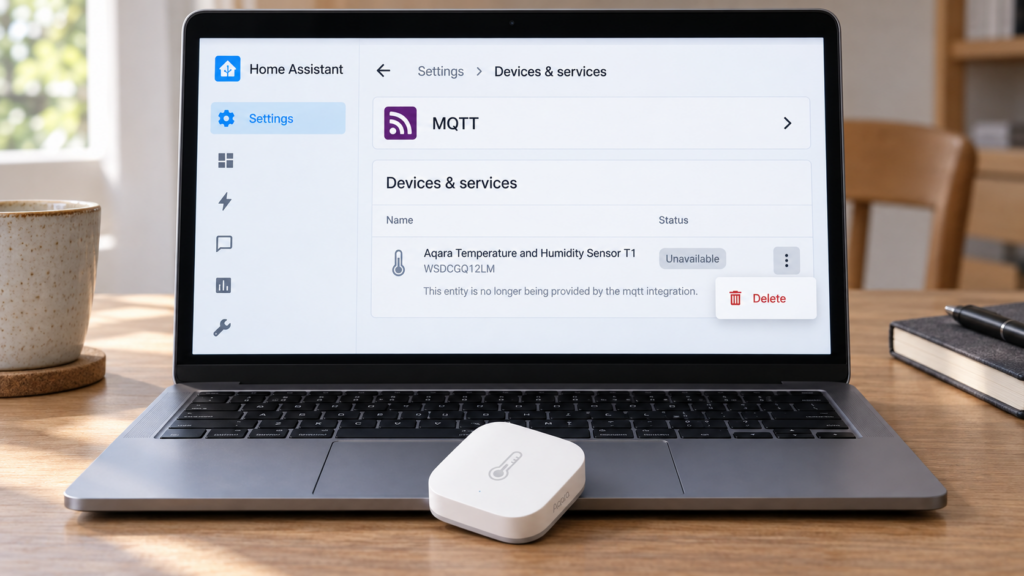
A device removed from Zigbee2MQTT can leave an unavailable entry in Home Assistant, sometimes with “This entity is no longer being provided by the mqtt integration.” First confirm the removal succeeded in Zigbee2MQTT. Then check whether Home Assistant has a leftover registry entry or is still receiving discovery messages that recreate it. Those need different cleanup steps.
This guide covers Zigbee2MQTT with Home Assistant’s MQTT discovery. ZHA uses a different device-removal path inside Home Assistant and has no MQTT discovery topics to clear.
The current removal API: remove, force_remove, and factory reset
Use zigbee2mqtt/bridge/request/device/remove. The old bridge/config/remove path is a legacy API. The request accepts a friendly name or IEEE address, either as a string or in an id field; see the current topics reference.
In these examples, replace 192.168.10.20 with your broker address and the sample IEEE address with the device you intend to remove. Replace the zigbee2mqtt base topic if your instance uses another one. Supply the authentication and TLS settings your broker requires.
mosquitto_pub -h 192.168.10.20 -t zigbee2mqtt/bridge/request/device/remove \
  -m '{"id": "0x00158d0001a2b3c4"}'
A normal removal asks the device to leave. Wake a battery device if needed, and check the matching response on zigbee2mqtt/bridge/response/device/remove or the frontend result. A timeout or error means you shouldn’t assume it was removed.
mosquitto_pub -h 192.168.10.20 -t zigbee2mqtt/bridge/request/device/remove \
  -m '{"id": "0x00158d0001a2b3c4", "force": true}'
force: true removes the database entry without requiring the device to leave successfully. keep_config: true preserves its saved configuration for re-pairing, while clear_cache: true clears cached data so a later join gets a fresh interview.
| Action | Effect in Zigbee2MQTT | Effect on the physical device | Use when |
|---|---|---|---|
| Normal remove | Removes the entry after a successful leave | Asks the device to leave the network; check the result | The device is reachable |
| Remove with force: true | Removes the database entry without a successful leave | Can still retain the network key and communicate | Hardware is dead, missing, or unresponsive |
| Physical factory reset | Separate from clearing broker and Home Assistant entries | Resets the device according to its model’s instructions | Preparing hardware for another owner or a fresh pairing |
The remove, force remove, and factory reset guide explains the network effects in more detail. For the stale Home Assistant entry, the important first check is that the intended device is gone from Zigbee2MQTT.
The cleanup is supposed to be automatic
Home Assistant discovers the device through configuration messages published to the MQTT discovery prefix, usually homeassistant/. Zigbee2MQTT retains those messages so a reconnecting Home Assistant can discover the device again. A broken discovery path can instead produce no entities at all.
Home Assistant documents an empty discovery payload as removal. It removes the component, and the device entry is removed when nothing else references it. Registry cleanup was added in Core PR #32693. Zigbee2MQTT’s discovery implementation sends empty retained payloads when an entity is removed. With a working handoff, you don’t need a second manual cleanup.
Why the handoff breaks
There are two cases to separate. In the first, the broker’s discovery configuration is gone but Home Assistant still has a registry entry. In the second, a discovery configuration remains on the broker, or a running publisher sends it again, so the entity is recreated.
The MQTT specification says a zero-length retained publication clears the broker’s retained message for that exact topic. The empty publication can reach current subscribers, but there is no retained deletion message for a new subscriber to receive later. A persistent session may queue a qualifying message while its client is disconnected, so being offline doesn’t always mean the message was missed.
If Home Assistant misses the deletion, a stored registry entry can remain without an integration providing it. That is a possible explanation, not proof that every unavailable MQTT entity came from a restart. The old Zigbee2MQTT issue #835 documents a similar leftover-device symptom, but predates the current cleanup behavior.
Older walkthroughs and manual registry edits
The 2019 forum walkthrough uses the old removal topic and includes hand-editing .storage/core.entity_registry. Those steps shouldn’t be copied into a current installation. Use the current removal API and Home Assistant’s supported device or entity controls.
Inspecting retained discovery messages is still useful when an entity returns after deletion. It serves a different purpose from deleting an already orphaned registry entry: you are finding what continues to announce the device.
The cleanup procedure
- Confirm removal in Zigbee2MQTT. Use the frontend or current request topic. Check the response and device list. Try a normal removal with a reachable device; use force removal when it cannot answer.
- Keep Home Assistant connected for the cleanup. Check Settings > Devices & Services. If the intended device and entities are gone, stop here.
- Remove a leftover entry through Home Assistant’s UI. If the device is no longer provided, open its page and use Delete if offered. For an individual stale entity, open Settings > Devices & Services > Entities, open its settings, and use Delete when available. Review the listed entities before deleting a device. If deletion is unavailable, inspect the discovery publisher rather than editing storage files.
- Inspect discovery if an entry persists or returns. Connect an MQTT client to the same broker Home Assistant uses. Under its discovery prefix, find the configuration payloads whose device identifiers match the removed hardware. Confirm the target from the payload and device ID, not just a similar friendly name. Topic layouts vary: single-component discovery uses individual config topics, while device discovery can include several components in one device config.
- Clear only those confirmed obsolete configuration topics. Save their names and payloads first. With Home Assistant connected, publish an empty retained payload to each exact obsolete topic. If the configuration is republished, find the active Zigbee2MQTT instance or other publisher still announcing it. Repeatedly deleting the registry entry won’t stop that publisher.
- Check the result. Confirm the obsolete retained configuration is gone and the intended entry stays gone. Use the Home Assistant UI for any remaining orphan. Keep unrelated devices and working discovery configurations intact.
mosquitto_pub -h 192.168.10.20 -r -n \
  -t 'homeassistant/<component>/<device>/<object_id>/config'
The topic above is a placeholder, not a path to copy unchanged. Use the complete configuration topic you inspected on your broker. Mosquitto documents -r as retained and -n as a zero-length payload. Clearing a state or availability topic doesn’t remove discovery. Don’t clear the whole homeassistant/ tree or the broker database to remove one device.
A storage-file edit or blanket service restart isn’t the normal fix. If the Zigbee2MQTT device list itself is changing unexpectedly, investigate the database before treating it as a Home Assistant registry problem.
Force removal alone leaves the device able to hold the Zigbee network key. Follow the exact model’s physical factory-reset instructions and check the reset result before giving it away or selling it. Clearing MQTT discovery doesn’t reset hardware or change the network key.
Despite its name, force removal is database cleanup rather than a more thorough physical reset. A successful normal leave and a device factory reset address the hardware side; discovery cleanup addresses Home Assistant’s view of it.
Replacing hardware has different consequences for entity history, and renaming a friendly name can have separate registry effects.
If the entity keeps coming back and you didn’t remove anything
If the device still works in Zigbee2MQTT and you never intended to remove it, don’t follow the deletion commands. Reports such as #23792 concern entities no longer being provided even though the device remains present. Inspect discovery, broker connections, configuration prefixes, and logs instead of deleting a working device’s retained configuration.
The warning identifies a gap between a stored registry entry and a currently provided entity; it doesn’t diagnose the cause by itself. Also distinguish a Home Assistant leftover from a Zigbee2MQTT phantom 0x0000000000000000-style pairing entry. The ghost-device guide covers that separate case.
FAQ
Why does a removed Zigbee2MQTT device still show in Home Assistant? Either the registry kept a leftover entry or discovery is still announcing it. Confirm removal in Zigbee2MQTT, check the discovery configuration, and use Home Assistant’s UI for an orphaned entry.
What’s the difference between remove and force_remove? Normal removal asks the device to leave. The current API uses force: true on the same remove request to clear the database without a successful leave.
Is force removal enough before giving a device away? No. The device can still hold the network key. Follow its physical factory-reset instructions before handing it over.
Do I need to edit core.entity_registry manually? No. Use Home Assistant’s device or entity controls. If the entry returns, identify its discovery topic and publisher first.
Why does Home Assistant say the entity is no longer being provided by MQTT? It has a registry entry but no currently loaded MQTT entity providing it. After deliberate removal it may be an orphan you can delete; for a device you still use, investigate the discovery path.