

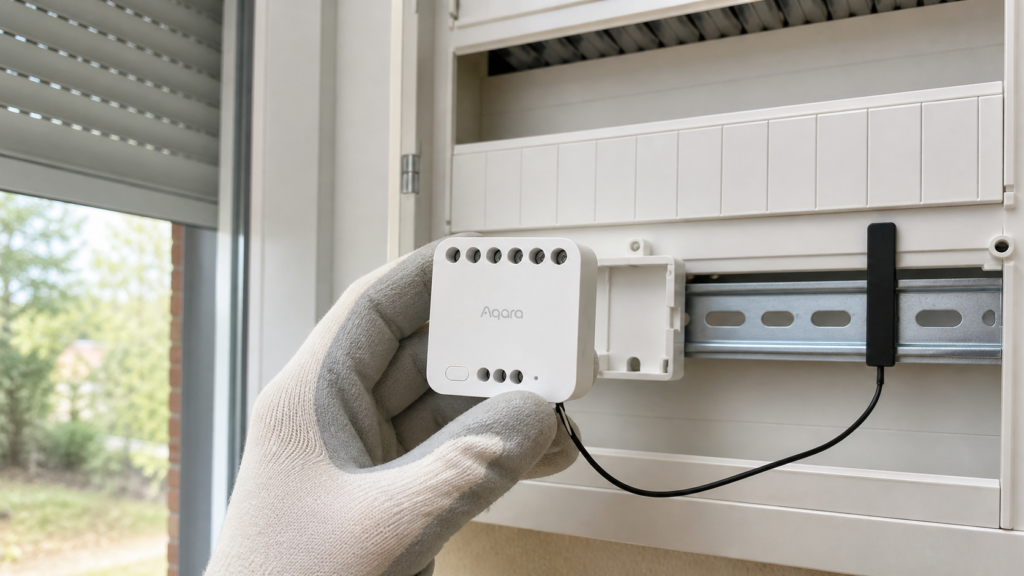
Aqara Dual Relay T2 (LLKZMK12LM): Zigbee2MQTT + Home Assistant Guide
I bought the Aqara Dual Relay T2 expecting it to be a straightforward dual-channel switch module. It is — but the dry contact and dry impulse modes open it up well beyond basic light switching, and the way Zigbee2MQTT exposes those modes is worth understanding before you commit the device to a wall box. The energy monitoring has a quirk too that tripped me up on first reading. This guide covers pairing, the wet/dry contact choice, interlock configuration, and three real automation patterns including a garage door trigger — no Aqara hub, no Mi Home cloud involved.
What the Aqara Dual Relay T2 actually is
The LLKZMK12LM is a dual-channel in-wall relay module with energy monitoring. Aqara markets it as the Dual Relay Module T2; the same hardware ships as the DCM-K01 under white-label arrangements. It runs Zigbee natively — no firmware swap required, unlike some of the more recent Aqara Matter-bridge devices.
Key specs worth knowing upfront:
- Voltage: AC 100–250V, or DC 24–60V
- Max load: 10A combined across both channels — not 10A per relay. On AC that’s up to ~2500W with incandescent loads (much lower for LED/CFL). On DC the current ceiling depends on voltage: up to 10A at 24–30V, but only up to 1A at 30–60V — check Aqara’s spec sheet before sizing a DC load
- Energy monitoring is only available in AC wiring; DC powers the relays but disables power sensing
- Ships as a Zigbee Router, so it extends your mesh rather than consuming a child slot
- Requires a switchbox with at least 60mm depth due to the external antenna
That 10A combined limit matters more than it sounds. Two 5A loads are fine. A single large appliance pushing 8–9A leaves almost nothing for the second channel. Washing machines and tumble dryers are out entirely. This is a lighting, motor, and low-draw appliance module.
Wet contacts vs dry contacts — choose before you wire
This is the decision that defines what the module can do, and you make it at the hardware level before you touch Zigbee2MQTT.
Wet contacts mode is the default configuration. A red jumper wire bridges the L-IN terminal to the L-OUT terminal. Live voltage from your supply feeds through L-OUT to the L-1 and L-2 switched outputs. The module controls whether that live voltage reaches your load. Use wet contacts for lights, fans, appliances — anything that receives mains power from the relay.
Dry contacts mode removes the jumper entirely. The relay outputs switch a contact without providing their own voltage. The controlled device supplies its own signal or power. Use dry contacts for:
- Thermostat control signals
- Roller shade and curtain motors that have their own drive electronics
- Garage door openers that trigger on a brief contact closure
- Gate controllers with their own power supply
The practical distinction: if your load needs the relay to supply power, use wet contacts. If your load needs the relay to close a circuit that the load itself energizes, use dry contacts.
the work-mode select in Z2M (with values along the lines of power, dry, and dry_impulse — check the exact entity name and options in your Z2M version’s Exposes tab, as Aqara’s converter naming has shifted between releases) must match your physical wiring. If you wire for dry contacts but leave work_mode at power, the relay will still switch but your Z2M configuration won’t match reality. Set the work mode in software after confirming your hardware configuration.
Pairing with Zigbee2MQTT — no hub required
With your coordinator in pairing mode, press and hold the button on top of the module case for 5 seconds until the LED starts flashing. Z2M will discover it within 30–60 seconds.
What you should see in the Z2M frontend after discovery:
- Model:
LLKZMK12LM - Vendor: Aqara
- Description: Dual relay module T2 with energy monitoring
If Z2M shows it as an unknown device, check your Z2M version. The LLKZMK12LM has been in the database since 2023; anything reasonably current will recognise it. If the device doesn’t pair after the first 5-second hold, repeat the hold — the LED flash pattern confirms pairing mode started correctly.
The module requires no Aqara hub, no Aqara Home app account, and no Mi Home credentials. Once it’s in Z2M, your Aqara cloud has no visibility into it. (If you’d rather run Aqara devices through a hub but still keep things local, our Aqara Hub M2 local setup guide covers that route.)
Entities exposed in Home Assistant after Z2M discovery
Z2M creates the following entities via auto-discovery. These appear as a single device in HA’s device registry. Exact expose names can vary slightly between Z2M releases — treat this as a reference for what to look for, not a literal contract.
| Entity | Type | Z2M expose | Notes |
|---|---|---|---|
| Channel 1 | switch | state_l1 |
on/off/toggle |
| Channel 2 | switch | state_l2 |
on/off/toggle |
| Power | sensor | power (W) |
AC wiring only |
| Current | sensor | current (A) |
AC wiring only |
| Energy | sensor | energy (kWh) |
AC wiring only; see note below |
| Voltage | sensor | voltage (V) |
AC wiring only |
| Device temperature | sensor | device_temperature |
Module internal temp |
| Interlock | switch | interlock |
Prevents both channels on simultaneously |
| Work mode L1 | select | operation_mode_l1 |
control_relay or decoupled |
| Work mode L2 | select | operation_mode_l2 |
control_relay or decoupled |
| Power-on behavior | select | power_on_behavior |
State after power loss |
| Work mode | select | work_mode |
power, dry, dry_impulse |
| Pulse length | number | pulse_length |
ms; only relevant in dry_impulse mode |
One thing the SmartHomeScene review flagged and I’ve verified against the Z2M device page: the module measures energy internally in watt-hours but Z2M exposes the value as kWh. The number is correct — this is a label precision issue, not a calculation error. SmartHomeScene measured ~2.4% variance versus a calibrated reference meter, which is reasonable for a module in this price category. If you’re tracking consumption for billing-accuracy purposes, don’t rely on it. For presence detection or “is this appliance running?” automations, it’s fine.
Energy data is combined for both channels — there’s no per-relay energy split. If you need channel-level power metering, that’s a genuine gap.
The operation_mode per relay — control_relay vs decoupled — controls whether Zigbee commands reach the relay at all. In control_relay mode (default), MQTT set commands control the relay state. In decoupled mode, Zigbee commands are ignored and only the physical button on the case operates the relay locally. This is useful if you want one channel to be locally controlled and the other Zigbee-controlled, but you’ll want to leave both at control_relay for automation purposes.
Configuring interlock mode
Interlock prevents both relays from being on simultaneously. You need this for bidirectional motor control — roller shades, curtains, gate motors, anything where activating both outputs at the same time would cause a short or physical damage.
Enable via MQTT:
Topic:   zigbee2mqtt/YOUR_DEVICE_NAME/set
Payload: {"interlock": true}
Or toggle it directly in the Z2M frontend under the device’s Exposes tab — there’s a switch entity for it.
When to use interlock:
- Bidirectional motor control — always. Don’t skip this and assume your automations will handle mutual exclusion. They might, until they don’t.
- Roller blinds without a dedicated driver — if your blinds use a roller tube, the purpose-built Aqara Roller Shade Driver E1 is usually a cleaner option than driving a bare motor through this relay.
- Gate controllers — same logic as blinds.
When to leave interlock off:
- Two independent loads (light 1 and light 2)
- Dry-contact use cases where simultaneous activation is safe
The first time I tested bidirectional motor control with this module, I forgot to enable interlock before running the automation. The motor received both open and close signals within the same second during a state recovery sequence. Nothing broke, but it was a very unhappy motor sound. Enable interlock before you test, not after.
Setting work mode — power, dry, and dry impulse
The work_mode entity controls how the relay outputs behave:
power (default): Standard on/off switching for mains-powered loads. Use with wet contact wiring.
dry: Relay outputs switch a contact. The relay can be held open or closed. Use with dry contact wiring for thermostats, signal lines, or anything where you need a sustained open/closed state.
dry_impulse: The relay closes for a brief period (200–2000ms, configured via pulse_length) and then opens automatically. Use for momentary-contact devices — garage door openers, gate controllers, door release mechanisms that trigger on a brief contact closure rather than a sustained one.
The pulse_length parameter sets that duration in milliseconds. The default is 1000ms (1 second). For most garage door openers, 200–500ms is enough — the opener only needs to detect a brief short. Check your opener’s spec or test at the default first.
Set pulse_length via MQTT:
Topic:   zigbee2mqtt/YOUR_DEVICE_NAME/set
Payload: {"pulse_length": 300}
Or via the Z2M frontend number entity. The change takes effect immediately; you don’t need to re-pair.
Honestly, the dry impulse mode is more useful than I expected for a relay at this price point. Most dedicated “smart garage” solutions charge a premium for exactly this behavior. The LLKZMK12LM handles it natively, and since the automation logic lives in Home Assistant, you’re not tied to any vendor’s cloud or app.
Three automation examples
1. Smart garage door trigger (dry impulse mode)
For a garage door opener that triggers on a momentary contact closure:
- Wire relay channel 1 in dry contacts mode (no jumper wire)
- Set
work_modetodry_impulse - Set
pulse_lengthto 300 (or test with 1000 first) - In HA, the channel 1 switch entity sends the impulse when turned on; it returns to off automatically after the pulse
To model this as a cover entity in HA, create a template cover that calls the relay switch service on open/close commands. You’ll need a separate sensor (door contact sensor like the MCCGQ13LM) to track actual door state, since the relay itself only knows it fired — not whether the door moved.
cover:
  - platform: template
    covers:
      garage_door:
        friendly_name: "Garage Door"
        position_template: "{{ 0 if is_state('binary_sensor.garage_contact', 'off') else 100 }}"
        open_cover:
          service: switch.turn_on
          target:
            entity_id: switch.relay_t2_channel_1
        close_cover:
          service: switch.turn_on
          target:
            entity_id: switch.relay_t2_channel_1
        stop_cover:
          service: switch.turn_on
          target:
            entity_id: switch.relay_t2_channel_1
Note that open and close both send the same impulse — the opener toggles on each contact closure. The binary_sensor’s state (on = open, off = closed) drives the cover position.
2. Roller blind motor control (interlock + cover template)
For a bidirectional motor with separate open and close terminals:
- Wire in dry contacts mode
- Set
work_modetodry - Enable interlock
- Map channel 1 to open direction, channel 2 to close direction
cover:
  - platform: template
    covers:
      living_room_blind:
        friendly_name: "Living Room Blind"
        open_cover:
          service: switch.turn_on
          target:
            entity_id: switch.relay_t2_channel_1
        close_cover:
          service: switch.turn_on
          target:
            entity_id: switch.relay_t2_channel_2
        stop_cover:
          - service: switch.turn_off
            target:
              entity_id: switch.relay_t2_channel_1
          - service: switch.turn_off
            target:
              entity_id: switch.relay_t2_channel_2
If your motor has a set travel time (e.g., 20 seconds full open to full close), add timed automations that turn off the active relay after the expected travel time. Without a position sensor, you’re running open-loop — the cover template won’t know where the blind actually is.
3. Energy monitoring alert
For appliance state detection — catching a washing machine that finished, or a heater that’s been on too long:
automation:
  - alias: "Appliance finished"
    trigger:
      - platform: numeric_state
        entity_id: sensor.relay_t2_power
        below: 5
        for: "00:00:30"
    condition:
      - condition: state
        entity_id: input_boolean.appliance_running
        state: "on"
    action:
      - service: notify.mobile_app
        data:
          message: "Appliance has finished."
      - service: input_boolean.turn_off
        target:
          entity_id: input_boolean.appliance_running
The for: "00:00:30" dampens transient low-power readings that occur during motor cycle pauses. Tune the threshold and duration to your specific appliance.
What stays local, what goes to the cloud
Running the LLKZMK12LM through Zigbee2MQTT and Home Assistant keeps everything on your local network. The control path is:
HA → Z2M → MQTT broker → Zigbee coordinator → LLKZMK12LM
No traffic goes to Aqara’s servers. No Mi Home account is involved. The device doesn’t require any cloud handshake after initial Zigbee pairing — there’s no network call to validate or activate it.
Contrast this with using the device through the Aqara hub and Aqara Home app, where automation triggers and relay state changes route through Aqara’s cloud before reaching your network. The local Z2M path eliminates that round trip entirely, which also means automations continue working during an internet outage. (If you’re deciding between Zigbee2MQTT and ZHA for your Aqara devices, our ZHA vs Zigbee2MQTT comparison covers the trade-offs.)
Known limitations
A few things worth confirming before you buy or install:
10A combined limit. Both channels share a single 10A maximum. If you’re switching two loads that could both be active simultaneously, add their peak draws together. 10A at 240V is 2400W. Many household loads are under this, but check before installing.
60mm switchbox depth required. The external antenna adds bulk. Most standard switchboxes in Asia are 60mm or deeper, but some European-spec boxes run shallower. Measure before you run wire.
No per-relay energy metering. The module reports combined power, current, and energy for both channels together. You can’t tell which channel is drawing more unless only one is active. If you need per-channel metering, you’ll want two single-channel relay modules instead.
DC wiring disables energy monitoring. If you’re powering the module from a DC 24–60V bus (common in industrial or access control setups), the relays work normally but the power, current, energy, and voltage sensors read nothing.
Frequently asked questions
Does the Aqara Dual Relay T2 work without the Aqara hub?
Yes — the LLKZMK12LM ships in Zigbee mode and pairs directly with any Zigbee2MQTT coordinator. No Aqara hub or Aqara Home app account is required or involved.
How do I enable interlock mode on the LLKZMK12LM?
Via MQTT: publish {"interlock": true} to zigbee2mqtt/YOUR_DEVICE_NAME/set. Or toggle the interlock switch entity in the Z2M frontend or Home Assistant directly.
What is the difference between wet and dry contacts on the Aqara T2 relay?
Wet contacts (jumper wire installed, work_mode: power): the relay supplies mains voltage to the load. Dry contacts (no jumper, work_mode: dry or dry_impulse): the relay closes a contact circuit; the load supplies its own voltage or signal.
Can I use the Aqara Dual Relay T2 as a garage door opener in Home Assistant?
Yes, using dry contacts mode with work_mode: dry_impulse. The relay sends a brief timed contact closure (200–2000ms) that triggers most garage door openers. Model it as a cover template entity in HA, using a separate door contact sensor for state tracking.
Does the Aqara T2 relay act as a Zigbee router?
Yes. The LLKZMK12LM is a mains-powered Zigbee Router — it extends your Zigbee mesh rather than being a leaf node. Adding one to a distant corner of your home can improve mesh coverage for battery-powered sensors nearby.
Why does my energy reading look like watt-hours when Z2M says kWh?
The device measures energy in watt-hours internally, but Z2M exposes the value labeled as kWh. The figure is correct if you read it as kWh — it’s a unit label quirk in the firmware, not a calculation error. Real-world measurements show roughly 2.4% variance from calibrated meters, which is acceptable for home automation purposes.
Whether Aqara adds per-relay energy metering in a future firmware revision is worth watching — that one gap is the main reason I’d consider two of the single-switch T1 modules over this one for appliance monitoring setups where you need per-channel figures. For motor control and garage door applications, the LLKZMK12LM is hard to beat at the price.