

Aqara Roller Shade Driver E1: Complete Home Assistant Local Setup Guide
By N. Lee
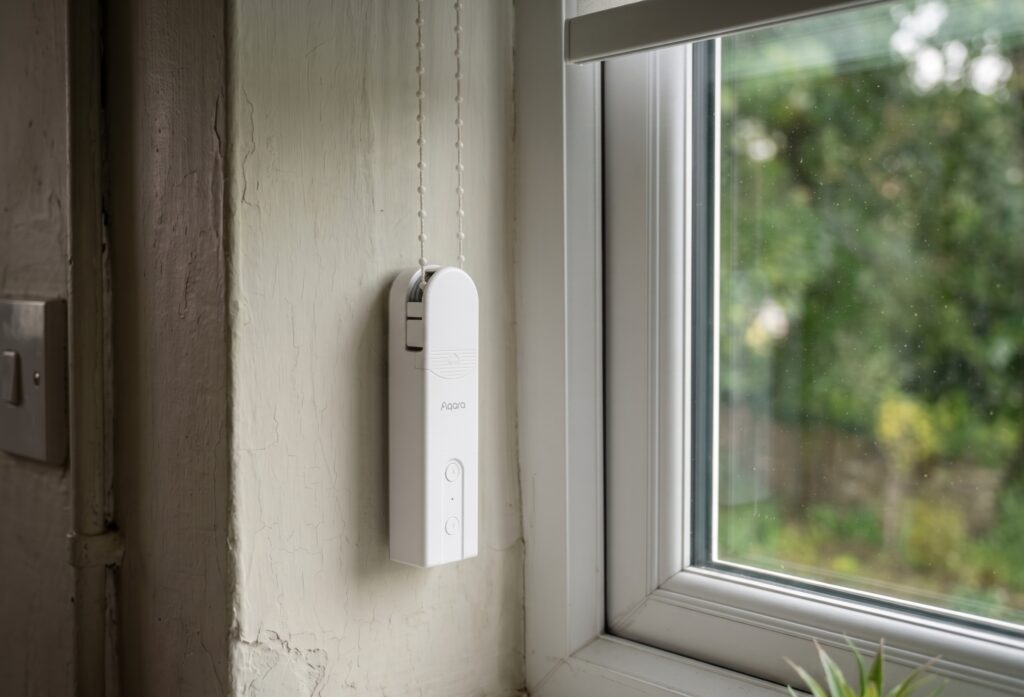
The Aqara Roller Shade Driver E1 adds motor control to compatible beaded-chain blinds. You can pair it directly with Home Assistant’s Zigbee network and set its travel limits using the physical buttons. This guide covers installation checks, pairing, calibration, and cover automations.
What Is the Aqara Roller Shade Driver E1?
The E1 covered here is model ZNJLBL01LM, also sold as RSD-M01. Its motor drives the blind’s beaded chain; it does not clip onto the roller tube. After pairing with a supported Zigbee integration, it provides open, close, stop, and position control.
Direct pairing lets HA control the blind without an Aqara hub. Keep the E1’s battery charged and check its behaviour at the installed position before setting up unattended schedules.
Check the label on your unit. The button instructions below are for ZNJLBL01LM; do not assume a similarly named revision uses the same procedure.
The motor provides position control, battery reporting, and direction settings. Use a supported coordinator and integration for your exact model.
The E1 drives a compatible beaded chain; it is not a general blind-tilt controller. It can run from its internal battery or a suitable USB supply. Follow Aqara’s installation and power guidance rather than connecting it directly to mains.
What You Need Before You Start
Before touching pairing, verify you have everything ready:
- Home Assistant — any recent version (2024.1+ recommended for cover entity improvements)
- A Zigbee coordinator connected and working — SkyConnect, Sonoff Zigbee 3.0 USB Dongle Plus, ConBee II, or any other coordinator running ZHA or Zigbee2MQTT
- ZHA or Zigbee2MQTT — one of these integrations must already be running and showing existing devices if you have them
- A charged E1 unit — check battery charge before diagnosing pairing or movement problems. Charge via USB-C until the LED indicator turns off (LED glows red while charging; turns off when full). Charge time from empty is approximately 2–3 hours.
- A compatible beaded-chain blind and secure mounting. Follow Aqara’s manual for chain type, wheel selection, alignment, and tension. Confirm that the blind moves freely before fitting the motor.
You do not need:
- An Aqara hub (E1 Hub, M2, M3, or otherwise)
- The Aqara Home app
- An Aqara account
- Any cloud connectivity
Physical Layout
Before pairing or calibrating, understand the button layout:
- Up button — front of unit, upper position; moves shade up / toward open
- Down button — front of unit, lower position; moves shade down / toward closed
- Indicator light — between the Up and Down buttons on the front face; blue = active/pairing, red = charging
- RESET button — on the bottom of the unit; used for pairing, factory reset, and direction reversal
Pairing uses RESET; travel-limit calibration uses the Up and Down buttons. Keep those procedures separate.
Pairing the E1 to Home Assistant
Pairing via ZHA
- In Home Assistant, go to Settings → Devices & Services → ZHA → Add Device.
- ZHA will enter pairing mode and display a “Waiting for new device” screen.
- On the E1, hold the RESET button (bottom of unit) for 5 seconds until the indicator light blinks blue rapidly. Release. The device enters pairing mode.
- Within a few seconds, ZHA should discover the device as “Aqara Roller Shade Driver E1” or by its model number ZNJLBL01LM.
- Assign it a name and area, then click Finish.
If discovery fails after 30 seconds, the unit may not be close enough to your coordinator or a Zigbee repeater. Try moving the E1 within 2 meters of the coordinator for initial pairing, then relocate.
Pairing via Zigbee2MQTT
- In the Zigbee2MQTT web UI (or via the Home Assistant add-on), click Permit join (All) or permit join on a specific device if you want to limit range.
- On the E1, hold the RESET button (bottom of unit) for 5 seconds until the indicator light blinks blue rapidly.
- In the Z2M log or the Devices list, watch for a new device with IEEE address appearing. It should be identified as
ZNJLBL01LM. - Rename the device in Z2M’s Devices tab. The corresponding HA entity is created automatically via MQTT discovery.
If Z2M sees the device but HA does not, check MQTT discovery in Z2M’s Home Assistant settings and confirm both systems use the same broker.
Calibrating Open and Closed Limits Without the Aqara App
Set both travel limits before relying on percentage positions. The Z2M device page documents the physical-button procedure.
The motor needs to know two positions: fully open and fully closed. Until calibrated, it will move but not report accurate position percentages — you’ll see the cover entity in HA but the position slider won’t behave predictably.
Calibration sequence (button method):
-
Enter calibration mode: Close the shade completely. Hold the Up and Down buttons simultaneously for 3 seconds until the indicator light blinks blue. Release both buttons. You’re now in calibration mode.
-
Set the open limit: Press the Up button to move the shade to your desired fully open position. Once there, press the Up button 5 times quickly. The indicator light blinks blue 3 times to confirm the open limit is saved.
-
Set the closed limit: Press the Down button to move the shade to your desired fully closed position. Once there, press the Down button 5 times quickly. The indicator light blinks blue 3 times to confirm the closed limit is saved.
-
Calibration is now complete. The device exits calibration mode automatically after both limits are saved.
After calibration, use the HA cover entity to command the shade to 50% — it should stop at mid-travel. If it overshoots significantly, redo calibration from step 1.
The limits are stored on the motor. Pairing with a new bridge does not normally clear them, so first test existing limits before recalibrating.
ZHA vs Zigbee2MQTT: Which Should You Use?
Both work. The choice depends on your existing setup and whether you need advanced features. For the E1 specifically:
| Feature | ZHA | Zigbee2MQTT |
|---|---|---|
| Cover entity (open/close/position) | ✅ | ✅ |
| Position reporting (0–100%) | ✅ | ✅ |
| Battery level sensor | ✅ | ✅ |
| Motor running state | Limited | ✅ |
| Travel-limit calibration | ❌ | Use the physical buttons |
| Device firmware OTA updates | ❌ | ✅ (if Aqara releases OTA) |
| Zigbee group membership | Limited | ✅ |
| Setup complexity | Lower | Higher |
Keep your existing integration if it provides the cover controls you need. With Z2M, check the documented options for your model, including direction, motor state, and available OTA updates. Compare current ZHA support before deciding to change networks.
Our Xiaomi and Aqara Zigbee setup guide covers the coordinator and MQTT setup used here.
Setting Up the Cover Entity in Home Assistant
Once paired, HA automatically creates a cover.* entity for the E1. No YAML configuration is required in modern HA versions.
Dashboard card:
Use a Tile card with cover controls:
type: tile
entity: cover.roller_shade_living_room
features:
  - type: cover-open-close
  - type: cover-position
This gives you open, close, stop buttons and a position slider.
An Entities card also provides basic cover controls. Choose whichever is easier to use on your dashboard.
Automation examples:
Create a separate automation for each blind-control example and paste it into the automation YAML editor. Use your own cover, presence and household-group entities. These blocks are individual automations, rather than a complete automations.yaml file; the Movie mode script below uses the script editor.
Time-based: close blinds at sunset + 30 minutes
alias: "Blinds - Close at sunset"
trigger:
  - platform: sun
    event: sunset
    offset: "+00:30:00"
action:
  - service: cover.close_cover
    target:
      entity_id: cover.roller_shade_living_room
mode: single
Position-based: open to 70% at 07:00 on weekdays
alias: "Blinds - Morning open weekdays"
trigger:
  - platform: time
    at: "07:00:00"
condition:
  - condition: time
    weekday:
      - mon
      - tue
      - wed
      - thu
      - fri
action:
  - service: cover.set_cover_position
    target:
      entity_id: cover.roller_shade_living_room
    data:
      position: 70
mode: single
These are starter templates. The cover entity integrates with any HA automation tool — Node-RED, scripts, scenes, or the automation editor.
The SP-EUC01 plug guide covers another device you can include in the same HA routines.
Which parts of this setup use the network?
This E1 is a Zigbee motor. It has no Wi-Fi connection, IP address, or DHCP lease, so a per-device IP firewall rule does not apply to it.
Commands travel through your coordinator and Zigbee integration. If you want to restrict internet access, apply rules to the IP-connected hosts involved and keep the local MQTT and HA connections working.
For an offline check, deny internet access to the relevant host while retaining LAN access, then test open, close, stop, and a position command.
Firmware downloads may require internet access on the Z2M host. That is separate from the motor’s normal Zigbee commands. If you instead pair it with an Aqara hub, assess the hub’s cloud connection separately.
Our M3 Matter bridge guide covers that hub-based route.
Common Issues and Fixes
Motor runs in the wrong direction (opens when you command close)
The motor direction is reversed. Fix: press the RESET button (bottom of unit) 3 times quickly while the motor is stopped. The indicator light turns solid blue for 1 second to confirm. Test with an open/close command from HA.
In Zigbee2MQTT, you can also toggle direction via the reverse_direction property without touching the device: set reverse_direction to true in Z2M’s device settings.
Device drops off the network after pairing
Start with battery charge, coordinator logs, and radio coverage. A dropout can have more than one cause.
- Charge the unit before re-pairing, then check whether it stays connected.
- Check Zigbee mesh coverage. If the E1 is mounted near a window far from your coordinator, try a compatible Zigbee router nearby. Check that the chosen device actually supports routing.
- Zigbee 2.4 GHz competes with Wi-Fi channels 1, 6, and 11. If your coordinator is on Zigbee channel 11 and your Wi-Fi is on channel 6, there’s minimal overlap. Use Z2M or ZHA’s network settings to check and adjust the Zigbee channel if needed.
Cover entity shows “unavailable”
Check Z2M or ZHA device list first — if the device shows as offline there, the issue is the Zigbee link, not HA. If Z2M shows it online but HA shows unavailable, restart the Z2M add-on and reload the MQTT integration.
Position slider jumps erratically
Calibration is incomplete or was saved incorrectly. Redo the calibration sequence. Make sure you’re saving limits at the actual physical end stops — don’t save the closed limit with the blind half-open.
Pairing fails repeatedly
Confirm the unit is charged. Confirm you’re holding the RESET button for a full 5 seconds — releasing at 3 seconds will not trigger pairing mode. If using Z2M, confirm permit-join is active and check the Z2M log for any join attempt entries.
Automations: Time-Based and Sun-Based Blind Control
The cover entity works well in day-to-day automations. Here are patterns worth implementing:
Sunrise offset open:
alias: "Blinds - Open at sunrise + 15min"
trigger:
  - platform: sun
    event: sunrise
    offset: "+00:15:00"
condition:
  - condition: state
    entity_id: binary_sensor.someone_home
    state: "on"
action:
  - service: cover.set_cover_position
    target:
      entity_id: cover.roller_shade_bedroom
    data:
      position: 80
mode: single
Presence-based: close when nobody home
alias: "Blinds - Close when home empty"
trigger:
  - platform: state
    entity_id: group.household_members
    to: "not_home"
condition:
  - condition: sun
    after: sunrise
    before: sunset
action:
  - service: cover.close_cover
    target:
      entity_id: cover.roller_shade_living_room
mode: single
Scene-based: movie mode
This example is a script, so paste it into the YAML editor for a new script under Settings → Automations & scenes → Scripts. Replace the cover and light entities, then run it from a dashboard button or automation:
alias: "Scene - Movie mode"
sequence:
  - service: cover.set_cover_position
    target:
      entity_id: cover.roller_shade_living_room
    data:
      position: 10
  - service: light.turn_on
    target:
      entity_id: light.living_room_overhead
    data:
      brightness_pct: 20
      color_temp: 400
mode: single
The examples use HA’s cover interface, so the automation actions are the same with ZHA and Z2M. Voice assistants and remote-access services may have separate cloud dependencies; the local Zigbee control path does not remove those.
Final Notes
If control fails, start with charge, coverage, and the saved travel limits. Test open, close, stop, and an intermediate position before relying on a schedule.
If you prefer pairing through an Aqara hub, see the E1 Hub guide. For another direct Zigbee device, see the SP-EUC01 plug guide.
Model covered: ZNJLBL01LM (RSD-M01). Check your model’s manual and current integration documentation before using these instructions for another revision.