

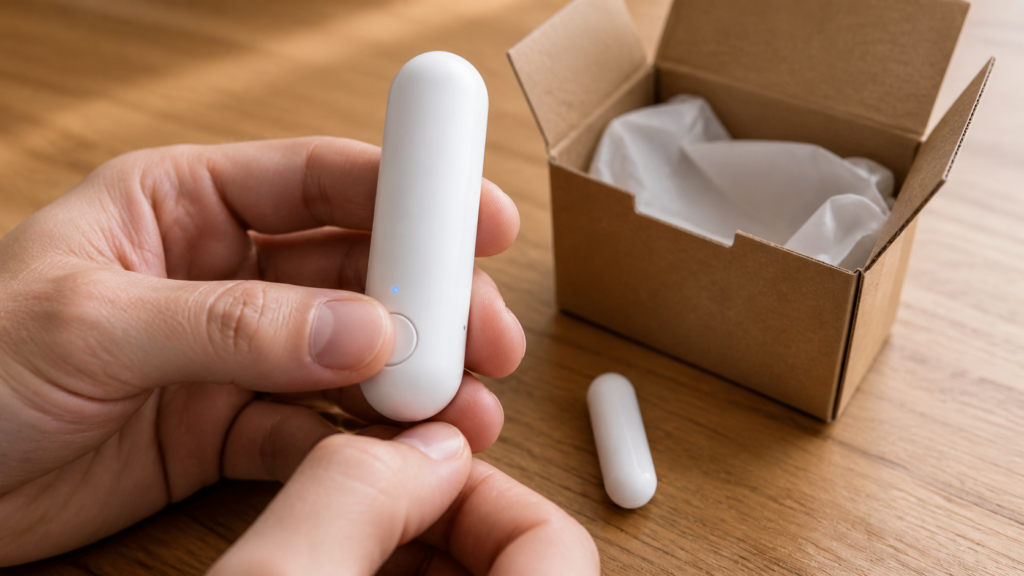
Remove, Force Remove, and a factory reset affect different parts of a Zigbee setup. Remove asks the device to leave. Force Remove deletes its Zigbee2MQTT record. A factory reset acts on the hardware. Knowing the difference helps when replacing a device, clearing a failed entry, or preparing one to give away.
This is about the case where a device is a known, working member of your Zigbee2MQTT network and you’re intentionally decommissioning, replacing, or handing it off. If you’re instead looking at an orphaned entry with no clean device record, that’s a different failure mode covered in our ghost and phantom device troubleshooting guide. Everything below happens on your local coordinator and MQTT broker. Nothing here depends on a cloud service.
The three commands, and what each one touches
Remove sends a leave request to the device and removes its record when the operation succeeds. The device needs to receive and respond to that request. Wake a sleeping sensor before trying it.
Force Remove deletes the device’s database entry without requiring a response. It does not clear the network key stored on the hardware.
A factory reset uses the manufacturer’s reset procedure to clear the device’s setup. It can work after the device has disappeared from Zigbee2MQTT, but the sequence and result depend on the model.
Remove and Force Remove are available in the frontend and through MQTT. Blocking an IEEE address is a separate option; it helps manage joins but does not erase a key already stored on a device.
Both Remove and Force Remove can be triggered from the frontend UI, or by publishing to the bridge’s device-removal request topic over MQTT:
# Remove — asks the device to leave gracefully
mosquitto_pub -h 192.168.10.20 -t zigbee2mqtt/bridge/request/device/remove -m '{"id": "sensor_hallway"}'

# Force Remove — deletes the Z2M-side record only
mosquitto_pub -h 192.168.10.20 -t zigbee2mqtt/bridge/request/device/remove -m '{"id": "sensor_hallway", "force": true}'
Replace the example broker address and friendly name with your own. The current MQTT reference documents the id and force fields and the response topic. Check the response before treating removal as complete. Protect access to these topics with the controls in our MQTT broker security checklist.
Why Remove can fail on battery-powered devices
A leave request can fail because a battery-powered device is asleep. Mains-powered devices are usually easier to reach, although a weak connection or unresponsive firmware can still cause a timeout.
Battery sensors spend much of their time asleep. Start removal while the sensor is awake, using short button presses if its documentation recommends them. A failed request can produce an error response or timeout in the log; it is not necessarily silent.
If the entry remains, check the removal response and log. Retry while the device is awake before using Force Remove. If removal succeeded but a dashboard still shows the device, refresh it and check retained MQTT discovery data rather than assuming the leave request failed.
The security gap Force Remove leaves open
The entry disappearing confirms database cleanup. It does not confirm that the hardware has forgotten the network.
Force Remove deletes the device from Zigbee2MQTT’s database, but it does not clear the network key stored on the device’s own radio. Until you separately factory-reset the physical hardware, it still technically holds the credentials to your network. This matters if the device is about to leave your possession, not just your device list.
For a device you are selling, gifting, or returning, follow its factory-reset procedure before handing it over. Zigbee2MQTT warns that a force-removed device can still communicate using its stored key until it is reset. Database removal should not be treated as proof that those credentials are gone.
When a physical factory reset is the only option
A factory reset does not require an active Zigbee2MQTT database entry. It does require functioning hardware and the correct procedure for the model.
Use it when moving the device to another network, handing it over, or clearing a stuck join. If you already force-removed the entry, the physical reset is still a separate task.
Check the manufacturer’s reset procedure for each device. A sequence that works on one generation may not apply to another. For supported secondhand lights, our Touchlink reset guide covers another possible route.
Decommissioning correctly: keeping it vs. giving it away
If you are only moving the device to another room, leave it paired and update names or automations as needed. For retirement, try Remove while it is reachable. Use Force Remove to clear an unreachable entry, and reset the device before joining a different network.
If the device is leaving your possession, use Remove if it responds, then follow the documented factory-reset procedure. If it does not respond, use Force Remove for database cleanup and reset the hardware separately. Check the reset indication before handing it over.
Quick-reference: which command for which situation
| Situation | Command | Clears network key on device? |
|---|---|---|
| Mains-powered device, staying in your home | Remove | Yes, as part of the graceful leave |
| Battery device asleep, staying in your home | Force Remove | No, but device stays in your possession |
| Any device being sold, gifted, or returned | Remove if responsive; otherwise Force Remove. Complete a physical reset before handover. | Only after the physical reset step |
| Device unresponsive, troubleshooting a stuck join | Physical factory reset (works regardless of Z2M state) | Yes |
FAQ
Why does a removed device still show up? First check whether the removal request succeeded. A sleeping sensor may not have received it. If the backend confirms removal, refresh the frontend and check Home Assistant’s MQTT discovery records.
Is Force Remove safe to use on a device I’m about to give away or sell? It’s safe for cleaning up your own Zigbee2MQTT database, but it isn’t sufficient on its own. The device retains your network key until it’s physically factory-reset. Do both before it leaves your hands.
Do I need to factory reset a device before re-pairing it to a different network? Generally yes, if the device previously joined a network and wasn’t gracefully removed. A stored key from a prior network can prevent a clean join elsewhere. Our guide to Touchlink resets before pairing covers this from the receiving end.
What’s the difference between removing and blocking a device? Removal clears its record. Blocking controls how Zigbee2MQTT handles that IEEE address on a later join. Neither a database-only removal nor a block wipes credentials stored on the hardware.
Why won’t my battery sensor let me remove it normally? It may be asleep or out of range. Wake it using the documented procedure and inspect the removal response before retrying.
Removal checklist
The command behaviour is documented in Zigbee2MQTT’s MQTT reference. Before removing a device, note its friendly name, any automations that use it, and the manufacturer’s reset procedure.
Removal uses your coordinator, broker, and device. A vendor cloud is not part of the MQTT removal command.
Reset sequences vary by model. Check the device manual or its Zigbee2MQTT page, watch for the expected reset indication, and confirm the removal response if you use MQTT.