

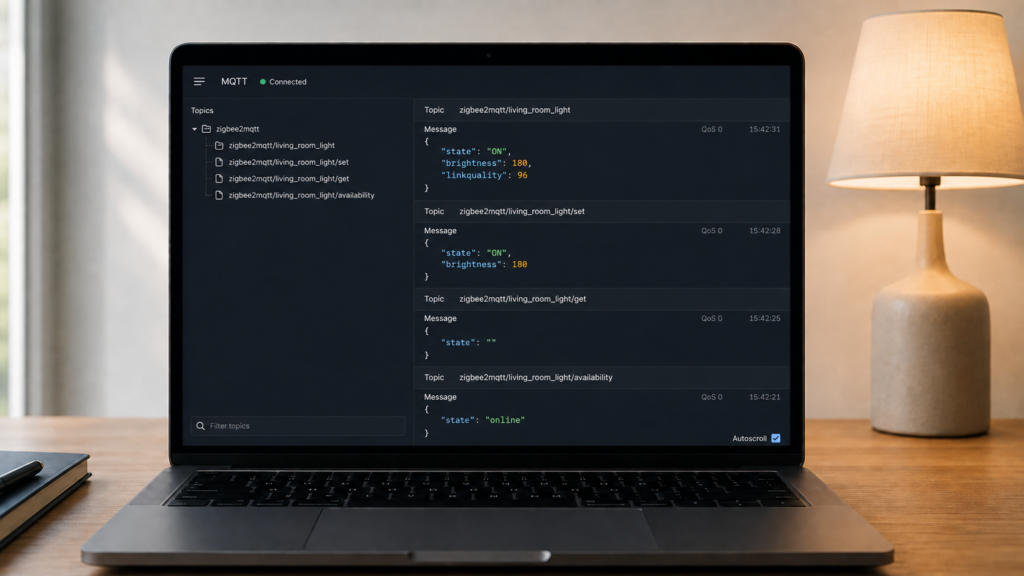
Home Assistant’s Zigbee2MQTT integration hides most of this from you, and that’s fine until it isn’t. The moment you want to wire a device into Node-RED, openHAB or a Python script — or you’re trying to work out why a state update never arrived — you need to know what’s actually moving over MQTT underneath.
This is a map of Zigbee2MQTT’s MQTT topics: what gets published where, what /set and /get actually do, how availability tracking works, and the three ways output can be formatted. Everything here runs over your own broker. Nothing described in this article leaves your network.
It’s a synthesis of Zigbee2MQTT’s own reference documentation, which splits this across four separate pages.
The topic model at a glance
Every Zigbee2MQTT topic starts with a base topic, zigbee2mqtt by default and configurable in configuration.yaml. After that comes the device’s FRIENDLY_NAME (the name you gave it, or its IEEE address if you haven’t renamed it — and renaming changes the topic immediately), and then, for most operations, one of three suffixes.
Examples throughout use zigbee2mqtt as the base topic and living_room_light as a representative friendly name. Substitute your own; the topic structure doesn’t change.
zigbee2mqtt/living_room_light              <- state (published by Z2M)
zigbee2mqtt/living_room_light/set          <- control (you publish)
zigbee2mqtt/living_room_light/get          <- request a fresh read (you publish)
zigbee2mqtt/living_room_light/availability <- online/offline (published by Z2M)
The pattern is consistent across every paired device: no suffix to read, /set to write, /get to request (topics and messages reference). What changes device to device is the JSON payload shape, defined by that device’s exposes list — visible on its Zigbee2MQTT device page.
Reading state: the plain device topic
Zigbee2MQTT publishes a device’s current state as a single JSON payload to zigbee2mqtt/FRIENDLY_NAME, with no suffix, whenever the device reports a change or Z2M polls it. This is what Home Assistant’s MQTT integration subscribes to under the hood.
{"state": "ON", "brightness": 180, "linkquality": 96}
These messages are not retained by default, which catches people out. retain is a per-device option in configuration.yaml and it defaults to false (devices and groups docs). A retained message is one the broker stores and replays instantly to every new subscriber; without it, a freshly opened MQTT Explorer session or a newly started Node-RED flow shows nothing at all on a device’s state topic until that device next reports, which for a battery sensor can be hours. An empty state topic is usually not a fault.
Setting retain: true closes that cold-start gap and opens the opposite one: the last payload then sits on the topic indefinitely, so a four-hour-old reading looks exactly like a current one. Either way, the state topic is not a liveness signal.
Controlling devices: the /set topic and JSON payload shape
To change a device’s state, publish a JSON payload to zigbee2mqtt/FRIENDLY_NAME/set. The properties you’re allowed to send are defined by that device’s exposes list. A plug only accepts state. A color bulb accepts state, brightness, and one of color_temp or color, depending on what it supports.
{"state": "ON", "brightness": 180}
Zigbee2MQTT also accepts a non-JSON shorthand for simple cases: publishing the bare string ON to zigbee2mqtt/FRIENDLY_NAME/set/state is equivalent to publishing {"state": "ON"} to .../set. Some MQTT clients and simple scripts use it when building a full JSON payload is more overhead than it’s worth for a single property.
If you publish a property that isn’t in the device’s exposes list, nothing reaches the radio — but it isn’t silent. Zigbee2MQTT logs No converter available for 'PROPERTY' at error level, and that line shows up in the log, as a red error in the frontend, and on the zigbee2mqtt/bridge/logging topic described below. What you don’t get is an error back on the topic you published to, because MQTT has no request/response channel for publish. So check the log before assuming a mesh or pairing problem; a property the device doesn’t expose is the usual culprit.
Requesting a fresh read: the /get topic
The plain state topic only updates when a device reports on its own schedule, which for battery-powered sensors can be minutes to hours between reports. To force a read right now, publish to zigbee2mqtt/FRIENDLY_NAME/get with a payload naming the property, using an empty string as the value.
{"state": ""}
Zigbee2MQTT then queries the device over the Zigbee mesh and publishes the answer back to the plain state topic once it responds. This only works for mains-powered devices that keep their radio active. Battery-powered sensors that sleep between reports generally won’t respond until their next wake cycle, since there’s no live radio to query in the meantime. And a device whose converter has no read path for the property you asked for raises the same No converter available error as an unsupported /set — a converter limitation, not a dead device.
Availability: what online and offline actually track
When availability tracking is enabled, Zigbee2MQTT publishes a device’s connectivity status to zigbee2mqtt/FRIENDLY_NAME/availability, as a retained message. The payload is a plain JSON object with a state of online or offline (device availability docs).
{"state": "online"}
That JSON shape is the only form in Zigbee2MQTT 2.0 and later; the legacy_availability_payload setting that produced bare online/offline strings was removed in 2.0.0, so a tutorial showing those predates the change.
This is a separate mechanism from the plain state topic, and it’s worth keeping the two apart. The state topic tells you what the device last reported. The availability topic tells you whether Zigbee2MQTT currently considers the device reachable, based on its own ping and timeout logic — a different thing again from last_seen. A device can go offline without its last state payload changing at all, since offline detection doesn’t touch the state topic.
The availability topic is retained even when device state isn’t, so an MQTT client can show a confident {"state": "online"} the moment it connects while the state topic beside it sits empty. The reverse trap applies once you set retain: true: a dashboard built on raw MQTT, rather than on Home Assistant’s own availability handling, keeps rendering the last state payload long after the device has gone dark unless it also subscribes to /availability. Debugging “this device looks fine in MQTT Explorer but isn’t responding” means reading the two topics against each other, not judging either alone.
Bridge-level topics: info, devices, event, logging
Separate from per-device topics, Zigbee2MQTT publishes several topics about itself and the network as a whole, all under zigbee2mqtt/bridge/.
zigbee2mqtt/bridge/state is a retained message reflecting the bridge’s own status: {"state":"online"} on startup, {"state":"offline"} on a clean shutdown. zigbee2mqtt/bridge/devices and zigbee2mqtt/bridge/groups are retained topics listing every paired device and group with their metadata. zigbee2mqtt/bridge/info carries the running Zigbee2MQTT version, coordinator details, and network/config info. zigbee2mqtt/bridge/logging streams individual log lines as {"level": LEVEL, "message": MESSAGE} — this is where the converter errors above surface — and zigbee2mqtt/bridge/event emits device lifecycle events like joined, interview, leave, and announce.
{"type": "device_joined", "data": {"friendly_name": "0x00124b00xxxxxxxx", "ieee_address": "0x00124b00xxxxxxxx"}}
Output modes: json vs attribute vs attribute_and_json
The mqtt.output setting in configuration.yaml controls how state gets published, and it’s the piece that trips up people integrating with something other than Home Assistant’s own MQTT integration, which expects the default (all settings reference).
json is the default: one combined JSON payload per device topic, as shown in every example above. attribute splits each property into its own sub-topic with a plain, unwrapped value as the payload, so zigbee2mqtt/living_room_light/state gets ON (the bare string, not JSON) and zigbee2mqtt/living_room_light/brightness gets 180. attribute_and_json publishes both simultaneously: the combined JSON payload on the base topic, plus the individual sub-topics.
| Mode | Publishes | Best for |
|---|---|---|
json (default) |
One combined JSON payload per device topic | Home Assistant’s MQTT integration; anything that parses JSON natively |
attribute |
One sub-topic per property, plain-value payload | Integrations that read raw MQTT values without a JSON-parsing or transform step |
attribute_and_json |
Both of the above, at once | Mixed environments, or while migrating from one consumer to another |
The attribute mode exists specifically because some MQTT-consuming platforms, openHAB and Node-RED among them, historically needed extra transform steps to pull a single value out of a combined JSON payload. Splitting attributes into their own sub-topics sidesteps that, at the cost of subscribing to more topics per device — and more messages overall, which is where Zigbee2MQTT’s per-device debounce and throttle options start to matter. I think attribute_and_json is the safer default if you’re building outside Home Assistant and aren’t sure which format your target platform prefers: it costs a little broker traffic, and it means you’re never stuck rewriting integration code because you picked the wrong mode upfront.
Debugging with a client like MQTT Explorer works in any of the three modes, but json is the easiest to read at a glance, since a device’s whole state sits in one expandable node rather than several sibling topics.
FAQ
What topic do I publish to control a Zigbee2MQTT device?
Publish a JSON payload to zigbee2mqtt/FRIENDLY_NAME/set. The properties accepted depend on that device’s exposes list — for example {"state": "ON", "brightness": 180} for a dimmable light.
Why isn’t my Zigbee2MQTT device responding to /set commands?
The most common cause is publishing a property that isn’t in the device’s exposes list. Zigbee2MQTT doesn’t return an error on the topic you published to, but it does log No converter available for 'PROPERTY' — check the Zigbee2MQTT log, the frontend, or the bridge/logging topic, and compare the property name against the device’s Zigbee2MQTT page before assuming a pairing or mesh problem.
Are Zigbee2MQTT state messages retained?
Not by default. retain is a per-device option defaulting to false (plus a global mqtt.force_disable_retain for brokers that don’t support retention), so a newly connected MQTT client sees nothing on a device’s state topic until that device next reports. Enabling it means the last payload persists instead, however old. The /availability and bridge/ topics are retained regardless.
What’s the difference between json, attribute, and attribute_and_json output modes?
json (the default) publishes one combined payload per device. attribute splits each property into its own sub-topic with a plain, unwrapped value. attribute_and_json publishes both at once. The setting is mqtt.output in configuration.yaml.
How do I check if a Zigbee2MQTT device is online without opening Home Assistant?
Subscribe to zigbee2mqtt/FRIENDLY_NAME/availability directly with any MQTT client. It publishes a retained {"state": "online"} or {"state": "offline"}, separate from the device’s regular state topic, and only updates when availability tracking is enabled for that device.
What is zigbee2mqtt/bridge/devices used for?
It’s a retained topic listing every device Zigbee2MQTT has paired, along with their metadata, the same list the Zigbee2MQTT frontend itself reads from. It’s useful for scripting or building integrations that need the current device list without going through Home Assistant or polling a REST endpoint.
What this article verified
A documentation synthesis, built from Zigbee2MQTT’s topic-and-messages, device-availability, devices-and-groups and all-settings reference pages, plus the 2.0.0 breaking-changes discussion. No hardware was paired or tested for it, and no claim here depends on bench data.
Two claims here are commonly stated the other way round elsewhere and were checked directly: state messages are not retained by default, and an unsupported /set property is logged rather than silently dropped.
Everything described runs entirely over your own MQTT broker and Zigbee2MQTT instance. None of it involves any cloud service, whichever mode you choose or client you use. If you’re setting up broker access itself, including authentication and TLS, that’s a separate, security-focused topic this article doesn’t cover.
Before building an integration on any of this, confirm the exact exposes list for your specific device on its Zigbee2MQTT device page — property names and supported values vary device to device.