

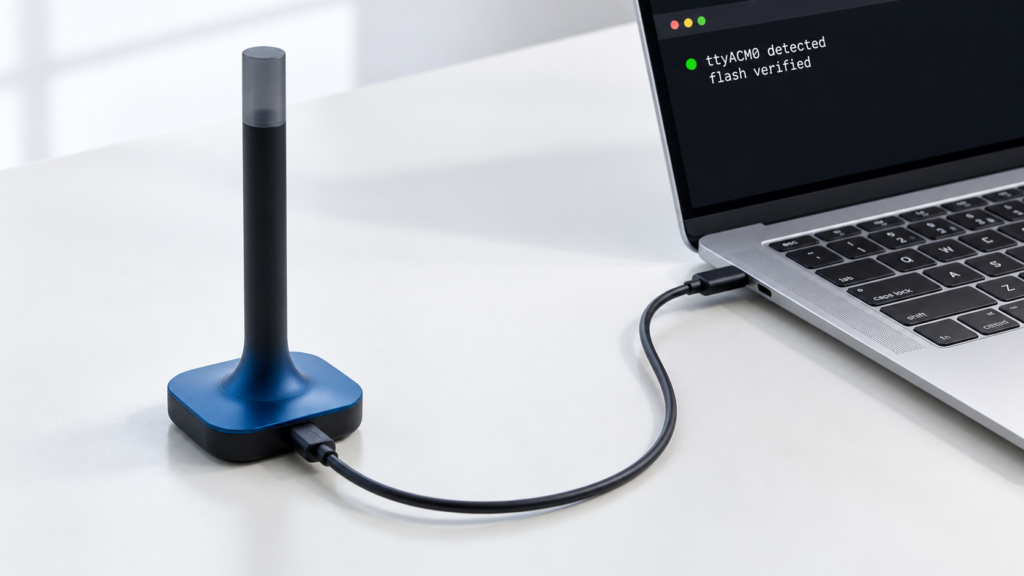
If your coordinator went dark mid-flash, or Zigbee2MQTT won’t start after an update and the log shows nothing useful, you’re past the point where a normal flashing tutorial helps. I went through the official docs, the open GitHub discussion where people compare notes on failed flashes, and a solved forum thread describing an actual recovery, to work out what a failed flash looks like versus a genuinely dead coordinator.
The short version: most “bricked” coordinators aren’t. The recovery path depends on which chip is inside your stick, and the pieces of it are documented — just never on the page you were looking at when the flash failed. Our companion guide on whether you should update coordinator firmware at all is the clean-run version of this job; what follows is the version where it didn’t go cleanly.
What a failed flash actually looks like
Before troubleshooting, get specific about the symptom. “It’s bricked” covers at least four different situations, and they don’t all need the same fix:
- No LED activity at all when plugged in
- The device isn’t detected as a serial port (
/dev/ttyUSB0or/dev/ttyACM0simply doesn’t appear) - Zigbee2MQTT starts but the coordinator never comes online, or throws a connection error in the log
- The firmware version check after flashing returns garbage or nothing instead of a real version string
Each of these points somewhere different. No port detection is often a permissions or cabling issue, not a dead chip — a charge-only USB cable produces exactly this symptom. A version check returning nothing usually means the flash didn’t fully write, not that it can’t be rewritten.
First response: rule out the obvious before assuming a brick
Two checks come before any recovery tool:
- Serial port permissions. On Linux, a newly-flashed or freshly-plugged coordinator can land on a device node owned by a group your user isn’t in. Run
ls -l /dev/ttyACM0(or/dev/ttyUSB0) and read the group out of the output rather than copying one from a forum post: Debian, Ubuntu and Raspberry Pi OS normally usedialout, while Arch and Fedora normally useuucp. This was the actual root cause in the ZBT-2 case below — the fix wasn’t a flasher at all, it was ausermod. - Firmware-file-to-chip match. cc2538-bsl and universal-silabs-flasher target different chip families, and pointing the wrong one at your coordinator won’t always fail loudly.
Recovery tool by chip family
Which tool you need depends on the chip inside the coordinator, not the brand on the box.
| Chip family | Coordinator examples | Recovery tool |
|---|---|---|
| TI CC2652 / CC1352 / CC2538 | Sonoff ZBDongle-P, SMLIGHT boards in their TI variants | cc2538-bsl (serial bootloader) |
| TI CC2530 / CC2531 | Older CC2531 USB sticks | CC Debugger with SmartRF Flash Programmer |
| EFR32 (Silicon Labs) | Connect ZBT-1 (formerly SkyConnect), Connect ZBT-2, Sonoff ZBDongle-E, SMLIGHT boards in their Silicon Labs variants | universal-silabs-flasher |
Two things trip people up in that table. The CC2531 is not a cc2538-bsl device: cc2538-bsl talks to the serial bootloader in the CC2538, CC26xx and CC13xx parts, and the 8051-based CC2531 doesn’t have one. Zigbee2MQTT documents that chip on its own flashing page using a CC Debugger, with further routes on the alternative flashing methods page. And SMLIGHT is a brand rather than a chip family — the SLZB-06 and SLZB-07 lines span TI and Silicon Labs across variants, so an SLZB owner picks a row by looking up their specific model. Our ZBDongle-E vs ZBDongle-P comparison and Connect ZBT-1 write-up cover the two sides of that split.
The zigbee2mqtt.io cc2538-bsl page documents the success path, including the bootloader-entry flags covered below, but nothing about what to do when the run doesn’t finish. My view, and it’s a view rather than a finding: the missing piece isn’t documentation so much as a link. Every page here assumes the flash worked, and one “didn’t finish cleanly” pointer on the flashing pages would spare people most of the threads this article is built from.
Worked case: recovering a ZBT-2 after a failed flash
The most concrete recovery report I found, in a solved HA Community thread, involved a Connect ZBT-2 that showed no LED activity after a flash and didn’t respond to the usual web flasher or reset-button sequence. The eventual root cause wasn’t the flash itself — it was a Linux serial-port permission issue. The device node (/dev/ttyACM0) was owned by root:uucp, and the user account doing the flashing wasn’t in that group.
Log out and back in (or reboot) between the two commands so the group change takes effect:
sudo usermod -aG uucp $USER

universal-silabs-flasher --device /dev/ttyACM0 flash --firmware ./ncp-uart-hw.gbl --allow-cross-flashing
The flag on the second line matters, and so does where it sits: --allow-cross-flashing is an option on the flash subcommand, not a global one, so it goes after flash rather than before it. What it does is narrower than the name suggests. universal-silabs-flasher refuses to write an image whose type doesn’t match the type currently running on the radio, and this flag overrides that refusal. The recovery here crossed firmware types, which is what it exists for.
The --allow-cross-flashing flag switches off a real safety check. That check compares application image types — EmberZNet NCP, CPC multi-PAN, RCP — and not chip models, so overriding it can leave a working radio running firmware your integration doesn’t speak, which presents exactly like the brick you were trying to fix. Use it when you know the recovery crosses types, and confirm the firmware file matches your model first.
When the tools disagree with each other
In the GitHub discussion on updating and flashing coordinators, the maintainer recommends the SMLIGHT flasher as the easiest option for supported hardware. But one contributor to that same thread reports it stalling at 0% progress regardless of bootloader version, on their setup. For them, a Docker-based method using ckware/ti-cc-tool worked reliably instead:
docker run --rm --device /dev/ttyUSB0:/dev/ttyUSB0 \
  -e FIRMWARE_URL=<firmware-file-url> \
  ckware/ti-cc-tool -ewv -p /dev/ttyUSB0 --bootloader-sonoff-usb
If the vendor flasher stalls at 0% and doesn’t move after a couple of tries, the Docker fallback is worth attempting before concluding the hardware is at fault.
On bootloader entry, the Sonoff dongles have two documented routes, and the automatic one isn’t always the reliable one. For the CC2652P-based ZBDongle-P, cc2538-bsl’s --bootloader-sonoff-usb toggles the RTS and DTR lines to drop the stick into its bootloader without opening the case, which is the flag in the Docker command above. The manual route is holding the BOOT button on the PCB while you replug or restart the dongle and releasing it afterwards, which on the P means opening the enclosure. cc2538-bsl issues #151 and #186 both describe --bootloader-sonoff-usb completing without an error while the device never reappears, with the manual button working instead — the same symptom as a flash that looks successful and leaves an empty version check. For the ZBDongle-E, Sonoff publishes its own flashing guide for the Dongle Plus line, and that’s the source for the E’s exact button sequence.
After recovery: what to check
Once a tool reports a successful write, don’t assume you’re done:
- Check the Zigbee2MQTT startup log for the firmware version string. If it’s blank or clearly wrong, the flash didn’t take even though the tool exited without an error.
- Expect the adapter itself to come back empty. A flash writes the whole chip (the Docker command above uses
-ewv, where theeis a mass erase), so the coordinator loses the PAN ID, network key and device table it was holding. What survives iscoordinator_backup.json, a separate file in Zigbee2MQTT’s data directory. Onzstackandemberadapters Zigbee2MQTT sees the blank adapter at startup and writes the network back from that file by itself, which is why devices usually reappear without you doing anything. Confirm the file is there before you flash, not after. Onconbee,ezsp,zbossandzigateadapters there’s no backup to restore from, so a wiped coordinator does mean re-pairing — our coordinator backup and restore guide covers which adapters fall where.
When to actually stop
If you’ve confirmed the port is detected, the firmware matches the chip family, and multiple recovery tools all fail to write or verify, it’s reasonable to conclude the hardware itself failed. Genuinely dead coordinators are rare — most failed-flash reports trace back to serial permissions, a mismatched firmware file, or an incomplete bootloader-entry sequence — but they exist. At that point, replacing a $15–30 USB coordinator is a better use of an evening than continuing to chase it.
Frequently asked questions
Why does my Zigbee2MQTT coordinator show no LED after a firmware flash?
No LED activity can mean the device is sitting in bootloader mode waiting for a flash tool to talk to it, which is normal. Check that the port is detected by the OS before assuming the hardware is unresponsive.
What’s the difference between cc2538-bsl and universal-silabs-flasher?
They target different chip families. cc2538-bsl is for TI coordinators with a serial bootloader, meaning the CC2538, CC26xx and CC13xx parts; universal-silabs-flasher is for EFR32-based (Silicon Labs) coordinators such as the Connect ZBT-1 (formerly SkyConnect), the Connect ZBT-2, and the Sonoff ZBDongle-E. Neither covers the older CC2531, which needs a CC Debugger.
Does a failed flash affect my coordinator_backup.json or paired devices?
The file is safe, because it lives in Zigbee2MQTT’s data directory on your disk rather than on the stick. The copy on the coordinator is a different matter: flashing erases the chip, so the adapter comes back with no network on it. On zstack and ember adapters Zigbee2MQTT restores it from that file at the next startup and devices come back on their own. On conbee, ezsp, zboss and zigate there’s no restore path, so plan on re-pairing.
Nothing here was flashed or recovered on this site’s test bench. The tool behaviour comes from the projects’ own documentation and issue trackers, and the two recovery cases are attributed above to the threads they came from.