

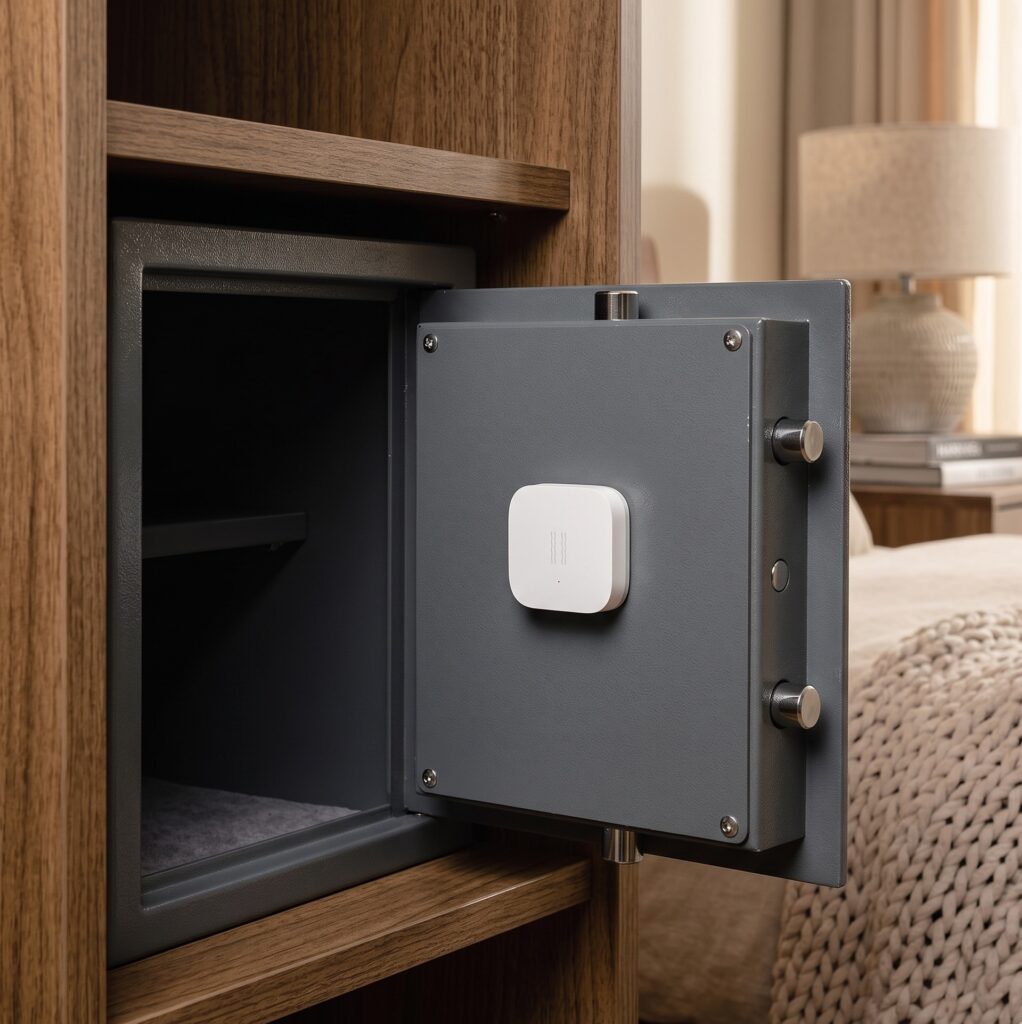
Aqara Vibration Sensor (DJT11LM): Local Setup via Zigbee2MQTT
The DJT11LM can report movement from a drawer, mailbox or appliance to Home Assistant without an Aqara hub. Its vibration events are rate-limited, so it is best used for occasional actions and quiet-period rules rather than continuous vibration measurement.
Disclosure: This page contains no affiliate links.
What the sensor reports
The main actions are vibration, tilt and drop. It also reports a vibration boolean, strength and orientation-related values. These signals are related but have different timing; none is a continuous high-speed accelerometer stream.
Zigbee2MQTT documents a hold-off of roughly one minute between vibration actions. That limit concerns vibration reports, rather than a blanket rule that every possible action is sent only once a minute. Position and surface attachment affect which movements it detects.
What the hub requirement refers to
An Aqara hub is the vendor’s path into Aqara Home. For this guide, a supported Zigbee2MQTT coordinator manages the sensor instead. Compatibility still depends on the exact model and software; “Zigbee” alone is not a guarantee of every feature.
DJT11LM and the newer DJT12LM
The DJT12LM T1 is a different Zigbee device, with its own action names and reporting controls. It is not a native Matter sensor simply because a compatible Aqara hub can bridge Zigbee devices to Matter.
Check the current DJT12LM entry before buying or reusing these automations. This guide’s vibration and drop triggers are for the DJT11LM, not an interchangeable T1 example.
What you need
- DJT11LM with a working CR2032 cell and good battery contact.
- A supported coordinator and Zigbee2MQTT connected to an MQTT broker.
- Home Assistant’s MQTT integration with discovery enabled.
- A secure mounting location that transfers the movement you want to detect.
Zigbee2MQTT and the broker can run as Home Assistant OS apps or on a separate host. Mount the sensor on an accessible surface; do not place it inside an appliance’s moving mechanism.
Pair the DJT11LM
- Enable Permit join.
- Hold the reset button for about five seconds until the LED flashes three times.
- Use short presses every two seconds to keep it awake during the interview, following the device notes’ maximum of twenty presses.
- Check the model, give it a useful friendly name and close joining.
- Test an event in the final location.
If the attempt fails, check the battery and coverage before trying again. The DJT11LM device page gives the pairing and reporting notes.
Understand the MQTT properties
The usual device topic is zigbee2mqtt/FRIENDLY_NAME. Replace the base topic if your setup uses a different one. Watch a few real messages before deciding which property suits the automation.
Action events
Match action to vibration, tilt or drop. Use discovered MQTT device triggers or incoming MQTT messages for repeated events. An optional last-action sensor may retain the same string across two similar events.
Vibration boolean
The boolean becomes true after a detected vibration and is cleared after the configured timeout. It means a recent vibration was reported, not that the sensor continuously verifies movement at every moment. This is useful for a quiet-period rule when its timing is understood.
Vibration timeout
vibration_timeout is a Zigbee2MQTT device option, with a documented default of 90 seconds. It controls when the boolean clears, not the sensor’s one-minute vibration-report hold-off. Setting a short timeout can let the boolean go false between reports while an appliance is still running.
Sensitivity
The current DJT11LM exposure uses a numeric value from 1, most sensitive, to 21, least sensitive. Use that numeric control rather than copying the high, medium and low strings from the newer T1’s different setting.
Angles and accelerometer readings
Orientation values may arrive after the action that caused them. Compare angle_x, angle_y, angle_z and the raw axes while changing orientation, then holding the sensor still. Do not infer a current universal regression from an old issue number.
The device notes distinguish raw readings from Zigbee2MQTT’s software calibration offsets. If you need corrected values in another system, verify the values it actually receives and apply a template where necessary; an offset does not recalibrate the physical sensor.
Battery and radio quality
Use the battery, voltage and linkquality readings as diagnostics alongside delivery history. A low linkquality value is a clue to weak coverage, not a universal pass/fail test that guarantees lost events at a particular number. A bad cell can also cause dropout while a percentage still looks healthy.
Tune sensitivity at the mounting location
Start near the middle of the range, then make it more sensitive by lowering the number or less sensitive by raising it. For example, this requests 11:
mosquitto_pub -h localhost -t "zigbee2mqtt/FRIENDLY_NAME/set" -m '{"sensitivity":11}'
Replace the broker host and friendly name. If your broker requires authentication, use your normal secure client configuration. You can also use the numeric Exposes control.
| Use case | A useful test |
|---|---|
| Appliance movement | Compare several full cycles with normal pauses |
| Mailbox or drawer | Repeat real openings and nearby accidental knocks |
| Window movement | Compare intended impacts with wind and neighbouring vibration |
| Cabinet handling | Test gentle use as well as deliberate movement |
These are tests, not guaranteed sensitivity presets. Keep the sensor awake with a short button press if a setting request is not reaching it, then confirm the reported value and repeat the physical test.
Home Assistant examples
Each snippet below is one automation for the YAML editor. Replace the entity, MQTT topic and phone notification action. The examples use a local sensor path; phone push delivery can still require internet access.
Example 1: notify after a quiet period
A quiet appliance may have finished or may simply be between stages. This example waits for an on-to-off transition followed by five minutes without a new vibration state. It avoids an alert caused only by an unavailable sensor recovering as off, but it is not a complete cycle detector.
alias: "Washing machine quiet period"
triggers:
  - trigger: state
    entity_id: binary_sensor.washing_machine_vibration_vibration
    from: "on"
    to: "off"
    for:
      minutes: 5
actions:
  - action: notify.mobile_app_your_phone
    data:
      title: "Laundry check"
      message: "No recent vibration reported for five minutes. Check whether the washing machine has finished."
mode: single
Allow for the sensor timeout as well as this five-minute period, and test against several complete cycles. A reload or restart resets the pending for: period. The linked community cycle blueprint uses a longer activity/quiet pattern, but its author states that it is no longer maintained; review it before importing.
Example 2: report window movement
alias: "Window vibration alert"
triggers:
  - trigger: mqtt
    topic: zigbee2mqtt/window_vibration_sensor
    value_template: "{{ value_json.action | default('') }}"
    payload: vibration
  - trigger: mqtt
    topic: zigbee2mqtt/window_vibration_sensor
    value_template: "{{ value_json.action | default('') }}"
    payload: drop
actions:
  - action: notify.mobile_app_your_phone
    data:
      title: "Window movement"
      message: "The window sensor reported vibration or a drop event."
mode: single
This reports the event without claiming to identify an intrusion. A tilt event may be more appropriate for your mounting; watch the messages during a controlled test before choosing the payload.
Use a contact sensor if opening is the condition you need. The Door and Window Sensor T1 guide covers that complementary signal.
Troubleshooting
Separate missing Zigbee messages from a Home Assistant rule that did not run. Check the raw message first, then the automation trace and notification action.
Pairing does not finish
Retry the documented hold and short-press sequence with a known-good battery. Improve the radio path or temporarily pair the battery sensor near a compatible router, then test it at the final location. Do not continue indefinitely after the documented interview attempt has failed.
Orientation readings appear stale
Make a deliberate orientation change and allow time for the follow-up values. Compare raw MQTT messages with Home Assistant’s displayed state. Check current issues matching your exact version before downgrading software or rebuilding an automation around an assumed regression.
The sensor disconnects
Check a fresh CR2032, battery contacts and coverage. Older Aqara devices can have trouble with some router combinations; use the device notes and logs to investigate a particular parent connection. Pairing near another router can help test that theory, but the network does not promise to retain your preferred route permanently.
Local reporting and remote notifications
With a local coordinator, broker and Home Assistant, the sensor’s event path does not need an Aqara cloud relay. Keep those services running to receive events. If the automation uses a remote push service or another cloud integration, test that dependency separately.
For a useful installation, focus on the physical mounting, the action you actually observe and a delay that matches the task. The sensor’s report hold-off makes a quiet-period alert an approximation, so validate it against real use before treating it as a finished-cycle signal.