

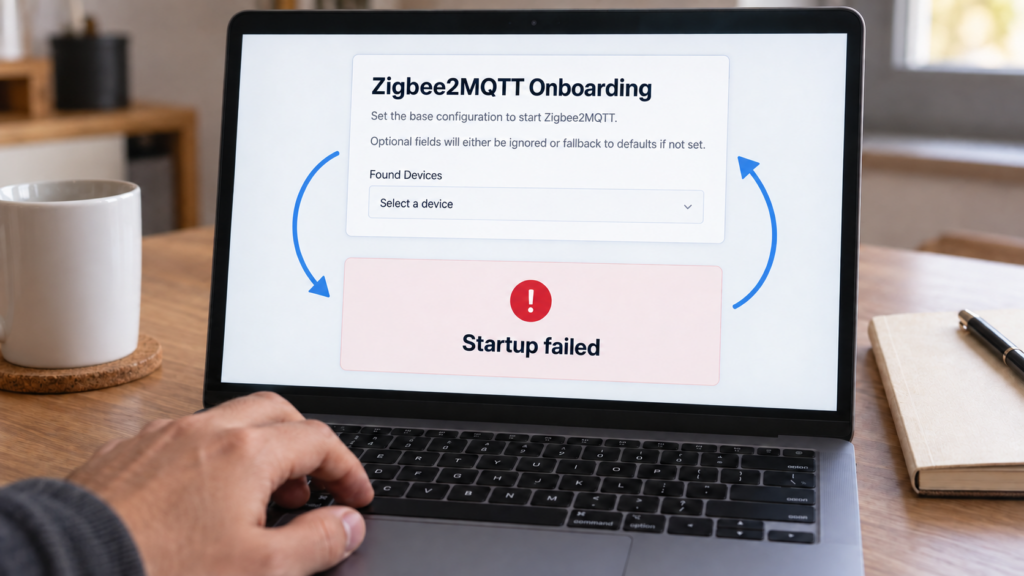
If Zigbee2MQTT keeps returning to onboarding, read the startup log before submitting the form again. The settings may not have been saved in the data directory the process uses, startup may be failing, or onboarding may have been forced on. A page that won’t redirect can be a separate frontend-address problem.
This guide covers the browser onboarding used by current 2.x releases. The configuration and startup paths were checked against Zigbee2MQTT 2.14.2 and its Home Assistant app wrapper on 7 October 2026. The issue reports below describe particular versions; they do not establish a cause for every installation. No failure was reproduced on our hardware.
How onboarding is supposed to work
The getting-started guide says a first run without configuration.yaml opens onboarding. The default standalone address is http://localhost:8080; on another computer, use the Zigbee2MQTT host’s address. Home Assistant Ingress and custom deployments can use a different address.
The 2.14.2 implementation also checks the saved onboarding flag and the force-run environment variable. An existing empty or malformed file is not a useful completed configuration: inspect validation output rather than assuming the file’s presence is enough.
There are failure pages. Validation errors can be shown in the browser, and a failure page can keep the process open until you close it or stop the process. If initial startup fails after submission, onboarding can appear on the next start. That differs from the normal frontend successfully starting but your browser failing to reach it.
Back up the complete Zigbee2MQTT data directory before changing onboarding or restoring files. Keep the existing network key, PAN settings, database and compatible coordinator backup. Broker topics are not a backup of Zigbee pairing data.
Quick reference: which failure family you have
| Symptom | Check first | Evidence to look for |
|---|---|---|
| Wizard returns after submission | Startup result and saved configuration | Adapter/MQTT error, validation error, saved onboarding flag or wrong data path |
| Wizard appears every restart after successful startup | Forced onboarding | App force_onboarding or Z2M_ONBOARD_FORCE_RUN is enabled |
| Onboarding data request returns 404 | Version and actual requested URL | Historical 2.9.0 regression, or current proxy/address mismatch |
| Form saves but frontend is unreachable | Whether startup completed, then frontend binding and redirect | Started log, listening port, Ingress/proxy path and browser URL |
| Wizard appears after a restore | Restored files, mounts, app options and permissions | The process reads the intended restored directory; retained MQTT topics alone are insufficient |
| Startup stops with an MQTT error | Broker reachability, credentials and TLS | Connection/authorization error or unreadable certificate inside the process/container |
Failure family 1: onboarding keeps reappearing after you finish it
Check the log after submission. A missing serial device, wrong adapter type, unreachable network adapter or MQTT failure can stop startup. Use the port and driver for the exact coordinator, and make sure another service is not holding it. For Docker, the port must exist inside the container, not just on the host.
Then check forced onboarding. The Home Assistant app’s optional force_onboarding setting makes its wrapper export Z2M_ONBOARD_FORCE_RUN=1. If the option is hidden, show unused optional configuration options. Turn it off after finishing; it is an app option, not a similarly named key to add to Zigbee2MQTT’s YAML. See the app documentation and wrapper.
Also confirm persistence. Docker normally mounts its data at /app/data; an unmounted or wrong directory can give you a new configuration on every deployment. ZIGBEE2MQTT_DATA can select another directory. The app wrapper sets that variable from its data_path option. Check the directory actually read by the process and whether it can write the file.
Issue #32224 reports an environment-only 2.11.0 deployment in which ZIGBEE2MQTT_CONFIG_ONBOARDING=false did not prevent first-run onboarding without a file. The reporter created a file containing onboarding: false. The 2.14.2 source still tests whether the file existed before startup, independently of that setting. To suppress the onboarding server deliberately, use the documented Z2M_ONBOARD_NO_SERVER control and provide all required settings; it does not repair missing configuration.
Failure family 2: onboarding hangs and never reaches the real frontend
First distinguish a startup failure from a browser-address problem. If the log never reaches successful startup, keep diagnosing the configuration or adapter. If Zigbee2MQTT is running, check the frontend port, binding, proxy path and the URL the browser opens.
Issue #30836 describes an Alpine package, version 2.7.0-r0, with an init-config onboarding URL override. Removing it changed the symptom but did not produce a confirmed working setup. That report is not proof that 0.0.0.0 is invalid: current standalone onboarding uses it as a default bind address, and the app wrapper uses it on port 8099. A wildcard bind address is not the address to enter into a remote browser.
Use a complete URL when setting Z2M_ONBOARD_URL, with the intended interface and port. A hostname must resolve to an address the process can bind, and Docker must publish the relevant port. For an unusual frontend or proxy URL, Z2M_ONBOARD_NO_REDIRECT=1 prevents automatic redirection; open the correct frontend URL yourself after startup. Remove an unnecessary override only after recording it, rather than resetting the rest of the network configuration.
Failure family 3: onboarding breaks after an upgrade or a backup restore
Issue #31225 reports a 404 loading onboarding data on 2.9.0 with the Home Assistant app. Release 2.9.1 includes an onboarding fix. If you are still on 2.9.0, move to a supported release after backing up and reading intervening release notes. A 404 on a newer version also requires checking the request URL and reverse proxy; the old report does not diagnose it automatically. This differs from the Node.js 20 compatibility change that can affect a standalone upgrade.
The app’s backup-restore report #808 describes onboarding after a Home Assistant restore. It does not prove that a major-version jump makes the app unable to recognise configuration. Compare the restored data_path, actual file contents, app-level MQTT/serial options, mounts and permissions with the backup.
Existing MQTT topics may be retained data from an earlier session. They do not establish that the live Zigbee2MQTT database or radio pairing data survived. Check the data files and current startup log before re-pairing anything. Our guides to database.db problems and unavailable entities after a restart cover those separate checks.
Failure family 4: onboarding quits with an MQTT connection error
After applying onboarding settings, Zigbee2MQTT must connect to the broker during startup. Its startup code exits when that connection fails. The log should distinguish reachability, authentication and TLS-file errors.
- Verify the hostname and port from the Zigbee2MQTT process or container.
localhostmeans that container itself; it is not automatically another broker container. The Home Assistant Mosquitto app commonly usescore-mosquitto:1883. - Check the broker credentials and permissions for the configured base topic.
- For TLS, use
mqtts://, a certificate-valid hostname and the correct CA/client-certificate settings. Verify file paths are mounted and readable inside the container. - On the Home Assistant app, review its MQTT options too: the wrapper can supply or override settings through environment variables. Change the authoritative value rather than repeatedly editing a file the wrapper overrides.
Our MQTT broker hardening checklist covers the broker and TLS settings in more detail.
The deliberate path: forcing or disabling onboarding on purpose
These controls have different jobs. Use the one you need, rather than enabling force-run and disabling the server together. This example deliberately reopens the wizard:
environment:
  Z2M_ONBOARD_FORCE_RUN: "1"
Remove that variable after a successful setup. Setting it to the string 0 is not equivalent to removing it in code that checks whether the variable is present and nonempty.
Z2M_ONBOARD_NO_SERVER=1disables onboarding and failure servers. It takes precedence over force-run, but valid startup settings are still required.Z2M_ONBOARD_URL=http://0.0.0.0:8080selects the standalone onboarding bind address and port. Use your host’s reachable address in the browser.Z2M_ONBOARD_NO_FAILURE_PAGE=1makes validation failures log and exit instead of holding a failure page open.Z2M_ONBOARD_NO_REDIRECT=1keeps onboarding from trying to redirect to an unusual frontend URL.
For Home Assistant app installations, use force_onboarding for a deliberate rerun. The wrapper handles its onboarding address and frontend port for Ingress; a standalone port-8080 example is not an app configuration recipe.
When to hand-edit configuration.yaml instead
A hand-written or restored configuration is a valid alternative, not a last-resort reset after an arbitrary number of attempts. Stop Zigbee2MQTT, back up its data, and edit the configuration.yaml in the directory the process actually uses.
For an existing network, repair the failing MQTT or serial fields while preserving its network and device data. Review environment/app overrides, turn forced onboarding off, then start it and read the validation and startup log. If a previous initial setup never completed, onboarding: false can prevent the saved flag from reopening the form, provided all required settings are valid. Do not replace an existing network key or PAN settings with generated values just to hide the wizard.
Confirm the process reports successful startup, the expected device list is present and a known device works. If it still fails, preserve the exact error and installed versions for the issue report; disabling the page alone is not a fix.
FAQ
Why does the wizard return after setup? Check startup errors, the saved onboarding flag, forced onboarding and whether you are reading the same persistent data directory. There is no single cause established for every loop.
How do I disable it? Provide valid saved settings, remove force-run, and use Z2M_ONBOARD_NO_SERVER=1 if you deliberately need the server disabled. Startup can still fail; read the log.
What does an onboarding 404 mean? It was reported on 2.9.0 and an onboarding fix shipped in 2.9.1. On other versions, inspect the actual failing request and proxy path too.
Can I rerun onboarding safely? It is a documented feature, but back up first and preserve existing network settings. Remove the force setting after finishing.
Why did it appear after a backup restore? Inspect the restored files, app options, data path and permissions. Retained MQTT topics do not prove live pairing data is intact.
What this covers, and what’s still unconfirmed
The control variables and failure-page behavior were checked against current documentation and released 2.14.2 source; the app-specific overrides were checked against its wrapper. The linked issues remain version-specific observations. No onboarding failure or restore was tested here, and the cause of your loop needs the actual configuration and startup log.