

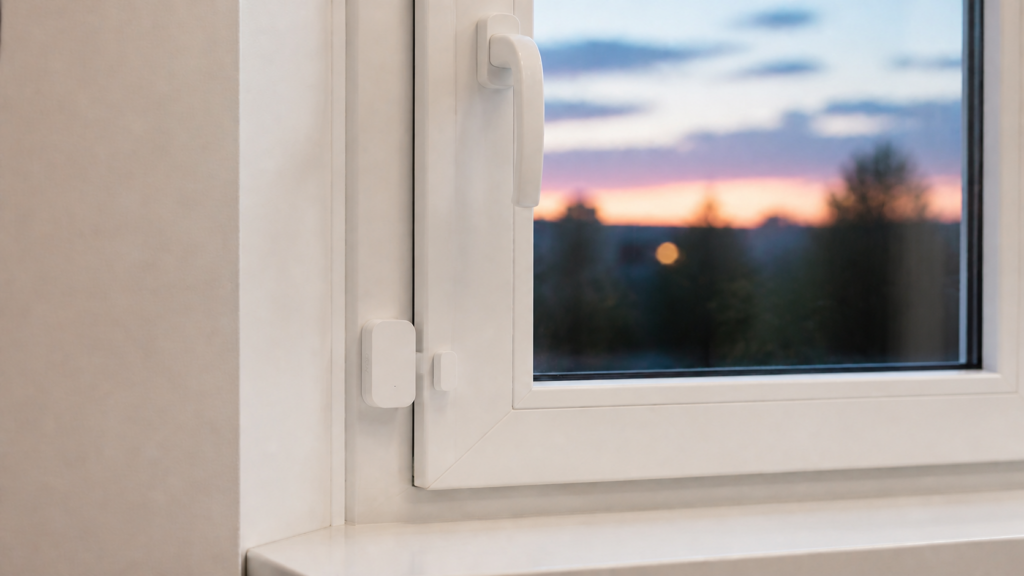
Aqara Door and Window Sensor (MCCGQ11LM): Zigbee2MQTT + Home Assistant Setup Guide
The MCCGQ11LM has been around long enough that I keep finding it in homes that have moved on to newer hubs, newer automations, newer everything — but are still running these sensors without any complaints. There’s a reason for that. It’s small, the battery lasts well over a year on a CR1632, and it just works.
What it doesn’t do is work natively with Home Assistant without some middleware. If you’ve been using the Aqara app or an Aqara hub to run these sensors, this guide covers how to cut that dependency and bring the MCCGQ11LM directly into HA via Zigbee2MQTT, with no Aqara cloud involved.
What is the MCCGQ11LM?
The MCCGQ11LM (Zigbee ID: lumi.sensor_magnet.aq2) is Aqara’s original door and window contact sensor — the one without the “T1” or “P1” suffix. It communicates over Zigbee at 2.4 GHz, runs on a CR1632 coin cell, and is classified as a Zigbee end-device, meaning it doesn’t act as a router. It won’t extend your Zigbee mesh. It only communicates with a parent router or coordinator.
This matters for placement: the MCCGQ11LM needs to hear a router or coordinator within range. If you’re putting one on a metal-frame door far from your coordinator, that’s where connectivity problems start.
Z2M exposes six entities for this sensor:
contact— binary:true= closed,false= open. This is the primary entity.battery— percentage remaining (0–100%).voltage— raw battery voltage in millivolts.device_temperature— the internal chip temperature in °C. This is not ambient room temperature. More on this below.power_outage_count— how many times the device has lost power since last pairing.trigger_count— number of open/close events since the last scheduled Z2M report.
What you need
You don’t need an Aqara hub for this setup. What you do need:
- A Zigbee USB coordinator compatible with Zigbee2MQTT. I use a Sonoff Zigbee 3.0 USB Dongle Plus; it’s reliable and well-supported. The older CC2531 works but has known pairing quirks with this sensor (covered in the troubleshooting section).
- Home Assistant with the Mosquitto MQTT broker add-on installed and running.
- Zigbee2MQTT add-on (or standalone install) with MQTT autodiscovery enabled.
Once autodiscovery is on, Z2M automatically creates the six HA entities when the MCCGQ11LM joins the network. No manual YAML required.
Pairing the MCCGQ11LM to Zigbee2MQTT
Open the Zigbee2MQTT frontend, go to Devices, and click Permit join (All). You have 255 seconds.
On the sensor itself, find the reset button. Depending on the production batch, this is either a small pinhole on the side or a button visible through a slot at one end. Press and hold for approximately five seconds until you see the LED blink blue three times.
Z2M will log the join and start the device interview. You’ll see the device appear in the device list with the model ID lumi.sensor_magnet.aq2.
If the interview stalls: this is the most common pairing failure. The device joins but the interview doesn’t complete, and the device shows up with no entities or an incomplete entity list. What worked for me was keeping the sensor close to the coordinator and pressing the button once per second while Z2M is still in permit-join mode. The repeated presses seem to prompt the sensor to re-send its descriptor data. The Z2M logs will show interview progress — watch for interview completed before assuming it’s done.
On CC2531 coordinators specifically, a failed pairing attempt sometimes leaves the coordinator in a state where the next attempt also fails. A power-cycle of the coordinator (unplug, re-plug) before trying again clears it.
After a successful interview, close permit-join mode. The sensor should appear with all six entities populated.
Entities in Home Assistant
Once Z2M’s autodiscovery pushes the entities to HA, you’ll find them under a device named however you labeled it in Z2M. The entity IDs follow the pattern:
binary_sensor.<device>_contactsensor.<device>_batterysensor.<device>_voltagesensor.<device>_device_temperaturesensor.<device>_power_outage_countsensor.<device>_trigger_count
Contact state: when binary_sensor.<device>_contact is on, the door or window is open (contact is broken). When it’s off, the door is closed (contact is made). Z2M reports contact: true for closed and contact: false for open; HA’s binary_sensor convention flips this so on equals open. This trips up first-time setups regularly.
device_temperature: this entity is worth addressing directly. The sensor does report a temperature value, but it’s the temperature of the onboard chip — not the air temperature in the room. The two track loosely: a cold room will produce a lower chip temperature reading eventually, but it lags, it’s offset from ambient by heat generated by the electronics, and it varies by chip batch. Don’t build thermostat or climate automations off this value. It’s useful as a rough sanity check that the device is powered and reporting, nothing more.
trigger_count: this resets on each scheduled Z2M report cycle, not across reboots or re-pairings. It gives you a rough activity count for a door — useful for high-traffic entry points like a garage door where you want to track usage without logging every individual open/close event to a database.
battery and voltage: both are useful. Battery percentage is the convenient view; voltage is the raw signal that lets you catch a slow decline before the percentage reading drops to zero. On a fresh CR1632, voltage will be around 3000 mV. Below 2600 mV, plan to replace it soon. And one thing to know: after first pairing, the initial battery report can take up to 24 hours to appear. Don’t interpret a missing battery entity as a pairing failure.
Configuration tips
Sliding door debounce
If you mount the MCCGQ11LM on a horizontal sliding door or window, you may see three or more conflicting state messages fire in rapid succession on each open or close. This is a known behavior on sliding installations where the magnet sweeps past the sensor field at an angle rather than cleanly separating.
The fix is to add a debounce setting to the device’s configuration in Z2M. In the Z2M frontend, go to the device, open Settings, and set debounce to 1. This tells Z2M to hold each message and combine any further messages received within one second, only sending the final state to HA once the device has gone quiet for that second.
If you prefer to configure it in YAML (devices.yaml or the Z2M config file), the relevant block looks like:
'0x<your_device_ieee>':
  friendly_name: 'front_window'
  debounce: 1
One caveat: don’t set debounce higher than the sensor’s own update interval, or every message gets debounced and nothing reaches HA at all. For a contact sensor reporting on state change, 1 is a safe value. Without it, your HA automation history for a sliding installation will be full of noise.
Router compatibility
The MCCGQ11LM is particular about which Zigbee routers it’s comfortable staying connected to. Devices from Centralite, GE, Iris, and older Ledvance (OSRAM) hardware have a pattern of causing repeated disconnects with this sensor. If you’re seeing frequent connectivity drops and the sensor is close to one of those router devices, that’s likely the cause.
Routers that work reliably alongside this sensor: IKEA Tradfri bulbs, Sonoff Zigbee 3.0 USB devices used as routers, and Aqara hub hardware. If you’re expanding your mesh, those are safer choices for a network that includes MCCGQ11LM sensors.
Signal strength
The linkquality attribute in Z2M tells you the signal quality on a 0–255 scale. For the MCCGQ11LM, readings below 20 correlate with missed state updates — the sensor fires but Z2M doesn’t receive it. If a door sensor feels unreliable, check linkquality before chasing other causes. Adding a mains-powered Zigbee router device (anything plugged-in that acts as a repeater) near that sensor usually resolves it.
Automations
Notify on door left open
alias: "Front door left open alert"
trigger:
  - platform: state
    entity_id: binary_sensor.front_door_contact
    to: "on"
    for: "00:05:00"
action:
  - service: notify.mobile_app_your_phone
    data:
      title: "Front door"
      message: "Left open for 5 minutes"
mode: single
This fires when the door has been open continuously for five minutes. The for key prevents it from firing on brief openings.
Entry alert
alias: "Front door entry alert"
trigger:
  - platform: state
    entity_id: binary_sensor.front_door_contact
    to: "on"
action:
  - service: persistent_notification.create
    data:
      title: "Entry"
      message: "Front door opened"
mode: single
Or swap persistent_notification.create for a TTS call if you have a speaker set up.
Sensor unavailability guard
alias: "Front door sensor offline alert"
trigger:
  - platform: state
    entity_id: binary_sensor.front_door_contact
    to: "unavailable"
    for: "00:10:00"
action:
  - service: notify.mobile_app_your_phone
    data:
      title: "Sensor offline"
      message: "front_door_contact unavailable for 10 min — check battery or mesh"
mode: single
This catches battery death and mesh dropout before you discover the sensor has been silent for days. The 10-minute threshold avoids false positives on coordinator restarts.
Activity counter via trigger_count
If you want a rough count of how often a high-traffic door is used without logging every open/close to a database, you can read sensor.<device>_trigger_count on the Z2M report schedule. The count resets each reporting cycle, so it gives you usage per reporting period rather than cumulative. Use a template sensor or an input_number helper to accumulate it if you want cumulative totals.
Troubleshooting
Pairing won’t complete: keep the sensor physically close to the coordinator during pairing — within a meter if possible. Hold the sensor in place rather than putting it near its final mount location until the Z2M interview completes. After a failed attempt on a CC2531, unplug the coordinator, wait 10 seconds, and try the pairing sequence again.
Sensor shows as unavailable intermittently: check linkquality first. Below 20 is the threshold where missed reports become common. If linkquality is fine and the sensor still drops, look at which router device it’s associating with. Use Z2M’s network map to see the parent. If the parent is a Centralite, GE, Iris, or old OSRAM device, that’s your problem.
No battery reading after pairing: normal for the first 24 hours. The MCCGQ11LM doesn’t send a battery report immediately on join. Wait a day before concluding there’s a problem with the battery entity.
Contact state looks inverted: double-check the physical mounting. The sensor body should be on the fixed frame; the smaller magnet piece goes on the moving door or window leaf. If the sensor is mounted backwards, the states will be inverted in software. Swap the pieces before changing anything in Z2M or HA.
Multiple conflicting state events on each open/close: this is the sliding door debounce issue described in the configuration section. Add debounce: 1 to the device config in Z2M.
Honestly, the MCCGQ11LM has fewer failure modes than its age might suggest. Most issues I’ve seen come down to two things: mesh topology (wrong router hardware nearby) and initial pairing not completing cleanly. Both are recoverable without replacing the sensor.
If you’re looking at upgrading to a newer model, the Aqara Door and Window Sensor P1 (MCCGQ13LM) adds a sub-GHz radio option alongside Zigbee, which extends range significantly on supported hubs. For double-glazed windows with thick frames where the MCCGQ11LM’s 15 mm gap limit is a problem, the T1 (MCCGQ12LM) has a slimmer form factor that fits better. If you’re just starting out with Zigbee and don’t have a coordinator yet, the Aqara Hub E1 setup guide covers the hub-based route as an alternative.
The MCCGQ11LM is still one of the better value contact sensors available used or refurbished — the install base is so large that Z2M support for it will stay solid for the foreseeable future.