

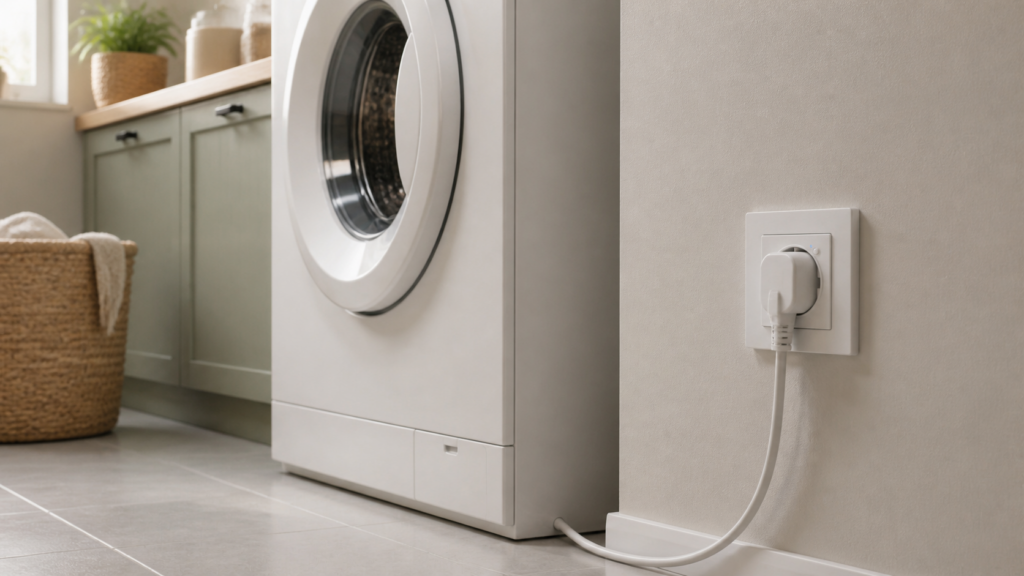
Aqara Wall Outlet H2 EU: Local Setup in Home Assistant
One thing I’ve noticed when helping people build out whole-home energy monitoring setups: plug-in smart plugs get all the attention, but wall outlets are the cleaner long-term solution. No dongle hanging out of the socket, no blocked second outlet, proper 16A rating. The Aqara Wall Outlet H2 EU (model WP-P01D) is the outlet I’d put behind a washing machine, dishwasher, or water heater if I were starting fresh today.
It pairs to Zigbee2MQTT without an Aqara hub, ships in Zigbee mode by default, and exposes 13 entities in Home Assistant. There’s also a built-in overload protection threshold and a charging protection cutoff that work entirely in firmware, no HA automation required.
This guide covers pairing, every entity, the two built-in protection features, energy monitoring automations, and what you give up if you go ZHA instead of Z2M.
The aqara-zigbee-devices-home-assistant-without-hub pillar guide covers the coordinator setup and general hub-free pairing approach if you’re new to running Aqara Zigbee devices this way.
What Is the Aqara Wall Outlet H2 EU
The WP-P01D is a flush-mounted Zigbee 3.0 smart outlet in an 86mm plate format. It fits a standard EU/Schuko Type F wall configuration. Before you order one: check your back box depth. The outlet requires a reasonably deep back box, and many older EU back boxes are shallow enough to make the fit awkward. A few forum discussions have flagged depth as the reason installations stall after purchase — worth measuring before it arrives.
Beyond the fitting issue, the outlet is a Zigbee router (repeater), not an end device. Once installed, it extends your mesh rather than becoming a battery-draining leaf node. For permanent mains-powered devices, that’s exactly what you want.
A note on naming: in Zigbee2MQTT and ZHA the device reports its Zigbee model as lumi.plug.aeu001. The retail/marketing model number is WP-P01D. Don’t confuse it with lumi.plug.maeu01, which is the Aqara SP-EUC01 plug — a separate device.
Prerequisites
- Zigbee coordinator (Sonoff Zigbee 3.0 USB Dongle Plus or equivalent) running as the Z2M coordinator
- Zigbee2MQTT already installed and running — Z2M 1.x is sufficient; no minimum version constraints are documented for this device
- Home Assistant with the Zigbee2MQTT add-on or Z2M integration configured
- Back box depth checked before installation
If you’re new to running Zigbee devices without an Aqara hub, the pillar article on Aqara Zigbee devices in Home Assistant without a hub covers the coordinator setup and general pairing approach.
Pairing the Outlet to Zigbee2MQTT
The WP-P01D outlet ships in Zigbee mode and begins advertising for pairing on first power-on — the LED flashes blue. You don’t need to press anything. If you put Z2M into pairing mode before wiring up the outlet, it should be discovered within a few seconds after the circuit powers on.
If the outlet has been used before and you need to factory reset it: hold the physical button for 5+ seconds until the LED flashes. After that, it returns to Zigbee advertising mode and can be paired fresh.
Steps:
1. Open Z2M frontend → Devices → click “Permit join” (or “Permit join (All)”)
2. Power on the outlet (or reset it if it was previously paired)
3. Watch for a new device appearing — it will identify as lumi.plug.aeu001 or display as WP-P01D
4. Name the device in Z2M and let Z2M complete the interview
5. Reload the Z2M integration in Home Assistant if entities don’t appear immediately
What Entities Appear in Home Assistant
Z2M exposes 13 entities for this device. This is more than what ZHA surfaces (covered below), and noticeably more than what Aqara Home’s own app makes configurable.
| Entity | Type | Notes |
|---|---|---|
| Switch state | switch | On/off control |
| Device temperature | sensor | Internal chip temp, not ambient |
| Power outage count | sensor | Counts how many times mains power was cut |
| Power-on behavior | select | On, Off, Restore, or Invert (Z2M exclusive) |
| Instantaneous power | sensor | Watts, live draw |
| Cumulative energy | sensor | kWh total, integrates into HA Energy dashboard |
| Voltage | sensor | Mains voltage reading |
| Current | sensor | Amps drawn |
| Overload protection threshold | number | 100–3840W, configurable |
| LED indicator | select | On or off |
| Button lock | switch | Physical button lockout |
| Charging protection | switch | Enable/disable the charging cutoff feature |
| Charging protection limit | number | Low-draw threshold used by charging detection |
A few notes on this list. Device temperature is the chip temperature, not the room temperature — it rises under load and is useful for checking if the outlet is running warm, but don’t use it as a thermometer. Power outage count is a cumulative counter; you can track it over time to spot a circuit that loses power often.
The LED indicator and button lock entities let you manage the physical interface without touching the device. If the outlet is behind furniture, locking the physical button prevents accidental toggling.
Configuring Overload Protection
The overload protection threshold is the entity labeled with the wattage range (100–3840W). When the outlet detects that instantaneous power draw has exceeded this threshold, it cuts power automatically and logs the event.
The default threshold is 3840W — essentially the maximum the outlet handles. For most use cases, you’ll want to set this lower to match the appliance plugged in. A few examples:
- Washing machine (typically 2000–2200W): set threshold to 2500W as a buffer
- Phone charger or laptop: set to 100W — any spike above that is abnormal for those devices
Treat this as a convenience cutoff for the specific appliance, not as a replacement for your circuit’s actual protection. It is a firmware feature on a smart outlet, not a code-rated overcurrent device — your consumer unit’s breakers and RCD remain the real safety layer, and the outlet’s own draw still has to stay within the circuit’s rating regardless of what you set here.
To configure in Z2M: go to the device’s page in the Z2M frontend, find the “Overload protection” number entity, and enter your target wattage. The change is written to the device immediately. You can also set this via HA’s entity controls on the device page.
When the threshold trips, the outlet cuts power and the switch state flips to off. You can automate a notification from HA: trigger on the switch state changing to off, and message yourself with the outlet name and last known draw.
Enabling Charging Protection
Charging protection is a firmware-level feature that cuts power automatically when device consumption drops below a set low-draw threshold and stays below it for about 30 minutes. The intended use case is overnight phone charging: the phone reaches 100%, drops to trickle maintenance draw, the outlet sees the draw fall below the threshold, waits the half-hour to confirm it’s not just a momentary dip, then cuts power.
The “Charging protection limit” is that low-draw threshold — the level the draw has to fall below before the timer starts, not the wattage your device pulls while it’s actively charging. It lives at the bottom of the device’s number-entity range, so set it just above the standby/trickle draw you want to treat as “done.” A small handful of watts is the right order of magnitude for a phone; a low single-digit value works for most small chargers.
This pattern is popular in the Chinese HA community (Hassbian 瀚思彼岸, “Hassbian”) because it handles the “forgot to turn off the charger” case without needing a Home Assistant automation — the device does it in firmware with no cloud or hub dependency.
To enable:
1. Turn on the “Charging protection” switch entity in HA
2. Set the “Charging protection limit” number entity just above the trickle/standby draw you want treated as “finished charging”
3. Leave the outlet running — when draw stays below that limit for roughly half an hour, the outlet cuts power
If you want a notification when this happens, automate on the switch state changing from on to off during overnight hours. That distinguishes a charging protection cutoff from a deliberate manual-off.
Power-On Behavior and the “Invert” Option
Most smart outlets give you three power-on behavior options: always turn on after a power outage, always turn off, or restore whatever state the outlet was in before the outage. Aqara Home offers exactly those three.
Z2M adds a fourth: Invert. After a power outage, the outlet returns to the opposite of its pre-outage state. If it was on, it comes back off. If it was off, it comes back on. This is useful in edge cases — for example, an outlet controlling a device you want to cycle through a power interruption (some equipment needs a hard off-then-on to recover). It’s not a common use case, but it’s there, and it’s only accessible through Z2M.
To set it: in HA, find the “Power on behavior” select entity for the device, and choose “Invert” from the dropdown.
Energy Monitoring Automation Examples
The combination of real-time power, cumulative energy, voltage, and current makes this outlet a solid appliance monitor. Two patterns I use regularly:
Washing machine finished notification
Washing machines draw 1500–2200W during a cycle, then drop to near-zero when done. A template-based automation that watches the power entity is enough:
automation:
  - alias: "Washing machine cycle finished"
    trigger:
      - platform: state
        entity_id: sensor.wall_outlet_h2_eu_power
    condition:
      - condition: template
        value_template: >
          {{ trigger.from_state.state | float(0) > 10
             and trigger.to_state.state | float(0) < 5 }}
    action:
      - service: notify.mobile_app
        data:
          message: "Washing machine has finished."
Adjust the thresholds to match your machine. The 10W lower bound filters out brief measurement dips during the cycle. The 5W upper bound catches the real end-of-cycle drop to standby.
Idle appliance wasting power
For devices that should be off but sometimes get left in standby (e.g. a TV drawing 8W overnight), a condition-check automation triggered by time:
automation:
  - alias: "TV outlet idle at night alert"
    trigger:
      - platform: time
        at: "23:30:00"
    condition:
      - condition: numeric_state
        entity_id: sensor.wall_outlet_h2_eu_power
        above: 3
    action:
      - service: notify.mobile_app
        data:
          message: "TV outlet is still drawing power. Turn it off?"
Both automations work entirely locally — no Aqara cloud, no hub. The outlet’s Z2M entities update in real time and trigger HA automations with normal local latency.
ZHA vs Zigbee2MQTT: What You Lose
If you’re running ZHA instead of Z2M, the H2 EU outlet will pair, but entity coverage is thinner.
| Feature | Zigbee2MQTT | ZHA |
|---|---|---|
| Switch control | Yes | Yes |
| Power (W) | Yes | Yes |
| Energy (kWh) | Yes | Yes |
| Voltage / Current | Yes | Typically not exposed |
| Device temperature | Yes | Not exposed |
| Overload protection config | Yes | Not exposed |
| Charging protection | Yes | Not exposed |
| Power-on behavior (incl. Invert) | Yes | Basic (vendor dependent) |
| Button lock | Yes | Not exposed |
| LED indicator control | Yes | Not exposed |
If all you need is switch control and basic energy tracking, ZHA works. If you want the full configuration surface — overload threshold, charging protection, power-on invert — Z2M is the path. ZHA support for newer Aqara devices like this one is still being filled in upstream, so check the current device-handler status if you’re committed to ZHA.
For the plug-in equivalent of this outlet, see the Aqara SP-EUC01 smart plug local setup guide.
What This Outlet Doesn’t Do: Matter
The H2 EU wall outlet is sold and documented as a Zigbee 3.0 device. Unlike the H2 switches and dimmers — which are dual-protocol (Zigbee plus Thread/Matter) — the wall outlet does not expose a Matter path in a local Z2M setup. In Home Assistant via Zigbee2MQTT, you control it over Zigbee.
If you want the outlet accessible in HomeKit or Google Home alongside your Zigbee setup, the practical path is bridging it through an Aqara hub that exposes its Zigbee devices over Matter — for example the M3 or M100. The hub bridges the Zigbee outlet into the Matter fabric, and HA can then access it via the Matter integration instead of Z2M.
For most local-first setups, this matters if you have a mix of Apple Home automations and HA automations, or a household member who uses the Aqara app on iOS. If everything runs through HA, the Z2M path is cleaner and gives you more entities.
The Aqara M3 Matter bridge guide covers how that bridging works if you decide to go that route.
If you’re placing this outlet on an IoT VLAN (and you should, once you have more than a handful of Zigbee devices), the IoT VLAN setup guide covers the mDNS and UDP forwarding configuration that Z2M needs to stay reachable across VLANs.
The Chinese HA community’s interest in this device (Hassbian 瀚思彼岸; SMZDM 什么值得买, “Smzdm”) is specifically the 16A capacity and the firmware-level energy features — overload protection and charging protection as hands-off cutoffs. Those use cases map directly to the Z2M entity set. The Zigbee-only design isn’t a limitation in that context; it’s arguably a feature, because a Zigbee-only outlet never tries to join a Thread fabric and never needs a hub OTA update to stay paired.
Frequently Asked Questions
Does the Aqara Wall Outlet H2 EU work with Home Assistant without an Aqara hub?
Yes. The WP-P01D pairs directly to Zigbee2MQTT as a Zigbee 3.0 device with no hub required. All 13 entities — including energy monitoring and protection configuration — are available locally.
What Zigbee model does the H2 EU outlet report?
It reports lumi.plug.aeu001 in Zigbee2MQTT and ZHA. The retail model number is WP-P01D. Note that lumi.plug.maeu01 is a different device — the Aqara SP-EUC01 plug — so don’t match on that ID.
Does the H2 EU outlet support Matter or only Zigbee?
It’s sold and documented as a Zigbee 3.0 device, and in a local Zigbee2MQTT setup you control it over Zigbee. To reach it from a Matter-based setup (HomeKit, or Google Home via Matter), bridge it through an Aqara hub such as the M3 or M100.
How do I set up overload protection on the Aqara H2 EU outlet in Home Assistant?
In HA, navigate to the device page for the outlet (or the Z2M frontend), find the “Overload protection” number entity, and set your target wattage (range 100–3840W). The value is written directly to the device firmware. When instantaneous power exceeds that threshold, the outlet cuts power automatically. Treat it as an appliance-level convenience cutoff, not a replacement for your circuit’s breaker.
Can I use the Aqara H2 EU outlet to detect when my washing machine has finished?
Yes. Watch the instantaneous power sensor entity. Washing machines draw significantly during a cycle and drop to near-zero when done. A simple HA automation that triggers when power drops from above 10W to below 5W will catch the cycle end reliably. The example automation in the “Energy monitoring” section above covers this pattern.