

Aqara Water Leak Sensor in Home Assistant via Zigbee2MQTT (No Hub)
A leak sensor is useful only if water reaches it and its alert reaches you. The Aqara sensor can report to Home Assistant over Zigbee without an Aqara hub; placement and end-to-end testing are the parts to get right.
With direct Z2M pairing, the sensor-to-HA connection stays local. A phone push notification may still use an internet service, so test a local alarm as well if you need an alert during an outage.
The guide covers the SJCGQ11LM and SJCGQ12LM, pairing, available entities, and examples for phone alerts, repeated alerts, and a shut-off valve.
Hardware Overview
SJCGQ11LM vs SJCGQ12LM — What’s the Difference?
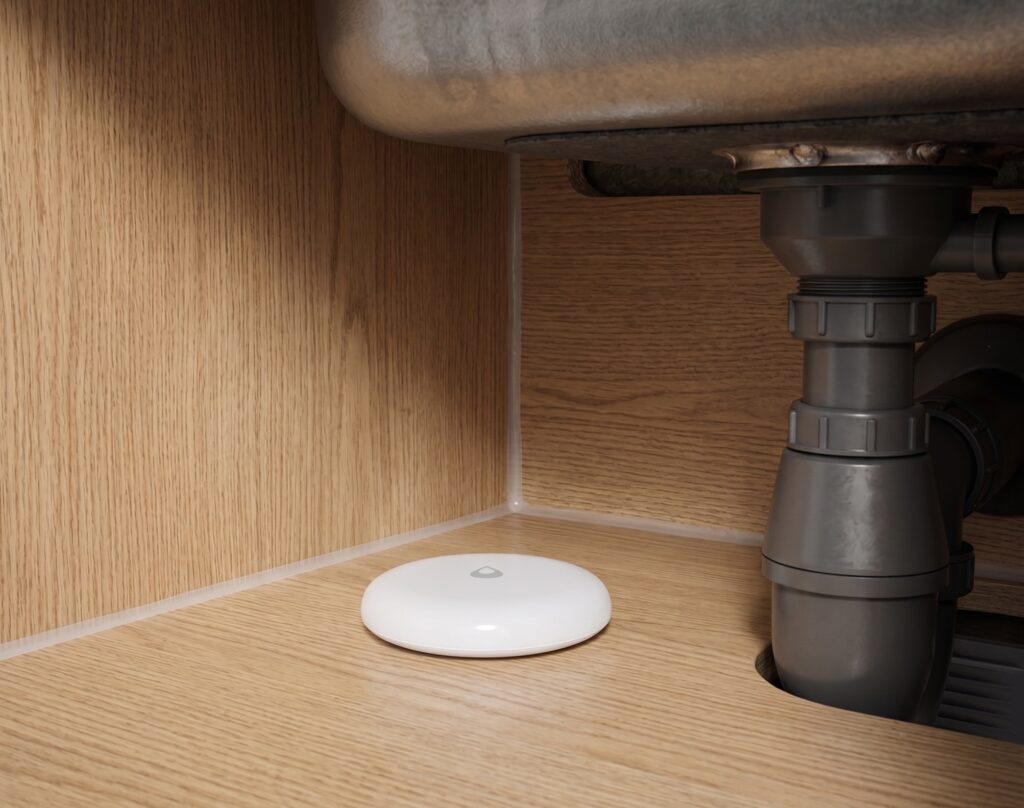
Both sensors look nearly identical: a small white puck with a water-drop logo on top and two metal detection screws on the underside. The difference is in the Zigbee version.
| Feature | SJCGQ11LM | SJCGQ12LM |
|---|---|---|
| Zigbee version | 1.2 | 3.0 |
| Battery | CR2032 | CR2032 |
| Battery life | ~2 years | ~2 years |
| Mesh role | Battery end device; does not route | Battery end device; does not route |
| Status | Older / being phased out | Current model |
Check the supported-device entry for the exact model you own. With either revision, test the leak and clear reports at its final location after pairing.
Both models are supported by Zigbee2MQTT with no quirks configuration needed.
How the Sensor Works
The two metal screws on the underside complete a circuit when water bridges them. The sensor triggers on as little as 0.5mm of standing water.
It reports a single binary state: water detected or not. There’s no volume measurement, no gradual scale. When the screws get wet, it fires. When they dry out, it clears.
Placement tips:
- Flat on the floor, directly on the surface you want to monitor — not on a shelf above it
- Screw-side down, obviously
- Near but not under an appliance (you need to be able to swap the battery)
- Avoid placing where cleaning water regularly splashes (you’ll get false positives)
Good locations: under the kitchen sink, behind the dishwasher, beside the washing machine, next to the water heater or boiler, along the perimeter of a basement floor.
Pairing to Zigbee2MQTT
Prerequisites: Home Assistant running with Zigbee2MQTT installed and configured. If you haven’t done that yet, see the guide on setting up Zigbee2MQTT in Home Assistant first — this guide picks up from there.
Step 1: Enable Permit Join
In Home Assistant, open the Zigbee2MQTT panel (sidebar → Zigbee2MQTT). Click the Permit join toggle at the top. Z2M will accept new devices for the next 254 seconds by default.
Alternatively, you can permit join for a specific group or the whole network — for a new sensor, whole-network join is fine.
Step 2: Put the Sensor in Pairing Mode
On the SJCGQ11LM, press the water-drop logo on the top of the case to operate the reset button. The Z2M device page documents the pairing procedure. Check the corresponding instructions for another revision.
Press and hold the reset button for approximately 5 seconds until the LED blinks blue rapidly. That’s the pairing signal. Release the button.
The sensor will attempt to join the Zigbee network. The Z2M interview process takes 10–20 seconds.
Step 3: Confirm the Device Appears
In the Zigbee2MQTT panel, go to the Devices tab. You should see a new device with model number SJCGQ11LM or SJCGQ12LM and a friendly name like 0x00158d000xxxxxxx.
Rename it immediately — something like Water Sensor Kitchen Sink. This name carries through to your Home Assistant entity IDs, so clear naming now saves you from ugly entity names later.
Pairing Troubleshooting
Sensor LED blinks but device doesn’t appear in Z2M:
First suspect: low battery. A CR2032 that reads 2.8V or lower may not have enough power to complete the full Zigbee interview. Swap in a fresh battery before troubleshooting anything else.
SJCGQ11LM won’t pair reliably:
Zigbee 1.2 devices can have mesh compatibility issues with certain coordinator firmware. Pair it within 1–2 metres of your coordinator (temporarily move it if needed), complete the interview, then move it to its final location. Once interviewed, it usually stays connected.
Device stops reporting after pairing: check battery, coverage, router compatibility, and Z2M logs. Re-pairing may help, but it is not a substitute for testing reliable reports at the installed location.
Interview does not finish: try short presses of the reset button to keep the sensor communicating, as the device notes describe. Check the logs before removing the entry and re-pairing.
Entities in Home Assistant
Once paired, Z2M creates several entities automatically. Here’s what you’ll see:
binary_sensor.<name>_water_leak
This is the one that matters. It has two states:
off— no water detected (sometimes labelledclear)on— water detected (sometimes labelledwet)
An initial unknown state does not establish that the sensor has failed or that it is ready. Perform a wet-and-dry test and check that both states reach HA before relying on the alert.
sensor.<name>_battery
Z2M lists battery as a percentage and voltage separately in millivolts for SJCGQ11LM. Check the entity’s unit rather than interpreting a battery percentage as a voltage.
If you only have a voltage reading, the following template illustrates a rough estimate using a millivolt entity. It is not a measured percentage or a battery-life prediction. Prefer the device’s reported battery and low-battery entities when available.
template:
  - sensor:
      - name: "Water Sensor Kitchen Battery Estimate"
        unit_of_measurement: "%"
        availability: >
          {{ is_number(states('sensor.water_sensor_kitchen_sink_voltage')) }}
        state: >
          {% set v = states('sensor.water_sensor_kitchen_sink_voltage') | float(0) / 1000 %}
          {{ [[(v - 2.6) / (3.0 - 2.6) * 100, 0] | max, 100] | min | round }}
Other Entities
device_temperature— the device’s temperature, not a calibrated room-temperature or pipe-leak measurement.sensor.<name>_power_outage_count— counts how many times the device lost power. Useful for detecting dead batteries (count climbs when the sensor keeps rebooting).sensor.<name>_trigger_count— trigger count since the last scheduled report on SJCGQ11LM. Diagnostic only.
Automation Patterns
Add these as separate automations in the YAML editor. Replace the leak and battery sensors, phone notification services, and alarm or valve targets with those in your home. Each example is a single automation, rather than the complete automations.yaml file.
Instant Push Notification on Leak
The basic automation: when the sensor detects water, send a push notification to your phone immediately.
alias: "Water Leak — Instant Alert"
description: "Push notification when any water leak sensor triggers"
trigger:
  - platform: state
    entity_id: binary_sensor.water_sensor_kitchen_sink_water_leak
    to: "on"
action:
  - service: notify.mobile_app_your_phone
    data:
      title: "⚠ Water Leak Detected"
      message: "Kitchen sink sensor triggered. Check immediately."
mode: single
Replace binary_sensor.water_sensor_kitchen_sink_water_leak with your entity ID and notify.mobile_app_your_phone with your HA Companion app notify service name.
Test the alert: briefly bridge the detection contacts with a damp cloth, then dry them. Confirm both wet and clear states in HA, phone delivery, and any local alarm. Test again after moving the sensor.
Critical alerts while the sensor is wet
The example repeats until the sensor returns to off. It does not track whether you have acknowledged the notification. If you need an acknowledgement button, add that as a separate control.
On iOS, critical alerts can bypass silent mode and Do Not Disturb when the app has the required permission. Enable that permission and test delivery on your phone:
alias: "Water Leak — Critical Alert iOS"
trigger:
  - platform: state
    entity_id: binary_sensor.water_sensor_kitchen_sink_water_leak
    to: "on"
action:
  - repeat:
      until:
        - condition: state
          entity_id: binary_sensor.water_sensor_kitchen_sink_water_leak
          state: "off"
      sequence:
        - service: notify.mobile_app_your_iphone
          data:
            title: "WATER LEAK"
            message: "Kitchen sink. Check now."
            data:
              push:
                sound:
                  name: default
                  critical: 1
                  volume: 1.0
        - delay:
            minutes: 5
mode: single
This fires the alert, waits 5 minutes, checks whether the leak has cleared, and if not, fires again. Adjust the delay to taste.
Android equivalent: Android doesn’t have a direct critical alert equivalent, but you can use high-priority notifications with the HA Companion app’s ttl: 0 and priority: high data fields, or integrate with apps like Ntfy or Gotify for similar behavior.
Trigger an Alarm
This example plays an alarm file through a compatible media player. Upload water_alarm.mp3 to the root of Home Assistant’s local media library so it matches the media-source path below, and test playback on your speaker. Create a Toggle helper under Settings → Devices & services → Helpers, use its entity ID in place of input_boolean.water_alarm_armed, and turn it on to arm the alarm:
alias: "Water Leak — Sound Alarm"
trigger:
  - platform: state
    entity_id: binary_sensor.water_sensor_kitchen_sink_water_leak
    to: "on"
condition:
  - condition: state
    entity_id: input_boolean.water_alarm_armed
    state: "on"
action:
  - service: media_player.play_media
    target:
      entity_id: media_player.living_room_speaker
    data:
      media_content_id: "media-source://media_source/local/water_alarm.mp3"
      media_content_type: music
mode: single
The input_boolean.water_alarm_armed guard is optional but useful — it lets you disarm the alarm during planned maintenance without disabling the push notification automation.
Auto Shut-Off Smart Valve Integration
A compatible motorised valve can close when a leak is detected. Confirm the valve’s open and close actions before connecting it to the automation; some models use a valve entity rather than a switch.
You’ll need a compatible Zigbee smart water valve — several Tuya-based and Aqara-compatible valves work with Z2M. Pair the valve first and confirm it works manually before connecting it to this automation.
alias: "Water Leak — Close Shut-Off Valve"
trigger:
  - platform: state
    entity_id: binary_sensor.water_sensor_kitchen_sink_water_leak
    to: "on"
action:
  - service: switch.turn_off
    target:
      entity_id: switch.kitchen_water_valve
  - service: notify.mobile_app_your_phone
    data:
      title: "Water Leak — Close Command Sent"
      message: "Leak detected at kitchen sink. Valve close requested; confirm water has stopped."
mode: single
Important: Test the valve automation manually before relying on it. Trigger the valve close from the HA UI, confirm water stops flowing, then reopen it. Know where your manual shut-off is in case the smart valve fails or loses power at the wrong moment. This automation supplements manual response — it doesn’t replace knowing your home’s plumbing.
Low Battery Alert
Set up a battery alert, but also check device availability and test the sensor periodically. A battery warning alone will not detect every lost connection or failed report.
alias: "Sensor Low Battery — Water Leak Sensors"
trigger:
  - platform: numeric_state
    entity_id: sensor.water_sensor_kitchen_sink_battery
    below: 20
action:
  - service: notify.mobile_app_your_phone
    data:
      title: "Low Battery"
      message: "Water sensor (kitchen sink) battery below 20%. Replace CR2032."
mode: single
Set a reminder to physically test each sensor monthly — bridge the screws, confirm the automation fires. Battery percentage is a lagging indicator; physical testing catches silent failures that voltage readings miss.
Placement Guide
Place the contacts where water would actually collect. A point sensor only detects water that reaches it, so one sensor cannot cover an entire floor or appliance area.
Under the kitchen sink: choose a reachable low point where leaks from the supply or drain would collect. Keep the sensor accessible for testing.
Washing machine: place the sensor on an accessible low point where a hose or drain leak would reach it. Keep it clear of moving parts and accessible for testing.
Behind the dishwasher: Similar logic. The sensor goes at the lowest accessible point behind or beside the unit.
Water heater / boiler: choose an accessible location where a leak would reach the contacts. Keep clear of hot surfaces and do not interfere with the relief outlet or drainage.
Basement: use the floor slope and any known seepage locations to choose detection points. Several sensors may be needed; placement in each corner does not guarantee coverage.
At every location: keep the contacts on the surface being monitored. A mat that raises or shields them can delay detection. Account for cleaning splashes when choosing the location.
Long-Term Maintenance
Monthly test: bridge the contacts briefly with a damp cloth and confirm the wet report and alert. Dry the contacts and confirm the clear report. If either is missing, inspect Z2M and HA before relying on the sensor.
Battery replacement: open the battery compartment as shown in your model’s manual, fit the specified CR2032, and preserve the seal. Test a wet and clear report afterwards.
Battery readings: check the entity unit and use percentage and voltage as separate values. Neither reading replaces a functional test.
Updates: check the device page for your exact model before assuming Z2M OTA is supported. After updating Z2M or sensor firmware, repeat the alert test.
Conclusion
Direct Zigbee pairing removes the Aqara hub from the alert path. The rest of the system still needs dependable power, radio coverage, and an alert you can hear or receive.
Test an internet outage separately from a normal leak test. HA may receive the sensor event while the phone notification fails; a local siren can cover that gap if it also works offline.
Keep a regular test reminder and check again after battery replacement, network changes, or moving the sensor.
Related guides:
- Setting up Zigbee2MQTT in Home Assistant — if you haven’t paired your first Zigbee device yet
- Aqara P1 Motion Sensor in Home Assistant — same pairing process, different use case
- Aqara E1 Hub setup — if you prefer the hub route instead of direct Zigbee