

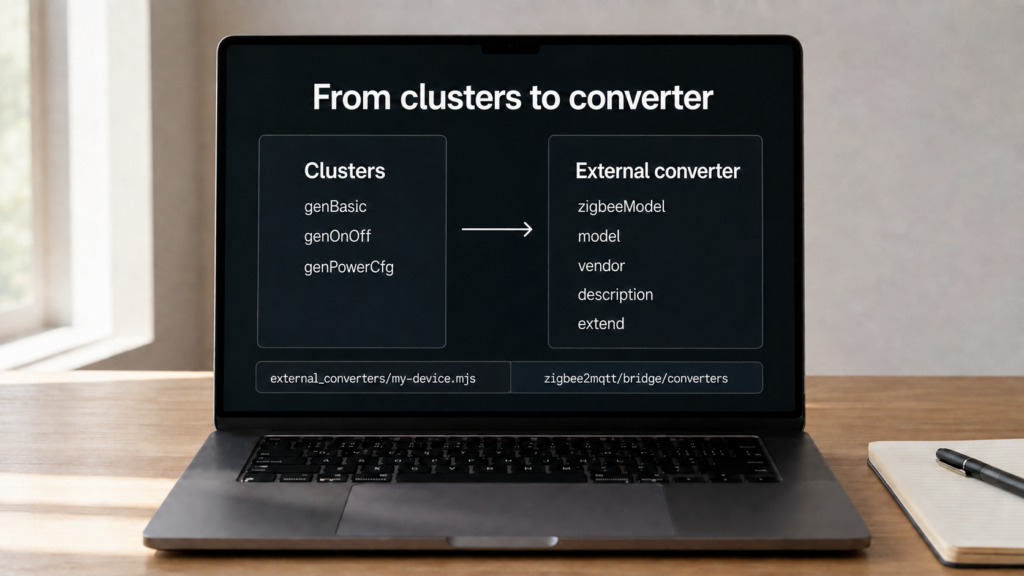
An unsupported device may join Zigbee2MQTT successfully but have missing or incorrect controls. An external converter supplies the definition and message handling the integration needs. It is useful when the exact model is not covered by the installed release, or when a supported-looking variant behaves differently.
This guide follows Zigbee2MQTT 2.14.2 and its converter package 26.115.1. It covers generating a starting definition, editing it, loading it and checking the result. The external converters reference and new-device support guide are the primary workflow references. No physical device was used to test a converter for this article.
When you need a custom converter
First check the exact device identifier against current built-in support and release notes. Back up the instance before updating Zigbee2MQTT, then test the supported release rather than assuming an old external file is still necessary. Search the project’s discussions and tracker for the reported model/manufacturer combination, not only the retail name.
A No converter available diagnostic for an ignored or unneeded attribute is different from a whole unsupported device. The no-converter guide covers that distinction. Verify which functions are actually missing before adding code.
A manuSpecificTuya cluster or Tuya data-point protocol can require additional decoding and configuration. Standard temperature or switch extends will not automatically map those data points. The TS0601 converter guide covers that path separately.
Pairing, Exposes and Clusters
Joining and device support are different stages. The coordinator still needs a compatible Zigbee mode, a successful join and interview, correct security information and the model’s pairing procedure. An external converter cannot guarantee that every Zigbee-labelled product joins, nor can it repair a failed radio link by itself.
Once the interview completes, record the IEEE address, modelID, manufacturerName, endpoint numbers and input/output clusters. Read the frontend’s Exposes and Clusters tabs and watch fresh debug messages while operating the device. Cluster lists and cached attribute values help describe the device; they are not proof that every declared function works or reports current state.
The generator maps standard ZCL clusters into likely features. A proprietary or nonstandard implementation may need custom parsing, manufacturer-specific commands, reporting setup or endpoint mapping. That is a reason to extend and test the definition, rather than assume no converter can ever support it. Avoid writing unknown attributes merely because a forum example uses the same cluster number.
A converter’s main parts
A converter file exports a definition object or an array of definitions. It uses the library’s DefinitionWithExtend interface. Matching identifiers, product metadata and implemented features all matter, but an extend array is not mandatory for every definition: custom fromZigbee, toZigbee and exposes are another way to supply features.
zigbeeModel matches reported model identifiers. When that identifier is shared, use an appropriately specific fingerprint, often including both modelID and manufacturerName. Do not attach a generic Tuya model such as TS0601 to one device-specific decoder and inadvertently match unrelated products.
Modern extends bundle message converters, exposed features and configuration for common functions. A custom fromZigbee converter parses incoming messages; toZigbee implements supported set/get operations. exposes describes capabilities and access for the frontend and Home Assistant discovery. A parsed field can still appear in raw MQTT without an appropriate expose; that does not automatically create a usable UI entity. The MQTT topic guide explains that layer.
The following ES-module template has valid JavaScript syntax and uses existing 26.115.1 helpers. It is illustrative, not a device-specific working converter. Replace the two fingerprint fields and product metadata only after checking your unit, and include these three extends only if its endpoints really implement their standard clusters:
import {temperature, humidity, battery} from 'zigbee-herdsman-converters/lib/modernExtend';

export default {
  fingerprint: [{
    modelID: 'REPLACE_WITH_REPORTED_MODEL_ID',
    manufacturerName: 'REPLACE_WITH_REPORTED_MANUFACTURER',
  }],
  model: 'REPLACE_WITH_UNIQUE_PRODUCT_MODEL',
  vendor: 'REPLACE_WITH_PRODUCT_VENDOR',
  description: 'Illustrative standard-cluster sensor definition',
  extend: [temperature(), humidity(), battery()],
};
For multiple endpoints, missing reports or a different battery representation, inspect the matching helper options and similar released definitions. A configure function may be needed to bind clusters or configure reporting. Match units, scale, command values and writable/read-only access to the actual device; a sensor-looking entity is not evidence of correct decoding.
Generate the starting definition
Open the paired device’s Dev console and choose Generate external definition. Save the generated source privately before editing it. Compare the identifiers, endpoints and extends with the interview and required functions. Automatic feature discovery is incomplete, especially for nonstandard data-point devices.
Work one feature at a time. Trigger a physical event, capture its cluster/type/payload and confirm how the converter maps it into MQTT. For a controllable function, send the intended command and check both the physical result and a fresh reported state. A generated expose or optimistic state response is not a hardware test.
Enable and place the converter
New installations created by Zigbee2MQTT 2.11.0 or later disable external JavaScript by default. In 2.14.2 the fresh-configuration path sets false, while older omitted settings can still inherit true. Explicit settings and environment overrides matter, so check the effective configuration rather than infer it solely from the installation’s age.
advanced:
  enable_external_js: true
This setting requires a restart. With it disabled, the converter extension and its runtime MQTT handlers are not created, so a converter-save request is not a workaround for disabling external JS. Look for the startup log reporting whether it is enabled.
Converters execute JavaScript inside Zigbee2MQTT’s process. They can access its credentials, filesystem and available network connections. Use code you understand or have reviewed, and keep a known-working copy outside the loader folder. The mechanism does not guarantee that arbitrary external code introduces no network traffic.
Put the file in external_converters beside the actual persistent configuration.yaml, accounting for container/app data paths. The 2.14.2 loader accepts .mjs, .js and .cjs; an .mjs file makes ES-module syntax explicit. Old configuration-list instructions and imports should be checked against your installed release.
Runtime loading and responses
A file edited directly on disk is read during startup; the loader does not watch every disk edit. For runtime changes, use Settings → Dev console → External converters in the frontend, or the MQTT save API. The source must be the full code string, not the literal ... placeholder in some examples.
With the template saved as example-sensor.mjs and adapted for your device, this Bash example uses jq to JSON-escape the entire file. Subscribe to the response first, use the actual broker/base topic and required credentials/TLS, and choose a unique transaction:
mosquitto_sub -h 192.168.10.20 \
  -t 'zigbee2mqtt/bridge/response/converter/save'
jq -n --rawfile code example-sensor.mjs \
  '{name:"example-sensor.mjs",code:$code,transaction:"my-converter-save"}' \
  | mosquitto_pub -h 192.168.10.20 \
      -t 'zigbee2mqtt/bridge/request/converter/save' -s
A matching status: "ok" response and load log confirm the runtime request succeeded. Inspect the selected definition and Exposes for the device, then repeat physical/report/command tests. The retained bridge/converters list contains converter names and source from the folder; it is useful for inspection, not proof that every feature works.
converter/remove is the corresponding runtime removal API. It removes the definitions and deletes the named file. Back up a file before removing it, and confirm the device falls back to the expected built-in/generated definition rather than losing required handling.
Runtime save writes the file before loading it. An error can leave invalid source on disk, and loading can remove an earlier definition before the replacement fails. Do not assume a failed save automatically rolls back. Restore the known-working source, check the response/log and verify the device again.
When a file becomes .invalid
In 2.14.2, a startup import or load failure is logged and the file is renamed with .invalid appended so it is not repeatedly loaded. Syntax, imports, interface changes and definition errors can all be relevant. Runtime save errors have their own response path and should not be treated as identical to startup quarantine.
Preserve the quarantined source and surrounding error. Fix the import/API/syntax problem, then load a corrected file with a supported extension. Simply removing .invalid and restarting repeats the failure if the code is unchanged.
Issue #27031 contains a 2025 report and a maintainer correction of invalid API usage, overwritten imports and missing imports. The reporter then said the revised files worked on 2.2.1. Issue #29438 reports a 2.6.2 → 2.6.3 failure, followed by a corrected converter and reported success. These are examples of specific repairs, not proof that every upgrade failure has the same cause or that the interface is permanently stable.
Submitting support upstream
The project recommends submitting a tested definition to zigbee-herdsman-converters. Check for an existing submission, follow the current contribution instructions and include actual device identifiers, required features and verification results. A local template with a successful import still needs device testing before being presented as working support.
Once your installed release contains the matching built-in definition, back up and remove the external override, then test the built-in version. This reduces local maintenance; it does not guarantee that all future firmware or library changes are harmless.
ZHA custom quirks use a different Python framework and are not interchangeable with JavaScript converters. The ZHA/Zigbee2MQTT comparison covers platform choice.
FAQ
Can an unsupported device join? Often the join can succeed before feature support exists, but radio mode, security, firmware and interview still matter. A converter is not a universal pairing fix.
Where does the file go? In the persistent data directory’s external_converters folder beside its configuration. Check the real data path rather than the host/container path you assume.
Why does it do nothing? Check effective enable_external_js, restart after enabling it, verify the file extension and load logs, then confirm its matcher selects your exact device. Disk edits need a startup reload or a runtime save.
Why did an upgrade break it? Read the current syntax/import/API error, including any .invalid file. Keep the previous source and version; fix the actual incompatibility rather than repeatedly renaming it.
Do I need a restart for every edit? Direct disk edits load at startup. Supported frontend/MQTT runtime saves load without a service restart when external JS is enabled.
Is this the same as a ZHA quirk? Both adapt device behavior, but they use different frameworks, languages and matching/configuration rules.
Sources and checks on your device
The example’s helper names and module syntax were checked against converter package 26.115.1. Loading, save/remove responses and quarantine behavior were checked in Zigbee2MQTT 2.14.2. The documentation supplies the development workflow; historical repairs remain attributed reports.
No physical feature was tested here. Verify exact matching, reports, writable functions, endpoint separation, units and reconnection on your device, and keep a recovery copy before replacing a working converter.