

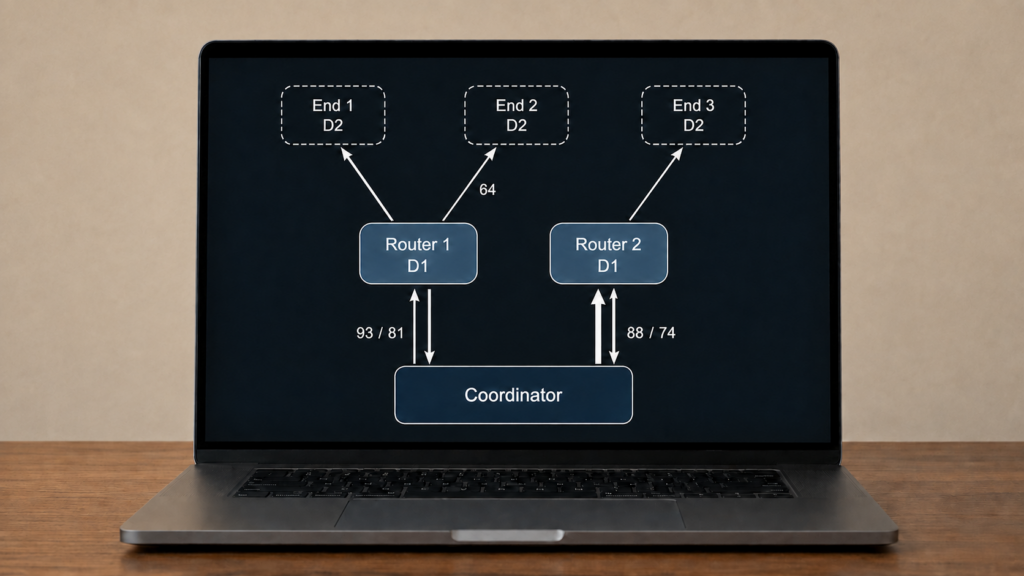
Open Zigbee2MQTT’s network map and you get a mesh diagram full of numbers that don’t come with a legend. Some links show one LQI value, some show two. Depth figures run from 1 to 4 or higher. A few links read 0/0 and look broken. Zigbee2MQTT’s FAQ does define what LQI is and roughly where a usable value starts, which is more than most guides give it credit for — but nothing documents how this particular diagram renders it.
This walks through what LQI and depth actually represent, why the same link can show different numbers in different places, and which parts of the map are worth acting on versus which are just how Zigbee mesh topology looks when it’s working normally. It draws on Zigbee2MQTT’s own documentation plus maintainer answers, issue reports, and community threads, because no single official guide to reading the map exists.
Two ways to see the map: the frontend tab or a manual MQTT request
Most people never need to touch MQTT directly for this. Zigbee2MQTT’s built-in web frontend has a dedicated map view that renders the same topology visually over its own WebSocket connection, no manual publish required.
The frontend’s default UI package changed as part of a September 2025 project change (the “windfront” rework). The exact current tab label and layout aren’t confirmed here — check your own build before assuming the wording matches an older screenshot or guide you’ve seen elsewhere.
If you want the raw data instead, or you’re scripting something around it, you can request a map directly over MQTT. Publish to zigbee2mqtt/bridge/request/networkmap with a payload naming the format you want, and the response arrives on zigbee2mqtt/bridge/response/networkmap.
mosquitto_pub -t 'zigbee2mqtt/bridge/request/networkmap' \
  -m '{"type": "raw", "routes": true}'
Valid type values are raw, graphviz, and plantuml. Both methods read the same underlying topology, so the choice is convenience, not measurement.
Triggering a scan makes the network briefly less responsive while devices answer topology queries. The docs recommend running scans manually rather than on a schedule, and note a scan can take anywhere from about 10 seconds to a couple of minutes depending on network size.
Reading LQI: last-hop-only, and why the numbers don’t compare across devices
LQI (Link Quality Indicator) is a 0-255 value, and the first thing worth internalizing is that it only describes the last hop of a path, not the whole route to a device. If a message travels coordinator to Router A to Device B, the map shows the LQI of the coordinator-to-A link, not the quality of the full path to B. A Z2M maintainer answered this directly in a GitHub discussion, and the FAQ says the same thing in one line: the value reflects a device’s connection to its nearest router, or to the coordinator if it connects directly.
Zigbee2MQTT does publish a starting point for judging that value, which is worth knowing before borrowing one from a forum. The FAQ describes 255 as a theoretical zero-error-rate link, treats higher as better, and says a device that holds at 40 or above can usually be considered acceptable for normal operating conditions. That is a floor, not a target, and it sits well below the figures circulating in the community: one third-party guide treats above roughly 150 as healthy and below roughly 50 as marginal, while a Home Assistant Community reply treats anything under 200 as weak.
The reason those numbers can’t be reconciled is in the same FAQ. Neither the Zigbee specification nor IEEE 802.15.4 standardizes how LQI is measured, so the number depends on the chipset and stack reporting it, and Zigbee2MQTT’s own guidance is that the values can’t always be trusted. Comparing one manufacturer’s LQI against another’s is comparing two different scales. I think chasing a specific number is the wrong instinct for that reason, not merely because opinions differ — the useful comparison is a link against itself over time, or one candidate parent against another for the same device.
Why the same link sometimes shows two different LQI numbers
On routing devices you’ll sometimes see a link labeled with two numbers, something like 93/81. One is the LQI for the device’s own receive direction, the other for the coordinator’s (or parent’s) receive direction, because Zigbee links have a quality reading in each direction and they aren’t always equal.
A second, separate reason readers see mismatched numbers: a device’s own info page in the frontend shows its last self-reported value, which can be stale or cached, while triggering a fresh map scan polls live. Comparing a cached device-page number against a just-scanned map number is comparing two different snapshots in time, not two different truths about the same link.
That explains most divergences, but not all of them. In one reported case following a coordinator firmware upgrade, every end device joined directly to the coordinator read zero on the map while those same devices showed correct values on their device pages and router links rendered normally. When the mismatch is systematic rather than one device here and there, the map is the side to distrust.
Reading depth: more hops isn’t automatically worse
Depth is the hop count from the coordinator to a given device. It’s tempting to read a high depth number as a problem, but a longer path through solid routers can outperform a shorter path through one router in a bad spot, say inside a metal enclosure or behind a thick wall.
This depth-isn’t-automatically-bad framing comes from a third-party mesh-networking explainer, not an official Zigbee2MQTT statement. Treat it as reasonable practical guidance rather than a documented Z2M rule.
What actually matters is whether the path a device is using is stable and reasonably strong end to end, not how many hops it takes to get there. Two stable hops beat one shaky one.
There is one exception, and it’s the reverse of the usual worry. The reports behind the Ember driver’s many-to-one route failures describe some routers absorbing a disproportionate share of children while other devices, including ones sitting physically close to the coordinator, get routed through distant multi-hop paths instead of joining it directly. Depth that contradicts your physical layout is a real signal; depth that merely looks high is not.
Sibling lines vs. parent-child lines: what’s cosmetic, what’s operational
Some map renders draw lines between devices that appear connected to each other, often called sibling lines. Per the same maintainer answer covering LQI scoping, that relationship typically just means the two devices share the same parent router. It’s a visualization artifact, not a description of actual Zigbee routing behavior between those two devices.
The lines that matter operationally are the parent-child links, the actual routes a message takes hop by hop toward the coordinator. If you’re trying to diagnose a mesh problem, ignore anything that looks like a sibling connection and focus on parent-child structure instead.
| What you’re seeing on the map | What it usually means | Worth acting on? |
|---|---|---|
| Two LQI numbers on one link (e.g. 93/81) | Directional readings — device-to-parent and parent-to-device differ | No, this is normal |
| Device page LQI differs from live map LQI | Usually a snapshot difference — device page is a cached self-report, a scan polls live | Only if the mismatch is systematic, which points at the map |
| High depth / many hops to a device | Not inherently bad — stable multi-hop can beat a weak direct link | Only if the depth contradicts your physical layout |
| Sibling lines between two devices | Cosmetic — usually just means they share a parent, not a real routing relationship | No |
| Link or node reading 0/0 | Usually a stale route the device has already replaced | Only if it is network-wide or recurs on an active path |
| Scan errors, or nodes missing after a scan | A device or the coordinator failed to answer the topology query in time | Yes if it repeats — the map is incomplete, not the mesh |
Zero-value links and failed scans: usually not what they look like
A link or node showing 0/0 LQI on the map looks alarming, but per a community forum thread on this exact question, it generally represents a route that existed previously and is no longer in active use because the device found a better path — a leftover from prior topology, not evidence of a link failing right now.
The exception is scale. Zeros on a single device fit that explanation. Every directly-connected end device reading zero at once matches the coordinator-firmware pattern above — the links are fine, the map’s rendering of them isn’t.
A different failure is the scan not completing at all. Failed to execute LQI for 'Coordinator' is a long-running Zigbee2MQTT error, reported across coordinators and firmware versions from 2020 through 2025, in which the topology query times out instead of returning data. The map then renders with nodes or links missing. That’s an incomplete diagram, not a device that left the network.
Getting routes into the map
By default, a raw map request shows nodes and their parent/child links, but not the routing-table entries devices are actively using. To include those, set routes: true in the request payload, as shown in the code block above. A GitHub discussion has multiple people independently tripping over this default, so check the flag before concluding the route data isn’t there.
When map-reading should actually change something
Most of what’s on the map is descriptive, not actionable. The cases genuinely worth doing something about are narrower than the raw diagram makes them look:
- A device’s LQI to its current parent has degraded noticeably compared to its own history, and a nearby alternative router would plausibly do better.
- A device keeps re-parenting (visible as a changing route on repeated scans) without settling, which is a stronger signal than a single depth or LQI reading.
- Your logs carry many-to-one route failures alongside the lopsided parenting described above. Our write-up of Zigbee2MQTT’s many-to-one route failure explains what that error is, and why responsibility for a real fix sits with Silicon Labs’ EmberZNet SDK rather than with anything you can rearrange on the map.
- You’re deciding whether a channel change is warranted. Reading the map first is the diagnostic step before touching the channel.
For broader topology context, our coordinator backup and restore guide and our MQTT topics explainer both touch on network structure from adjacent angles. And if you’re running ZHA instead of Zigbee2MQTT, its map is a separate feature with its own rendering conventions — our ZHA network visualization piece is the one to read, rather than assuming this article’s specifics carry over.
Common questions
What counts as a good LQI value? Zigbee2MQTT’s FAQ treats 255 as a theoretically perfect link and 40 or above as usually acceptable for normal operating conditions. Higher is better, but since LQI measurement isn’t standardized across chipsets, the number is only really meaningful compared against itself over time, or against another candidate parent for the same device.
Why does my device show a different LQI on its page than on the map? The device page shows a cached self-report; a map scan polls live. If it affects one device, that’s a timing difference. If every directly-connected device reads zero, suspect the map rather than the mesh.
What does depth mean? Hop count back to the coordinator. High depth isn’t a fault in itself — it matters only when it contradicts where the device physically sits.
How do I get routes into the map? Add routes: true to the request payload. It’s off by default, so a map with no route data usually means the flag was omitted.
What this covers, what stays local, and what to check
This is built from Zigbee2MQTT’s own FAQ and MQTT topic documentation, a maintainer’s answers in GitHub Discussion #6694, issue reports covering zero-valued map links and failed LQI scans, and community threads on LQI confusion. The 40-and-above figure is Zigbee2MQTT’s own guidance; the 150/50 and 200 figures are third-party rules of thumb and are labelled as such above. The depth-framing point comes from a third-party mesh-networking explainer rather than official Z2M documentation, and is flagged where it appears.
What stays local: everything the map shows. Requesting a network map, reading LQI, and reading routes all happen entirely over your own MQTT broker and Zigbee2MQTT’s own frontend, with nothing sent externally.
What still depends on the device: how quickly and accurately a given device answers a topology query during a scan, which varies by hardware and firmware and isn’t something Zigbee2MQTT or this article controls.
What to check on your own setup: whether the exact frontend tab label and layout match what’s described here, since the windfront package change means current builds may present the map differently than older screenshots suggest. The underlying data and how to read it should still hold either way.