

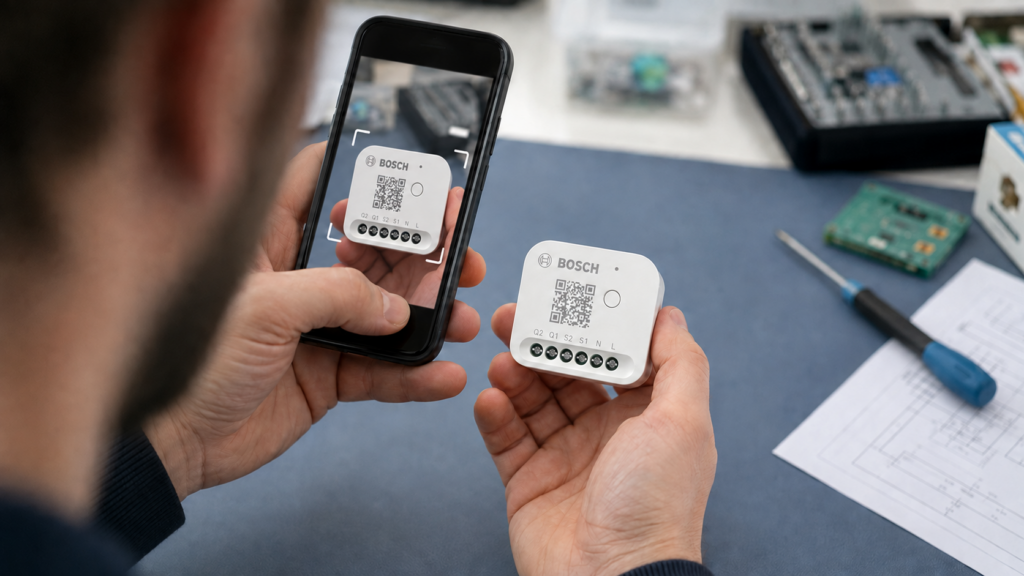
Some Zigbee devices need an installation code before they can join your network. If Zigbee2MQTT rejects a scanned code, distinguish two failures: it may not recognise the label’s format, or the coordinator may not support registering that key. A pairing failure alone does not establish either cause.
This guide follows Zigbee2MQTT 2.14.2 and zigbee-herdsman 10.10.0. It covers finding the correct code, registering it through the frontend or MQTT, and checking adapter and device requirements before another pairing attempt. No device was paired for this article.
What an install code does
An installation code is a value provisioned on a device during manufacture. Together with the device’s IEEE address, it lets the trust center register a device-specific link key. That key protects the initial network-key transfer to the joining device; it is not the shared network key used across the mesh.
Zigbee2MQTT’s security guide describes this commissioning option. Silicon Labs’ installation-code overview explains the out-of-band code and IEEE-address exchange. Other commissioning methods exist, including join paths that use a well-known trust-center key.
Register the key before the device needs it for its secure join. The interview follows joining and identifies endpoints, clusters and device support. A successful interview does not replace install-code registration.
Which devices require one
Check the exact model’s documentation, not just its brand or a QR sticker. Many ordinary consumer devices can join without entering a code, while some models require it. A QR may instead contain Matter or HomeKit setup information, a serial number or a product URL.
Bosch provides useful documented examples. Zigbee2MQTT’s BMCT-SLZ page requires installation-code registration and describes a 95-character alphanumeric QR string. The BTH-RA radiator thermostat page distinguishes Zigbee-only and Matter-capable variants: the latter’s QR is for Matter, so its Zigbee install-code string must be constructed from the documented label fields, and the thermostat must be in Zigbee pairing mode.
That makes “scan whatever QR is on the device” incomplete advice. Confirm the model, radio mode, label meaning and compatible coordinator before treating a code as mandatory or optional. Z-Stack 1.2 coordinators such as typical older CC2531 installations cannot register install codes through the driver checked here.
Finding the correct code
Look on the device, inside its battery cover, on supplied labels and in its manual. Keep a private copy of the installation-code label and device IEEE address together. They are security information, not something to post unredacted in a support screenshot.
Where the device page specifies a Zigbee QR, scan it and preserve the complete decoded string. The BMCT-SLZ example includes more than the raw secret: the wrapper also identifies the device. A short printed field may therefore be insufficient as the complete input for Zigbee2MQTT’s Add install code dialog. It is not evidence that every vendor’s printed code is wrong or incomplete.
For a BTH-RA Matter-capable variant, follow its Zigbee2MQTT page’s exact construction and radio-mode instructions instead of submitting the Matter QR. For other models, use their own documented format. Do not invent missing code bytes or assume a different model’s wrapper applies.
A scanner that decodes a label locally can read this information without a vendor account. A particular scanner app may use online services or upload images; the Zigbee commissioning mechanism does not establish that app’s privacy behavior.
Registering the code
In the frontend, open Settings → Tools → Add install code, paste the correct decoded string and check the result. Use the layout on your installed version if menu labels differ. Register it just before the intended pairing attempt.
For MQTT, first subscribe to the matching response topic with your broker’s required authentication and TLS settings. Then send the request. Replace the example address, base topic, code placeholder and transaction identifier:
mosquitto_sub -h 192.168.10.20 \
  -t 'zigbee2mqtt/bridge/response/install_code/add'
mosquitto_pub -h 192.168.10.20 \
  -t 'zigbee2mqtt/bridge/request/install_code/add' \
  -m '{"value":"REPLACE_WITH_DEVICE_INSTALL_STRING","transaction":"my-install-code-request"}'
Check that the response has the matching transaction and status: "ok". The successful response echoes the submitted value, so keep it private. An error response or an adapter failure needs investigation before pairing. An “ok” acknowledges registration; it is not confirmation that the device has joined or that every feature is supported.
The MQTT API reference documents this request. In the released backend, the controller parses the address/code, checks or adjusts its CRC, then calls the selected adapter. Ember uses a transient-key table for this stage. Do not assume a submitted code remains registered forever across delays, coordinator resets or device removal; re-register when the device’s documented procedure or logs call for it. The BMCT-SLZ page explicitly advises adding it again after a failed rejoin following removal.
Install codes and permit_join
Registering an install code does not open joining. Once registration succeeds, enable the join window and put the device into the pairing mode specified for that exact model. Zigbee2MQTT’s current controller rejects a requested window longer than 254 seconds. Close joining after the operation.
The permit_join guide covers admission and passlists. A correct code cannot overcome a closed join window or an admission restriction, and an open window does not make an unsupported adapter accept an install code. For the BTH-RA, follow its separate variant instructions, including when to start valve adaptation after pairing.
Adapter and firmware support
The current driver implementation is a more precise check than the hardware brand. In herdsman 10.10.0:
| Driver | Example hardware | Registration path and limits |
|---|---|---|
| zstack | ZBDongle-P and suitable TI coordinators | Implements registration, but explicitly rejects Z-Stack 1.2 adapters. |
| ember | ZBDongle-E, Connect ZBT-1 with supported firmware | Derives/imports the key into the transient table; check the returned status. |
| deconz | ConBee/RaspBee | Writes a link key through the firmware interface; firmware support still matters. |
| zigate | ZiGate | The released registration method returns not supported. |
| zboss | zboss-based coordinators | The released registration method returns not supported. |
Older ConBee reports #14510, #16502 and #17492 describe unsupported registration in their installations. They do not supply a universal current firmware rule. Record your driver and firmware, read the actual returned error, and check the product’s supported update path rather than assuming a driver name proves success.
If the device truly requires install-code joining, a driver that cannot register its key is a practical blocker for this Zigbee2MQTT route. A differently formatted string cannot add a missing backend feature. Check current support before replacing hardware or changing firmware.
The ZBDongle-E/P comparison covers common Ember and Z-Stack choices. Keep firmware family and exact device requirements alongside that comparison.
Formats, CRC and “Unsupported install code”
The raw code and its vendor label wrapper are different things. The released parser recognises several wrappers: 95/91-character forms, Z:IEEE$I:CODE, pipe-separated address/code strings, Aqara’s G$M:...$A:IEEE$I:CODE, and a Hue form. The versioned helper shows the exact patterns; there is no general promise to accept every QR format.
Code lengths and the checksum are checked after wrapper parsing. Standard code data can be 6, 8, 12 or 16 bytes, with a two-byte CRC. In this release, the helper can add a missing CRC or replace an invalid one for supported lengths, and logs an adjustment. Acceptance therefore does not prove that the scanned secret matches the physical device. Verify the original hexadecimal fields rather than treating an adjustment as a successful join.
Discussion #19982 contains older format and CC2531 problems, including proposed wrapper/padding workarounds. Current Zigbee2MQTT recognises the supported vendor wrappers listed above. Use the current documented format or report an unsupported one with private fields redacted. Do not pad the secret or edit installed dependency code as a general fix.
- Identify the model and whether its label is a Zigbee install code.
- Compare the decoded string with the model’s documented wrapper and IEEE address.
- Check parsing/CRC errors separately from adapter registration errors.
- After successful registration, enable joining and follow the model’s pairing instructions.
- Confirm a completed interview and test the required functions.
Other pairing failures
A missing install code is one possible cause, not the default explanation for every refused join. Check the join window, admission settings, previous network membership, correct reset sequence, coordinator firmware and radio coverage. The Connect ZBT-1 guide covers the separate firmware/multiprotocol question.
Keep a sleepy device awake only as its model instructions specify. Some Aqara device pages recommend repeated brief presses during interview; that cadence is not universal and a long press can reset a different product. Likewise, proximity and Wi-Fi interference deserve checks rather than a guarantee that moving a device closer will resolve every fault.
Issue #18881 is an older report about Aqara joining after a ZHA migration, not proof that the models required install codes. Keep network migration and interview failures separate from code-format diagnosis.
Frequently asked questions
Does every Zigbee device need an install code? No. Check the exact device and its join requirements. A QR sticker alone does not establish that requirement.
What if a required code is missing? Recover the correct device label/manual information or ask the vendor. A fabricated code is not a substitute for the secret provisioned on that device.
Should I scan the QR or type the printed field? Follow the model’s documented format. A Zigbee QR can contain the required wrapper; a Matter QR may be unrelated to this registration path.
Why is the code unsupported? Inspect whether parsing, code size/CRC or backend registration failed. A short field, unsupported wrapper, old driver or incompatible firmware needs a different response.
Does my coordinator support it? Check the released driver and firmware. Z-Stack 1.2, zigate and zboss registration limits apply in the version inspected; current Ember and deCONZ have implemented paths with their own constraints.
Sources and limits
The security mechanism comes from project and Silicon Labs documentation; registration, parsing and driver limits were checked in the released source. Bosch model instructions are kept model-specific, and the issue/discussion examples remain historical reports. No pairing, firmware change or registration was performed for this article.
The Zigbee2MQTT registration/join exchange can run with a local broker and coordinator without a device vendor’s cloud. That does not establish the behavior of a chosen QR-scanner app, firmware-download service or other part of the deployment.