

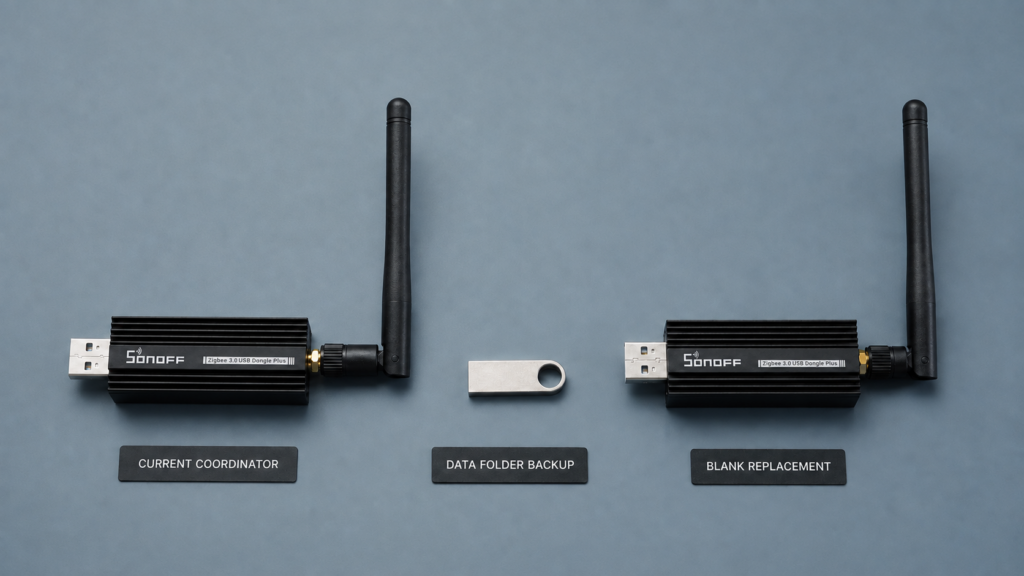
A coordinator backup and a full Zigbee2MQTT data backup solve different parts of recovery. The radio backup preserves network and security information that a compatible driver can import. The data directory preserves the instance’s configuration and device records. Keep both; neither is a substitute for Home Assistant’s own backup.
This guide follows Zigbee2MQTT 2.14.2 and its bundled zigbee-herdsman 10.10.0. It connects the migration FAQ, backup API and coordinator IEEE-address instructions, while noting where the released code has capabilities or limits the FAQ does not describe.
If you are choosing hardware, the ZBDongle-E/P comparison, Connect ZBT-1 guide and SLZB-06 guide cover that separately. A shared brand or chip-family name is not enough to establish migration compatibility.
What is in the backup
Keep the whole persistent data directory, including separately referenced device/group files, local converter/extension files and secrets stored there. Common files include:
configuration.yaml
coordinator_backup.json
database.db
state.json
configuration.yaml holds settings and may refer to other files. database.db contains device, endpoint and group records. state.json is a state cache, not a fresh physical reading. coordinator_backup.json, when supported and successfully written, contains radio network/security data. The exact export can include identifiers, key information, counters and device/link-key records, depending on the driver.
A coordinator backup is not a portable snapshot of the entire routing table or the live mesh. Routes and device reachability still have to recover. Preserve the database and configuration as well: a radio network that starts successfully does not establish that instance names, device definitions, MQTT discovery or automations are restored.
The built-in ZIP request refreshes the database and supported coordinator backup, then packages regular files under the data directory. In 2.14.2 it excludes the log/ and ota/ subtrees and skips symbolic links. Files, secrets, certificates or other dependencies stored outside that directory need their own backup. Record the volume mounts and environment overrides that tell the instance where to find them.
Zigbee2MQTT’s ZIP does not capture Home Assistant’s automations, scripts or entity registry. Those belong to Home Assistant’s separate backup. Protect the Zigbee2MQTT archive: it can contain network keys, broker credentials and executable local code.
Creating and checking a backup
Frontend: use Settings → Tools → Download data folder backup on the current frontend, or the equivalent label in your version. Save the downloaded ZIP outside the instance’s storage. Check that it opens and contains the expected configuration, database and any supported coordinator export. A downloaded filename alone is not proof of a useful recovery archive.
MQTT: subscribe to zigbee2mqtt/bridge/response/backup before publishing to zigbee2mqtt/bridge/request/backup. The successful response contains a base64 ZIP in data.zip. A request also refreshes supported on-disk backup data; saving and decoding the response gives you the separate archive.
The following example is for Bash with Mosquitto clients, jq, GNU coreutils (base64, mktemp and ln) and unzip. Use a fresh private working directory, your actual broker/base topic, required authentication/TLS options and a new unique transaction value in all three snippets. Do not use a retained request. Windows users can use the frontend download instead of translating these shell commands.
umask 077
set -o noclobber
mosquitto_sub -h 192.168.10.20 -R -C 1 \
  -t 'zigbee2mqtt/bridge/response/backup' > backup-response.json
Once the subscription is connected, run the request in another terminal:
mosquitto_pub -h 192.168.10.20 \
  -t 'zigbee2mqtt/bridge/request/backup' \
  -m '{"transaction":"phl-backup-CHANGE-ME"}'
After the response arrives, save the following as a Bash script and run it in the working directory. It validates and decodes the response, returns a failure status for an invalid/unmatched archive or an existing output, and leaves an existing final archive intact:
set -o pipefail
task_backup_tmp=$(mktemp ./z2m-backup.XXXXXX) || exit 1
task_backup_result=1
if jq -er 'select(.transaction == "phl-backup-CHANGE-ME" and .status == "ok")
  | .data.zip | strings | select(length > 0)' backup-response.json \
  | base64 --decode > "$task_backup_tmp" \
  && unzip -t "$task_backup_tmp" >/dev/null; then
  if ln -T -- "$task_backup_tmp" z2m-backup.zip; then
    task_backup_result=0
  fi
else
  printf '%s\n' 'No matching valid backup ZIP was received.' >&2
fi
if ! rm -- "$task_backup_tmp"; then
  task_backup_result=1
fi
exit "$task_backup_result"
GNU ln’s -T option treats z2m-backup.zip as the exact output path, so an existing file, directory or symlink there makes this command fail. Choose another output name for a new archive. If another client’s response arrived first, the transaction check fails safely: subscribe again and repeat your own request. Keep the checked archive with the version, adapter, firmware and date, then copy it to separate storage. Automating this route needs the same success and archive checks, rather than decoding every message blindly.
Adapter support and export limits
The current FAQ describes zstack and ember backup/migration support. Released herdsman 10.10.0 also implements a deCONZ export and startup import path. That does not demonstrate a complete no-re-pair migration on every ConBee firmware: its exported device list is empty and its key sequence number is fixed to zero, with source comments identifying unfinished security-state handling.
| Driver | Coordinator export in 10.10.0 | Recovery considerations |
|---|---|---|
| zstack | Implemented | Check source/target Z-Stack versions and compatible backup; legacy Z-Stack 1.2 restoration has restrictions. |
| ember | Implemented | Requires supported firmware and a compatible Ember backup. Verify effective coordinator IEEE separately. |
| deconz, ConBee/RaspBee | Implemented with limits | Export/import code exists, but incomplete device/key state and firmware support prevent a blanket preservation guarantee. |
| Legacy ezsp setup | Do not infer current Ember support from the hardware | Follow the documented driver/firmware migration before relying on current Ember procedures. |
| zboss | Released driver reports no coordinator backup support | Data-folder files still matter; plan radio recovery separately. |
| zigate | Released driver reports no coordinator backup support | Data-folder files still matter; plan radio recovery separately. |
Even an adapter without coordinator export can have a Zigbee2MQTT data-folder ZIP. Inspect its contents rather than assuming it contains restorable radio security state. Likewise, parsing a coordinator backup is not proof that a target can restore every device/link key or preserve pairing.
The Ember guide describes the current driver and supported firmware. Updating a legacy setup needs the product’s proper firmware and migration instructions; it is not automatically a harmless config-line switch. Third-party tools such as zigpy-cli have their own adapter and backup-format support, rather than guaranteeing compatibility with every Zigbee2MQTT target.
Recovery after a coordinator failure
The usual radio-restore path is selected at startup, not by a general “restore now” MQTT request. Discussion #8112 gives older advice about starting with a freshly flashed stick. Current drivers make the choice from adapter state, configuration and backup compatibility; it is not limited to a single universal blank/nonblank rule.
- Protect the source first. If still running, create and check a fresh archive. Then stop Zigbee2MQTT and keep an additional full stopped-data snapshot. If the coordinator already failed, preserve the existing directory before another startup can alter it. Back up Home Assistant too.
- Record identity and compatibility. Record the old effective coordinator IEEE from the frontend or saved coordinator database record, plus driver, firmware and network settings. Check the target’s supported restore route and backup format. Do not publish key-bearing files or logs.
- Prepare the target deliberately. Use firmware appropriate to the actual adapter. Preserve any target network you may need before following a vendor-specific erase or address-write procedure. A routine firmware flash does not necessarily clear network state, and this guide does not prescribe blanket erasing.
- Restore the instance files. Put the saved data and external dependencies in the target instance’s actual persistent paths. Keep the old key, PAN/extended PAN settings and intended channel; do not replace them with
GENERATE. Update serial port and any required baud/flow settings for the new hardware. - Handle coordinator IEEE as required. Follow the current IEEE-copying guide for the exact target. In the released Z-Stack restore path, the saved address is written to adapter NV state. Ember’s network-formation path does not itself perform that manufacturing-address write. deCONZ has its own address-parameter restore path. Do not assume the same behavior across them.
- Start one coordinator and verify. Keep the old network coordinator disconnected, start the target instance and read whether it resumed, restored or formed a new network. Confirm the effective IEEE and network identity, then test routers, sleepy-device reports and commands. If the logs show unexpected new commissioning or a mismatch, stop and investigate using the preserved snapshot.
- Check dependent behavior. Test direct bindings, every important group/scene and Home Assistant actions. Allow devices to reconnect and follow model-specific wake instructions. Make a separate post-recovery backup only after the network is working.
The current copying guide distinguishes EFR32 firmware with NV3-token support from the MFG_CUSTOM_EUI_64 fallback. Its Force fallback is a one-time write; that is not a statement that every EFR32 address change is always one-time. Verify the old address and exact tool/firmware method before writing, and do not assume a factory-address display proves the effective address was unchanged.
Migration compatibility
A supported same-family swap can preserve pairing when its compatible restore procedure is followed. The FAQ explicitly requires re-pairing for CC2530/CC2531 Z-Stack 1.2 → CC2652/CC1352 Z-Stack 3 despite both using zstack. A source/target driver label alone is therefore insufficient.
The documented zstack ↔ ember cross-family route is not officially supported and results vary. A ZBDongle-P to ZBDongle-E swap crosses those drivers. Plan a maintenance window and re-pair fallback; a deCONZ export with incomplete key/device data is not proof of equivalent cross-family preservation.
If a source cannot provide the state a target needs, rebuilding the network may be the practical outcome. Keep device identities, pairing access, group membership, scenes and bindings recorded before deciding that. Backup the data files even when they cannot eliminate radio re-pairing.
Limits and misleading recovery advice
state.json can restore stale displayed values. Check fresh device reports and physical behavior rather than using the restored dashboard as verification. Home Assistant MQTT discovery uses unique IDs derived from device identity and entity details, not simply friendly names; changing group/base-topic/definition behavior can also affect what is registered. A coordinator backup alone does not guarantee existing entity IDs or automation references.
A Z-Stack Configuration is not consistent with adapter state/backup! error means a particular combination of adapter, config and backup disagrees. Other drivers use different startup decisions. Deleting the coordinator backup can turn a mismatch into new commissioning and a re-pairing job. For a recovery, stop and reconcile the saved settings and compatible backup instead of treating deletion as the default fix. The channel-change guide covers its separate path.
A working coordinator with a damaged database needs a different investigation. database.db.backup is created on specified controller paths, including reset startup; it is not an independently versioned archive of every edit. Preserve both files and consult the database recovery guide before replacing anything.
When to back up
Take and verify a separate copy before firmware work, a channel change, host/storage migration or an integration upgrade. Keep scheduled copies too. An automatic coordinator file on the same disk is not protection against that disk or volume failing.
Herdsman 10.10.0 attempts supported coordinator backups on specified startup/stop paths and daily while running. Errors, stale files and driver limits remain possible, so check the file timestamp and backup logs. Keep the archive outside the instance’s data path and retain a known-working version before making a replacement.
FAQ
Does the ZIP include Home Assistant automations? No. Back up Home Assistant separately, including its registry and the references you want to preserve.
Can ConBee create a backup? A data ZIP is separate from radio support. Released deCONZ 10.10.0 also implements coordinator export/import with the limits above; the older FAQ’s blanket exclusion does not describe all of that source. It is not a tested no-re-pair guarantee for every target.
How is the coordinator file different from the whole data backup? It carries driver-dependent network/security state. Instance configuration, database, cached states and local files are separate, and outside-directory dependencies must be captured separately.
Will entity IDs and automations survive? Preserving device identity, instance data and Home Assistant’s registry helps, but verify the actual discovery entities and automations. Friendly names alone do not establish identity preservation.
Sources and limits
Backup packaging and request/response behavior were checked in Zigbee2MQTT 2.14.2. Radio export/import, database paths and startup choices were checked in herdsman 10.10.0; the migration and address pages provide the procedural limits. No coordinator was flashed, erased or restored for this article.
The deCONZ source implements more than the FAQ’s current summary, while also leaving explicit export/security-state limitations. Treat code capability as a reason to check the exact target and firmware, not evidence that every migration preserves a working mesh.