

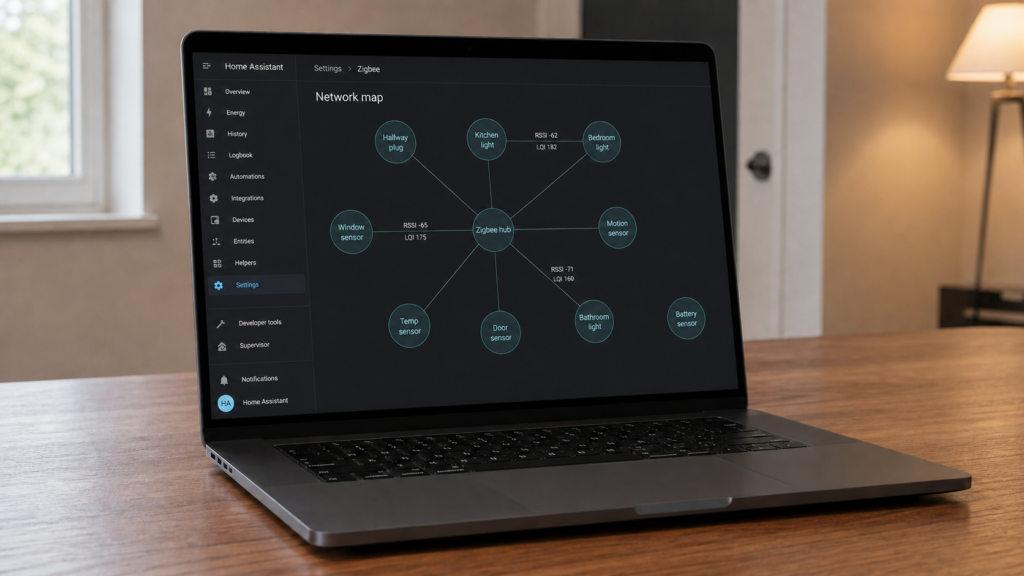
Search for a ZHA network map and the results are almost all wrong for what you actually need. The top hits are two community Lovelace card projects, both of which stopped being necessary years ago, followed by Home Assistant Community threads full of people who found the real map and cannot tell what it is showing them. None of this is because the feature does not exist. It is because it is buried and under-documented.
ZHA has shipped a built-in mesh visualization since Home Assistant 2020.12.0. This piece covers where it actually lives, what the lines and metrics mean, why the old tutorials point at dead projects, and when the actively maintained ha-zigbee-map HACS panel is worth installing on top of it. This is written from the ZHA side. If you are running Zigbee2MQTT instead, it has its own separate map with different terminology, covered briefly near the end.
Why your old tutorial points at a dead project
If a guide tells you to install zha-network-visualization-card (dmulcahey) or zha-map (zha-ng) to see your mesh, it was written before the built-in feature existed, or it never got updated after. Both projects were deprecated when Home Assistant 2020.12.0 absorbed their functionality into the ZHA integration itself. Their READMEs do not flag that prominently, which is exactly why they still surface near the top of search results and why people keep trying to install a tool they no longer need.
As of Home Assistant 2020.12.0, ZHA includes a native network map. You do not need a custom Lovelace card, a HACS install, or any YAML to see your mesh topology. If you already have one of the legacy cards installed, it is safe to remove.
Finding the built-in map
This is where most of the confusion starts, because the entry point has moved more than once and the older guides all point at the original one.
The route documented when the feature shipped was Configuration > Integrations > ZHA > Configure > Visualization. After Home Assistant renamed Configuration to Settings, the equivalent path runs through Settings > Devices & Services > ZHA and its configure option. There is also a per-device route that reaches the same topology view from the device page rather than the integration page: open any ZHA device, then Zigbee info, then View network.
If neither path shows the option on your install, you are not doing it wrong. Community threads running through 2025 include people asking where the ZHA map went after an update, and at least one report of the visualization failing on a 2025.8 beta. Try the per-device route before concluding the feature has been removed.
Menu paths for this feature are version-dependent and have changed at least twice since 2020.12.0. Trust the route you can find on your own install over any path written in a guide, including this one. A missing menu item is usually a version difference, not a broken integration.
Once it loads, it renders every paired device and the connections between them, including multi-hop paths where a signal has to bounce through a router to reach the coordinator.
Reading the map: lines, metrics, and what the shapes do not tell you
Lines between nodes represent the mesh paths the map has recorded, and each one is labeled with the reported RSSI (received signal strength) and LQI (link quality indication) for that hop. A device sitting at the end of a long, low-quality chain back to the coordinator is a candidate for a router placed closer to it. A device with no line at all is one the map has not recorded a recent path for, which is a different problem than a weak link.
The node shapes are less useful than they look. Guides commonly describe a rectangle for the coordinator, ovals for mains-powered routers, and circles for battery-powered end devices, and that broadly matches how Zigbee tooling renders topology generally. ZHA publishes no shape or color legend in its own integration documentation, so treat the shapes as a rendering convention rather than a specification. When you need a device’s actual role, read it off the device page under Zigbee info, where ZHA states it directly as coordinator, router, or end device.
The map reflects the last known topology, not live mesh health. It does not refresh in real time. A battery-powered sensor that has not reported in a while can show a stale or missing link even though the device itself is fine. Do not treat a stale entry as proof of a dead route without checking the device’s actual last-seen activity first.
If you are planning where to add a router versus which devices are safe to leave as battery end points, our guide to Zigbee routers versus end devices goes into that distinction in more depth than a map screenshot alone can.
When the built-in map is not enough: what ha-zigbee-map adds
The built-in map answers “what does my mesh look like.” What it does not give you is a published legend, so working out which links are worth worrying about means reading every RSSI and LQI label yourself. That is the gap ha-zigbee-map (maintained by dan-danache) aims at, based on its GitHub README and project page. It is a third-party HACS panel, not something I have run against a live mesh myself.
Per its documentation, it works with both Zigbee2MQTT and ZHA, and it color-codes both nodes and links against a documented scheme. Mains-powered repeaters render blue, battery-powered end devices render green, and a repeater the tool suspects is offline or unresponsive shows magenta. Link quality follows the same pattern. Green or cyan is a strong link. Red or violet is a weak one, where a repeater might help. It also includes a live traffic-log panel, something the built-in map has no equivalent for.
Installing ha-zigbee-map via HACS
It is added as a custom repository rather than something in the default HACS catalog, and the type you pick is the part people get wrong. Despite shipping as a sidebar panel, it is added with the type Integration, not Dashboard and not Frontend.
Repository: https://github.com/dan-danache/ha-zigbee-map
Type:       Integration
Downloading it is not the last step. Restart Home Assistant, then go to Settings > Devices & Services, add the Zigbee Map integration, and the panels appear in the sidebar. Stopping after the HACS download is the second thing people get stuck on, right behind picking the wrong repository type.
| Feature | Built-in ZHA map | ha-zigbee-map (HACS) |
|---|---|---|
| Platform support | ZHA only | Zigbee2MQTT and ZHA |
| Install | Already included, no setup | HACS custom repository, type Integration |
| Published legend | None documented by ZHA | Node role and link quality both documented |
| Traffic log | Not included | Included |
| Maintenance | Home Assistant core | Actively maintained third-party project, as of 2026 |
I think the built-in map does the essential job well enough that most readers do not need to add anything on top of it. Where ha-zigbee-map earns its install is a larger or messier mesh, where color-coded link quality turns “check every line manually” into “look for the red ones.”
Common confusion points
A few patterns show up repeatedly in current Home Assistant Community threads asking how to interpret the ZHA visualization, including active 2026 threads on this exact question.
- Devices missing entirely. A device that has not finished configuring, or one ZHA does not have a working quirk for, may not render correctly. If a device is technically joined but ZHA does not understand its clusters properly, our custom ZHA quirk guide covers writing one for it.
- Stale-looking links. As covered above, the map does not live-poll. A sleepy end device’s last recorded hop can look outdated without anything actually being wrong.
- RSSI versus LQI confusion. They are not the same measurement and do not always move in the same direction. RSSI is raw received signal strength. LQI factors in additional radio-quality signal beyond strength alone. A link can show decent RSSI and still have a weak LQI.
Zigbee2MQTT has its own separate network map, with its own frontend and its own reporting conventions. It is not the same feature under a different name. If you are deciding which platform to run rather than troubleshooting a map you already have, our ZHA versus Zigbee2MQTT comparison covers that decision. If a specific routing failure sent you looking at the map, our write-up of the many-to-one route failure documents one failure signature, though that one is specific to Zigbee2MQTT’s own error naming rather than something ZHA reports the same way.
FAQ
How do I see my ZHA Zigbee network map in Home Assistant?
There are two routes and which one you have depends on your Home Assistant version. From the integration side, go to Settings > Devices & Services > ZHA and open its configure option, which on older versions reads Configuration > Integrations > ZHA > Configure > Visualization. From the device side, open any ZHA device, then Zigbee info, then View network. If one route does not show the option on your install, try the other before assuming the feature is gone.
What do the colors and shapes mean on the ZHA network visualization?
ZHA does not publish a legend for either. The shape convention commonly described (rectangle for coordinator, oval for routers, circle for end devices) is a general Zigbee-tooling rendering habit, not a documented ZHA specification, so do not make decisions on shape alone. For a device’s real role, check Zigbee info on its device page. If you install ha-zigbee-map, that tool adds its own documented color scheme for node role and link quality.
Is zha-network-visualization-card still needed, or is it deprecated?
Deprecated. It predates ZHA’s native map, which shipped in Home Assistant 2020.12.0 and covers the same job without a custom card. The same applies to zha-map.
Does ha-zigbee-map work with ZHA, or only Zigbee2MQTT?
Both, per its own documentation. It is built to work across either integration rather than being tied to one.
Which HACS category do I pick for ha-zigbee-map?
Integration. It is a common trip-up because the project presents as a sidebar panel, which makes Dashboard or Frontend look like the right answer. After downloading it, restart Home Assistant and add the Zigbee Map integration from Settings > Devices & Services.
Why do not all my devices show up on the ZHA network map?
Usually it comes down to one of two things. Either the device has not fully configured or ZHA lacks a proper quirk for it, or it is a battery-powered device that has not reported recently enough for the map to have a current path recorded.
What this piece verified
This is built from Home Assistant’s own ZHA integration documentation, the GitHub project pages for zha-network-visualization-card, zha-map, and ha-zigbee-map, the HACS custom-repositories documentation, and current Home Assistant Community threads showing recurring confusion about interpreting the built-in map. No hands-on installation or bench testing was performed against either the built-in map or the HACS panel. The ha-zigbee-map feature descriptions above reflect what its README and project page claim, not a run I did myself.
Two items that were open when this was drafted are now settled. The HACS repository type is Integration, confirmed against the project’s own install instructions. The node-shape convention is not documented by ZHA anywhere I could find, which is why this piece points you at the device page’s role label instead of the shape.
One thing worth checking yourself: the menu path. This feature’s entry point has moved at least twice, and community reports through 2025 show people losing track of it after an update. Everything the built-in map does stays local to your Home Assistant instance either way, and so does ha-zigbee-map, which reads from your existing Zigbee2MQTT or ZHA setup rather than any vendor service. Whether the panel ever gets pulled into Home Assistant core the way the built-in map replaced the legacy Lovelace cards is worth watching, but nothing in the source material suggests that is planned.