

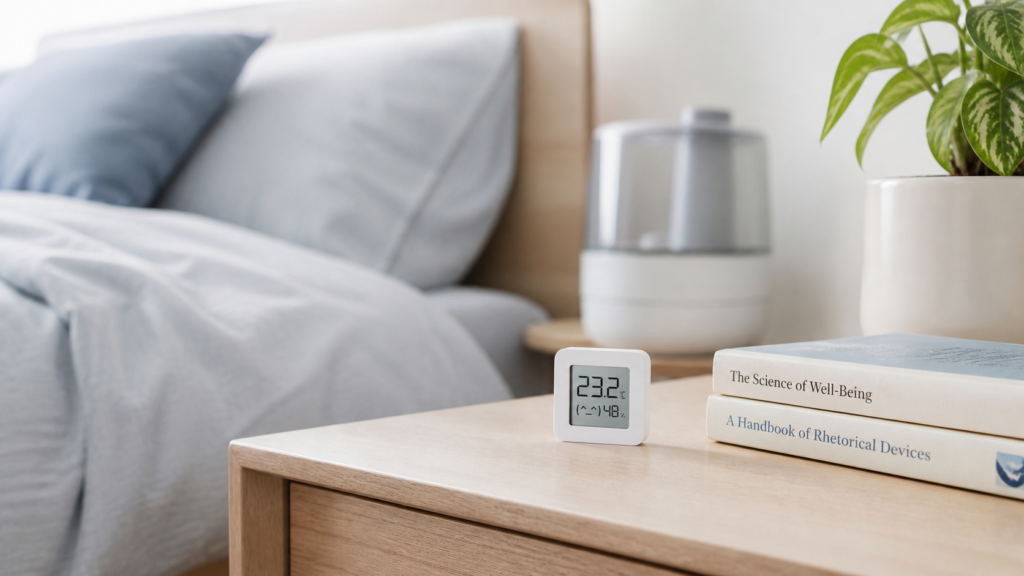
Xiaomi LYWSD03MMC: Local Home Assistant via pvvx & BTHome
The Xiaomi LYWSD03MMC is probably the most popular cheap thermometer in the homelab world. At somewhere around $4 on AliExpress, the price-to-functionality ratio is hard to argue with. But the stock firmware is entirely cloud-dependent — it broadcasts temperature and humidity in an encrypted Bluetooth format that only the Mi Home app can decrypt, and the decryption keys come from Xiaomi’s servers. Take away cloud access and you have a small LCD display with a battery.
The fix is well-established: replace the stock firmware with pvvx’s ATC_MiThermometer project. After flashing, the sensor broadcasts readings locally in a format called BTHome, which Home Assistant auto-discovers with no cloud dependency whatsoever. The sensor keeps working when your internet is down. Your data never leaves your network.
This guide covers both paths: the BTHome Bluetooth route (sensor stays Bluetooth, adds to HA via BTHome integration) and the Zigbee conversion route (sensor becomes a Zigbee device, integrates via Zigbee2MQTT). Before either path, there’s a hardware version check you need to do — the 2025 B1.5/B1.6 revision introduced a problem that affects whether the firmware will work correctly on units bought this year.
What the stock LYWSD03MMC actually does
Stock firmware uses Xiaomi’s proprietary encrypted Bluetooth Low Energy advertising format. The sensor broadcasts temperature and humidity readings, but those readings are encrypted with a per-device key that lives in Xiaomi’s cloud. The Mi Home app fetches the key, decrypts the broadcast, and shows you the reading. Without the app — and without an active Xiaomi account with that device registered — you get nothing usable out of the BLE packets.
This means the stock LYWSD03MMC has no local path. You can’t use it with Home Assistant’s Xiaomi BLE integration in any meaningful offline-capable way. The HA docs page for the Xiaomi BLE integration documents the Mi Home setup flow, but doesn’t cover what happens when cloud access is unavailable: the integration stops updating.
For a $4 sensor that’s supposed to sit in your bedroom and tell you the temperature, a cloud dependency is an odd design choice. The pvvx firmware solves it by replacing the entire advertising stack with an open format.
Choosing your path: BTHome BLE vs Zigbee
Before flashing, decide which path fits your setup. Both eliminate cloud dependency completely. The differences are practical:
| BTHome (BLE stays) | Zigbee conversion | |
|---|---|---|
| Requires | Bluetooth adapter in HA | Zigbee coordinator (Zigbee2MQTT) |
| Entities | Temperature, humidity, battery | All of the above + voltage, display config, calibration offsets |
| Reversible? | Yes, can reflash to stock | No — reverting needs physical UART |
| Z2M required? | No | Yes |
Choose BTHome if: you already have Bluetooth coverage in HA (onboard Pi Bluetooth, a USB BT dongle, or an ESPHome Bluetooth proxy) and don’t run Zigbee2MQTT or don’t want to add to your Zigbee mesh.
Choose Zigbee if: you already run Zigbee2MQTT and want the richer entity set — configurable display units, smiley indicators, comfort range settings, and calibration offsets are all exposed through Z2M. The Zigbee path also integrates the sensor into your mesh for better coverage if you have multiple sensors.
One important caveat on the Zigbee path: it’s a one-way conversion for most users. After flashing Zigbee firmware, there’s no Bluetooth firmware running on the chip. If you need to go back to stock BLE, you need physical UART access to the PCB. If you’re not comfortable with that, or if you only have a handful of these sensors and might want to move them between setups, stick with BTHome.
If local-first is a new concept for you, it’s worth understanding why running these devices without internet matters before you start flashing firmware — the short version is that a sensor that broadcasts in an open format keeps working whether or not the vendor’s servers are reachable.
Hardware version check: the 2025 B1.5/B1.6 trap
If you bought LYWSD03MMC units in 2025, check the hardware version before doing anything else. The pvvx firmware project documents that B1.5 and B1.6 revisions released in early 2025 are defective — they use a non-standard SPI LCD controller, have higher current consumption, and a lower-contrast display. Versions B1.4, B1.7, B1.9, and B2.0 are normal.
There’s an additional wrinkle worth knowing about. On B1.6 units sold since March 2025, the pvvx firmware (on builds newer than 5.3) can misdetect the hardware and report it as B1.1. The PCB label on your unit and what the firmware reports after flashing may not match — a B1.6 PCB might read as B1.1 post-flash. This is a known firmware-side detection quirk, not a sign that you flashed the wrong file.
How to identify your version: The hardware version is printed on the back of the PCB. You need to open the sensor (it’s a simple press-fit back cover) to read it. Check before purchasing if you’re buying from a listing that shows PCB photos, or ask the seller.
If you have B1.5 or B1.6 hardware, the firmware will flash and function, but you’ll see the LCD artifacts and higher battery drain. The temperature and humidity readings sent over BLE or Zigbee are unaffected — the firmware issue is display-specific, not sensor-specific. If the display appearance doesn’t bother you and battery life is acceptable, you can still proceed. If you’re placing these in hard-to-reach spots and need the CR2032 to last, you may want to swap the units.
Path A: Flash pvvx firmware, add via BTHome
Step 1: Flash the firmware over-the-air
The pvvx firmware can be flashed entirely from a browser — no UART, no disassembly beyond opening the back cover to press a pairing button. You need Chrome or Edge (Web Bluetooth API is required; Firefox doesn’t support it).
- Open
pvvx.github.io/ATC_MiThermometer/TelinkMiFlasher.htmlon a Chrome or Edge browser with Bluetooth enabled on the host machine. - Put the LYWSD03MMC in pairing mode by pressing and holding the button on the device until the display shows a BLE icon. The web flasher will show available devices — select your LYWSD03MMC.
- Once connected, click “Custom Firmware” and then “Do Activation” to unlock the device for custom firmware flashing. The activation step establishes a connection to the device’s BLE GATT server and prepares it for OTA.
- After activation succeeds, click “Choose Firmware File” — download the latest
.binfrom the pvvx GitHub releases and select it, or use the “Ota URL” field to pull it directly. The standard firmware file isATC_MiThermometer.bin. - Click “Start Flashing.” The process takes about 60-90 seconds. The display will reboot.
After flashing, the device broadcasts in a default advertising format (usually ATC1441 or PVVX custom format depending on firmware version). You need to switch it to BTHome format for HA auto-discovery.
Step 2: Switch advertising format to BTHome v2
Connect back to the sensor via the web flasher (or the “Simple Config” page linked from the flasher). Under “Advertising type,” select “BTHome v2.” Save the configuration.
Once BTHome v2 is selected, the sensor starts broadcasting temperature, humidity, and battery level in the open BTHome format. Any BLE scanner near the sensor will see it in plaintext.
Step 3: Add to Home Assistant via BTHome integration
Home Assistant should auto-discover the device. Check Settings > Devices & Services — you should see a BTHome discovery notification for the sensor. Accept it. HA will create entities for temperature, humidity, and battery percentage.
If HA doesn’t discover it: A common pain point is dismissing the BTHome discovery notification by accident (or it appearing while the integration wasn’t yet set up). If you dismissed it, the device won’t reappear on its own. Go to Settings > Devices & Services > Add Integration, search for BTHome, and manually add it. If it still doesn’t appear, check that Bluetooth is working in HA — run a Bluetooth scan from the Bluetooth integration page and verify the device appears in the scan results.
The LE Long Range (Coded PHY) trap: In the pvvx firmware advanced config, there’s an option called “LE Long Range Only” (Coded PHY mode). Do not enable this. HA’s Bluetooth stack does not support Coded PHY, and enabling it will make the sensor invisible to Home Assistant entirely. If you’ve enabled it and lost the device, connect back via the web flasher and disable it.
Once added, the sensor appears as a device with temperature, humidity, and battery entities. All readings are local — BLE advertising is passive and entirely on your network. No outbound traffic to Xiaomi or anyone else.
Path B: Convert to Zigbee (Zigbee2MQTT)
When to choose this path
If you’re already running Zigbee2MQTT with a coordinator (e.g., a Sonoff Zigbee 3.0 USB Dongle Plus or similar), converting LYWSD03MMC to Zigbee gives you a richer set of entities and tighter integration with your existing mesh. You lose Bluetooth, but gain display configuration control from HA and calibration offsets directly in Z2M.
If you don’t yet have a Zigbee coordinator running, you’ll need to set one up first — coordinator selection and the initial Zigbee2MQTT install are a prerequisite for this path.
Flashing Zigbee firmware via OTA
There are two community Zigbee firmware projects for this sensor: the original devbis/z03mmc and pvvx’s ZigbeeTLc. Both are flashed via the same OTA web flasher method as Path A, with one difference: you select the Zigbee firmware file instead of the standard ATC firmware. This guide uses pvvx’s ZigbeeTLc, which is the more actively maintained of the two.
- Follow the web flasher steps from Path A through the activation step.
- When selecting the firmware file, use the Zigbee firmware (
.bin) from the ZigbeeTLc (or z03mmc) project releases rather than the standard ATC firmware. - Flash and reboot.
After flashing, the sensor no longer broadcasts BLE. It’s now a Zigbee end device.
Adding to Zigbee2MQTT
Put Z2M into pairing mode (Permit Join). Press and hold the button on the LYWSD03MMC for several seconds to put it in Zigbee pairing mode. How the device shows up depends on which firmware you flashed: the original devbis z03mmc firmware has been supported natively in Zigbee2MQTT since version 1.33.2 (including OTA updates) and appears as LYWSD03MMC. From pvvx’s ZigbeeTLc v0120 onward, the firmware reports a distinct model so the two can be told apart, and Zigbee2MQTT now carries a separate device page for it as LYWSD03MMC-z. Either way, Z2M handles it without a manual external converter on current releases.
Entities exposed in Z2M
The Zigbee firmware exposes significantly more than the BTHome path:
- Temperature and humidity (same as BTHome)
- Battery percentage and voltage
- Display unit configuration (Celsius/Fahrenheit toggle)
- Smiley indicator enable/disable
- Comfort range settings (min/max temperature and humidity for the smiley face)
- Temperature and humidity calibration offsets
If you’re using multiple sensors and there’s a slight offset between units (common on cheap sensors), the calibration offset feature in Z2M is genuinely useful. You can trim each sensor independently without touching the firmware.
One-way caveat
After Zigbee conversion, there is no Bluetooth firmware on the chip. Reverting to stock BLE or BTHome requires physical UART access to the PCB — you’d need a serial adapter and the appropriate pinout for the Telink TLSR8251 chip. For most homelab setups, the Zigbee conversion is permanent. Make sure you’re committed to running Z2M before choosing this path.
What you gain: privacy, entities, and battery life
After either path, the LYWSD03MMC has no cloud dependency. Stock firmware needed Xiaomi’s infrastructure to decrypt BLE broadcasts. pvvx firmware broadcasts in an open format — BTHome v2 or Zigbee, both readable without any external service.
The entities you get in HA are the basics you’d want from a temperature sensor: temperature, humidity, and battery level. The Zigbee path adds voltage (useful as an immediate battery indicator before the BLE 24-hour reporting delay) and the display configuration entities.
Battery life with pvvx firmware on a CR2032 extends beyond a year at default advertising intervals, per the firmware project’s documentation. The stock firmware has more aggressive polling behavior; pvvx’s default advertising interval is calibrated for longevity. B1.5/B1.6 units aside, this is a CR2032 sensor you can put somewhere inconvenient and not worry about for a long time.
There’s no meaningful network traffic to audit here. BLE advertising is passive — the sensor broadcasts, nothing phones home. On the Zigbee path, traffic stays within your Zigbee mesh and Z2M. If you run a packet capture on your uplink, you won’t see LYWSD03MMC traffic.
If you want a sensor that also reports atmospheric pressure with Aqara build quality, the Aqara WSDCGQ12LM temperature, humidity and pressure sensor is worth comparing — it runs the same hub-free Zigbee2MQTT path.
FAQ
Does the LYWSD03MMC work without the Mi Home app after flashing pvvx?
Yes, completely. The stock firmware requires Mi Home for decryption. pvvx firmware broadcasts in an open format with no app or cloud dependency.
What’s the difference between pvvx firmware and the older ATC firmware?
ATC was an earlier alternative firmware project. pvvx is an evolution that added BTHome support, better display handling, configurable advertising intervals, and ongoing maintenance. For new setups, use pvvx. The ATC format is still supported by pvvx firmware as a legacy option, but BTHome v2 is the right choice for Home Assistant.
How do I flash pvvx firmware without opening the device?
The web OTA flasher at pvvx.github.io/ATC_MiThermometer/TelinkMiFlasher.html handles the full flash from a Chrome or Edge browser over Bluetooth. You do need to press the pairing button to put the device in BLE advertising mode, which requires opening the back cover. The PCB itself doesn’t need any wiring.
Which hardware version of LYWSD03MMC should I buy in 2025?
Avoid B1.5 and B1.6. Look for B1.4, B1.7, B1.9, or B2.0. Check PCB photos in the listing if available, or ask the seller. On B1.6 units sold after March 2025, newer pvvx builds may misdetect and report the hardware as B1.1 — don’t be confused by the mismatch.
What is BTHome and how does it work with Home Assistant?
BTHome is an open BLE advertising standard for sensor data. Devices broadcast readings in a defined binary format that any compatible receiver can parse without a proprietary protocol. Home Assistant’s BTHome integration listens passively for these broadcasts and creates entities automatically. Nothing is polled, nothing connects outbound.
Can I convert LYWSD03MMC to Zigbee instead of Bluetooth?
Yes — the devbis z03mmc or pvvx ZigbeeTLc firmware converts it to a standard Zigbee end device supported natively in Zigbee2MQTT (as LYWSD03MMC or LYWSD03MMC-z depending on the firmware). The trade-off is that the conversion is one-way without UART access. Choose this path if you’re already running Z2M and want the richer entity set.
The LYWSD03MMC is the rare case where a $4 device becomes genuinely useful for a private setup with a 90-second browser-based firmware flash. BTHome is the right choice for most setups — it’s fast, reversible, and HA handles discovery automatically. Go Zigbee if you want calibration offsets and Z2M integration, and you’re committed to that setup long-term.
Check your hardware version first. Everything else is handled by the web flasher.