

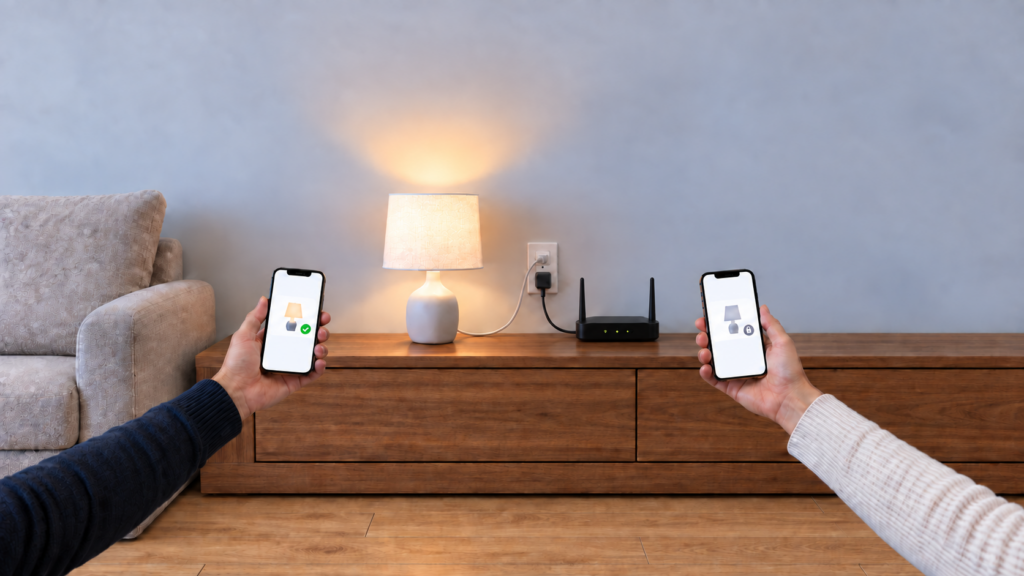
If a Tuya device works from one phone but fails from another, check account access and the local connection before resetting it. A new handset doesn’t need to be the one that originally paired the device. Tuya supports multiple-phone logins, device sharing, and Home membership.
The harder case is a second phone that works while online but fails during an internet outage. That needs its own test: having access to a device in the cloud doesn’t prove the phone can already control it over the LAN. This guide draws on documentation and published reports; it doesn’t describe a hands-on test of particular phones or devices.
This applies to Tuya Smart and Smart Life. Home Assistant’s LocalTuya and tuya-local use a different setup. See what keeps those integrations working when the Tuya cloud is blocked.
The symptom
The first phone still controls a device, but the second shows a spinner, stale state, or no response on the household Wi-Fi. Separate two questions: can the second account control it while online, and can that phone control it with the internet disconnected? They point to different checks.
The folk rule, and where it comes from
The Chinese troubleshooting article 涂鸦智能产品断网后如何控制 (“How to control Tuya products after disconnecting from the internet”) lists staying on the pairing network, keeping the app cache, and using the original phone among its outage-control conditions. Similar wording appears in a Zhihu search result; that repetition doesn’t make it an independent protocol test.
The outage context matters. A phone that has already loaded a device may have information a fresh installation lacks. Tuya’s multi-phone guidance doesn’t impose an original-handset requirement, so “use the same phone” is too broad to be a useful first diagnosis.
What Tuya’s protocol actually checks
Tuya’s LAN-control documentation describes devices broadcasting their presence over UDP. The app listens when you open the device panel and requests a direct TCP connection. The documented TuyaOS default is three simultaneous app connections; the device stops broadcasting when it reaches that limit. Firmware and product implementation can differ, so don’t treat three as a guaranteed capacity for every Tuya device.
Discovery needs a working local network path. A guest Wi-Fi network or client isolation can prevent that even when both devices reach the internet. Authorization matters too: Tuya’s app SDK documentation identifies localKey as required for LAN commands. The TinyTuya project documents device keys for local access, and our key-extraction guide covers them for Home Assistant users. The stock app normally handles this information for an authorized account.
Tuya says LAN control depends on the manufacturer’s implementation. Its guidance excludes cloud-dependent products such as cameras and video doorbells. Adding another phone won’t give an unsupported device an offline control path.
Why a second phone actually fails
Check these separately:
- Local network access. The phone must be able to discover and connect to the device. Check the Wi-Fi network, isolation settings, app permissions, and other apps holding local connections.
- Account access. The phone must use the device owner’s account or an account granted access through sharing or Home membership.
- Readiness for an outage. If a fresh installation works online but not offline, try loading the device panel while online before retesting. This is a troubleshooting inference from the cache report and key requirement, not a procedure Tuya guarantees for every product.
A family member’s new account may simply lack access. Your replacement phone may use the correct account but lack a local network path, necessary permission, or cached device information. Successful online control rules out some account problems, but the app may still be using the cloud; test the offline case separately.
Fixing it: the three routes Tuya documents
Tuya lists three ways to let different phones or people control a device:
| Method | What it does | Best for |
|---|---|---|
| Same account, another phone | Uses the account that already owns the devices; multiple-phone login is normally supported | Your replacement or second phone |
| Device sharing | Gives another account access to a supported device | Sharing one device |
| Home membership | Grants household access according to the member’s role | Family who need access to the Home’s devices |
Use the app in which the devices were added. Don’t assume signing into Tuya Smart will show devices from Smart Life; our guide to the two apps explains the account separation. Tuya’s sharing guidance says the owner or Home administrator should issue access, and accounts normally need the same registered country/region. Some device categories don’t support individual sharing, making Home membership the appropriate route.
There is a relevant exception: Tuya documents same-country sharing failures after data-centre changes in places including Singapore. If the invitation says the accounts belong to different data centres, follow the vendor’s sharing-link and data-centre instructions instead of resetting the device. The account’s registered region isn’t a freely editable setting; our data-centre guide gives more background.
The earlier independent troubleshooting write-up also recommends Home membership for ongoing family access. Tuya’s own guidance is the stronger source for the supported routes and their restrictions.
The app-cache condition: community-reported
The Chinese write-up says clearing app data or reinstalling can break offline control. That is a reported condition, not a universal vendor-confirmed rule. The requirement for a local key makes missing device information a plausible explanation, but it doesn’t tell us exactly what a particular app version cached or why it failed.
Before resetting anything, reconnect the phone to the internet, sign into the authorized account, open the device panel, and test again. If it still fails offline, keep checking the local path and device capability rather than assuming the cache explains everything.
What to check, step by step
- Check the network. Use the household Wi-Fi, not mobile data or an isolated guest network. Confirm the app has any local-network permission required by the phone’s operating system.
- Check the account and app. On your replacement phone, use the account and app that own the devices. For someone else’s account, confirm they accepted device sharing or a Home invitation.
- Fix access first. Use individual sharing where supported, or Home membership for household access. If the invitation fails, check registered regions and any explicit data-centre error.
- Compare online and offline control. With the internet available, open each device panel and try a command. Then disconnect the router’s internet connection while keeping Wi-Fi running and retest. Loading first is a practical check, not a guarantee of offline support.
- Check occupied local connections. Close the device panels on other phones and pause other local clients for a test. The documented TuyaOS connection limit can stop new discovery; your device’s implementation may use a different limit.
A second phone alone doesn’t require a factory reset. Re-pairing can disrupt device references, scenes, and automations, and it changes the local key used by LocalTuya or tuya-local. Fix account access and test the local path first.
If another fault does require re-pairing, check which automations depend on the cloud and what a changed local key breaks before starting.
FAQ
Why can’t my family member’s phone control my Tuya/Smart Life devices? Check whether their account has access and whether they accepted the invitation. If online control works but offline control fails, test local-network access and the device’s LAN capability next.
Do I have to use the same phone that set up my Tuya device? No. Tuya normally supports the same account on another phone, device sharing, and Home membership. Offline readiness still needs testing on each phone.
Does Tuya local control work over Wi-Fi without the internet? Supported devices can work over the LAN after initial registration. Tuya’s support guidance describes the registration requirement. Support depends on the product; don’t assume a camera or doorbell will behave like a LAN-capable plug.
Why does my Tuya device only work at home and not on mobile data? Mobile data can’t use the device’s local network path. Check the cloud connection, account access, and any internet block. Blocking the device’s internet access is an expected cause; see our cloud-blocking guide.
How do I let someone else control my Tuya devices without sharing my login? Use device sharing where supported or invite them to the Home. Check their role, registered region, and the invitation result.
Evidence and an outage check
Tuya documents LAN discovery and connections, the local-key requirement, the three multi-phone access routes, and manufacturer-dependent LAN support. The cache explanation comes from published troubleshooting advice and remains an inference. Neither successful cloud control nor a Home invitation proves outage control is ready. Keep Wi-Fi running, disconnect the internet link, and check every household phone you expect to use during an outage.