

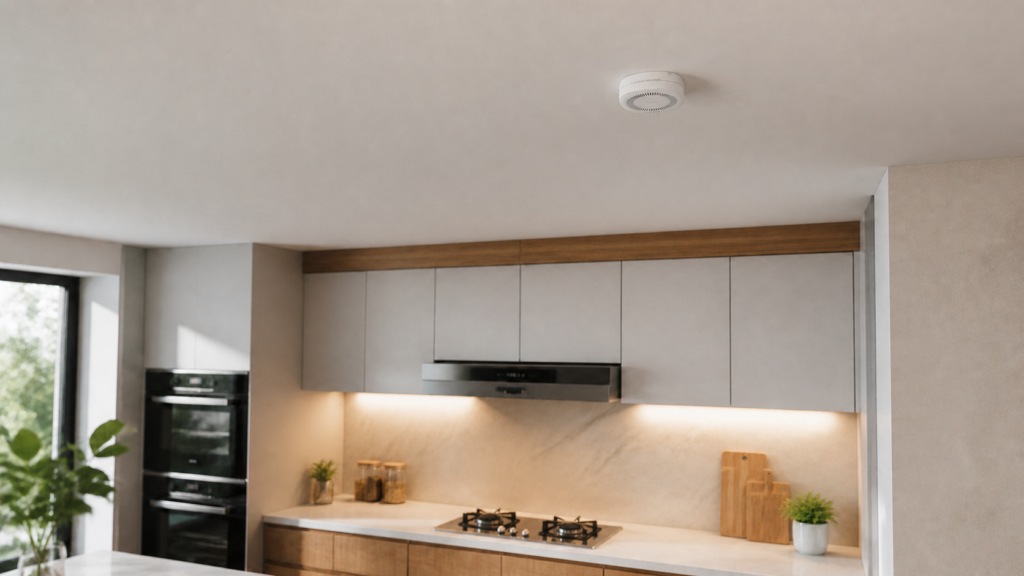
Aqara Gas Detector JT-BZ-01AQ: Zigbee2MQTT + Home Assistant
The Aqara JT-BZ-01AQ/A can report its gas alarm and diagnostic state to Zigbee2MQTT. Home Assistant can use those reports for supplementary notifications and maintenance reminders without an Aqara hub.
Check the fuel type before using it. Aqara’s manual specifies methane/natural gas and excludes LPG and manufactured coal gas. A piped-gas supply should not be assumed to be methane simply because it comes through a pipe. Confirm suitability, local certification, installation, and maintenance requirements with the manufacturer or a qualified installer.
Keep the alarm’s safety function independent of Home Assistant. Phone notifications depend on power, networking, software, and delivery services. They supplement the correctly installed alarm and an appropriate emergency response; they are not a replacement.
This site uses affiliate links where available. None apply to this article — the JT-BZ-01AQ isn’t currently carried by affiliate programs I use.
Check the exact detector model
This guide concerns JT-BZ-01AQ/A. Zigbee2MQTT lists JT-BZ-03AQ/A as a white-label model. Older Honeywell/Aqara detectors use other model identifiers and must be checked against their own manuals; do not assume matching power, wiring, or settings.
The JT-BZ-01AQ/A manual specifies a 220VAC supply arrangement. Follow the supplied power and installation instructions for your actual unit. The detector is not a battery-only sensor, and a battery compartment or internal cell should not be interpreted as a replacement for its specified supply.
Prerequisites
- A detector suitable for your fuel and location, installed according to its manual.
- A working Zigbee coordinator, Zigbee2MQTT, MQTT broker, and Home Assistant MQTT integration.
- A notification destination you can test independently.
The Zigbee2MQTT device page lists minimum firmware for older adapters:
| Adapter family | Documented minimum |
|---|---|
| CC2530/CC2531 | 20211115 |
| CC1352/CC2652 | 20211114 |
| CC2538 | 20211222 |
| ConBee II | 0x26720700 |
These are compatibility notes for those adapters, not the latest recommended versions for every coordinator. Follow your adapter’s upgrade procedure if necessary. The hub-free Aqara guide covers the general integration setup.
Pairing
- Enable joining in Zigbee2MQTT.
- Quickly press the detector’s button three times, as documented for this model.
- Wait for the interview to complete and give the device a recognizable name.
- Check its operating state and Home Assistant reports before adding notifications.
Do not relocate an installed alarm to improve radio coverage without checking its required installation position. Improve the Zigbee network around the correct alarm location instead.
Allow preparation to finish
The reported state distinguishes preparation from work. Gas measurement and alarm triggering are performed in the working state. Preparation must not be treated as a healthy “no gas” result.
Follow the manual’s warm-up guidance. If it remains in preparation or reports a fault, investigate the detector itself rather than hiding the state in Home Assistant.
Alarm and diagnostic reports
Use the gas binary sensor for an alarm notification. Gas density is reported in %LEL, not ppm or a percentage of gas in air. Display it as supplementary information, without converting a low reading into an assurance that the area is safe.
Other reports and controls include preparation/work state, test status, sensitivity, and buzzer/linkage functions. Home Assistant names may differ from the Zigbee2MQTT property names. Inspect the actual discovered entities; the buzzer interface is not simply an on/off switch.
Use Zigbee2MQTT property names as a reference when checking the integration, then find the corresponding Home Assistant entities:
| Property | What to check |
|---|---|
gas |
Alarm report; true means gas detected. |
gas_density |
Reported concentration in %LEL, not ppm. |
state |
Preparation or work; gas detection operates in work. |
gas_sensitivity |
Reported alarm-threshold selection. |
selftest / test |
Test command and separate test-in-progress report. |
buzzer |
A manual command with alarm/mute values, not a simple switch. |
buzzer_manual_alarm / buzzer_manual_mute |
Separate reports of manual buzzer operation. |
linkage_alarm / linkage_alarm_state |
Configuration and reported linkage state. |
power_outage_count |
Power interruptions since last pairing. |
These are converter properties, not a promise of a fixed Home Assistant entity count. If the outage count rises unexpectedly, investigate the specified power supply and connections before assuming a quiet dashboard means the detector is working.
Leave sensitivity changes to the approved procedure
Zigbee2MQTT exposes sensitivity options, but that does not make changing an alarm threshold a routine cure for nuisance alarms. Keep the manufacturer’s approved configuration for the installation. Repeated alarms during appliance use call for checking the fuel, appliance, ventilation, placement, and detector with appropriate help.
The documented values are 10%LEL and 15%LEL; 10%LEL triggers at the lower concentration. %LEL expresses a fraction of a gas’s lower explosive limit, not the percentage of methane in the air. This explains the displayed setting, not a recommendation to change the installation’s approved threshold.
Do not raise the threshold just to stop an alert while cooking. A configuration change can suppress the warning you are trying to retain.
Run a supervised self-test
Follow the manual’s test and maintenance schedule, with someone at the detector to observe the indicator and buzzer. The exposed self-test checks the indicator and buzzer; it does not establish detection accuracy or prove that the room is free of gas.
This is a Home Assistant script for a deliberate on-site test, not an unattended scheduled automation. Replace YOUR_DETECTOR_NAME with the Zigbee2MQTT friendly name, and use it only as part of the manufacturer’s test procedure:
alias: Gas detector - supervised self-test
sequence:
  - service: mqtt.publish
    data:
      topic: zigbee2mqtt/YOUR_DETECTOR_NAME/set
      payload: '{"selftest":"selftest"}'
mode: single
Test notification delivery separately using the automation’s action test. Do not release gas to manufacture an automation test or confuse a buzzer test with an actual gas alarm.
Supplementary Home Assistant alerts
The following are complete automations for the Home Assistant automation YAML editor. Replace the entity IDs and notification service. A notify action can use an external delivery service even though the Zigbee report is local.
Gas Alarm Notification
Send a clear instruction when the alarm entity turns on. Follow the emergency guidance appropriate to your location. Singapore’s SCDF emergency handbook advises against operating electrical switches or appliances or using a phone near a suspected gas leak; contact the supplier from a safe distance.
alias: Gas alarm - supplementary phone alert
trigger:
  - platform: state
    entity_id: binary_sensor.gas_detector_gas
    to: "on"
action:
  - service: notify.mobile_app_your_phone
    data:
      title: Gas alarm
      message: >-
        Gas alarm reported. Move to a safe location, avoid electrical
        switches and appliances, and contact the gas supplier from outside
        the affected area. Follow your local emergency guidance.
mode: single
Repeat a supplementary alert
A smart plug does not close a gas supply, and switching electrical equipment during a suspected leak can create another hazard. The Aqara SP-EUC01 is an electrical plug, not a gas shutoff valve. Any automatic gas isolation belongs to equipment rated and installed for that purpose.
This example repeats a phone reminder every two minutes while the gas entity remains on. It does not operate appliances or valves. Loss of connectivity or a cleared entity does not establish that the area is safe.
alias: Gas alarm - repeat supplementary reminder
trigger:
  - platform: state
    entity_id: binary_sensor.gas_detector_gas
    to: "on"
    for:
      minutes: 2
action:
  - repeat:
      while:
        - condition: state
          entity_id: binary_sensor.gas_detector_gas
          state: "on"
      sequence:
        - service: notify.mobile_app_your_phone
          data:
            title: Gas alarm still reported
            message: Stay clear of the affected area and follow the gas supplier's emergency instructions.
        - delay: "00:02:00"
mode: single
Use a maintenance reminder instead of automatic muting
Do not make a remote acknowledgement silence the detector automatically. Aqara’s manual requires checking the installation site and ruling out the hazard before using its mute function. A notification acknowledgement cannot do that.
A reminder is a more suitable routine automation. This weekly example prompts an inspection of the detector’s status and maintenance instructions; adjust it to the actual schedule in your manual:
alias: Gas detector - maintenance reminder
trigger:
  - platform: time
    at: "10:00:00"
condition:
  - condition: time
    weekday:
      - sat
action:
  - service: notify.mobile_app_your_phone
    data:
      title: Gas detector maintenance
      message: Check the detector's status and follow its manual for inspection, cleaning, and supervised testing.
mode: single
Linkage Alarm
The device exposes linkage configuration and a linkage-alarm state. Those fields alone do not prove that another alarm, hub, or valve will respond. Follow the supported equipment’s instructions and test the intended linkage as an installed system.
Keep the detector’s own alarm available when Home Assistant or the broker is down. Do not describe an untested collection of Zigbee automations as a certified safety system.
OTA Firmware Updates
Zigbee2MQTT lists OTA support for this model. Plan updates with the manufacturer’s guidance and someone able to verify the detector afterwards. Check the operating state, supervised test, and supplementary notifications after any firmware change.
Using ZHA
This article’s property names and commands are for Zigbee2MQTT. If using ZHA, check the exact model and current quirk, then verify its reported alarm, operating state, and available controls. A generic “paired” status does not establish that the required reports are working.
Local reports and notification delivery
The Zigbee2MQTT path sends reports through your coordinator and local broker rather than an Aqara cloud relay. The Zigbee detector itself has no IP connection to block at the router. Network rules apply to the hub, Home Assistant host, or other IP-connected equipment.
Remote phone alerts may still require internet access. The Aqara internet-dependency guide explains the difference between local reporting and remote services.
Check the installed system
Before depending on the integration, confirm the correct fuel type, installation position, power supply, working state, and prescribed test procedure. Then check Home Assistant’s supplementary alert delivery and how it reports an unavailable detector.
Keep the maintenance and replacement dates from the manual with the device record. A working dashboard does not extend the detector’s service life or replace checks at the alarm itself.