

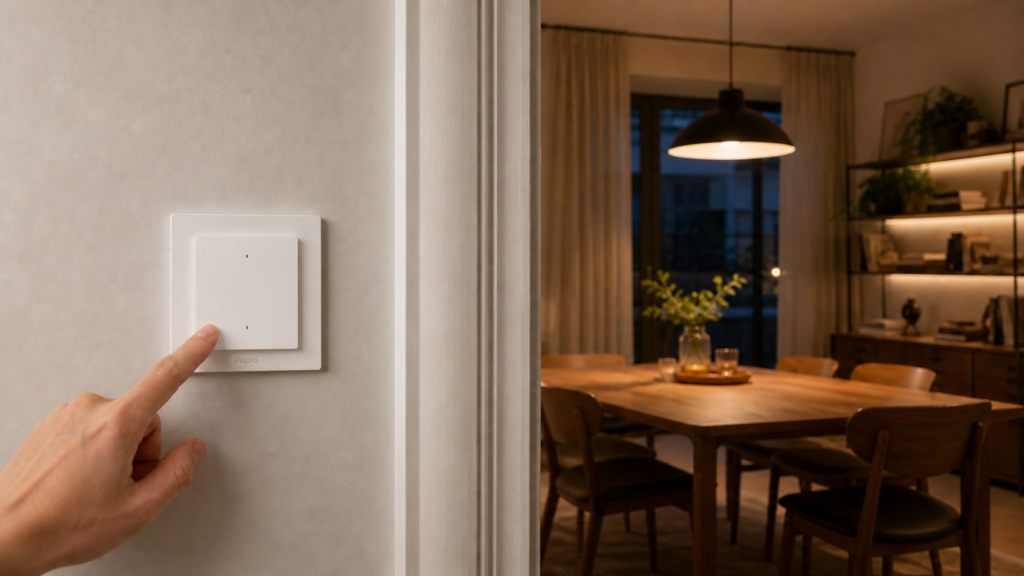
Aqara H2 EU Wall Switch in Home Assistant: Full Local Setup via Zigbee2MQTT
To use the Aqara H2 EU with Zigbee2MQTT, first check its protocol mode. It ships in Thread mode, so you need to switch it to Zigbee before pairing. In Zigbee mode, Z2M exposes relay control, energy readings, decoupled operation, and button actions in Home Assistant.
Start with the protocol change, then pair the switch and configure its relay and button settings. The sections below also explain the reduced feature set in Thread/Matter mode and the differences from ZHA.
H2 EU variants and protocol modes
The WS-K07E has two buttons and one relay channel; the WS-K08E has four buttons and two channels. Aqara describes the H2 EU as supporting both with-neutral and no-neutral installations. An E or D suffix is not a reliable way to decide whether your wall box needs a neutral. Check the exact switch and its supplied wiring instructions. Neutral wiring enables measurement and other features that are unavailable without it; see Aqara’s H2 EU product details.
The switch supports Thread/Matter and Zigbee, using one protocol at a time. For Zigbee2MQTT, select Zigbee. Aqara’s app provides the protocol-selection step; Matter controller support determines which features appear if you choose Thread instead.
Zigbee mode is what gives you the full entity set in Zigbee2MQTT. It’s also the mode where the device works entirely without the Aqara cloud after a one-time setup step. The two protocols are distinguished by the pairing-mode LED color: blue blinking is Thread, purple blinking is Zigbee.
Here’s the comparison at a glance:
| Feature | Thread/Matter mode | Zigbee mode (Z2M) |
|---|---|---|
| Switch entity | Yes | Yes |
| Power monitoring | Requires neutral and controller support | Available with neutral; check the model’s Exposes tab |
| LED indicator control | No | Yes (with neutral) |
| Decoupled / wireless mode | No | Yes |
| Multi-click on bottom button | No | Yes |
| Power-on behavior | No | Yes |
| Lock relay | No | Yes |
| Firmware updates | Check the supported update route | Z2M OTA where documented for the model; downloads may need internet |
| Ongoing cloud dependency | No | No |
Zigbee2MQTT requires the switch to be in Zigbee mode.
Before you start — what you need
- A supported Zigbee coordinator attached to the Home Assistant host. The Sonoff ZBDongle-P uses Z2M’s
zstackadapter; the ZBDongle-E usesember. Confirm the exact model and firmware. - Zigbee2MQTT installed and running in Home Assistant (the add-on or standalone both work)
- The Aqara Home app on Android or iOS, with a phone that has Wi-Fi and Bluetooth enabled — needed once for the mode switch, then optional
- The switch installed according to its exact manual. Confirm whether it is wired with neutral before expecting power measurements or router operation.
If you’re still choosing between using a coordinator and using an Aqara hub, our Aqara Hub M2 local setup guide covers the hub-based path. This guide assumes you want the hub-free, fully local setup.
Our guide to whether Aqara devices work without internet explains which setups need ongoing cloud access. The H2 EU can operate locally through Zigbee2MQTT after its initial protocol change.
Step 1: Switch from Thread to Zigbee mode
The switch comes out of the box in Thread mode. Before you can pair it with Zigbee2MQTT, you need to change its protocol using the Aqara Home app. This is a one-time step — after it’s done, the device stays in Zigbee mode and has no ongoing cloud requirement.
Here’s the procedure:
- Press any relay button on the switch 10 times in quick succession. This factory-resets the device and puts it into network-setup mode.
- Open the Aqara Home app on your phone. Bluetooth and Wi-Fi need to be enabled on the phone during this step.
- Tap “Add Accessory” in the app and let it discover the switch (you may be prompted to scan the Matter code printed on the button).
- When the Switch Protocol selector appears, choose Zigbee (not Thread or Matter).
- Follow the app’s protocol-switch prompts until Zigbee mode is selected. You will then join your own Zigbee2MQTT network in Step 2. A solid LED after joining an Aqara hub is not required for this coordinator-based setup.
After the protocol change, the Aqara Home app is no longer needed for day-to-day control through Zigbee2MQTT.
If Z2M cannot pair the switch, check the pairing LED: blinking blue indicates Thread mode; blinking purple indicates Zigbee mode. Repeat the protocol change if the LED is still blinking blue.
Step 2: Pair with Zigbee2MQTT
With the device in Zigbee mode, pairing is standard.
Start a Zigbee2MQTT permit-join, then enable pairing mode on the H2 EU: double-press any button, then press and hold for 5 seconds until the indicator blinks purple (purple is the Zigbee pairing color — if you see blue blinking instead, the device is still in Thread mode and you need to repeat Step 1). Zigbee2MQTT should pick it up within a few seconds.
Check the model Z2M reports after the interview. The WS-K07E device page lists its supported entities; use the separate WS-K08E entry for the two-channel model. Do not assume every H2 shares one Zigbee model identifier or the same endpoint names. Compare the device’s Exposes tab with its exact model page before configuring it.
After pairing, check that Z2M identifies the switch correctly and that the expected entities appear in Home Assistant. If settings are missing, compare the device’s Exposes tab with the Z2M device page for your model.
Step 3: Configure entities in Zigbee2MQTT
For the WS-K07E with a neutral wire, the available entities include:
| Entity | Notes |
|---|---|
| Switch (on/off/toggle) | Main relay control |
| Power (W) | Real-time draw |
| Current (A) | |
| Energy (kWh) | Accumulating |
| Device temperature | Useful for monitoring in warm enclosures |
| LED indicator on/off | Toggle the status LED |
| Flip indicator light | Invert LED behavior |
| Operation mode | control_relay or decoupled |
| Multi-click enable | Bottom button only |
| On_time | Optional timed-on command in seconds; support depends on firmware |
| Power-on behavior | on / off / previous / inverted |
| Power outage count | |
| Lock relay | Prevent physical switching |
Without a neutral wire, power monitoring is disabled, overload protection is disabled, and LED indicator settings are unavailable. The device also drops to operating as a Zigbee end device rather than a router, which means it won’t extend your mesh.
Operation mode: control_relay vs decoupled
In control_relay mode (the default), pressing the physical button toggles the relay directly. The switch behaves like a normal light switch. Home Assistant can also control the relay remotely.
In decoupled mode, the physical button and the relay are separated. Pressing the button fires an action event in Home Assistant, but the relay state doesn’t change automatically. This is what you want when controlling smart bulbs — you keep the bulb permanently powered and handle on/off through automations triggered by button events.
To set operation mode, go to the device in Zigbee2MQTT, find the “Operation mode” dropdown, and select your preference. The change takes effect immediately.
Enabling multi-click on the wireless button
The H2 EU has a hardware-level distinction between its top button (the relay/up button) and its bottom button (the wireless/down button).
The bottom button can report single, double, hold, and release actions. Enable the relevant setting, such as multi_click_down, if it appears for your model. Watch Z2M’s action reports while pressing the button before assigning a gesture in HA.
Check the action list for your model and Z2M version before assigning gestures. The current WS-K07E device page lists single, double, hold, and release actions for both up and down buttons. Use the exact values shown by your switch rather than assuming every H2 variant exposes the same actions.
Power-on behavior
power_on_behavior controls what the relay does after a power cut. Options are: on (relay turns on regardless of previous state), off (relay stays off), previous (restore the state before the cut), and inverted (restore the opposite state).
For most setups, previous is the right choice. If you have a load that should always be off after a power cut — a high-draw device, for example — set it to off.
LED indicator and lock relay
The LED indicator entities let you control whether the status LED is on or off and whether its behavior is inverted (on when relay is off, useful in dark rooms to locate the switch). These entities only appear when the device has a neutral wire.
Lock relay prevents the physical button from changing the relay state. This is useful if the switch is in a location where accidental presses are a concern and you want Home Assistant to be the only control path.
Building automations for decoupled mode
With a relay in decoupled mode, button actions can control a smart bulb group or scene through Home Assistant. These examples use the bottom button.
Single press: toggle a smart bulb group
alias: H2 bottom button single press — toggle living room lights
trigger:
  - platform: device
    domain: mqtt
    device_id: <your_device_id>
    type: action
    subtype: single_down
action:
  - service: light.toggle
    target:
      entity_id: light.living_room_group
Paste each example into a separate automation’s YAML editor. The WS-K07E uses action values such as single_down; confirm them in your Z2M reports. Replace the device ID and target entities. Generate an MQTT device trigger in HA’s visual editor first if you need to find the correct device ID. In automations.yaml, each automation must instead be a list item.
Double press: activate a scene
alias: H2 bottom button double press — evening scene
trigger:
  - platform: device
    domain: mqtt
    device_id: <your_device_id>
    type: action
    subtype: double_down
action:
  - service: scene.turn_on
    target:
      entity_id: scene.evening
Hold: set brightness to 20%
alias: H2 bottom button hold — dim to night level
trigger:
  - platform: device
    domain: mqtt
    device_id: <your_device_id>
    type: action
    subtype: hold_down
action:
  - service: light.turn_on
    target:
      entity_id: light.living_room_group
    data:
      brightness_pct: 20
Confirm which actions your switch reports before building the automation. With multi-click enabled, a single press can arrive after a short delay while the switch waits for a second press. Direct relay control can therefore feel faster than a button event routed through Home Assistant.
For the WS-K08E with two relay channels and four buttons, the same logic applies per channel. Each relay can be independently set to control_relay or decoupled, and each button pair can have multi-click enabled separately.
Known limitations and things to watch
No-neutral variant limitations
When an H2 EU is installed without neutral, do not expect the same measurement, indicator, overload-protection, or routing functions as a with-neutral installation. These limits follow the wiring and available power, rather than an assumed E-versus-D model split. Check the exact model’s exposed settings after pairing.
Check the button action names
Match the trigger to the value your switch reports. For example, the WS-K07E device page lists single_up and double_up for the top button, and single_down and double_down for the bottom button. An automation using a different action name will not fire.
MARS relay mode latency
MARS is Aqara’s smart-light compatibility feature in Zigbee mode. It is not evidence of a measured relay delay, and access through Aqara’s own ecosystem does not establish identical support in Z2M. For this guide, use the documented decoupled setting and observed button actions. If a button feels slow, check multi-click waiting time and the HA trace before attributing it to the relay design.
ZHA support is partial
If you use ZHA, check which relay, measurement, and configuration entities it exposes for your switch. This guide uses Zigbee2MQTT for decoupled mode and multi-click configuration. Our Aqara H1 EU with-neutral guide also discusses the ZHA and Z2M options for Aqara wall switches.
Thread/Matter mode feature gap
In Thread mode, the H2 is a native Matter-over-Thread accessory: commission it into a Matter controller using a suitable Thread border router. That is different from pairing a Zigbee H2 to an M3 and exposing it through the hub’s Matter bridge. Our M3 guide explains those roles. Compare the controls actually exposed by your Matter controller before choosing Thread for features such as wireless gestures.
Privacy check: what stays local after setup
After the one-time protocol switch via the Aqara Home app, the H2 EU in Zigbee mode has no ongoing Aqara cloud dependency. All communication happens over your local Zigbee network to your coordinator, then through Z2M to Home Assistant.
Use the update route documented for your exact Z2M model. Z2M OTA can transfer firmware over Zigbee without an Aqara account, but checking for or downloading a firmware file can require internet access from the Z2M host. Do not equate local radio transfer with a download that never contacts an external server.
The initial protocol change uses the Aqara Home app and a cloud-connected setup. After that, normal switch control through Z2M stays on the local Zigbee and MQTT links. If you block Aqara’s servers at the firewall, test the switch and its automations to confirm that the setup still behaves as expected.
Frequently asked questions
Does the Aqara H2 EU wall switch work without the Aqara hub?
Yes. In Zigbee mode with a standalone coordinator, it works with no Aqara hub required. The Aqara Home app is only needed once during the initial mode switch.
Should I use Zigbee or Thread mode with the Aqara H2 EU in Home Assistant?
For a Zigbee2MQTT setup, Zigbee mode is the right choice. It exposes a much larger entity set and has no ongoing cloud dependency. Thread/Matter mode is only worth considering if you already have a Thread border router and are comfortable with the reduced feature set.
How do I switch the Aqara H2 EU from Thread to Zigbee mode?
Factory-reset into network setup with the ten-press sequence, then use Aqara Home’s Add Accessory flow and choose Zigbee in the protocol selector. Follow the prompts, then enable permit-join on your Z2M coordinator. Check the Zigbee pairing indication before repeating a reset.
Can the Aqara H2 EU work with smart bulbs in decoupled mode?
Yes. Set the operation mode to decoupled in Zigbee2MQTT, and the physical button fires action events to Home Assistant without toggling the relay. Your automations handle the bulb control, and the bulb stays permanently powered.
Why does a double-press automation not fire in Home Assistant?
Check the action value reported by Z2M and use that exact value in your automation. The current WS-K07E documentation includes double_up for the top button and double_down for the bottom button. Also check the multi-click setting available for your model.
Once switched to Zigbee mode, the H2 EU provides local relay control, button actions, and power monitoring through Z2M. If you have an older switch, our Aqara H1 EU with-neutral guide covers that generation. Compare the available actions and measurement entities for the exact model before deciding whether to upgrade.
For a new Zigbee network from scratch, a Sonoff Zigbee 3.0 USB Dongle Plus (or the newer Dongle-E) is a dependable coordinator to pair this with — both have solid firmware support in Z2M and will handle the H2 EU without any configuration beyond standard pairing.