

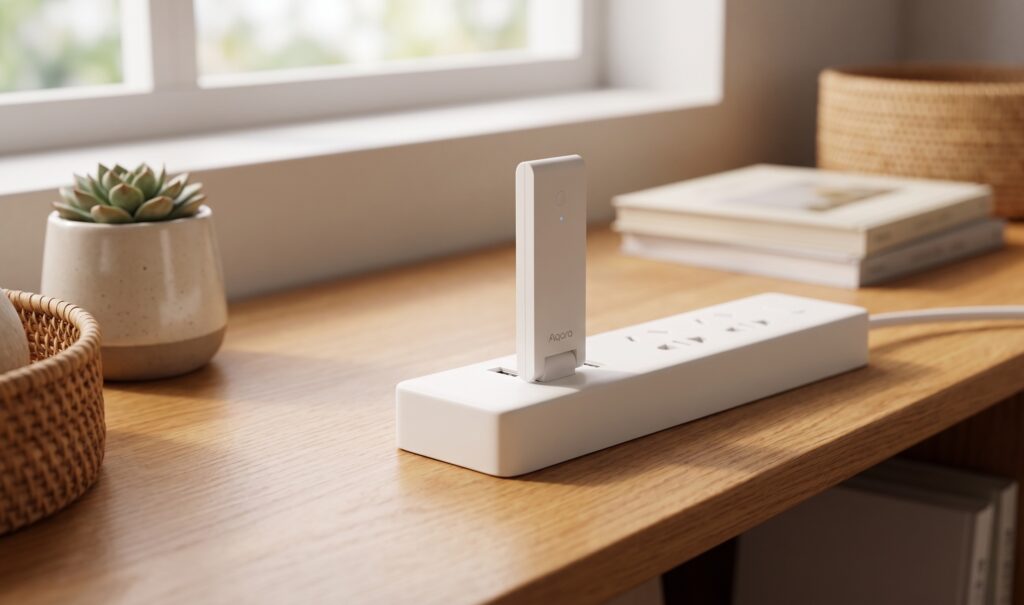
Aqara Hub E1 + Home Assistant: Local Integration Guide
The Aqara Hub E1 (ZHWG16LM) is a compact, USB-powered Zigbee hub that tends to confuse people when they first try to get it working with Home Assistant. Most of the confusion comes from one fact nobody explains up front: this device is a Zigbee coordinator, not a Zigbee end device. That distinction shapes every integration decision you’ll make.
I’ve seen the same questions loop through the HA community forums repeatedly — people trying to pair the E1 into Zigbee2MQTT and wondering why it won’t show up, or people who bought the CN (Mi Home) version and can’t figure out why the Aqara integration behaves differently than every guide they’ve read. This article covers all three integration paths, tells you which one fits your situation, and walks through the recommended path in full.
What the Aqara Hub E1 Actually Is
The E1 is a Zigbee 3.0 coordinator that can manage up to 128 compatible Zigbee devices. It’s also a 2.4 GHz Wi-Fi repeater, which is a minor but useful bonus in dense apartment setups. The USB form factor means it can run off any USB-A port, including the kind on the back of a TV or router — no dedicated power brick needed.
The device ships in two distinct firmware variants that are not interchangeable:
- Aqara Home mode (Global firmware): Pairs to the Aqara Home app. This is the version sold outside China.
- Mi Home mode (CN firmware): Pairs to the Mi Home app. This is the version sold through AliExpress CN and domestic Chinese channels.
The app mode determines which integration path you can use with Home Assistant. Attempting to switch between modes after initial setup requires a factory reset — do not try to change modes mid-setup.
What the E1 is not: a Zigbee device you can pair into Zigbee2MQTT or ZHA. Those tools need a Zigbee coordinator attached to your HA host. The E1 is a coordinator, and a coordinator cannot join another coordinator’s network. If you pair Zigbee devices to the E1, they talk to the E1’s built-in coordinator, not to Z2M or ZHA. This is a hard protocol constraint, not a quirk of software configuration. If your goal is to run Aqara sensors in Z2M or ZHA, you skip the E1 entirely and pair them to a USB coordinator dongle on your HA host — a different approach I cover in a separate guide on running Aqara Zigbee devices without the Aqara hub.
Three Ways to Connect the Hub E1 to Home Assistant
Before walking through the recommended path in detail, here’s the decision tree:
| Situation | Recommended path |
|---|---|
| Global hub (Aqara Home app) | HomeKit Controller (built-in HA integration) |
| CN hub (Mi Home app) | XiaomiGateway3 custom component |
| Either, want an alternative | AqaraGateway custom component |
HomeKit Controller — Recommended for Aqara Home Mode
The Hub E1 exposes a HomeKit endpoint over your local network. HA’s built-in HomeKit Controller integration discovers it automatically and communicates with it entirely over LAN using Apple’s HomeKit protocol — encrypted, local, no ongoing Aqara cloud dependency once the initial pairing is done.
The catch: initial hub registration with the Aqara Home app does touch Aqara’s cloud once. The hub registers its HomeKit pairing code against Aqara’s servers during setup. After that, HA and the hub communicate directly over LAN. Day-to-day device control does not require internet access once pairing is complete.
This is the path I’d recommend to most people. It uses a built-in integration (no HACS required), and the privacy posture is clear and defensible.
XiaomiGateway3 Custom Component — For CN (Mi Home Mode) Hubs
If you bought the E1 from a CN source and it’s running Mi Home firmware, the HomeKit Controller path won’t work. The recommended option here is XiaomiGateway3, a HACS custom component by AlexxIT that communicates with the hub over your local network using Xiaomi’s LAN protocol.
Setup involves installing the component via HACS, then providing your hub’s local IP address and optionally a telnet password if you’ve opened telnet access on the hub. After initial configuration, cloud access is not required for device control.
AqaraGateway Custom Component — Alternative LAN Method
AqaraGateway (by niceboygithub, also on HACS) is another custom component that works over LAN and is compatible with both firmware variants. It’s a reasonable fallback if you run into trouble with the other paths, or if you prefer its entity model. Setup follows the same pattern: install via HACS, provide the hub’s IP.
It’s worth knowing this component exists, but I’d default to HomeKit Controller for Global firmware hubs — built-in integrations get more testing attention in HA’s release cycle and don’t require HACS dependency management.
Step-by-Step: HomeKit Controller Path
This walkthrough assumes you have a Global firmware E1 (Aqara Home app) and a working Home Assistant instance on the same LAN.
Prerequisites
- Aqara Hub E1 (ZHWG16LM, Global firmware)
- Aqara Home app installed on your phone (iOS or Android)
- An active Aqara account (required for initial hub registration only)
- Home Assistant 2023.4 or later (HomeKit Controller integration is built-in; no additional install)
- Hub and HA host on the same network segment, or mDNS/Avahi properly bridged if you run VLANs
A note on VLANs: if your IoT devices live on a segmented VLAN, HomeKit discovery uses mDNS. You’ll need mDNS reflection (Avahi on the HA host, or igmpproxy/udm-mDNS on your router) working between the IoT VLAN and the HA host for auto-discovery to work. If you don’t have that configured, you can still pair manually using the hub’s HomeKit code — discovery isn’t strictly required.
Pairing the Hub to Aqara Home App
This step involves Aqara’s cloud, and that’s fine — it happens once.
- Plug the E1 into a USB-A power source. The LED will flash to indicate it’s in pairing mode. If it’s not flashing, hold the reset button until you see the light pattern reset.
- Open the Aqara Home app, tap the “+” icon, and select “Hub E1.” Follow the in-app steps to connect the hub to your 2.4 GHz Wi-Fi network. (The E1 does not support 5 GHz.)
- Once paired, the hub registers with Aqara’s servers and receives a HomeKit pairing code. This code is shown in the Aqara Home app under the hub’s settings — you’ll need it in the next step.
- Add any Zigbee sensors or switches to the hub through the Aqara Home app before moving to HA. Devices paired to the hub will appear in HA once the HomeKit Controller integration is set up.
HA Discovery and HomeKit Controller Setup
With the hub powered on and connected to your network:
- In HA, go to Settings → Devices & Services. If mDNS discovery is working, the Hub E1 should appear in the “Discovered” section automatically, usually within a minute or two.
- Click the discovered device, then enter the HomeKit pairing code from your Aqara Home app when prompted. The code format is eight digits, typically shown as
XXX-XX-XXX. - HA will import all devices currently paired to the hub. Each device appears as a separate entity in HA.
If the hub doesn’t appear automatically, you can add it manually: go to Settings → Devices & Services → Add Integration, search for “HomeKit Controller,” and enter the hub’s local IP and pairing code.
Verifying Local Control
Once paired, cut your internet connection and test a device command from HA. If the device responds, you’re running fully local. A clean way to do this is to temporarily disable the WAN port on your router and confirm that automations still execute — the hub responds to HA commands without any internet path.
For ongoing confidence, I occasionally watch my router’s traffic logs for outbound connections from the hub’s IP. Post-pairing, the E1 will make occasional time sync requests (NTP) and may phone home for firmware update checks. Neither of these affects local device control. If you want to block them at the firewall, you can do so without breaking HA control — just be aware that firmware updates won’t install automatically.
Privacy Posture: What Goes to Aqara’s Cloud and When
This is the question most people actually care about, and the answer for the HomeKit Controller path is cleaner than you might expect.
One-time cloud contact at setup: Aqara’s servers are involved when you register the hub to the Aqara Home app. Device state is synced to Aqara’s cloud during this phase.
Ongoing cloud contact after HA pairing: Minimal. NTP time sync and firmware update checks. Device commands from HA go directly to the hub over LAN — they do not transit Aqara’s servers.
What the Aqara Home app does: If you keep the Aqara Home app installed and logged in, the app maintains a cloud connection for remote access. If you don’t want any ongoing cloud traffic, you can uninstall the app after initial pairing — HA will continue to control the hub and its devices locally. You lose remote access via the Aqara app, but HA’s own remote access (via Nabu Casa or your own reverse proxy) fills that role.
What the hub can’t do offline: Initial pairing requires cloud registration. Firmware updates also require internet access. If you’re running on a fully air-gapped network, neither of these will work — but day-to-day local control does.
This is meaningfully better than running in Aqara LAN mode via the Aqara Home integration, which has a reputation for being unreliable and still pulls from the cloud for state. The HomeKit Controller path sidesteps that entirely.
Known Issues
Hub Offline After HA Restart
This is the most commonly reported E1 issue: after restarting Home Assistant, the hub appears offline and devices stop responding. The integration shows the hub as unavailable despite it being powered on and reachable on the network.
The root cause is upstream in HA’s integration layer, not specific to the E1 hardware. Which integration is involved depends on how you exposed the hub. If you’re using the Matter addon to bridge the hub, the open issue is the addon failing to reconnect to the E1 after an HA restart (tracked as home-assistant/addons issue #4183). The built-in HomeKit Controller path has its own related restart quirks reported separately. In both cases the practical workaround is the same: remove and re-add the hub in HA Devices & Services after a restart that drops it. The hub retains its pairing code, so re-adding takes about 30 seconds. Check the HA GitHub issue tracker for current status — progress on these has been intermittent.
Devices Not Appearing After Pairing
If you pair a new Zigbee device to the E1 via the Aqara Home app after HA integration is set up, the new device may not appear in HA automatically. A few things help here:
- Go to Settings → Devices & Services, find the HomeKit Controller entry for the hub, and click Configure → Reload. This forces HA to re-read the hub’s device list.
- If the device still doesn’t appear, remove it from the Aqara Home app, factory reset the device, re-pair it to the hub, then reload in HA.
- Make sure the device is fully paired to the hub (LED confirms, Aqara app shows it as connected) before expecting it to show in HA.
E1 as Wi-Fi Repeater and Mesh Interference
The E1’s Wi-Fi repeater function is on by default. If you have a modern mesh Wi-Fi system, this can occasionally cause interference or unexpected client associations. You can disable the repeater function in the Aqara Home app under hub settings if you don’t need it. I’d recommend turning it off unless you specifically need the extra coverage node — it cuts your network topology down by one variable if you’re debugging connectivity issues.
Frequently Asked Questions
Can I use the Aqara Hub E1 with Zigbee2MQTT?
No. The E1 is a Zigbee coordinator. Zigbee2MQTT also requires a coordinator. You cannot have two coordinators in the same Zigbee network — a coordinator cannot join another coordinator’s network. If you want to use Z2M or ZHA with Aqara devices, you need a separate Zigbee coordinator dongle (like the Sonoff Zigbee 3.0 USB Dongle Plus or the SLZB-06) and you pair your Aqara devices directly to that dongle, bypassing the E1 entirely.
Does the Aqara Hub E1 work with Home Assistant without cloud?
After initial setup, yes. The HomeKit Controller integration controls the hub and its paired devices entirely over LAN. Aqara’s cloud is only contacted during the initial registration. For day-to-day device control — switching lights, reading sensor values, triggering automations — no internet connection is needed.
What’s the difference between Mi Home mode and Aqara Home mode?
They’re different firmware variants for the same hardware. Aqara Home mode (Global) pairs with the Aqara Home app and supports HomeKit pairing, which is how HA’s HomeKit Controller integration works. Mi Home mode (CN) pairs with the Mi Home app and doesn’t expose a HomeKit endpoint — the XiaomiGateway3 component talks to it via a different LAN protocol. The two modes are not software settings you can toggle; they’re tied to which firmware version was flashed at the factory. Switching between them requires flashing alternative firmware, which is not recommended for most users.
What happens to my Aqara Hub E1 when the internet goes down?
All devices paired to the hub and integrated via HomeKit Controller continue to function normally. HA commands go to the hub over LAN, the hub controls its Zigbee devices — none of that traffic leaves your home network. Automations keep running. The only things that stop working without internet are Aqara’s cloud remote access (if you’re using the Aqara app for remote control) and firmware updates.
Should I upgrade to the Hub M2 or M3 instead?
The E1 is a capable hub for most setups. If you need Matter support or want to connect a larger device ecosystem (including devices outside the Aqara range), the M3 is the step up — it supports Matter over Thread and has a more actively maintained HA integration path. If you just want a mains-powered hub with an Ethernet option and IR blasting, the Aqara Hub M2 covers that ground. If local Zigbee control for Aqara sensors and switches is what you need, the E1 does that job well.
The E1’s compact form factor and USB power make it a good secondary hub — I’ve run one off the USB port on a router in a part of the house with weak Zigbee coverage from the main hub. It’s not trying to be the M3; it’s a well-priced specialist.