

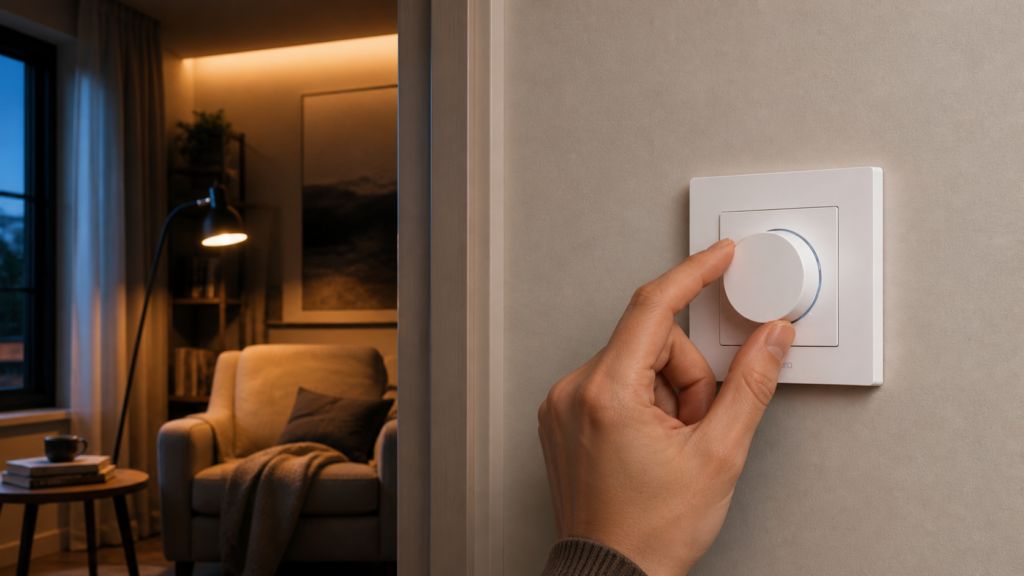
Aqara Dimmer Switch H2 (KD-R01D): Zigbee2MQTT and Home Assistant Setup
The Aqara Dimmer Switch H2 ships with Thread firmware and won’t pair with a Zigbee coordinator out of the box. I ran into this the first time I tried to add mine to Zigbee2MQTT and spent longer than I should have trying to figure out why it wasn’t appearing after a reset. The answer is a required firmware flash step via the Aqara Home app over Bluetooth before any Zigbee pairing is possible.
Once past that gate, the KD-R01D integrates well with Zigbee2MQTT. The rotary knob is the device’s main value proposition — it lets you map smooth brightness control onto a smart bulb setup without needing a physical dimmer circuit. But the configuration that makes this work (decoupled mode) has a few gotchas that aren’t well documented in English, including a settings-reset bug that will quietly undo your configuration every few days. I’ll cover all of it here.
What You Need
- Aqara Dimmer Switch H2 EU (model KD-R01D white, or KD-R01D-G gray)
- A phone with the Aqara Home app installed (iOS or Android) — used once for the firmware flash, then not needed again
- A Zigbee2MQTT instance (any recent version)
- Home Assistant with the Zigbee2MQTT add-on or integration running
- A Zigbee USB coordinator already set up and working
If you want to use the H2 to control smart Zigbee bulbs (the most common use case), you’ll also need those bulbs already paired to Zigbee2MQTT. The H2 does not support direct Zigbee binding to bulbs, so Home Assistant must be up and running for the knob to control them.
The EU model identifies on the Zigbee network as lumi.switch.agl011. The US variant (sold as the H2 US) identifies as lumi.switch.agl007. The setup process is the same; configuration options and firmware behavior should be equivalent, though the exposed entity set can differ slightly between the two device definitions.
Step 1: Flash the Zigbee Firmware
This is the step most guides skip entirely, and it’s the reason the device doesn’t pair. The H2 ships from the factory in Thread/Matter mode. Until you explicitly flash Zigbee firmware, the device won’t respond to any Zigbee coordinator.
To do the flash, open the Aqara Home app and add the device using Bluetooth — no Aqara hub is required for this step. The app detects the device nearby, establishes a Bluetooth connection, and walks through a protocol-switch process that pushes Zigbee firmware over the air. The whole thing takes a few minutes. Note that this step requires an Aqara account in the app, even though the finished Zigbee setup is fully local.
A few things that will make this go smoothly:
- Your phone needs Bluetooth enabled and location permission granted to the Aqara Home app (Android requires this for BLE device discovery).
- Keep the phone within a meter or two of the switch during the flash.
- The switch should be installed in a box with live power, or held powered via your test setup — the flash requires the device to stay on throughout.
The indicator ring tells you which protocol the device is in: a blue blink means Thread/Matter pairing mode, and a purple blink means Zigbee pairing mode. After the firmware lands, the LED blinks purple. That’s your signal it’s in Zigbee pairing mode, and you have a window to pair it before it times out.
If the Bluetooth pairing step fails repeatedly, the most common cause is the app not getting location permission, or the phone’s Bluetooth radio being busy. Close other BLE-heavy apps and try again. This is the highest-friction step in the entire setup — once past it, everything else is routine.
Step 2: Pair with Zigbee2MQTT
With the LED blinking purple, open Zigbee2MQTT and enable pairing mode (the “Permit join” toggle in the frontend, or via the MQTT bridge/request/permit_join topic).
The H2 should appear in the Zigbee2MQTT devices list within 30–60 seconds. The device identifies as lumi.switch.agl011 (EU model). Confirm the model identifier in the device details tab to make sure the right device definition was loaded.
If the pairing window closes before Z2M discovers it, the device drops back out of pairing mode. To put it back into pairing mode, reset it: double-click the knob, then immediately press and hold the knob for about 5 seconds (keep the gap between the double-click and the hold under 3 seconds). The indicator confirms the reset, and the ring blinks purple again to show it’s back in Zigbee pairing mode.
Once paired, the H2 exposes a full set of entities and configuration options in Z2M including on/off, brightness, transition time, min/max brightness limits, dimming mode, rotation sensitivity, decoupled (operation) mode, action events, LED indicator control, power-on behavior, and power/energy/voltage/current monitoring. OTA firmware updates are also available through Z2M.
Step 3: Choose Your Mode
This is the most important configuration decision, and it splits into two completely different use cases.
Coupled mode (relay controls the load): The knob and physical press control the switch’s built-in relay directly. When you rotate the knob, the brightness of whatever is wired to the load terminal changes. This works for dimmable LED loads, incandescent bulbs, or halogen — anything where a dimmer circuit makes sense physically. No HA automation needed for basic operation.
Decoupled mode (knob emits events, relay is bypassed): The relay is decoupled from the knob. Rotating the knob fires rotation action events that HA automations pick up and translate into light entity commands. A button press fires single, double, or hold action events. The relay itself stays in a fixed state and isn’t involved in brightness control at all.
Decoupled mode is what you want if the H2 controls smart Zigbee bulbs — those bulbs need constant power to stay on the Zigbee mesh, so the relay must stay on. The knob then drives brightness via automation rather than by switching the circuit.
To set the mode, open the H2’s device page in Zigbee2MQTT, go to Exposes and find operation_mode. Set it to control_relay for coupled or decoupled for decoupled. You can also do this via MQTT:
Topic:   zigbee2mqtt/<device_name>/set
Payload: {"operation_mode": "decoupled"}
The Aqara H1 EU wall switch (WS-EUK04) uses the same per-rocker decoupled-mode concept, so its setup guide is a useful simpler reference for the pattern if you find the dimmer’s rotation events confusing.
Step 4: Decoupled Mode — Smart Bulb Automation
If you’re in decoupled mode, the knob does nothing unless HA is running and you’ve built automations to handle the events.
Keep the relay on first. Before any automation work, use the Z2M device controls to set the relay to on. This keeps the bulb powered at all times. If the bulb loses power when you tap the switch, it goes offline from the Zigbee network — and then the knob can’t control it anyway.
The H2 fires rotation events from the knob. In Z2M these surface through the action expose:
start_rotating— fires when the knob begins turningrotation— fires repeatedly as the knob turns, carryingaction_rotation_angle(positive = clockwise, negative = counter-clockwise),action_rotation_percentfor the fractional turn amount, and matching_speedattributesstop_rotating— fires when rotation ends
For brightness control of a smart bulb, an automation that responds to the rotation action and calls light.turn_on with a brightness_step_pct value works well:
alias: H2 Knob — Brightness Control
trigger:
  - platform: device
    device_id: <your_h2_device_id>
    domain: mqtt
    type: action
    subtype: rotation
action:
  - service: light.turn_on
    target:
      entity_id: light.your_smart_bulb
    data:
      brightness_step_pct: "{{ trigger.event.data.action_rotation_percent | float }}"
For on/off via the press: the H2’s button fires single action events. Map a toggle to it:
alias: H2 Button — Toggle Light
trigger:
  - platform: device
    device_id: <your_h2_device_id>
    domain: mqtt
    type: action
    subtype: single
action:
  - service: light.toggle
    target:
      entity_id: light.your_smart_bulb
If you’re pairing the H2 with Aqara’s own Zigbee bulb, the Aqara LED Bulb T2 guide covers that bulb’s specific entities and brightness range.
One thing worth knowing here: the H2 does not support Zigbee direct binding to bulbs. If Home Assistant goes offline, the knob stops controlling the light entirely. There’s no fallback. For a setup where HA reliability matters, plan your coordinator and HA instance accordingly.
Step 5: Configure Brightness Limits and Dimming Mode
A few per-device settings in Z2M are worth getting right before calling the setup complete.
Dimming mode. The H2 supports both forward-phase and reverse-phase dimming. If you’re in coupled mode driving a dimmable LED load that flickers at low brightness, try switching the phase. Forward phase is the default; reverse phase can eliminate flicker on certain LED driver types. Find it under the device’s Exposes tab as dimming_mode.
Min/max brightness. You can set the minimum and maximum brightness values (0–254 range) that the knob will travel between. Setting a floor above zero prevents the light from dimming to a point where it flickers or turns off unexpectedly.
Rotation sensitivity. The sensitivity setting controls how much you have to turn the knob to trigger a full brightness step. Options are low, medium, and high. Low sensitivity means you need to turn more to get the same brightness change; high sensitivity gives you fast swings with small rotations. Personal preference, but I find medium works well for most rooms.
The Settings Reset Bug
There’s a known issue with the KD-R01D where min_brightness and dimming_mode reset to defaults every few days. The Z2M issue tracking this (#28820) was closed as “not planned” — the root cause appears to be in the device firmware, and there’s no fix coming from Z2M’s side.
Two workarounds:
- Re-apply the settings manually after each reset. Tedious, but low effort if it’s infrequent.
- Use a HA automation to re-push the configuration over MQTT whenever Home Assistant starts (and on a periodic schedule), so the settings are restored without manual intervention:
alias: H2 — Restore Settings
trigger:
  - platform: homeassistant
    event: start
  - platform: time_pattern
    hours: "/6"
action:
  - service: mqtt.publish
    data:
      topic: zigbee2mqtt/<device_name>/set
      payload: '{"min_brightness": 20, "dimming_mode": "forward"}'
The six-hour time pattern catches the firmware reset between HA restarts; tighten or loosen the interval to taste. The settings aren’t sticky, so either the automation approach or periodic manual re-application is the only way to handle this for now.
Power Monitoring
The H2 includes real-time power monitoring: instantaneous power in watts, energy consumption in kWh, voltage, and current. All four are exposed as sensors in Zigbee2MQTT and flow through to Home Assistant entities automatically.
These are useful for anything with a variable load — a dimmable floor lamp, a desk light with an LED driver, or a small appliance you want to track. The energy data is compatible with HA’s energy dashboard if you add the entity there.
In decoupled mode, the relay is on the whole time, so the power readings reflect whatever’s connected to the load terminal drawing constant power. Keep that in mind when reading energy numbers — you’re measuring the bulb at full power, not accounting for any HA-side brightness adjustments.
ZHA vs. Zigbee2MQTT vs. Thread/Matter
If you’re choosing an integration path and haven’t committed to Z2M yet:
Zigbee2MQTT exposes the full feature set of the KD-R01D: all action events, all configuration knobs, power monitoring, OTA. This is the path with the most control.
ZHA has incomplete support for the H2 EU. Several configuration options available in Z2M are not accessible through ZHA, and the full rotation event surface is limited at the time of writing. If you’re already on ZHA and the basic functionality meets your needs, it works — but you’ll miss some of the device’s depth. Check the current zha-device-handlers status before deciding, since ZHA support tends to improve over time.
Thread/Matter mode (the firmware the device ships with) gives you a simpler integration via HA’s Matter integration. You skip the Aqara Home app firmware flash step entirely and commission directly through HA. The trade-off: fewer advanced settings are exposed through Matter compared to Zigbee2MQTT. No rotation sensitivity tuning, no dimming mode selection, and the settings-reset behavior is less documented on the Matter path.
If you’re building a Thread/Matter setup rather than a Zigbee one, the Aqara Hub M3 Matter bridge guide covers the Matter commissioning path in detail.
Troubleshooting
Bluetooth pairing step fails and device won’t switch firmware.
Most common cause: location permissions not granted to the Aqara Home app on Android. Check app permissions in device settings. On iOS, Bluetooth-only permission is enough. If the phone keeps dropping the connection mid-flash, reduce the distance and close other apps using Bluetooth.
Device shows in Z2M but no entities appear.
This can happen if the device definition didn’t load correctly during pairing. Remove the device from Z2M, factory reset the H2 (double-click the knob, then hold it for about 5 seconds), then re-pair. If the issue recurs, check that your Z2M version is recent enough to include the KD-R01D device definition.
Decoupled mode: knob rotates but light doesn’t respond.
First confirm the relay is set to on so the bulb has constant power. Then check that your automation’s trigger device_id matches the H2’s actual device_id in HA (copy it from Settings → Devices). If the bulb is on a separate Zigbee mesh or a different integration, verify the entity_id in the action is correct.
Settings reset after a few days.
This is the known firmware bug described above. The only resolution is the restore automation or manual re-application. There’s no firmware update that fixes it as of writing.
Knob events arrive but brightness changes feel too coarse or too sensitive.
Adjust sensitivity in Z2M — low for finer control, high for faster swings. You can also scale the brightness_step_pct value in your automation by a fixed multiplier if the native values don’t match your preference.
Frequently Asked Questions
How do I switch the Aqara Dimmer Switch H2 from Thread to Zigbee mode?
You need to use the Aqara Home app on a phone with Bluetooth to flash Zigbee firmware. Open the app, add the device using Bluetooth (no hub required), and follow the protocol-switch prompt. Once the flash completes, the LED blinks purple to indicate Zigbee pairing mode.
Why does my Aqara H2 dimmer not show a brightness slider in Home Assistant?
If the device is in decoupled mode, the relay is not controlled by the knob — brightness must be driven by HA automations responding to rotation events. There’s no automatic slider because brightness isn’t a property of the relay; it’s a property of whatever light entity your automation targets. In coupled mode, a brightness slider should appear as a light entity.
How do I use the Aqara Dimmer H2 knob to control smart bulbs?
Set operation_mode to decoupled in Zigbee2MQTT. Set the relay to on (so the bulb stays powered). Then write a HA automation that triggers on the rotation action from the H2 and calls light.turn_on with brightness_step_pct calculated from the rotation percent.
Why do my Aqara KD-R01D settings keep resetting in Zigbee2MQTT?
This is a known bug (Z2M issue #28820) that was closed without a fix. The device firmware resets min_brightness and dimming_mode periodically. Use a HA automation to re-push these settings on startup and on a schedule.
Does the Aqara Dimmer Switch H2 work without a neutral wire?
Yes. The KD-R01D supports no-neutral wiring — only the line (L) and load (L1) terminals are required. When used in decoupled mode with smart bulbs, the relay must remain on, which means the bulb needs constant power through that line. Traditional wiring where the switch interrupts power to the bulb won’t work with smart bulbs.
Cloud Posture
Once the Zigbee firmware flash is done and the device is paired to Zigbee2MQTT, the H2 has no cloud dependency. It operates on your local Zigbee mesh; all communication goes through your coordinator to Z2M to HA, and none of it touches Aqara or Xiaomi servers.
The one exception is the initial firmware flash step via the Aqara Home app. That step reaches out to Aqara’s servers to fetch the Zigbee firmware binary and requires an Aqara account. It’s a one-time operation — once you’re on Zigbee firmware, you don’t need the app again unless you want to switch back to Thread or apply an OTA update you can’t do through Z2M.
OTA firmware updates for the KD-R01D are available through Zigbee2MQTT. The update mechanism is local — no Aqara cloud involvement. Check the OTA tab in the device page after pairing.
If you run the H2 in Thread/Matter mode instead, the cloud posture is less clear. Matter commissioning in HA is local, but whether the Aqara Home app setup flow for Thread involves any cloud account dependency is worth verifying before committing to that path. For a fully local setup with no question marks, the Zigbee2MQTT path is the cleaner choice. If you want a simpler decoupled-mode reference before tackling the dimmer, the Aqara H1 no-neutral switch guide walks through the same pattern on a basic on/off switch.
The H2 Dimmer is the right tool if you want a physical knob for brightness control without installing a dimmer circuit — especially for smart bulbs where the load can’t be interrupted. The firmware flash step is annoying the first time, the settings reset is a genuine rough edge, and the Zigbee binding gap means HA needs to stay up for the knob to work. Know those going in, and the device performs well.