

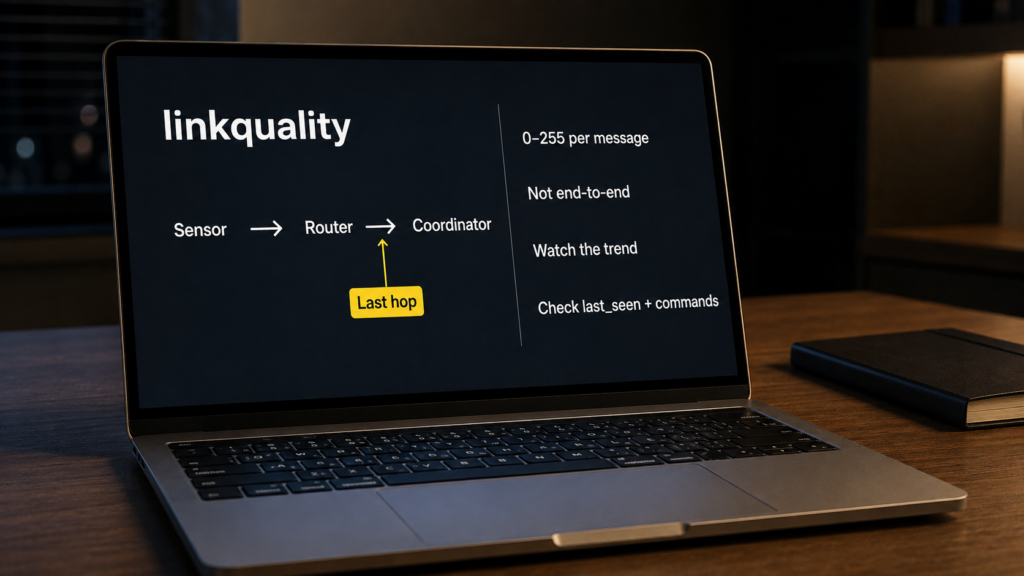
Every device in Zigbee2MQTT carries a linkquality attribute, and at some point almost everyone stares at it wondering what it actually means. The confusion usually starts one of two ways. The number reads 0 and looks like the device is about to die, or the same device shows three different values depending on where you look, whether that’s the device page, a dashboard card, or the network map.
None of that is a malfunction. It is what happens when a single, under-documented metric gets displayed in several places that are not all measuring the same link. This explains what linkquality actually reports, why it isn’t comparable across devices, why your views of it disagree, and what’s actually worth acting on. As of Zigbee2MQTT 2.x, the underlying mechanics here haven’t changed from what the maintainers described years earlier.
What linkquality actually measures
linkquality is a Link Quality Indicator (LQI), a value from 0 to 255 that a Zigbee radio reports for a single hop. The hop it reports is the last one — the leg of the journey that ended at your coordinator’s radio. It is not, and cannot be, an end-to-end measurement of the full path a message took through your mesh.
That limitation isn’t a Zigbee2MQTT shortcoming. The Zigbee messages arriving at the coordinator don’t carry accumulated per-hop quality data from earlier in the route, so there is nothing else for Zigbee2MQTT to report. The consequence is worth being precise about, because it’s where most misreadings start:
- Device joined directly to the coordinator. The number is what you’d assume it is: that device’s own link to the coordinator.
- Device routed through a router. The number describes the router’s link to the coordinator, not the sensor’s link to the router. A battery sensor two hops out can publish a perfectly healthy
linkqualitywhile its own hop is the weak one.
A maintainer made this explicit in discussion #5684: an end device’s own link quality isn’t present in the message the coordinator receives, which is why the network map is the place you have to go to see it.
This applies regardless of coordinator hardware or firmware — EmberZNet, Z-Stack, whatever you’re running. It’s a limitation of what Zigbee messages carry, not something a particular coordinator could fix.
Why the number isn’t standardized across stacks
A second reason linkquality resists simple interpretation is that it isn’t standardized by the Zigbee or IEEE 802.15.4 specifications. Different manufacturers’ Zigbee stacks calculate it differently, so a raw LQI value from one device isn’t directly comparable to the same value from a device built on a different stack.
Silicon Labs’ EmberZNet stack (used in adapters like the Home Assistant Connect ZBT-1, formerly SkyConnect, and the Sonoff ZBDongle-E) reports LQI as a positive number where higher genuinely means better link quality. Texas Instruments’ Z-Stack, used in CC2652-based adapters like the Sonoff ZBDongle-P, computes LQI by linearly scaling RSSI (raw signal strength). ConBee and other deCONZ adapters are a third family again. That distinction matters in practice: an RSSI-derived value can read as improved even while the real link is degrading, because it’s tracking signal strength rather than a more complete error-rate calculation.
| Stack | Example coordinators | How LQI is derived | Practical effect |
|---|---|---|---|
| EmberZNet (Silicon Labs) | Connect ZBT-1, ZBDongle-E | Calculated value, higher = better | Tracks link quality more directly |
| Z-Stack (Texas Instruments) | ZBDongle-P and other CC2652 sticks | Linear scaling of raw RSSI | Can rise even as the real link degrades in a noisy environment |
Practically, this means you can’t compare a linkquality of 120 on one device to a linkquality of 120 on a different device family and assume they’re equally healthy. What you can do is watch a given device’s own trend over time, on your own coordinator.
Official guidance and its own caveat
The Zigbee2MQTT FAQ gives a rough scale. A value near 255 represents close to zero measured error rate, and a device that stays at 40 or above can usually be treated as acceptable for normal operation. That word “stays” is doing real work — the guideline describes a device’s sustained floor, not any single reading.
The same FAQ then undercuts its own number, warning readers not to judge LQI on its own, to interpret it alongside RSSI, and, unless they’re a Zigbee specialist or being guided by one, to ignore these values entirely. That’s unusually blunt for a documentation page, and it’s the more honest half of the entry. Treat 40 as the level below which a device earns your attention, rather than a test it passes or fails. The exact range and behavior have never been pinned down in the tracker either — a long-standing request for that detail was closed stale without a maintainer answer.
Why your device page and network map disagree
This is the discrepancy that trips up the most readers: the same device shows one LQI on its device page and another on the network map.
They aren’t second opinions on the same measurement. The device page shows the linkquality carried by the last message that arrived, measured by the radio that received that final hop. The network map is built separately, by asking the coordinator and each router for its own view of its neighbours. For a routed device those are two different links, and the map is the view that can show you the sensor-to-router hop the state payload never describes. For a directly joined device they do cover the same link, but from opposite ends and at different moments, and two radios rarely agree exactly even on a stable connection.
| View | What it reports | Vantage point |
|---|---|---|
| Device page / entity attributes | The linkquality carried by the last message received | The radio that received the final hop, usually the coordinator |
| Network map | Each router’s and the coordinator’s own view of its neighbours | The routing device at each hop, including hops the device page never shows |
Raw MQTT traffic makes this easier to see. A device’s state payload carries linkquality alongside its other attributes at the moment that specific message arrived:
{
  "battery": 91,
  "linkquality": 78,
  "temperature": 23.4,
  "voltage": 3000
}
That value belongs to that one message and nothing else. The next report can carry a different one.
Why the number jumps around message to message
linkquality is dynamic per message rather than a stable, cached property of the connection. Sending three messages to the same device within a few seconds can return three different readings, because each is measured fresh at transmission time. A microwave running nearby, a neighbor’s Wi-Fi access point stepping on the channel, or simple multipath fading can all shift a single reading without anything being wrong with the mesh.
Routing changes add a second source of swing. If a device’s chosen route through the mesh shifts, say because a router it normally uses briefly goes offline, the LQI can jump by a large margin, dropping from something like 200 down to 100, purely because the message is now arriving via a different final hop. When that rerouting fails outright rather than just changing the number, you’ll usually see it in the Zigbee2MQTT log as a many-to-one route failure, which is a different problem with a different fix.
The “flat 0” case
A specific pattern worth calling out separately is a device showing a linkquality reading of 0 on one view while showing a normal-looking value elsewhere for the same device at roughly the same time. One reported case had an Aqara sensor simultaneously showing 0 on the device tab, 36 on a dashboard card, and 42 on the network map.
The community explanation for this combines the two effects already covered, per-message variability plus a routing-path change, and treats a flat 0 specifically as usually an anomalous or incorrect read rather than a genuine no-link-at-all state. That’s a reasonable read given everything else about how the metric behaves, but it isn’t formally documented anywhere in the tracker, so it should be treated as a plausible explanation rather than a settled fact.
Don’t treat a single flat 0 reading as proof a device has dropped off the mesh. Check last_seen and whether the device is still responding to commands before assuming anything is actually wrong.
Zigbee2MQTT’s last_seen attribute is the companion metric to check when linkquality alone leaves you unsure whether a device is still communicating.
What’s actually worth doing about a low or unstable reading
Given how noisy this metric is on its own, the useful signal isn’t a single bad reading. It’s a persistent one, or a pattern that shows up alongside other symptoms like missed commands or dropped automations. A few things actually move the needle when that happens.
Add a mains-powered router (not a battery end device) between the coordinator and the weak spot in the mesh. Most Zigbee router devices, including smart plugs, in-wall switches, and some bulbs, repeat for nearby end devices, and a short extra hop with a strong signal often beats one long weak hop.
Check for 2.4GHz interference from Wi-Fi, since Zigbee and Wi-Fi share spectrum. Changing your Zigbee channel walks through picking one that avoids your busiest Wi-Fi channels.
Look at the actual route a struggling device takes on the network map rather than its LQI in isolation, because that’s where the hop you care about becomes visible. Router versus end device matters here too: end devices don’t relay for anyone, so adding more battery sensors near a weak spot won’t fix it.
If problems appeared right after a coordinator change or firmware update, confirm you’re not dealing with a mesh that lost its routing table. Coordinator backup and restore covers exactly that situation.
Frequently asked questions
What is a good linkquality value in Zigbee2MQTT? The official FAQ treats a device that stays at 40 or above as acceptable for normal operation, with values near 255 representing close to zero measured error. Treat it as a floor to watch rather than a threshold to pass, given how much the number varies by stack and by message.
Why does my Zigbee2MQTT device show linkquality of 0? Most commonly this is a transient or anomalous single-message read rather than a genuine loss of connection, especially if other views of the same device show a normal value. Check last_seen and whether the device still responds before assuming a real problem.
Why do the network map and device page show different LQI for the same device? They aren’t measuring the same thing. The device page shows the link quality of the last hop into the coordinator, while the map shows each router’s own view of its neighbours, including the device-to-router hop the device page never reports. For a routed device those are different links, so disagreement is expected rather than a bug.
Does low linkquality always mean a weak Zigbee signal? Not necessarily, and not on its own. Because the value is per-message, per-stack, and single-hop only, a single low reading can reflect momentary interference or a route change rather than a persistently weak connection. A pattern of consistently low readings, or low readings paired with missed commands, is the stronger signal.
How do I actually improve linkquality? Add a mains-powered router near the weak spot, check for Wi-Fi channel overlap, and look at the actual routing path on the network map rather than chasing the number alone.
What this is based on, and what to check on your own network
This is built from the official Zigbee2MQTT FAQ (the 0–255 range, the 40-or-above guideline, the EmberZNet-versus-Z-Stack difference, and the FAQ’s own warning against over-reading these numbers), a maintainer’s clarification in discussion #5684 that an end device’s own link quality never reaches the coordinator inside the message, a Home Assistant Community thread on the device-page-versus-map discrepancy, and a separately reported case describing the flat-0 pattern. That last one is a community explanation rather than documented behavior, and is hedged as such above. No bench testing was involved, because single-hop measurement, stack-dependent calculation, and per-message variability are protocol- and stack-level behavior, not properties of any one device model.
Worth checking on your own network: whether the device that prompted this search is joined directly to the coordinator or routed through something else. If it’s routed, the device page and the map are describing different links, and the map’s number is the one that tells you anything about the device itself.