

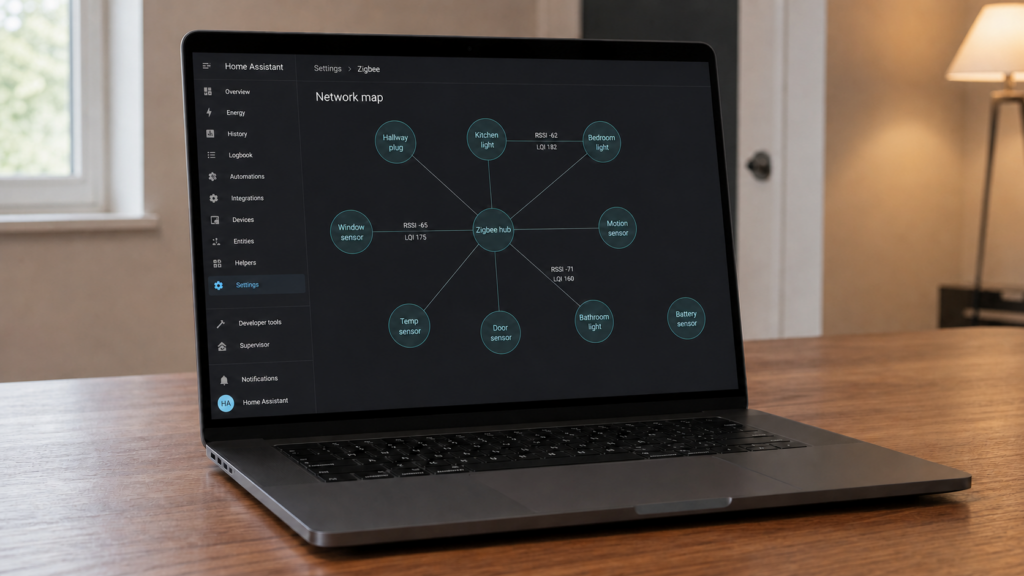
ZHA has a built-in network map, so you do not need an old Lovelace visualization card just to inspect your Zigbee mesh. The harder part is interpreting the diagram: a line is derived from reported neighbor and routing data, not proof of the path a particular packet took.
ZHA has shipped a built-in mesh visualization since Home Assistant 2020.12.0. This piece covers where it actually lives, what the lines and metrics mean, why the old tutorials point at dead projects, and when the actively maintained ha-zigbee-map HACS panel is worth installing on top of it. This is written from the ZHA side. If you are running Zigbee2MQTT instead, it has its own separate map with different terminology, covered briefly near the end.
Why your old tutorial points at a dead project
If a guide tells you to install zha-network-visualization-card (dmulcahey) or zha-map (zha-ng) to see your mesh, it was written before the built-in feature existed, or it never got updated after. Both projects were deprecated when Home Assistant 2020.12.0 absorbed their functionality into the ZHA integration itself. The visualization card’s README prominently marks it deprecated and says there will be no further updates. Its old installation instructions are historical context, not the current setup route.
As of Home Assistant 2020.12.0, ZHA includes a native network map. You do not need a custom Lovelace card, a HACS install, or any YAML to see your mesh topology. If you have a legacy card installed, remove its dashboard references as well as its files when retiring it.
Finding the built-in map
Open Settings > Devices & services, select ZHA and open its configuration dashboard. In the released 20260930.5 frontend, the “My network” card has a “Show map” button, opening /config/zha/visualization on your own Home Assistant instance. Older interfaces called the route Configure > Visualization; the original 2020 path began under Configuration > Integrations.
Some older device pages also offered Zigbee info > View network. Treat that as an alternative where present, rather than a guaranteed second route in every release. If your menus differ, start from the ZHA integration dashboard. If the map fails to load, check the browser and Home Assistant logs and your installed version instead of assuming the feature was removed.
The instructions here are checked against the released frontend source, not a live installation. UI labels and placement can change; the map needs a configured ZHA network.
The map draws devices known to ZHA and available connection information. It can suggest where routers connect parts of a network, but it cannot reconstruct every live, multi-hop packet journey.
Reading the map: lines, metrics, and what the shapes do not tell you
The current graph builder uses routing-table next hops matched to neighbor entries, with a fallback based on reported neighbors when a node otherwise has no link. That fallback prefers neighbor relationships such as Parent before comparing LQI. A dotted fallback link is therefore not evidence that the renderer observed an active route.
Link tooltips show reported LQI, including the reverse direction when available. They do not show a measured RSSI value for every hop. LQI ranges from 0 to 255; higher is generally better, but it is a receiver/implementation-dependent indication, not distance, bandwidth or a calibrated network health score. A link can be asymmetric, and stale or missing table entries limit what the diagram can show.
The current frontend does define node roles and colors: the coordinator is a larger rounded rectangle; routers and end devices are circles of different sizes. Coordinator color follows the theme, routers use cyan, end devices teal and unavailable devices the error color. Link width changes with LQI; line style also reflects table relationships, while active routes receive the primary color. This is version-specific UI behavior, not a Zigbee-wide shape standard.
A topology scan is a snapshot, not a packet capture or a network repair operation. The map includes a refresh-topology control, but a successful scan still depends on devices answering table queries. Sleepy end devices can be absent from neighbor tables while their actual button presses or sensor reports continue working.
Use the map to form a hypothesis, then check actual behavior. For a sensor with no line, trigger an ordinary report and check availability/activity. For a consistently unreliable area, compare several scans and check interference and router placement. A single weak line is not enough reason to re-pair a working device. Our guide to Zigbee routers versus end devices explains which devices can relay traffic.
When the built-in map is not enough: what ha-zigbee-map adds
The built-in map answers “what does my mesh look like.” For a more prominent sidebar view, an explicitly documented LQI color scheme and a separate traffic log, ha-zigbee-map (maintained by dan-danache) is an alternative, based on its project documentation. The GitHub README now points to Codeberg for the source and ongoing project. It is a third-party HACS panel, not something I have run against a live mesh myself.
Per its documentation, it works with both Zigbee2MQTT and ZHA. It queries the coordinator and routers for neighbor/LQI tables and skips querying sleeping end devices; its colors describe that collected data, not an omniscient live view of every route. Routers/repeaters, usually mains-powered, render blue; end devices, usually battery-powered, render green, and a repeater the tool suspects is offline or unresponsive shows magenta. Link quality follows the same pattern. Green or cyan is a strong link. Red or violet is a weak one, where a repeater might help. It also includes a live traffic-log panel, something the built-in map has no equivalent for.
Installing ha-zigbee-map via HACS
The documented installation route adds a custom repository, using the Integration type. Despite shipping as a sidebar panel, it is added with the type Integration, not Dashboard and not Frontend.
Repository: https://github.com/dan-danache/ha-zigbee-map
Type:       Integration
Downloading it is not the last step. Restart Home Assistant, then go to Settings > Devices & Services, add the Zigbee Map integration, and the panels appear in the sidebar. The HACS download alone does not add the configured sidebar integration.
| Feature | Built-in ZHA map | ha-zigbee-map (HACS) |
|---|---|---|
| Platform support | ZHA only | Zigbee2MQTT and ZHA |
| Install | Already included, no setup | HACS custom repository, type Integration |
| Published legend | Current UI defines role categories, shapes and link styles; differs from old screenshots | Node role and link quality both documented |
| Traffic log | Not included | Included |
| Maintenance | Home Assistant core | Third-party project; GitHub release 2.19.0 dated 21 August 2026, source now linked to Codeberg |
I think the built-in map does the essential job well enough that most readers do not need to add anything on top of it. Where ha-zigbee-map earns its install is a larger or messier mesh, where color-coded link quality turns “check every line manually” into “look for the red ones.”
Common confusion points
Separate the following symptoms before changing a working network:
- Devices missing entirely. First distinguish a missing node from a node without links. Check that the device is joined to this ZHA network and present in ZHA’s device list. Missing entity support is a separate question from map membership. If its clusters need a handler, our custom ZHA quirk guide covers writing one for it.
- Stale-looking links. As covered above, refresh topology to collect another snapshot, then check actual device activity. A missing or old neighbor entry does not prove the device is unreachable.
- RSSI versus LQI confusion. They are not the same measurement and do not always move in the same direction. RSSI measures received power; LQI is a link-quality indication whose calculation depends on the radio/stack. A device-level RSSI value is not an end-to-end route measurement, and the current map’s link tooltip uses LQI.
Zigbee2MQTT has its own separate network map, with its own frontend and its own reporting conventions. It is not the same feature under a different name. If you are deciding which platform to run rather than troubleshooting a map you already have, our ZHA versus Zigbee2MQTT comparison covers that decision. If a specific routing failure sent you looking at the map, our write-up of the many-to-one route failure documents one failure signature, though that one is specific to Zigbee2MQTT’s own error naming rather than something ZHA reports the same way.
FAQ
How do I see my ZHA Zigbee network map in Home Assistant? Open Settings > Devices & services > ZHA, enter its configuration dashboard and use My network > Show map on current releases. Older releases used Configure > Visualization. The current local route is /config/zha/visualization.
What do the colors and shapes mean on the ZHA network visualization? In the checked released frontend, the coordinator is a rounded rectangle, routers/end devices are circles of different sizes and role colors, and unavailable devices use the error color. Link style and width encode table relationships and LQI. Read the device tooltip for its role rather than applying an old screenshot’s legend.
Is zha-network-visualization-card still needed, or is it deprecated? Deprecated. The built-in map has existed since Home Assistant 2020.12. The old zha-map component is also unnecessary for it.
Does ha-zigbee-map work with ZHA, or only Zigbee2MQTT? Its documentation supports both, including Zigbee2MQTT instances outside Home Assistant. It still relies on reported neighbor data and cannot prove every packet’s route.
Which HACS category do I pick for ha-zigbee-map? Integration. Its GitHub README still documents the custom repository URL shown above; it links to Codeberg for source. Download, restart Home Assistant, then add the Zigbee Map integration from Devices & services.
Why do not all my devices show up on the ZHA network map? A missing node calls for checking ZHA’s device list and successful joining. A present node with no line can simply lack usable neighbor/route data, especially for sleepy end devices. A missing quirk or entity is not by itself proof of a topology fault.
What this piece verified
Checked on 24 October 2026 against ZHA documentation, Home Assistant frontend release 20260930.5, the deprecated card repositories and the Zigbee Map README. The frontend source establishes the current menu route, node roles, LQI tooltips, table-derived links, fallback logic and refresh control. The third-party README documents its own colors, supported backends, installation and log panel.
No live mesh or HACS installation was tested for this article. Both tools read local Zigbee information through your existing setup; neither needs a device-vendor cloud for mapping. A visually disconnected graph and a radio network that cannot deliver messages are different findings. Use ordinary device activity and logs alongside the diagram before changing the mesh.