

Aqara Climate Sensor W100: Local Setup With Zigbee2MQTT
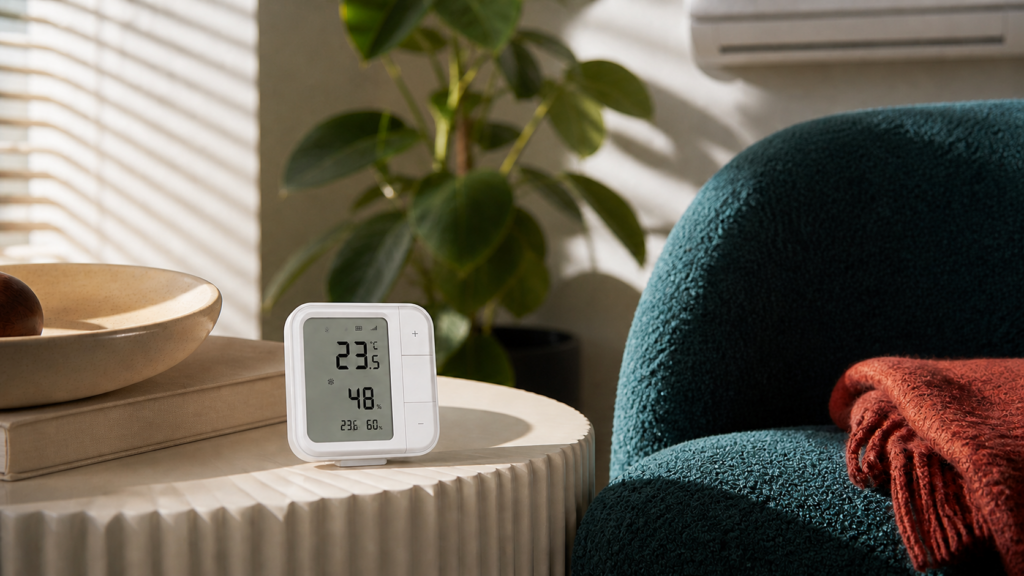
The Aqara Climate Sensor W100 (温控伴侣 W100, “temperature control companion W100”) is genuinely interesting hardware. It’s a 3.4-inch LCD display unit that shows temperature, humidity, and a thermostat setpoint, with three programmable buttons, a magnetic mount, and support for both Zigbee 3.0 and Thread/Matter. The catch that doesn’t appear anywhere in the box copy is that it ships from the factory in Thread firmware mode.
If you plugged yours into power, opened Zigbee2MQTT’s permit join window, held down the reset button, and got nothing, that’s why. The device wasn’t ignoring you. It was broadcasting Thread beacons that your Zigbee coordinator can’t hear. The fix exists and takes about five minutes, but you have to know to look for it.
This guide covers the full path: detecting which firmware mode you’re in, switching to Zigbee firmware using the Aqara Home app, pairing to Zigbee2MQTT, and optionally configuring the thermostat mode to control a Home Assistant climate entity. I’ll also give you an honest read on the privacy tradeoff between the Zigbee2MQTT path and the Matter/Thread alternative.
What the W100 Is and Why the Protocol Switch Matters
The W100 is a multi-function wall panel. Hardware features worth knowing before you commit to a setup path:
- 3.4-inch LCD showing temperature, humidity, and (in thermostat mode) a setpoint row
- Built-in temperature and humidity sensor for the room the panel is mounted in. The product copy mentions an optional second-sensor display, but I haven’t verified that works in standalone Zigbee2MQTT mode without an Aqara hub. Assume it doesn’t until confirmed.
- Three programmable buttons with single-press, double-press, and long-press support in theory. What actually fires in Zigbee mode is more limited, covered below.
- Magnetic mount that attaches to the included wall bracket and pops off for table placement
The critical design decision from Aqara is that the W100 supports either Zigbee 3.0 or Thread (Matter), but not both simultaneously. One protocol is active at a time, and switching between them requires going through the Aqara Home app. The two modes also have meaningfully different feature sets, which affects your decision about which to use.
If you’re newer to the Zigbee2MQTT path and want context on why a USB coordinator setup avoids the hub dependency entirely, see my Aqara devices in Home Assistant without a hub guide.
Why Your W100 Won’t Pair With Zigbee2MQTT Out of the Box
The W100 ships in Thread firmware. This is not stated on the packaging in most markets, and it’s the source of a consistent pattern in the Home Assistant community: user receives device, attempts Zigbee pairing, gets nothing, assumes the device is faulty or their coordinator is broken.
You can check which mode the device is in by looking at the LCD display during pairing mode, on the firmware versions documented by the community:
- 2 blinking bars — Zigbee pairing mode
- 4 blinking bars — Thread pairing mode
Worth confirming the pattern against your unit before treating it as a hard diagnostic. If you see 4 bars, your device is in Thread firmware and you need to switch it before Zigbee2MQTT will see it. There is no firmware switch accessible from the device itself. The protocol change goes through the Aqara Home app (绿米Aqara Home App, available on iOS and Android).
The silent failure mode here is worth flagging explicitly. Zigbee2MQTT doesn’t report “a Thread device tried to join and was rejected.” It just reports nothing. Without knowing to look for the bar count on the LCD, you’d have no obvious indication of what went wrong.
Switching From Thread to Zigbee Firmware
You need the Aqara Home app and a temporary Aqara account to do this. The account requirement is a one-time dependency. Once the firmware switch is complete, you can remove the device from your Aqara account, and the Zigbee firmware remains active. The device does not re-check Aqara’s servers for license validation once it’s in Zigbee mode.
Step-by-step:
- Download the Aqara Home app (绿米Aqara Home App) on iOS or Android. Create an account if you don’t have one.
- Put the W100 into pairing mode. Press and hold the reset button on the back of the device for 5 seconds until the signal icon on the screen starts flashing.
- Open the app and add a new device. Follow the in-app instructions to pair the W100. During this step the device is in Thread mode by default, which is what the app expects.
- Once the device appears in the app, go to the device settings page. Look for “切换协议” (switch protocol). Select Zigbee.
- The W100 will restart into Zigbee firmware. The process takes roughly 60 seconds. When it completes, the LCD will show 2 blinking bars for Zigbee pairing mode.
- At this point you can remove the W100 from your Aqara account in the app. Removing it from the account does not affect the Zigbee firmware state or any subsequent Zigbee2MQTT pairing.
If you want to go back to Thread later, the same process applies in reverse. Add the device back to the Aqara Home app, switch protocol to Thread, and it returns to Matter/Thread firmware.
One thing I’d note for privacy-conscious readers. The firmware switch does require the device to contact Aqara’s servers briefly during the protocol change. That’s a short, one-time exposure. Once the switch is done and the device is removed from your account, Zigbee mode runs entirely on your local network with no ongoing Aqara connectivity. The Zigbee 3.0 mesh has no path to Aqara’s servers by design. The device is talking to your coordinator, not the internet. For more on the cloud-dependency picture across Aqara’s lineup, see does Aqara work without internet.
Adding the W100 to Zigbee2MQTT
Version requirement. You need Zigbee2MQTT 2.7.0 or later. Earlier versions don’t have native TH-S04D support and will show the device as an unrecognised model. If you’re on an older version, upgrade Z2M before pairing. Otherwise you’ll need to use an external converter file, which adds maintenance overhead you don’t need. The model ID in Z2M is TH-S04D.
Pairing:
- In the Zigbee2MQTT frontend (or
configuration.yaml), enable permit join. - On the W100, hold the reset button until the display shows 2 blinking bars.
- Z2M should discover the device within 20 to 30 seconds and assign it a friendly name.
If it doesn’t appear, double-check the bar count on the LCD. If you see 4 bars, the device is still in Thread firmware.
Any Zigbee 3.0 USB coordinator with the device in range should pair the W100 without trouble. Sonoff Zigbee 3.0 USB Dongle Plus and SMLIGHT SLZB-06 are both common choices that work fine.
Entities the W100 Exposes in Home Assistant
Once paired, Z2M creates these entities in Home Assistant:
| Entity | Type | Notes |
|---|---|---|
| Temperature | Sensor | Updates on change ≥0.5°C |
| Humidity | Sensor | Updates on change ≥1% |
| Battery | Sensor | Percentage |
| Thermostat setpoint | Number | 5-30°C range, 0.5°C step in Z2M, integer reports back from firmware |
| Thermostat mode | Select | on/off |
| Action | Event | Button press events (see below) |
The temperature and humidity sensors are the most reliable entities. The setpoint entity has a constraint worth knowing. The Z2M device page documents a 0.5°C step (5.0, 5.5, 6.0, and so on), and that step is enforced by the Aqara firmware, not by Z2M. Community reports (Z2M issue #28521) show that setpoint values under 0.5°C are not retained — the firmware reverts them — and the value Z2M reports back from the device is integer-rounded. The practical implication is the same as if the setpoint were integer-only: don’t mix decimal-precision climate entities with this setpoint without expecting rounding behavior.
Calibration offsets for both temperature and humidity are available through Z2M’s device options, which is useful if you’re seeing drift versus a reference sensor.
Button actions. The W100 has three physical buttons supporting single, double, and long press on paper. Button action support in the initial Z2M implementation for TH-S04D was incomplete. Community reports indicate that not all of the press/double/long combinations fire reliable Zigbee events, and behaviour varies by firmware version. Single-press is the safe bet for automations. Treat double-press and long-press as best-effort until you’ve confirmed your specific firmware fires them.
Setting Up Thermostat Mode (Optional)
Thermostat mode turns the W100 into a physical controller for a Home Assistant climate entity. When enabled, the LCD shows a third row for the setpoint, and the +/- buttons adjust it. The W100 doesn’t directly control your HVAC. It adjusts the setpoint value in Home Assistant, and your existing climate entity acts on that. The connection between W100 and climate entity is handled in HA via the community blueprint.
Why you’d want this. If you have a 暖通空调 (HVAC, heating ventilation air conditioning) unit or a VTherm virtual thermostat already configured in Home Assistant, the W100 gives you a physical wall panel with a temperature display and setpoint adjustment without cloud dependency. The display shows actual temperature and humidity from the built-in sensor, plus the current setpoint, which is more informative than most physical thermostats.
Setup:
- In Z2M, confirm
thermostat_modeis available in the device’s exposes. Enable it by setting it toon. - Import the community blueprint for W100 thermostat mode from the Home Assistant Blueprints Exchange: Aqara Climate Sensor W100 Zigbee2MQTT Blueprint. Make sure you pick the Z2M version, not the Matter/Thread thread.
- Create a new automation from the blueprint. Assign your climate entity and the W100’s relevant entities (setpoint, thermostat mode, action).
- The blueprint handles bidirectional sync. If the setpoint changes in HA (via a schedule or another automation), the W100 display updates. If you adjust via the W100 buttons, HA reflects the change.
The setpoint precision issue. This matters most if you’re using Virtual Thermostat (VTherm) or a climate entity that operates in 0.1°C increments. The W100’s firmware reports integer setpoints back to Z2M even though the Z2M expose definition advertises a 0.5°C step. If VTherm sends 21.3°C to the W100 setpoint entity, what you’ll read back is an integer-rounded value. This mismatch can cause automation loops where VTherm keeps trying to set 21.3°C and the W100 keeps rounding. The fix is to use integer-only setpoints throughout the automation chain, or accept the rounding and tune your climate-entity step to match.
What doesn’t work. As covered above, some button actions don’t fire reliably in Zigbee mode. If the blueprint uses double-press or long-press for something like mode switching, that action may be silently unresponsive depending on your firmware. Check the blueprint’s action mapping and test each button binding before relying on it.
The _display_off entity that existed in earlier W100 firmware is no longer available after firmware version 20250922. If you’re looking at older automations or community threads that reference it, remove those references. The entity simply doesn’t exist in post-2025 firmware.
The W400 Pairing Option
The Aqara Smart Thermostat W400 (ZNWKQ13LM for air-cooled VRV/VRF AC systems, ZNWKQ14LM for water-cooled chiller/FCU systems) is the bigger sibling product in the same wall-panel family. In setups with central AC infrastructure, the W400 acts as the controller and the W100 can be paired as a Zigbee sub-device to provide an additional temperature/humidity reading and setpoint adjustment point in a different room.
This pairing is mainly relevant if you have a VRV/VRF or FCU central AC system at home. For a standard ducted or split AC unit driven by a Home Assistant climate entity, the W100 plus the community blueprint approach above accomplishes the same result without needing the W400. The W400 is sold in international markets, but it’s a significant purchase aimed at central-system installations, not a casual add-on.
Privacy Verdict: Zigbee2MQTT vs Matter/Thread
Both paths can be fully local. The difference is in setup complexity and ongoing dependencies.
Zigbee2MQTT path:
- Fully local after the one-time firmware switch
- No ongoing Aqara cloud connectivity
- No hub required, just a USB Zigbee coordinator attached to your HA server
- The Zigbee 3.0 mesh has no IP path to Aqara’s servers by design once paired, so there’s no ongoing telemetry channel
Matter/Thread path:
- Also locally controllable, but requires a Thread border router
- An Aqara M3 hub or the Aqara M100 can serve as the Thread border router
- Initial pairing requires the Aqara Home app (same as the firmware switch step above)
- The hub creates an ongoing dependency. If the M3 or M100 goes offline, your Thread border router goes with it
For a setup that’s already running Zigbee2MQTT and has a USB coordinator in place, the Zigbee path is the better choice. You get full local operation, no additional hardware, and no hub in the dependency chain. The one-time Aqara account requirement for the firmware switch is a minor inconvenience, not an ongoing privacy exposure.
If you’re running a Thread-native setup with an M3 as a border router for other Matter devices, keeping the W100 in Thread mode makes sense. The border router is already there and you avoid the friction of a firmware switch.
For most readers here — people who came to this article because they tried to pair a Zigbee device and got nothing — the Zigbee2MQTT path is what you want.
Common Issues and Fixes
“Device not found” after starting pairing mode. Check the bar count on the LCD. If you see 4 bars, the device is in Thread firmware. Go through the Aqara Home app firmware switch before retrying.
Temperature readings not updating. Z2M reports temperature changes only when they exceed 0.5°C from the last reported value. If your room temperature is stable, the sensor will appear not to update. This is correct behavior, not a stuck sensor.
_display_off entity unavailable. This entity was removed in firmware 20250922. Any automation referencing it will silently fail. Remove the reference and use alternative approaches (Z2M doesn’t currently offer an equivalent control).
Thermostat setpoint resets or creates automation loops. Almost always the precision mismatch described above. Set your climate entity’s setpoint steps to 1°C integers to match what the W100 firmware reports back.
Button actions not firing. Z2M’s initial converter for TH-S04D didn’t fully wire all button-action combinations. Single-press is the most reliable. Double-press and long-press may or may not fire depending on firmware. Test each binding before relying on it.
The W100 is one of the better-looking physical panels in Aqara’s lineup, and the Zigbee2MQTT path is solid once you’ve cleared the firmware mode hurdle. The temperature and humidity sensing is reliable, the thermostat mode works with the blueprint for straightforward HVAC integration, and after the initial setup, there’s nothing phoning home.
If you want a simpler sensor without the thermostat control features, see my Aqara WSDCGQ12LM temperature, humidity, and pressure sensor guide. It covers a single-button-free puck that does the sensing job with less setup complexity.